
Order Desk can submit your print on demand orders to Ready2HangArt. As orders are fulfilled, shipment details will automatically be pulled back into Order Desk and sent to the original shopping cart, if your store is set up for it.
Setup
To connect to Ready2HangArt, click Manage Integrations in the left sidebar. Under the Print on Demand tab, find and enable the Ready2HangArt integration.
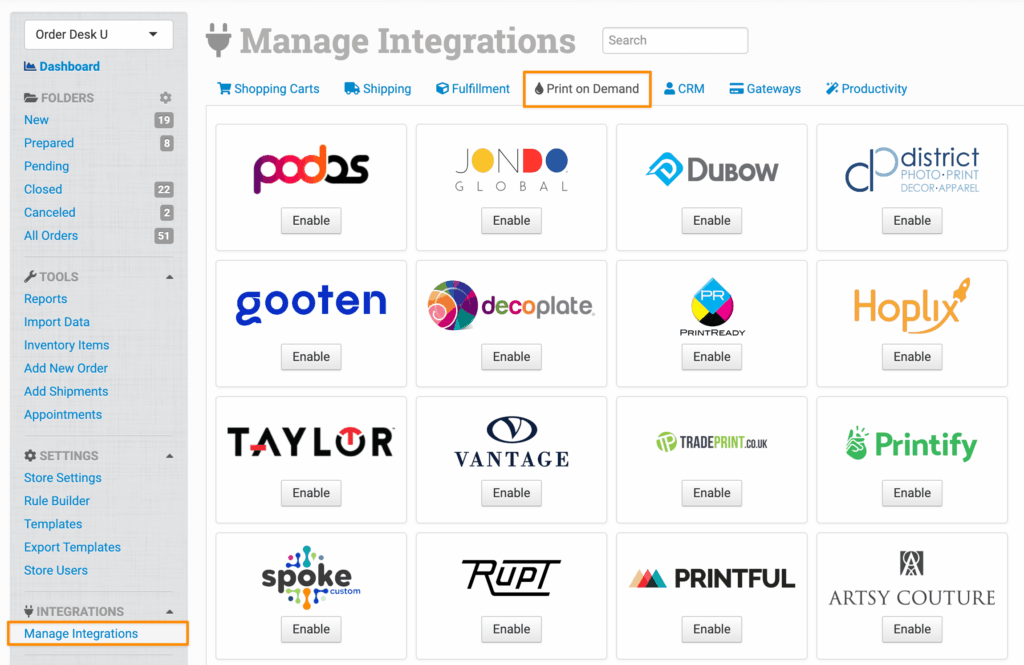
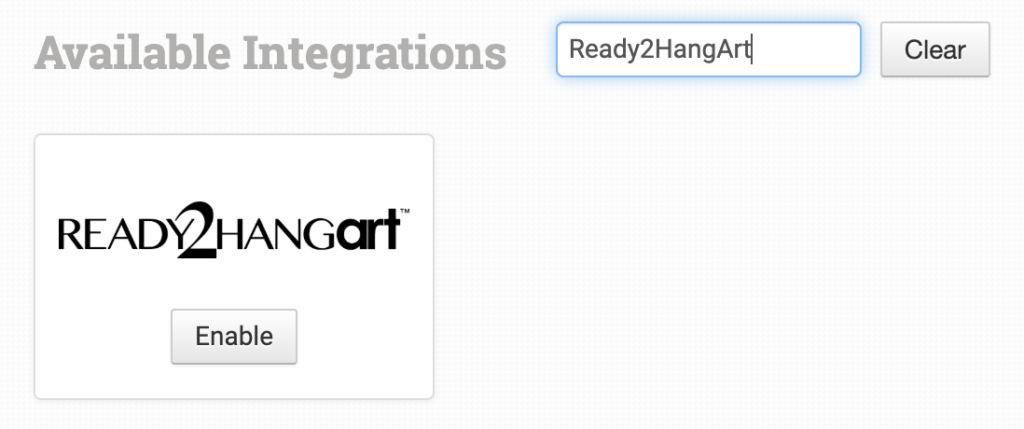
Alternatively, search for Ready2HangArt from the available integrations search.
Enter your Ready2HangArt API Key, then click Connect:
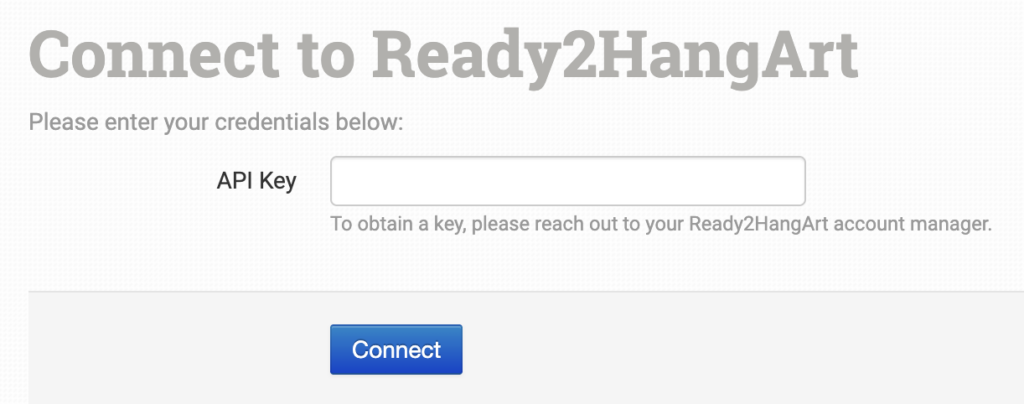
NOTE:
Order Desk isn’t able to help find or reset your Ready2HangArt credentials, as they can only be provided by the Ready2HangArt team.
Integration Settings
Once connected, you’ll have a few settings where you can set your preferences for this integration.
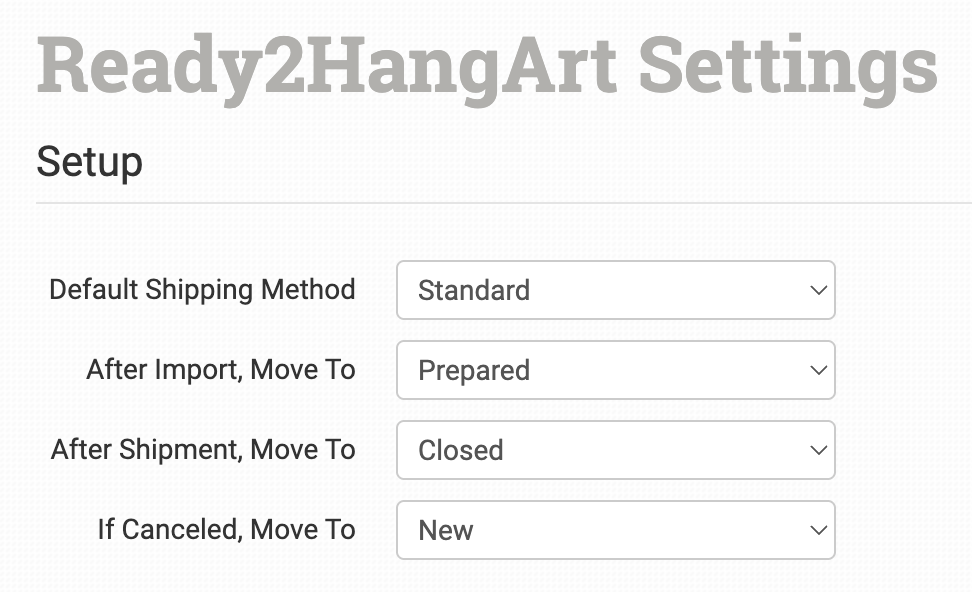
Default Shipping Method
Select the default shipping service you want Ready2HangArt to use for your orders.
If you need to apply specific shipping methods for certain orders, match your method names to Ready2HangArt’s names in the Shipping Class Match section below.
After Import, Move To
Select the folder you want orders to be moved into after they are successfully sent to Ready2HangArt.
If you want to use a custom folder, create your own from Store Settings. See the Working with Folders guide for more information.
After Shipment, Move To
Select the folder you want orders to be moved into when Ready2HangArt sends shipment details back to Order Desk.
If Canceled, Move To
Select the folder you want orders to be moved into if they are canceled at Ready2HangArt.
Product Settings
For detailed information about what the product settings within the Ready2HangArt integration do, read the Print on Demand Product Settings guide.
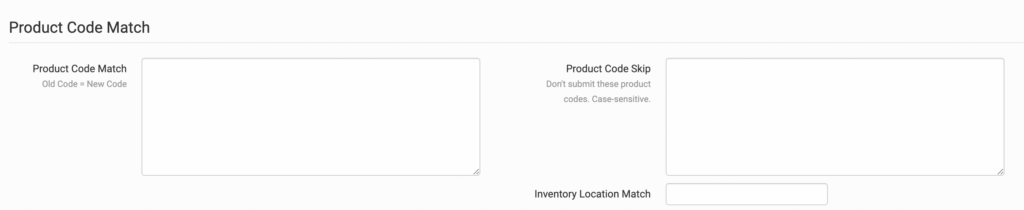
Shipping Class Match

The shipping methods you have set up in your shopping carts may not match the methods Ready2HangArt uses. To make sure your shipping preferences are sent to Ready2HangArt with each order, match your methods to theirs in the Shipping Class Match feature. If your shipping method name doesn’t match their shipping method name exactly, your default shipping service will be used instead.
For information about how to set up your shipping preferences, read the Shipping Class Match guide.
Sending Orders to Ready2HangArt
Getting your orders ready to send to Ready2HangArt will take some setup time. For a detailed walkthrough of how to use Order Desk with your print on demand orders, read the Print on Demand Fulfillment guide.
Preparing Your Orders
The following field can be set as checkout data or order metadata on each order.
| Field Name | Description |
|---|---|
| note | Use to set any notes or comments on the order. |
If you’re unfamiliar with checkout data, see the How to Work with Checkout Data guide.
Preparing Your Items
The following fields can be set as variations or item metadata for each order item. These fields tell Ready2HangArt what catalog item should be used and which artwork files should be printed on the item.
| Field Name | Description |
|---|---|
| print_sku | Required. This is Ready2HangArt product code or SKU for the item. |
| print_url_x | Link to your artwork file so Ready2HangArt can print it. Use print_url_1 through print_url_5 for up to five artwork files. |
| print_location_x | Location of the artwork on the item. Use print_location_1 through print_location_5 to match the corresponding print_url field. Will use print_url_x if not set. |
| size | Size of the item being printed on. |
| color | Color of the item being printed on. |
Rules Reference
In addition to the general set of rule events and actions in Order Desk, Ready2HangArt includes a number of rule events and actions that are specific to the integration. These aren’t found directly on the integration page. Instead, you’ll need to use the Rule Builder to access them.
If you’re new to using rules in Order Desk, we recommend starting with the How to Work With Rules guide.
Rule Events
The following events are specific to Ready2HangArt. To find them, type Ready2HangArt in the Event dropdown menu in the Rule Builder:
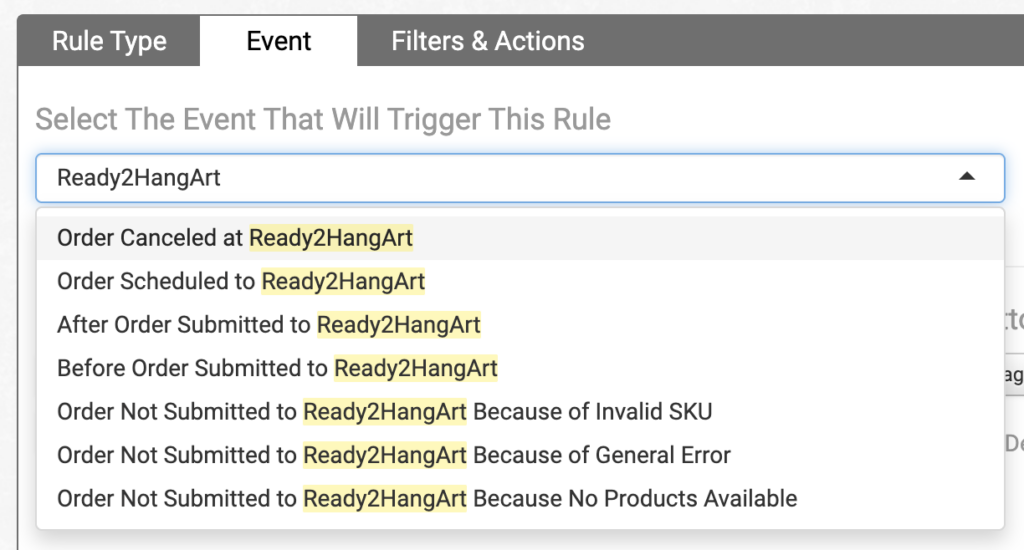
| Event | Description |
|---|---|
| Order Canceled at Ready2HangArt | Triggered after an order is successfully canceled at Ready2HangArt. |
| Order Scheduled to Ready2HangArt | Triggered when an order is scheduled to be sent from Order Desk to Ready2HangArt. This triggers immediately after the order is scheduled, so it can be used when you want to take action on the order at that point. |
| After Order Submitted to Ready2HangArt | Triggered after an order has been successfully submitted to Ready2HangArt. |
| Before Order Submitted to Ready2HangArt | Triggered just before an order is sent from Order Desk to Ready2HangArt. This is useful when you want to make last-minute updates before an order is sent. |
| Order Not Submitted to Ready2HangArt Because of Invalid SKU | Triggered when an order submission fails because one or more SKUs aren’t valid in Ready2HangArt. |
| Order Not Submitted to Ready2HangArt Because of General Error | Triggered when a general error prevents the order from being submitted to Ready2HangArt. |
| Order Not Submitted to Ready2HangArt Because of No Products Available | Triggered when an order submission fails because no valid products were found for submission. |
Rule Actions
Ready2HangArt also supports specific rule actions that you can apply to your orders. These can be found in the Actions dropdown by searching for Ready2HangArt:
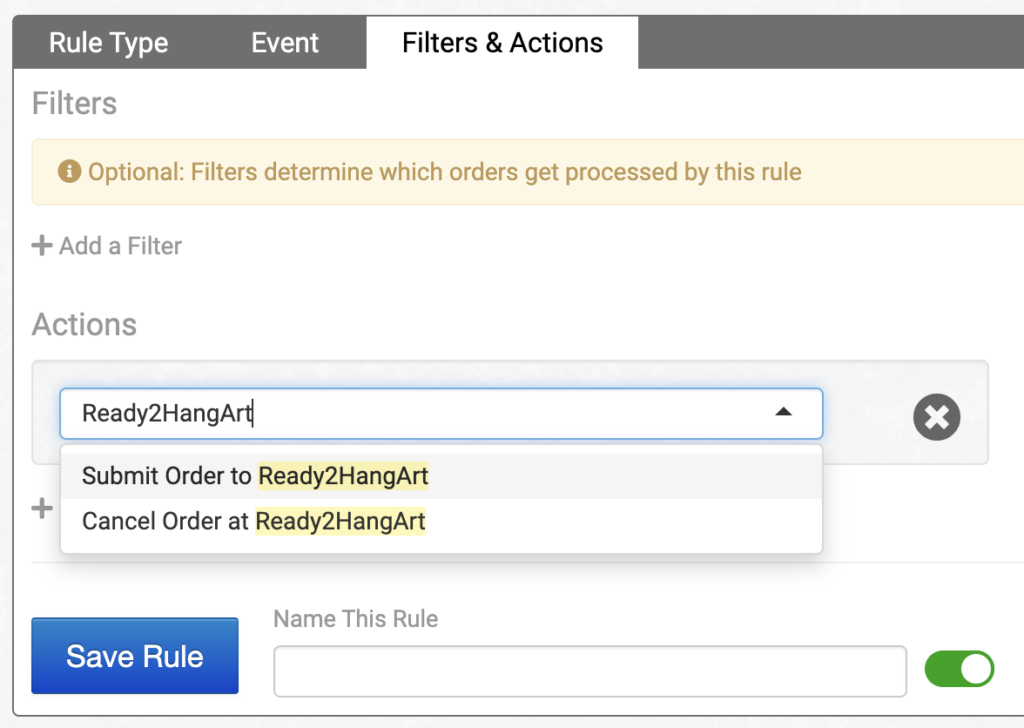
| Action | Description |
|---|---|
| Submit Order to Ready2HangArt | Sends an order from Order Desk to Ready2HangArt. |
| Cancel Order at Ready2HangArt | Attempts to cancel an order at Ready2HangArt. This can only succeed before the order reaches processing status. |