
Order Desk can import orders from your shopping carts, sync your print details, and automatically send them to any printer using Gelato. When orders are shipped, the tracking details will automatically be sent back to Order Desk.
Setup
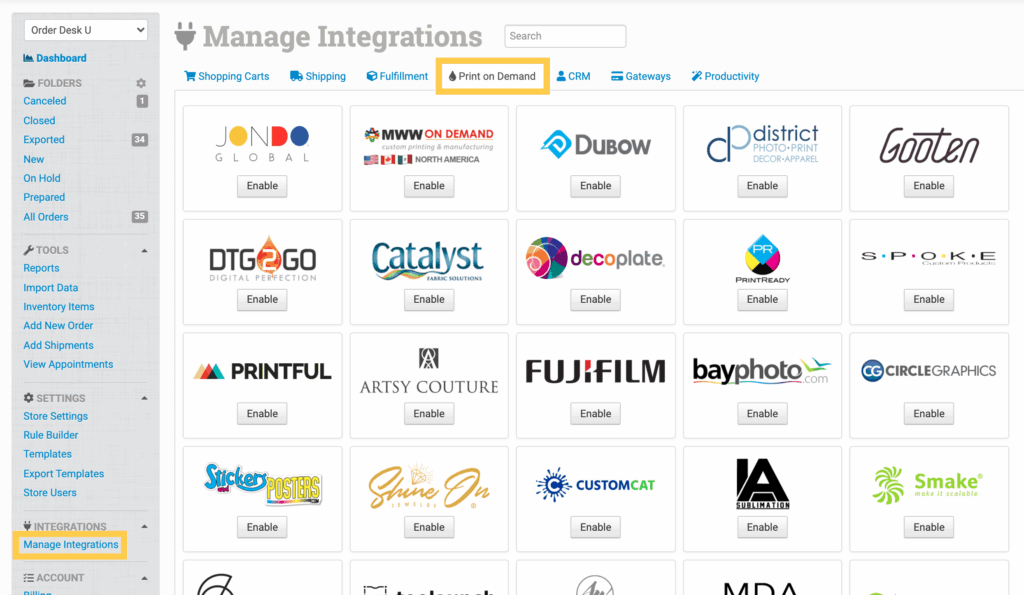
To enable the integration, click Manage Integrations in the left sidebar. Under the Print on Demand tab, find and enable the Gelato integration.
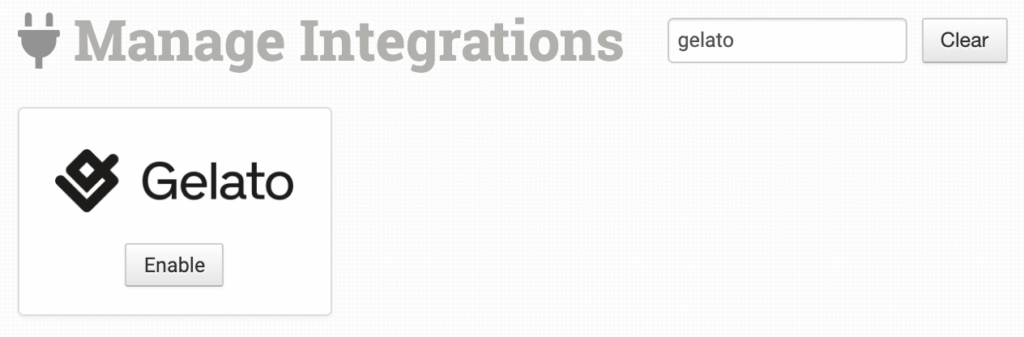
Alternatively, search for Gelato using the available integration search.
Enter your Gelato API key and click Connect.
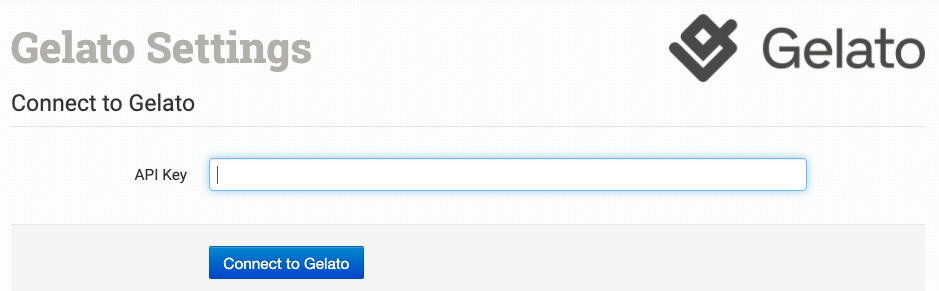
Please note that Order Desk isn’t able to help find or reset your credentials, as they can only be provided by Gelato.
Integration Settings
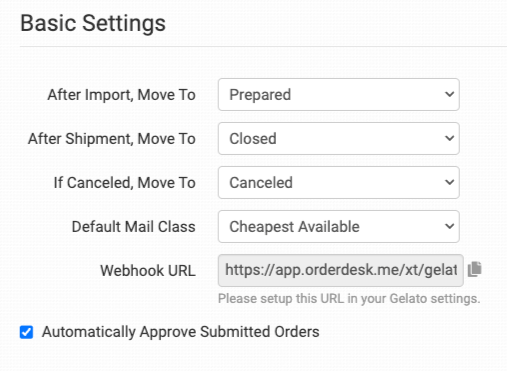
Once connected, you’ll have some shipment and integration settings to adjust based on your preferences.
After Import, Move To
Select the folder you want orders to be moved into after they are successfully sent to Gelato.
You can use one of the default folders already in your store or create your own. Read the Working with Folders guide for more information.
After Shipment, Move To
Select the folder you want orders to be moved into when Gelato sends tracking details back.
Default Mail Class
Choose the shipping class you want Gelato to use for your orders.
If you need to apply specific methods to certain orders, match your method names to the names Gelato uses in the Shipping Class Match section below.
Webhook URL
You’ll need to set this webhook URL in your Gelato account so Order Desk can download your shipment notifications.
Automatically Approve Submitted Orders
Select this option to have Gelato automatically approve orders, or leave it unselected to have Gelato hold orders for manual approval.
This can be changed on a per-order basis using OrderType, as explained below.
Order Information Settings
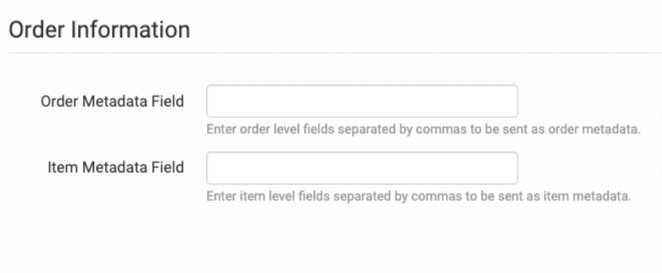
Order Metadata Field
Use this field to set comma-separated values to be sent as order metadata.
Item Metadata Field
Use this field to set comma-separated values to be sent as item metadata.
Inventory Management
If you want Order Desk to sync stock status from Gelato, you can set that up here.
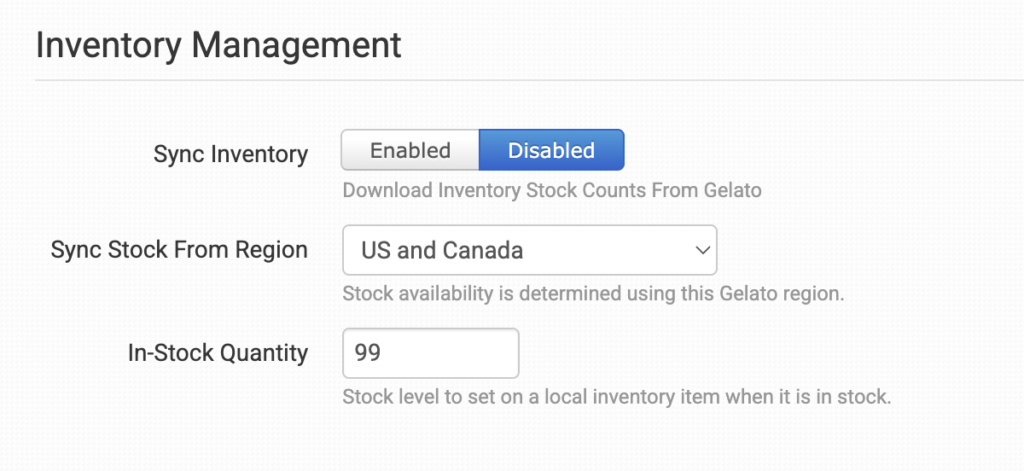
Sync Inventory
Enable this setting if you want Order Desk to download stock availability from Gelato.
Sync Stock From Region
Choose the specific region you’d like Order Desk to check for stock updates from Gelato.
In-Stock Quantity
When Gelato confirms that an item is in stock, the value entered here will be used as its stock count in Order Desk.
Product Settings
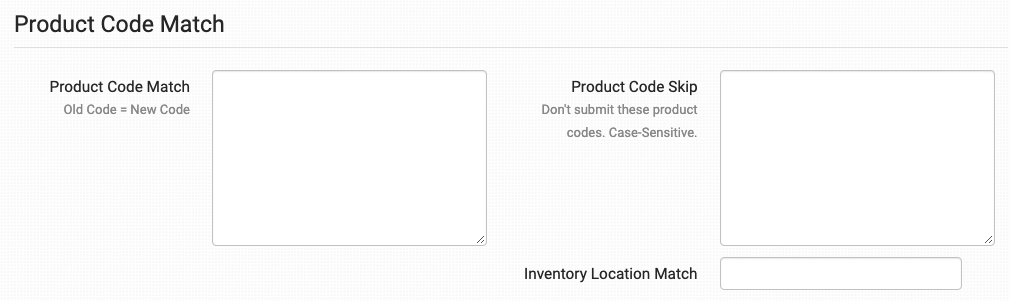
Shipping Class Match
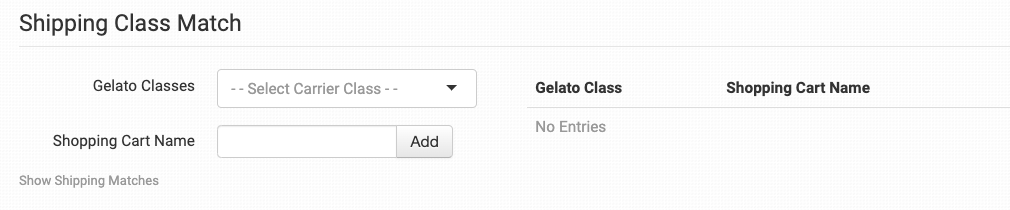
For information on how to set up your shipping preferences, read the Shipping Class Match guide.
Sending Orders to Gelato
Getting your orders ready to send to Gelato will take some setup time. For a detailed walkthrough of how to use Order Desk with your print-on-demand orders, read the Print on Demand Fulfillment guide.
Item Details
The following fields can be set as variations or item metadata for each item in an order.
| Field Name | Field Description |
| print_sku | Required. Gelato’s product code for the item. |
| print_url_x | Required. A link to your artwork file. Up to five files can be submitted using fields such as print_url_1 and print_url_2. |
| print_location_x | Sets the location of the print area on the item. Up to five can be submitted. Each field must be paired with the matching print_url_x field, such as print_url_1/print_location_1 or print_url_2/print_location_2. The default value is default. |
| visibility_x | Set the value to 1 if the file should appear in the list of files on your Gelato dashboard. Each field must be paired with the matching print_url_x field, such as print_url_1/visibility_1 or print_url_2/visibility_2. |
| thread_color_x_x | Sets the thread color. Values must be hex color codes, such as #00FFFF or #FF0000. Each field must be paired with the matching print_url_x field, such as print_url_1/thread_color_1_1 or print_url_2/thread_color_2_1. If an item only has one print URL, thread_color_x is also accepted. Up to six thread colors can be submitted. |
| adjust_uid | Set the value to 1 to have the product code automatically adjusted based on the submitted file type. |
| page_count | Sets the page count for multi-page products. |
Customize Order Details
You can add custom details to your orders to be passed through to Gelato. Add these details as checkout data or metadata fields. The field names must exactly match those shown in the table below.
| Field Name | Field Description |
| Currency | Sets the currency code for the order. The default is USD. |
| OrderType | If this field is blank, Order Desk will check the Automatically Approve Submitted Orders setting. If the setting is enabled, the field value will be set to order. If it is disabled, the field value will be set to draft. |
For instructions on how to apply these fields as checkout data, read the How to Work with Checkout Data guide.