
Order Desk can send orders directly to S&S Activewear, pull shipment details back into your orders, and send those details to your shopping carts, if applicable.
Setup
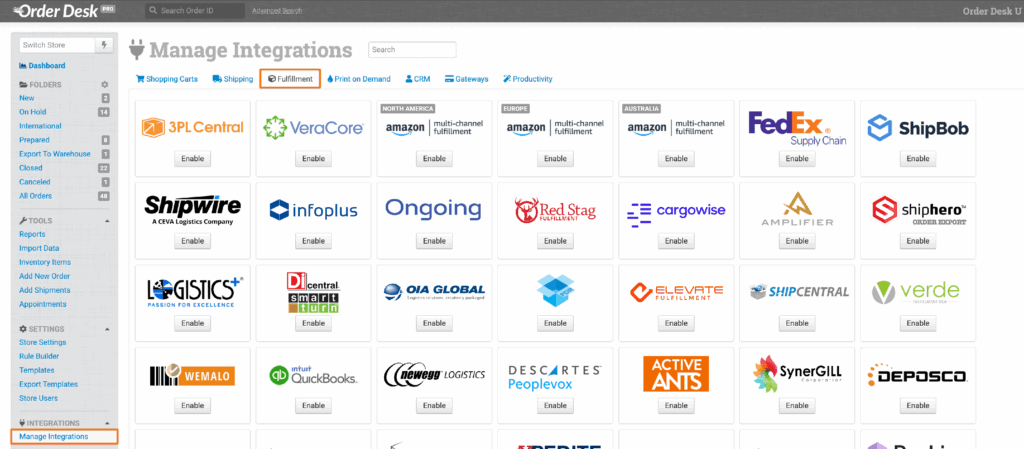
To connect to S&S Activewear, click Manage Integrations in the left sidebar. Under the Fulfillment tab, find and enable the S&S Activewear integration.
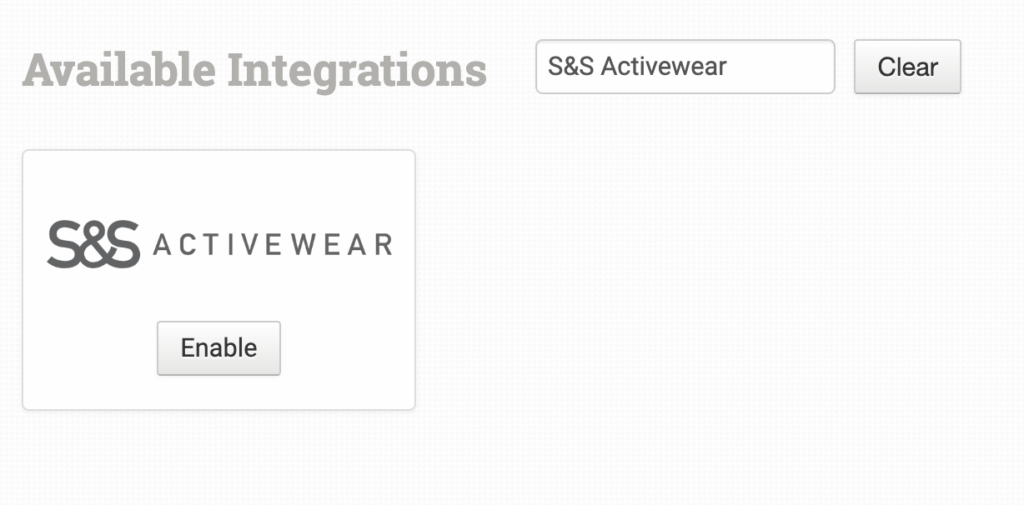
Alternatively, search for S&S Activewear from the available integration search.
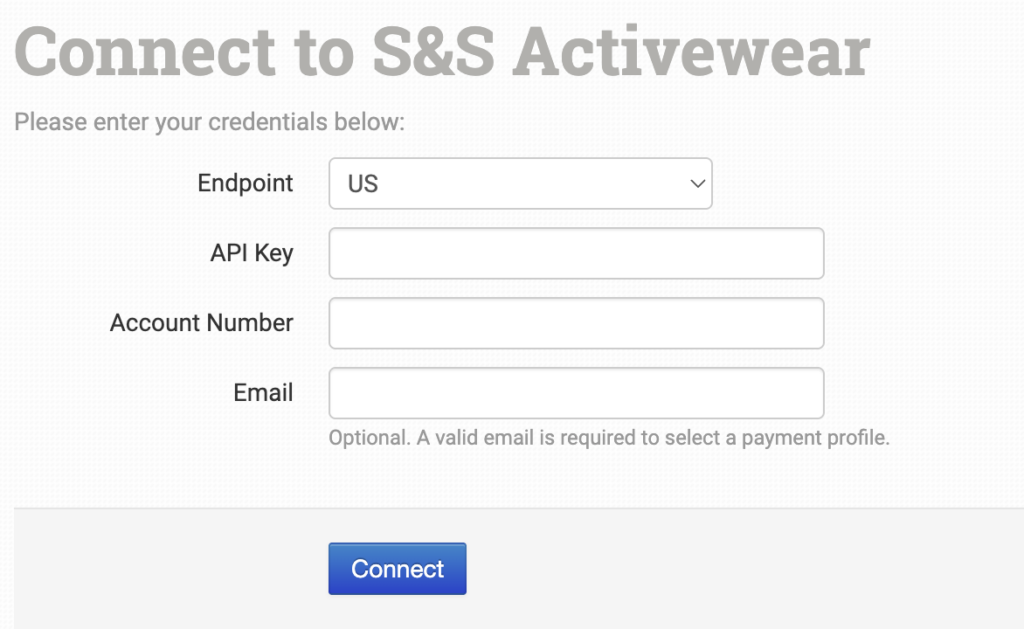
Once enabled, choose your Endpoint based on whether your account is based in the US or Canada, then enter your credentials and click Connect.
Integration Settings
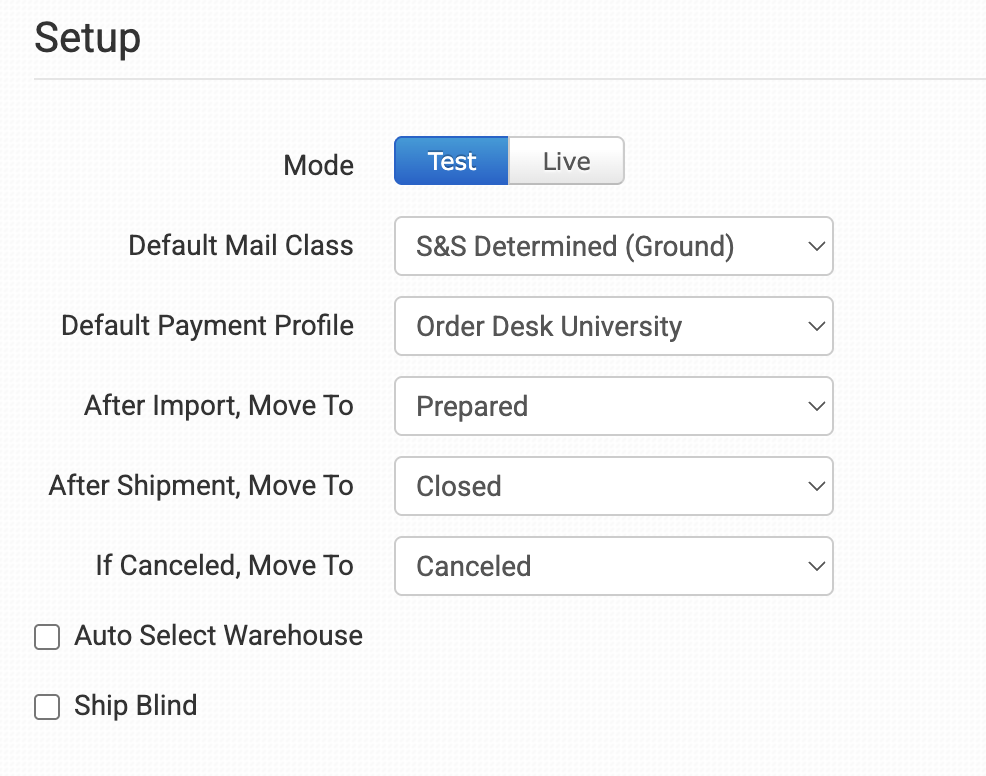
After the integration is connected, you can adjust the settings based on your preferences.
S&S Activewear Help
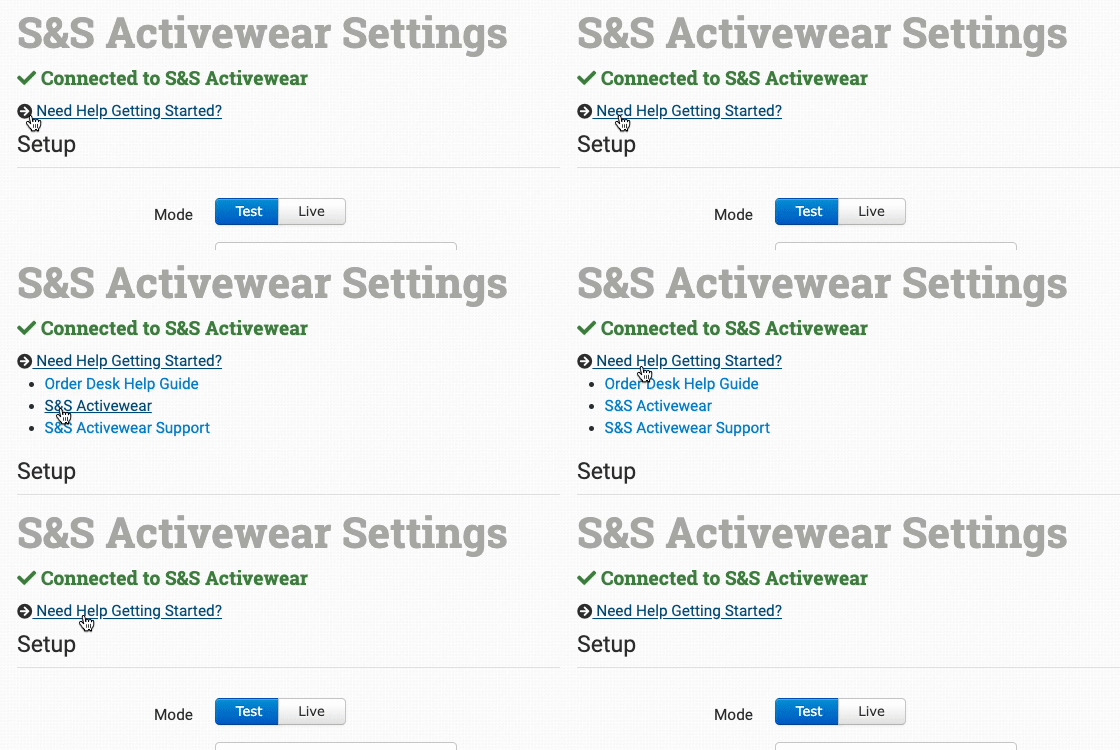
Select Need help getting started? to access helpful resources for using S&S Activewear.
Mode
Select either Test or Live to set the connection type you’d like to use with S&S Activewear.
Default Mail Class
Choose the shipping class you want S&S Activewear to use for your orders.
If you need to apply specific methods for certain orders, match your method names to the names S&S Activewear uses in the Shipping Class Match section below.
Default Payment Profile
Select the default payment profile for your orders.
After Import, Move To
Select the folder you want orders to be moved into after they are successfully sent to S&S Activewear.
You can use one of the default folders already in your store or create your own. Read the Working with Folders guide for more information.
After Shipment, Move To
Select the folder you want orders to be moved into when S&S Activewear sends shipment details back to Order Desk.
If Canceled, Move To
Select the folder you want orders to be moved into if they are canceled at S&S Activewear.
Auto Select Warehouse
Enable this to route your order to the warehouse that is best able to meet your requirements. The WarehouseLimit, WarehousePreference, and MaxDaysInTransit order level fields are available to set your warehouse preferences.
Ship Blind
Enable this to have S&S Activewear use blind shipping for all orders by default. You can override this later on a per-order basis.
Shipping Address
Use this section to set the default address where S&S Activewear should ship your orders.
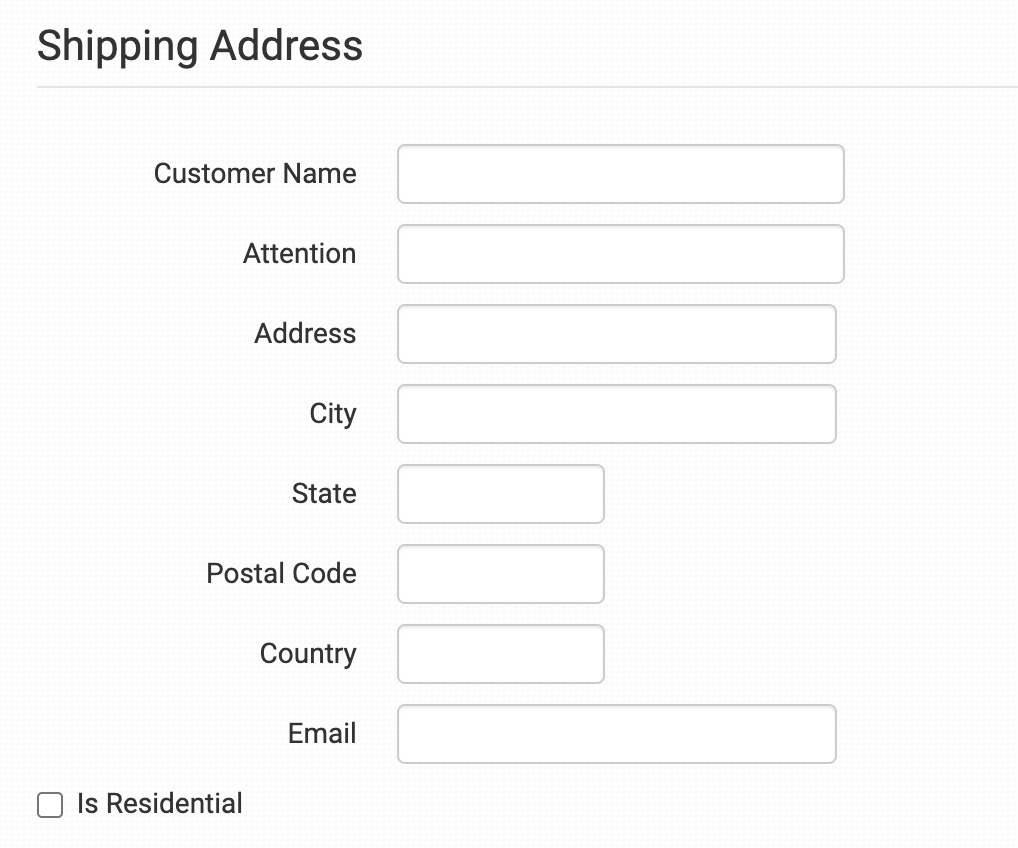
You can override these address settings on a per-order basis by using the order level fields DirectOrder and IsResidential. Learn more here.
Inventory Management Settings
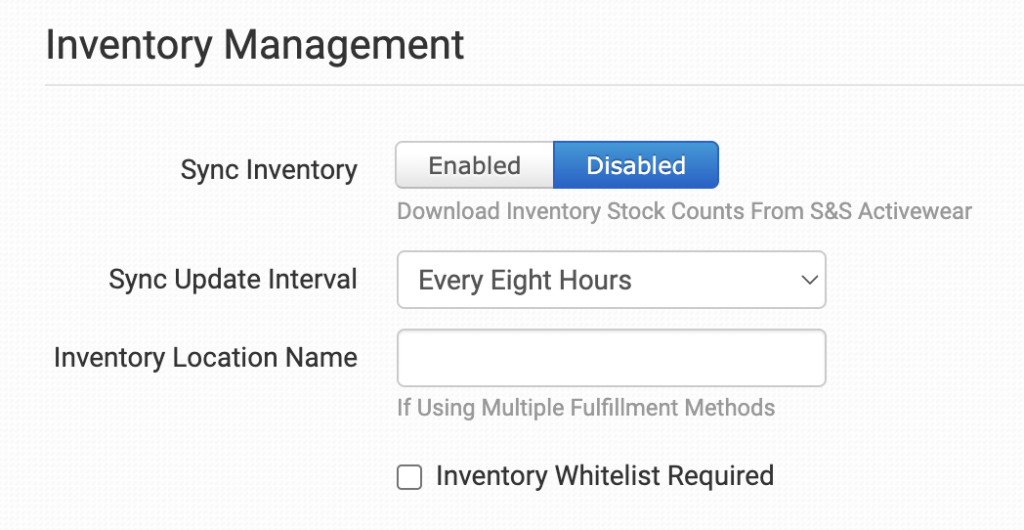
Sync Inventory
Enable this if you want your inventory stock counts to be pulled in from S&S Activewear.
For more information, see the How to Work with Inventory Quantities guide.
This setting will only sync inventory counts for inventory added to Order Desk. All other products will be ignored.
Sync Update Interval
If Sync Inventory is enabled, choose how often you want Order Desk to check S&S Activewear for inventory updates.
Inventory Location Name
If you want to set a specific inventory location name for the products you have at S&S Activewear, set that name here. As S&S Activewear sends back reports, your custom name will be added as the location.
Inventory Whitelist Required
This will only sync inventory items with the ssactivewear_include metadata added.
Product Settings
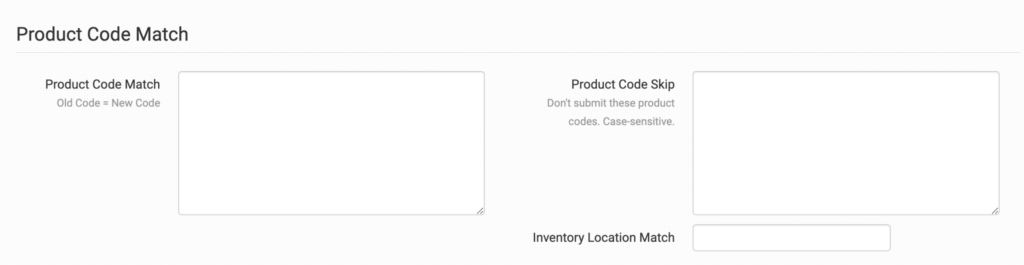
For more information about what these product settings in the S&S Activewear integration are for and how to use them, read the Fulfillment Integration Product Settings guide.
Shipping Class Match

If the shipping methods you set up in your shopping carts don’t match the shipping method names S&S Activewear uses, S&S Activewear won’t know which methods you want them to use. When this happens, the default mail class selected above will be used for your orders instead.
To tell S&S Activewear which methods to use, match your method names to theirs in the Shipping Class Match section. For detailed instructions, see the How to Set Up Shipping Class Matches guide.
Sending Orders to S&S Activewear
Order Level Details
The following fields can be added as checkout data or order metadata to be passed to S&S Activewear on a per-order basis:
| Field Name | Field Description |
|---|---|
| DirectOrder | Set to 1 to override the default shipping address in the integration settings and use the order’s shipping address instead. |
| PONumber | If you want to override the order id in S&S Activewear, you can set your preferred order id here, if needed. |
| IsResidential | Set to 1 or 0 to override the residential shipping address setting in the integration. 1 sets the address as residential, while 0 sets it as non-residential. |
| WarehouseLimit | If you want S&S Activewear to auto-select from a limited list of warehouses instead of all available warehouses, add the warehouse IDs for each preferred warehouse here, separated by commas. Orders will be assigned to one of the listed warehouses. This is available if the Auto Select Warehouse setting is enabled in the integration settings. |
| WarehousePreference | Use this to set the Freight Optimizer value from your S&S Activewear interface. Valid values are fastest or fewest. The default is fewest. This is available if the Auto Select Warehouse setting is enabled. |
| MaxDaysInTransit | Use this to set the maximum number of days in transit. This is available if the Auto Select Warehouse setting is enabled. |
| PromotionCode | Use this to set the promotion code. |
| Attention | Use this to override the default attention field from the integration settings. |
| ship_blind | Set this to 1 to enable blind shipping for an order. |
If you’re unfamiliar with checkout data, see the How to Work with Checkout Data guide.
Item Level Details
The following fields can be set as variations or item metadata for each order item.
| Field Name | Field Description |
|---|---|
| WarehouseCode | Use this to set the warehouse code you’d like to ship the item from. This is available if the Auto Select Warehouse setting is disabled. |
| ssactivewear_SKU | Sets the identifier for the item. Can be used as an alternative if the inventory item code is different. |
| ssactivewear_include | Used when Inventory Whitelist Required is enabled in your integration settings to indicate that this inventory item should be synced. |