
Automatically Adding Shipments to Orders
From a Fulfillment Integration
Most commonly, shipments are created when a fulfillment service ships the order and sends tracking information back to Order Desk. The shipment is then attached to the order automatically.
Some integrations include a Check for Shipments setting that lets you choose how often Order Desk checks for shipment updates from your fulfillment service.

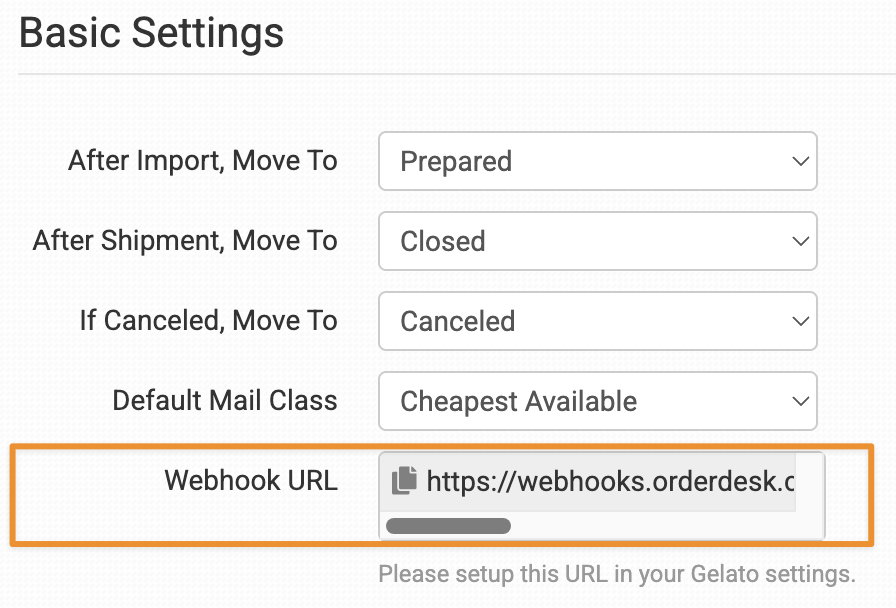
Other integrations may require you to copy a Notification URL from Order Desk and add it to your fulfillment service dashboard so it can notify Order Desk automatically when orders are shipped.
From Shipping Integrations
Order Desk integrates with several shipping services that let you create shipments and purchase labels directly from the order page or automatically with rules.
From the Order Desk API
For developers working with custom integrations, the Order Desk API lets you add shipments to orders programmatically.
You can check out our API documentation here.
From a Dropship Vendor
Order Desk allows you to send orders to non-integrated vendors using dropship email templates. These emails include a link your vendor can use to submit shipment details for the order.
Once the vendor adds the shipment details through that link, the shipment information will automatically be added to the order in Order Desk.
If you’re interested in working with dropship vendors for fulfillment, you can learn more about the setup process here.
Adding Shipments Manually
Within an order, you can quickly add a shipment by entering a tracking number in the Tracking field beneath the order totals and clicking Add.
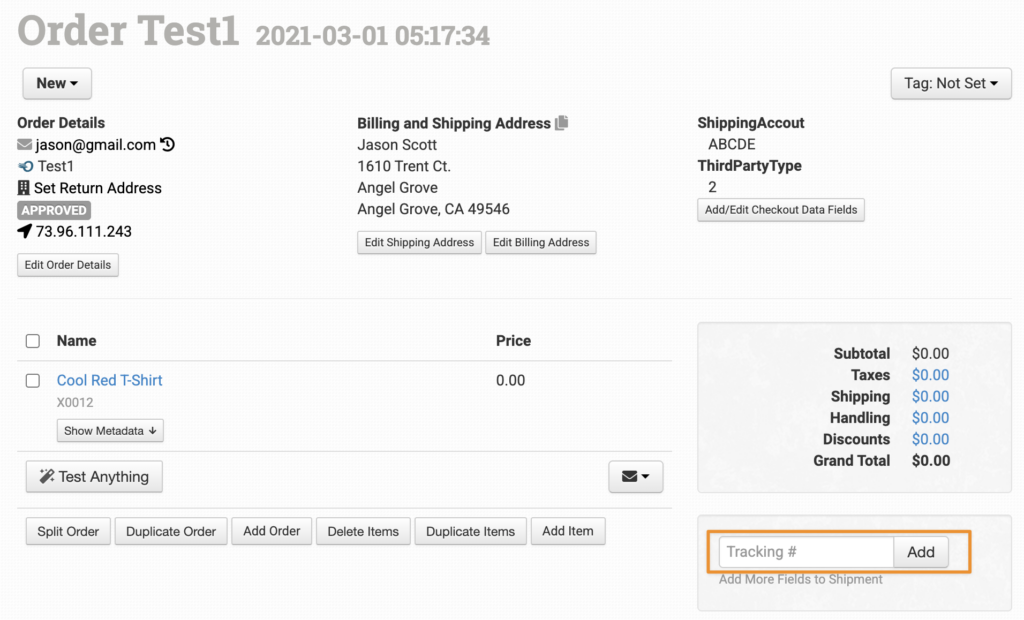
This creates a shipment with only a tracking number and no carrier details. The shipment date will be set to the current date.
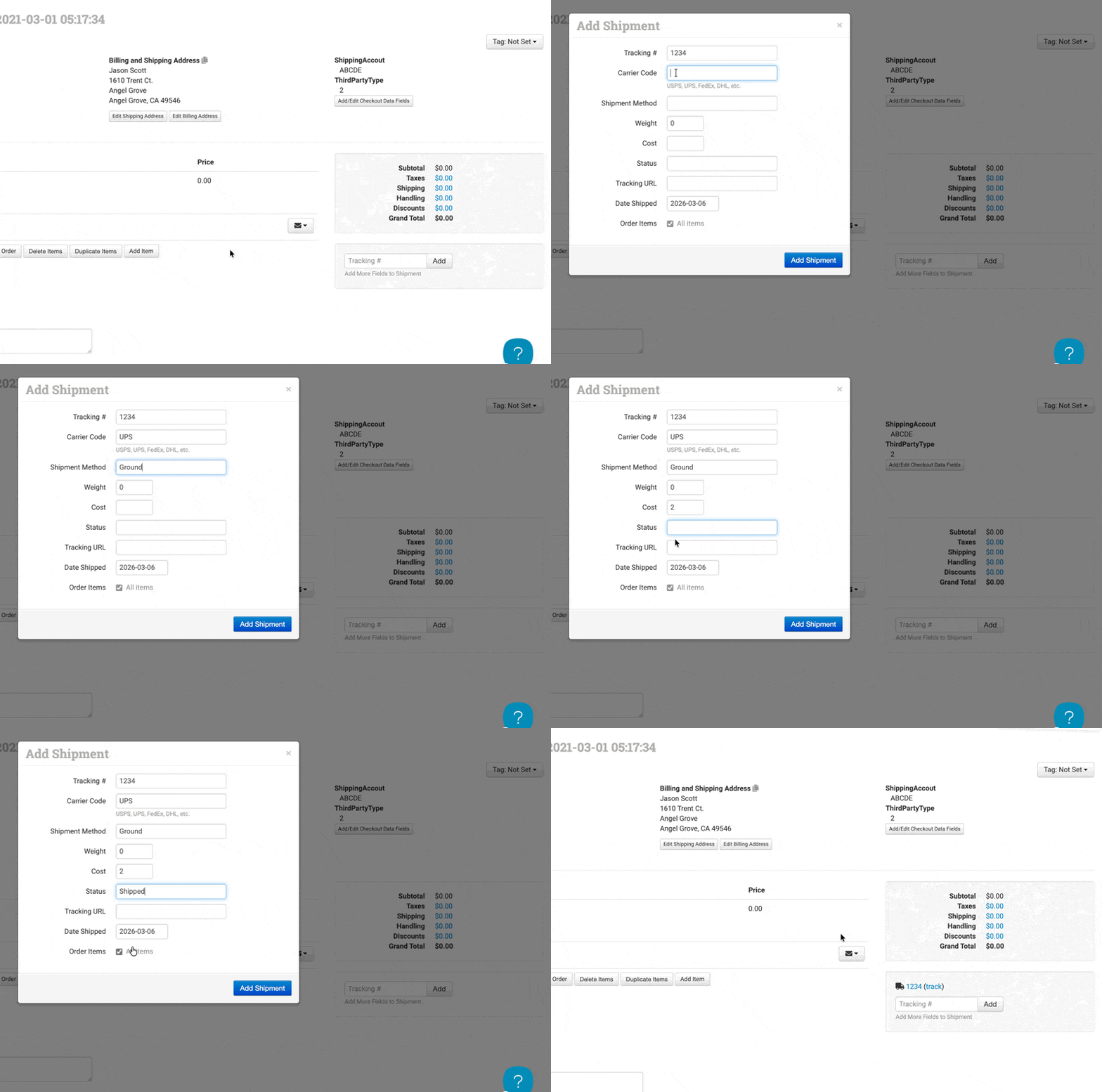
If you’d like more control over the shipment information, you can use the Add More Fields to Shipment option and fill out the additional details below:
Shipment Fields
You can add or edit the following information when creating shipments in Order Desk.
| Field | Description |
|---|---|
| Tracking # | The tracking number for the shipment. Required. A shipment cannot be created without one. |
| Carrier Code | The carrier code for the shipping carrier used. |
| Shipment Method | The specific shipment method used by the carrier. |
| Weight | The weight of the shipment package. |
| Cost | The shipment cost. |
| Status | The status of the shipment. |
| Tracking URL | The tracking link. If left blank, Order Desk will try to generate a tracking link based on the carrier and tracking number. |
| Date Shipped | The date the shipment was sent. |
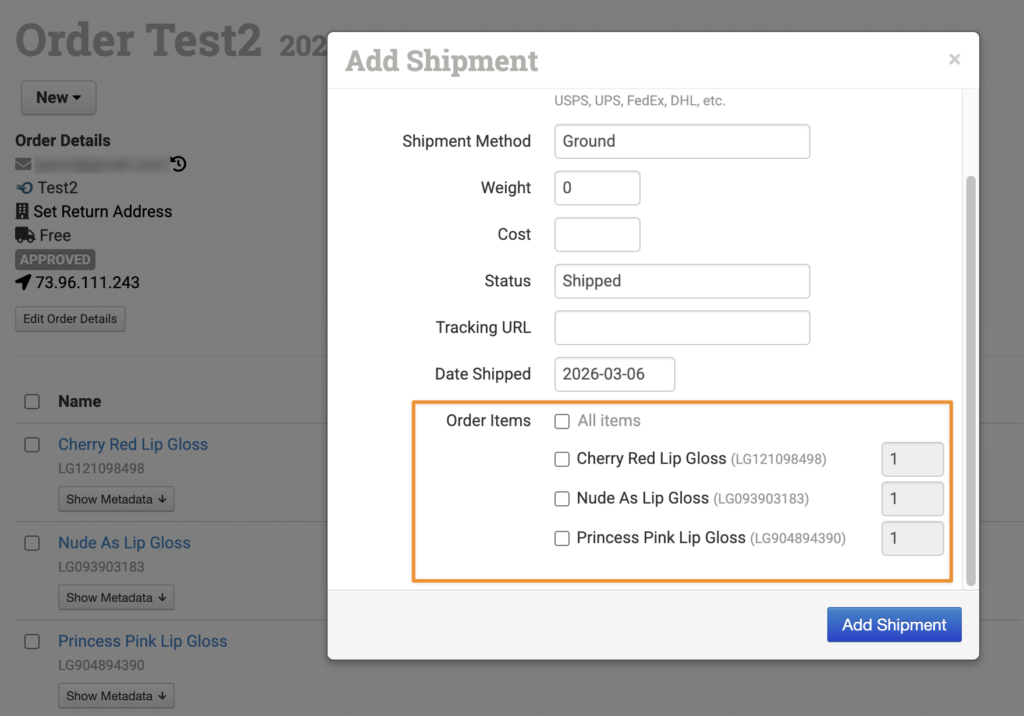
| Order Items | By default, a shipment applies to all items in the order. To assign a tracking number to specific items for partial shipments, untick the All Items option and select the relevant items and quantities. |
Using the Add Shipments Tool
Order Desk includes an Add Shipments Tool that lets you quickly add shipments to multiple orders at once.
This tool is useful if you have a list of tracking numbers from a fulfillment partner or shipping provider and want to apply them to orders without opening each one individually.
To access the tool, go to Tools in the left sidebar of your Order Desk account and select Add Shipments. From there, enter the order numbers and tracking information in the format shown below and click Import Now to create shipments in bulk.
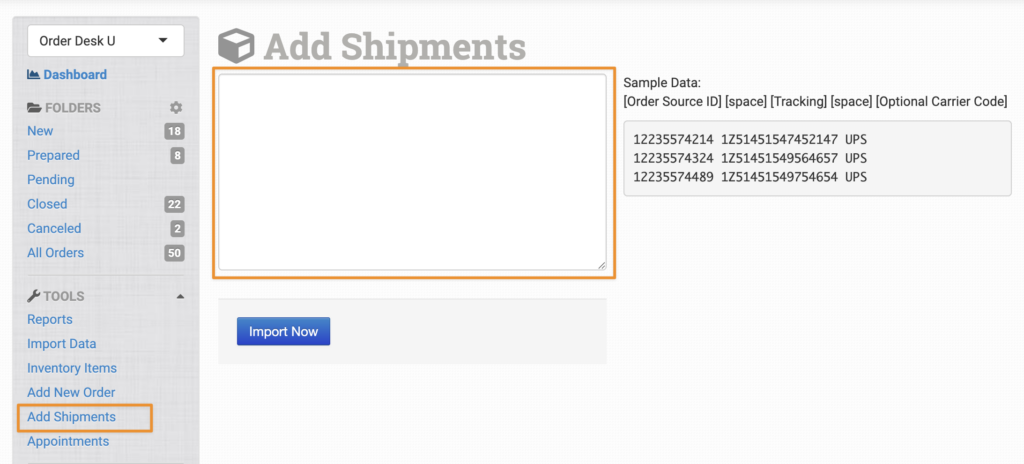
The expected format for each line is:
[Order Source ID] [Tracking Number] [Optional Carrier Code]
For example:
12235574324 1Z51451549564657 UPS

12235574214 1Z51451547452147 UPS
Importing Shipments with a Spreadsheet
Shipments can also be added in bulk by importing a spreadsheet into Order Desk. This option is especially helpful when working with large numbers of orders or when your fulfillment partner provides shipment data in spreadsheet format.
To import shipments, prepare a spreadsheet with the order numbers and tracking numbers for each shipment, then upload it through an Import Template.
Managing Shipments
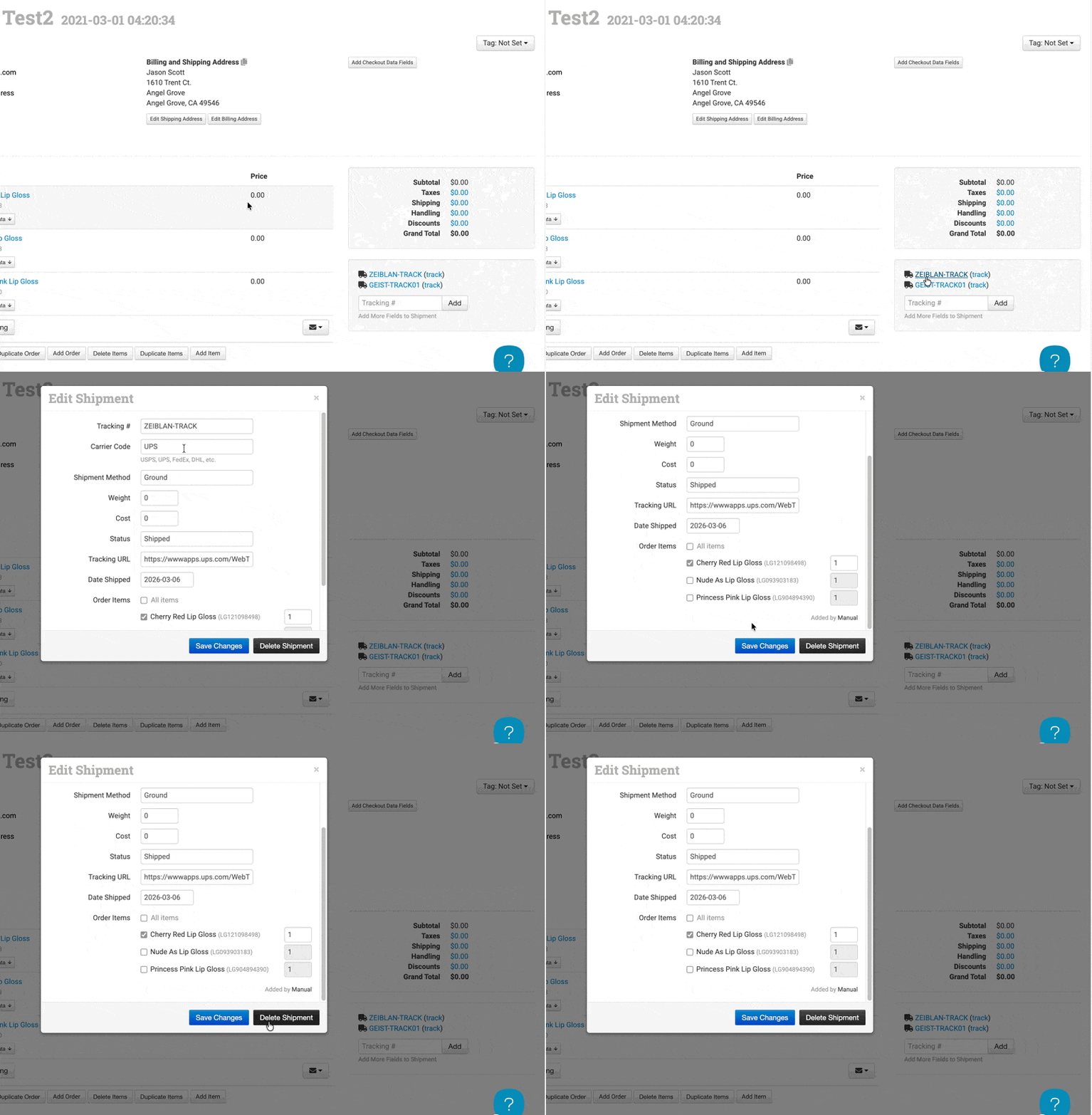
Shipments are displayed directly on the order page. Click any tracking number to view the full shipment details. Shipments can also be edited or deleted from the order page.
Managing Shipments with Rules
Rules give you more control over how shipments are handled in your store. Using the Rule Builder, you can automate actions that would otherwise require manual steps on each order.
For example, you can update shipment fields automatically as they come in, move orders into different folders after a shipment is added, or trigger other actions immediately after a shipment is added to an order.
To learn more about Shipment rules, check out the Rules Reference guide.
Sending Tracking Updates Back to Your Cart
Automatic Sync
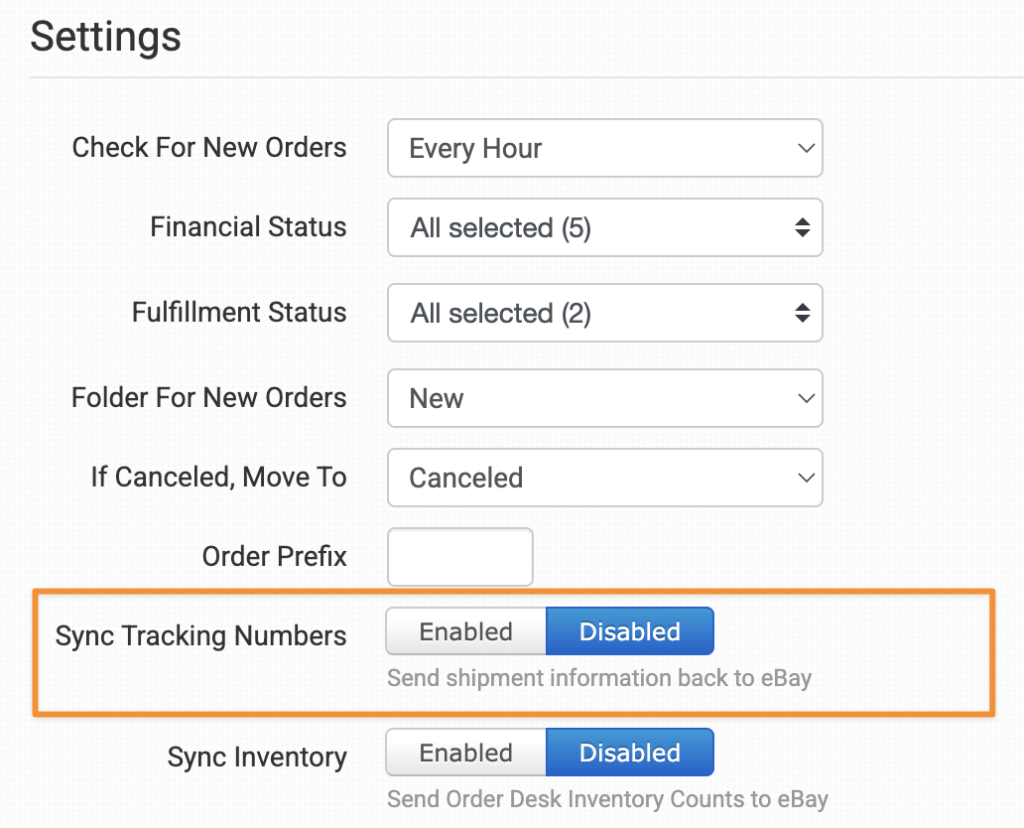
In many integrations, Order Desk can send shipment and tracking information back to your cart automatically, marking the order as shipped as soon as tracking information comes in. To enable this, turn on the Sync Tracking Numbers setting in your cart integration settings.
Notes and Limitations
The following notes cover shipment behaviors that may vary depending on your cart or fulfillment setup.
Partial Shipment Support
Some cart platforms do not support partial shipment updates. When these carts receive a shipment update from Order Desk, they may mark the entire order as fulfilled even if the shipment only includes some of the items.
If you plan to ship items separately, keep this behavior in mind when working with carts that do not support partial shipments.
For carts that do support partial shipments, you can optionally force the cart to mark the entire order as fulfilled by adding the following checkout data field to the order:
fulfill_entire_order = 1
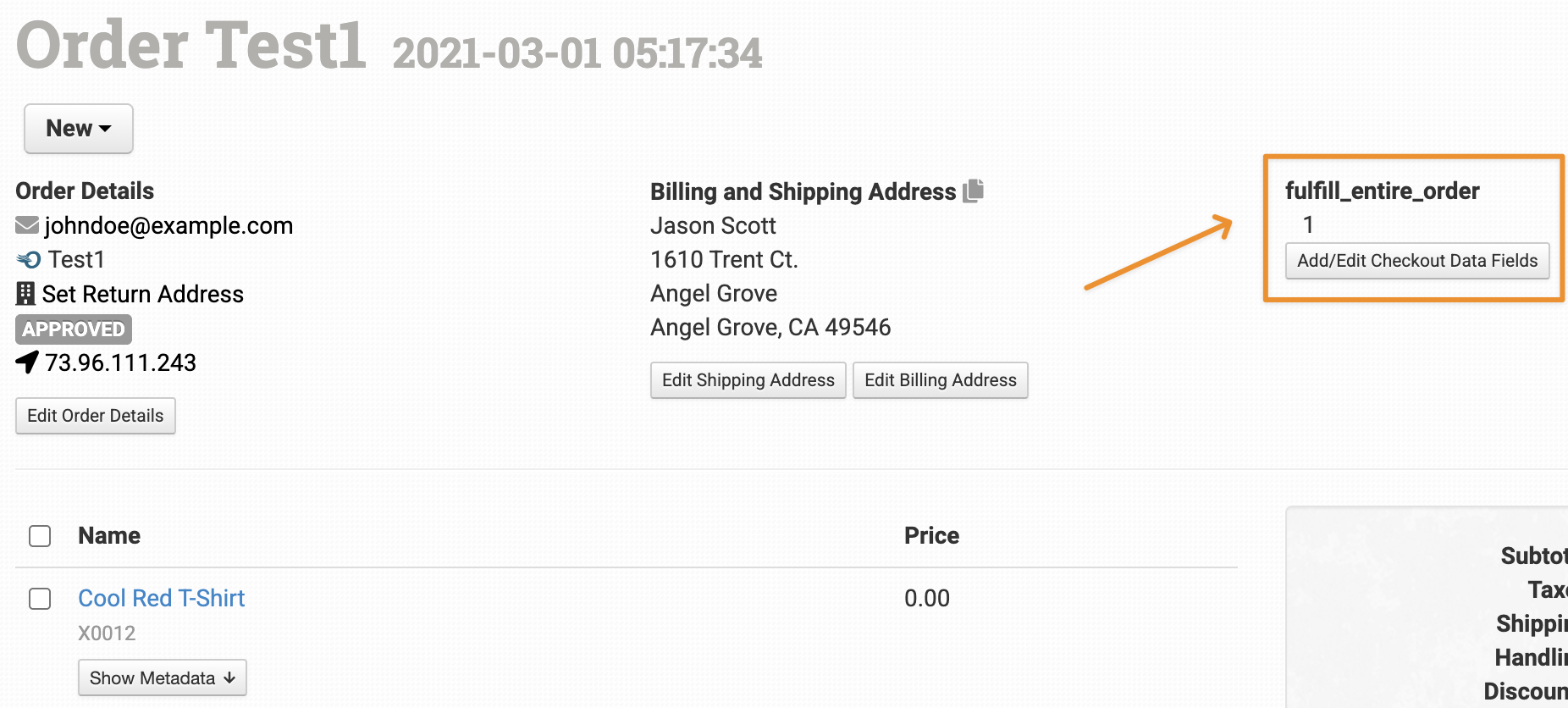
When this field is present, Order Desk will try to submit the shipment in a way that tells the cart to mark the entire order as fulfilled.