> For the complete documentation index, see [llms.txt](https://help.orderdesk.com/llms.txt). Markdown versions of documentation pages are available by appending `.md` to page URLs; this page is available as [Markdown](https://help.orderdesk.com/integration-setup-guides/sales-channels/sps-commerce-integration.md).
# SPS Commerce Integration
Order Desk can connect to your [SPS Commerce](https://www.spscommerce.com/) account and automatically download orders.
SPS Commerce requires all customers to go through testing which requires our developers’ help. Due to this, there is an additional one-time fee for each SPS Commerce vendor you plan to use with Order Desk. Prior to setup, reach out to SPS Commerce to let them know you’re seeking connection with Order Desk.
### Setup
In Order Desk, click on **Manage Integrations** under the Integrations section in the left sidebar. Under the **Shopping Carts** tab, find and enable SPS Commerce.
Alternatively, you can search for SPS Commerce in the integrations search bar.
Once enabled, click **Connect To SPS Commerce** to sign into your SPS Commerce account and authorize Order Desk. You can also connect via SFTP if you prefer that option.
{% hint style="info" %}
Make sure to ask SPS Commerce to place your purchase orders in XML format in an SFTP account.
{% endhint %}
### Integration Settings
Once connected, you can set your integration preferences.
#### Check for New Orders
Select how often you want Order Desk to look for and download new orders from SPS Commerce.
#### Folder for New Orders
Select the folder where newly imported orders from SPS Commerce should be placed.
For more information, see the [Working with Folders](/start-here/getting-started-series/quick-start-overview.md#working-with-folders) guide.
#### Order Prefix
If you need to, you can add a prefix of your choice that will be added to all orders downloaded from SPS Commerce.
#### Import Path
Select the folder where Order Desk should download new orders from. You can leave this blank if you want to use the standard `/out` path. Otherwise, use the **Browse** button to choose a different folder.
#### Upload Path
Select the folder where Order Desk should send order updates such as acknowledgements, shipments and invoices. You can leave this blank to use the standard `/in` path. Otherwise, use the **Browse** button to choose a different folder.
{% hint style="info" %}
Browsing your SPS folders for either path requires an active connection, since Order Desk needs to connect to SPS in real time to see which folders are available.
{% endhint %}
#### Custom Folder Path
Set a folder path for order processing. When a path is added, **/in** and **/out** will automatically be appended to the folder. If nothing is added, **/in** and **/out** will be added to the FTP root.
#### Sync Tracking Numbers
If the Sync Tracking Numbers setting is enabled, Order Desk will send shipment information back to SPS Commerce and automatically update the orders there.
#### Send Invoices
If the Send Invoices setting is enabled, Order Desk will send invoices to SPS Commerce automatically.
#### Packing Type
Use this setting to tell SPS Commerce whether you would prefer Pack or Tare.
#### Ship From Address
Enter your shipping address here.
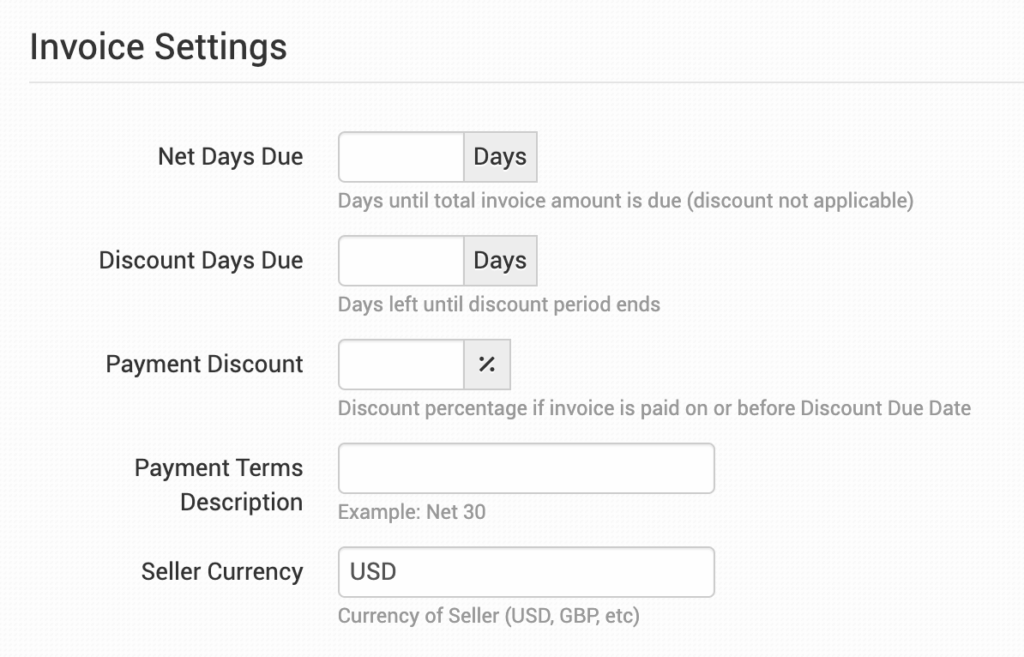
#### Invoice Settings
#### Net Days Due
Number of days until total invoice amount is due. Discount not applicable. A value of **zero** will be passed if this field is left blank. **Optional**.
#### Discount Days Due
Number of days in the terms discount period by which payment is due. A value of **zero** will be passed if this field is left blank. **Optional**.
#### Payment Discount
Discount percentage if an invoice is paid on or before the Discount Due Day. A value of **zero** will be passed if this field is left blank. **Optional**.
#### Payment Terms
Use to set the payment terms of an invoice.
#### Seller Currency
Use to indicate what currency the seller is using for an invoice.
#### Manual Imports
If you need to manually download orders, click the import button to pull in the latest orders from SPS Commerce.
### Order Level Details
The following fields can be added as checkout data or order metadata to be passed through to Capacity on an order by order basis:
| Field Name | Field Description |
| ---------------------- | ------------------------------------------------------------------------------------ |
| ExtraChargeAmount | Amount to add to an invoice |
| ExtraChargeCode | **Optional**. Default is **D500** (Handling) but this can be set for anything needed |
| ExtraChargeDescription | **Optional**. Defaults to “Service Charge” |
If you are unfamiliar with checkout data, see the [How to Work with Checkout Data](/guided-walkthroughs/orders-and-folders/how-to-work-with-checkout-data.md) guide.
### Item Level Details
The following fields can be set as variations or item metadata for each item in an order.
| Field Name | Field Description |
| ---------------------- | ------------------------------------------------------------------------------------ |
| ExtraChargeAmount | Amount to add to an invoice |
| ExtraChargeCode | **Optional**. Default is **D500** (Handling) but this can be set for anything needed |
| ExtraChargeDescription | **Optional**. Defaults to “Service Charge” |
---
# Agent Instructions
This documentation is published with GitBook. GitBook is the documentation platform designed so that both humans and AI agents can read, navigate, and reason over technical content effectively. Learn more at gitbook.com.
## Querying This Documentation
If you need additional information that is not directly available in this page, you can query the documentation dynamically by asking a question.
Perform an HTTP GET request on the current page URL with the `ask` query parameter, and the optional `goal` query parameter:
```
GET https://help.orderdesk.com/integration-setup-guides/sales-channels/sps-commerce-integration.md?ask=&goal=
```
`ask` is the immediate question: it should be specific, self-contained, and written in natural language.
`goal` is optional and describes the broader end goal you are ultimately trying to accomplish on behalf of the user. GitBook uses it to tailor the answer towards what is most useful for that goal.
The response will contain a direct answer to the question and relevant excerpts and sources from the documentation.
Use this mechanism when the answer is not explicitly present in the current page, you need clarification or additional context, or you want to retrieve related documentation sections.