
Order Desk can send orders directly to Warehance for fulfillment, pull shipment details back into Order Desk, and send those details to your shopping carts when applicable.
Contact Warehance Before Connecting
Before setting up the integration in Order Desk, we recommend reaching out to the Warehance team (support@warehance.com) and letting them know you want to connect your Order Desk store.
Warehance will walk you through their Order Desk connection process and let you know what to do next. In most cases, you won’t need to complete the rest of the setup steps in this guide.
Using the Native Integration
In some cases, Warehance may determine that your account needs the native Warehance integration in Order Desk. If they advise you to use it, reach out to us at support@orderdesk.com to have it enabled for your store.
Once the native integration has been enabled, follow the setup steps below.
Setup
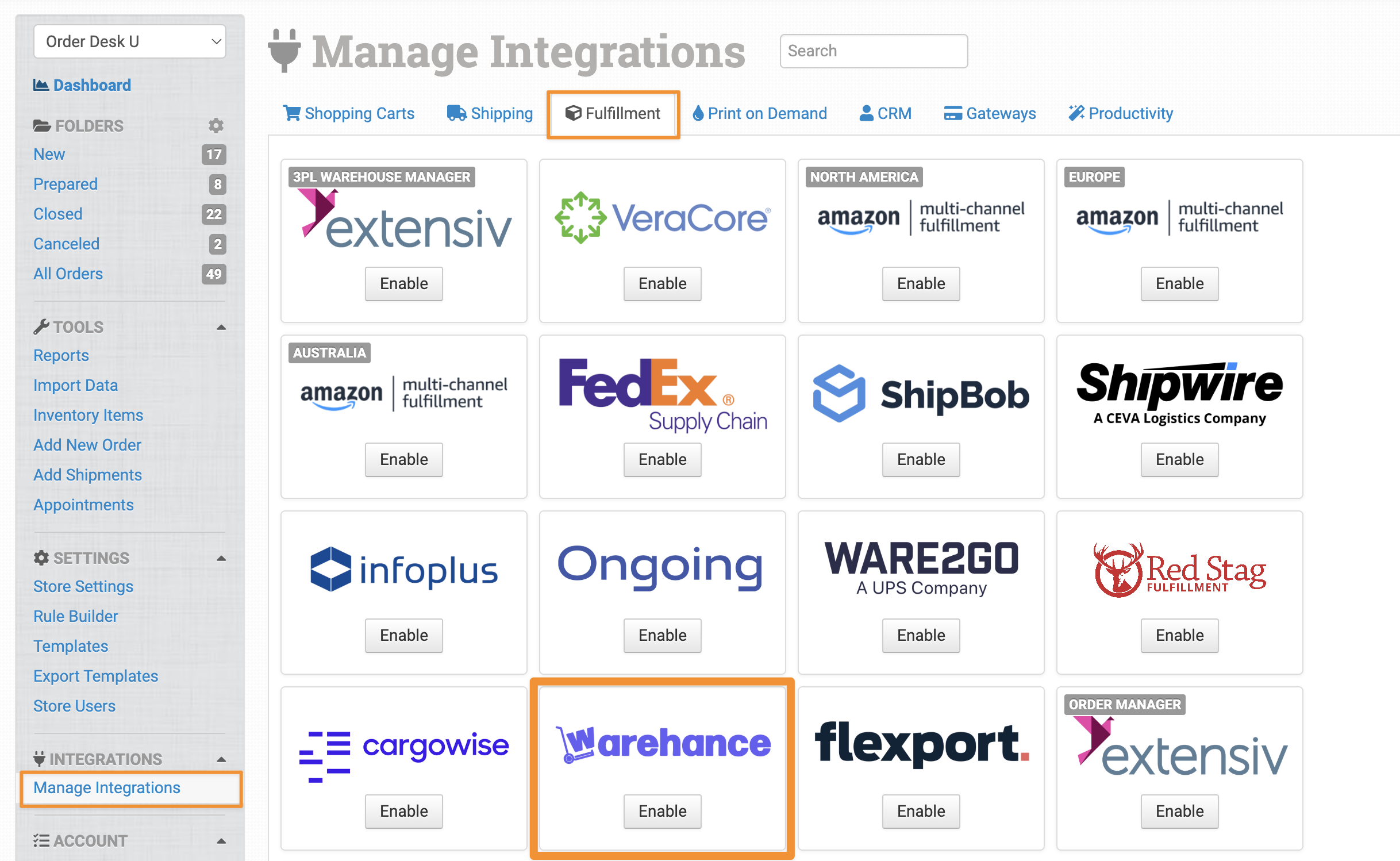
To connect to Warehance, click Manage Integrations in the left sidebar. Under the Fulfillment tab, find and enable Warehance.
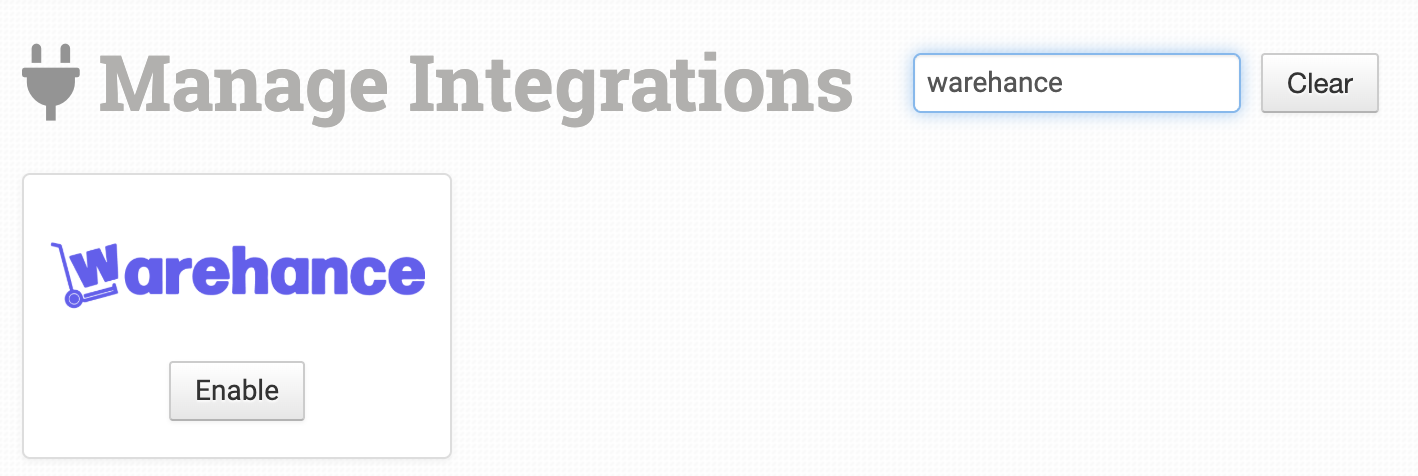
You can also search for Warehance using the available integration search.
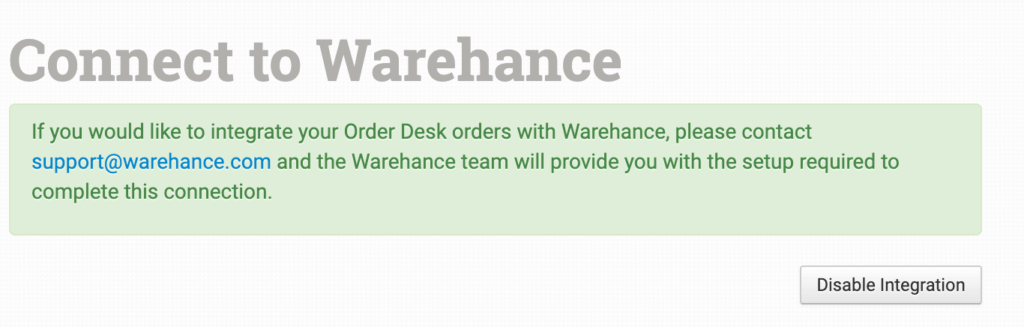
Once Warehance is enabled, contact their team for help completing the connection. They’ll handle the connection process and let you know how your integration should be managed.
You only need to continue with the settings below if Warehance has specifically advised you to use the native integration.
Integration Settings
Once the native integration is connected, you can adjust the following settings.
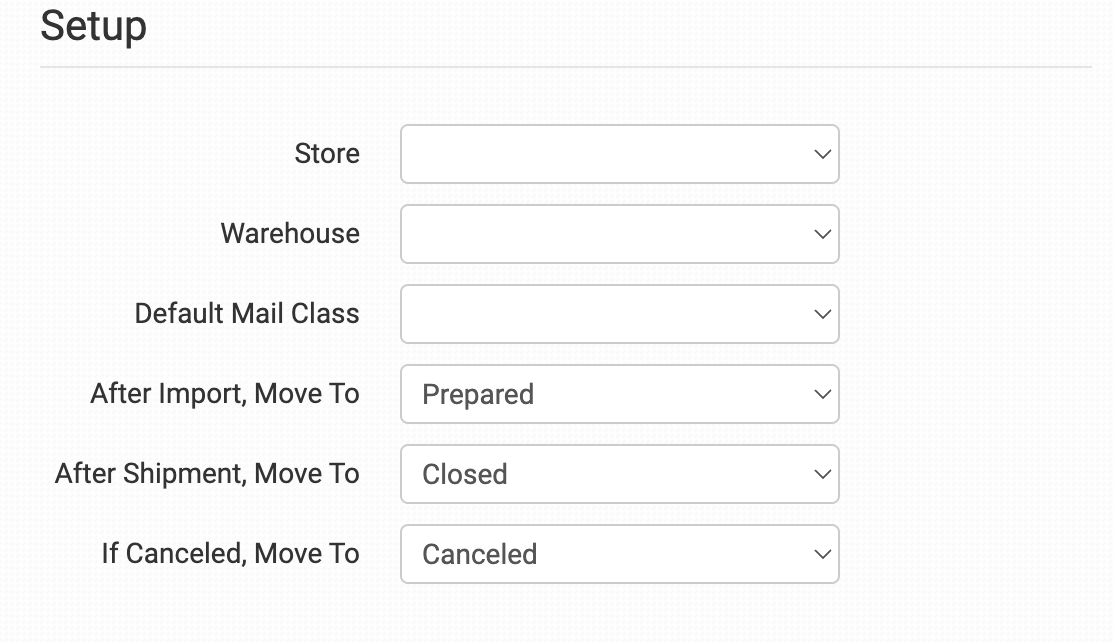
Store
Select the Warehance store where Order Desk should send your orders by default.
Warehouse
Select the Warehance warehouse where Order Desk should send your orders by default.
Default Mail Class
Choose the shipping class you want Warehance to use for your orders.
To use different shipping methods for specific orders, match your shipping method names with the methods Warehance uses in the Shipping Class Match section below.
After Import, Move To
Select the folder where orders should be moved after they’re successfully sent to Warehance.
You can use one of your store’s default folders or create your own. See the Working with Folders guide for more information.
After Shipment, Move To
Select the folder where orders should be moved when Warehance sends shipment details back to Order Desk.
If Canceled, Move To
Select the folder where orders should be moved if they’re canceled in Warehance.
For more information about folders, see the Working with Folders guide.
Inventory Management Settings
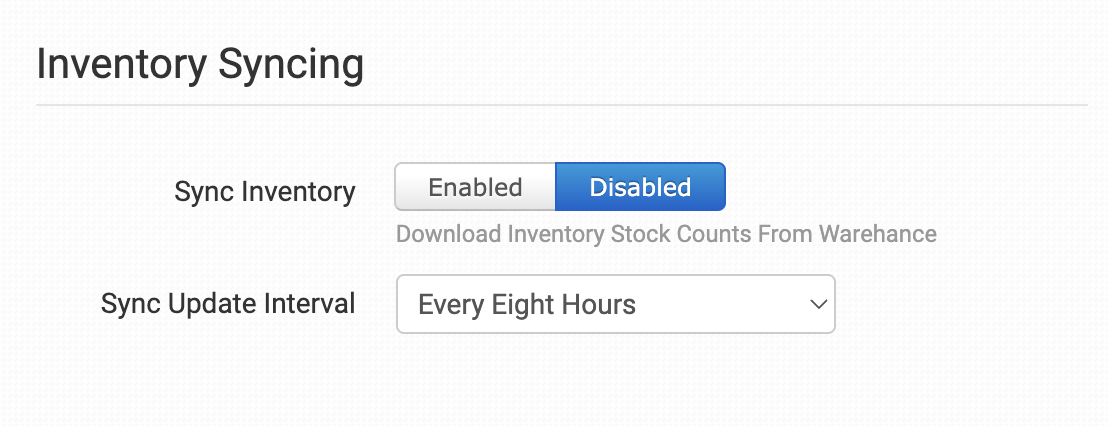
Sync Inventory
Enable this setting if you want Order Desk to pull inventory stock counts from Warehance. For more information, see the How to Work with Inventory Counts guide.
Sync Update Interval
If Sync Inventory is enabled, choose how often Order Desk should check Warehance for inventory updates.
Inventory Location Name
Enter a name here if you want Warehance inventory to use a specific location name in Order Desk. When Warehance sends an inventory report, Order Desk will store the updated stock under this location name.
Product Settings
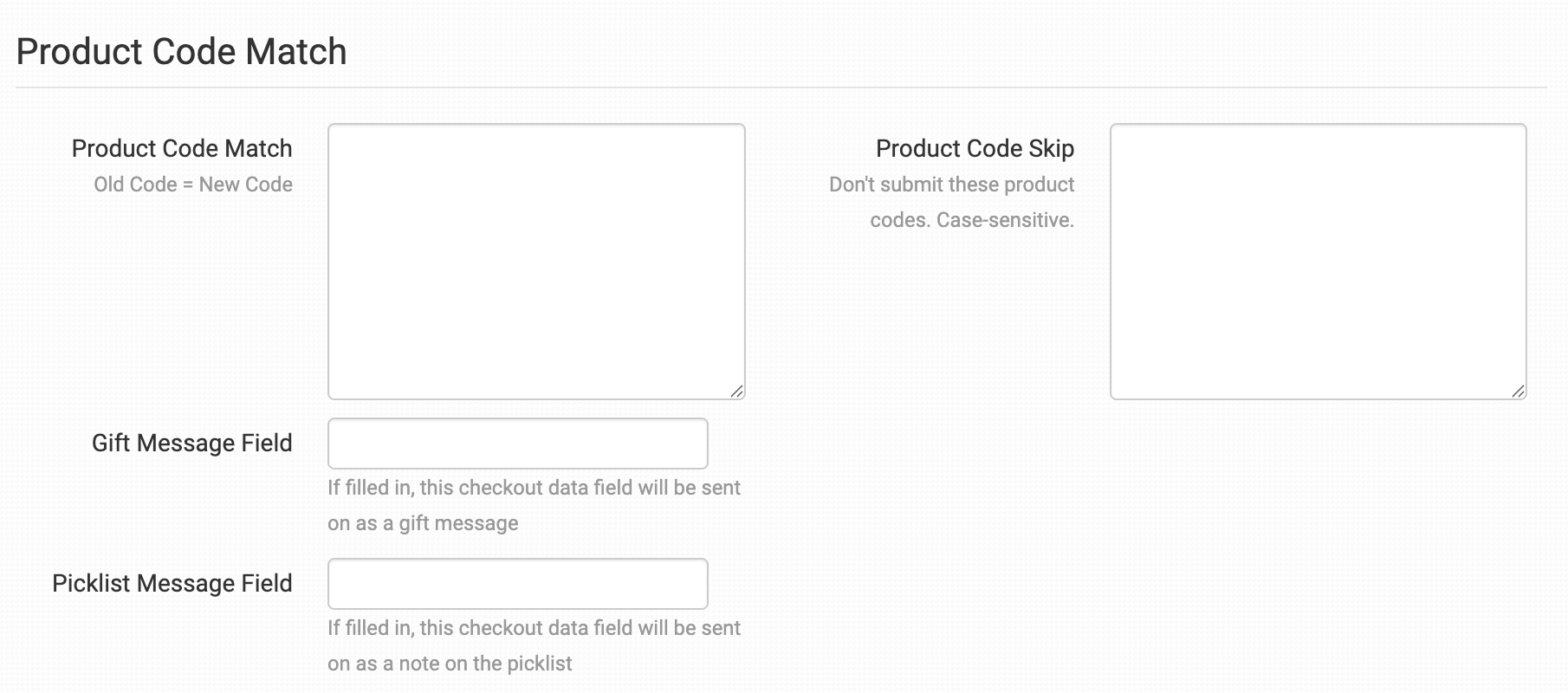
For details about what these settings do and how to use them, see the Fulfillment Integration Product Settings guide.
Shipping Class Match
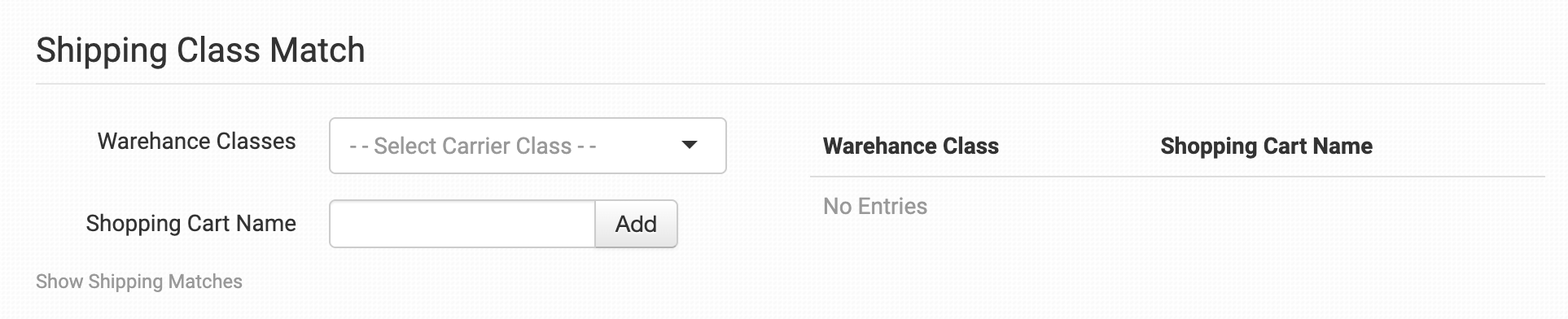
The shipping methods in your shopping cart may not use the same names as the methods available through Warehance. If Order Desk can’t find a match, it will use the Default Mail Class selected above.
Use Shipping Class Match to connect your shipping method names with the corresponding methods used by Warehance. For detailed instructions, see the Shipping Class Match guide.
Order Level Details
You can add the following fields as checkout data or order metadata to send additional details to Warehance for individual orders.
If checkout data is new to you, see the How to Work with Checkout Data guide.
| Field Name | Field Description |
|---|---|
| WarehanceTags | Passes order tags to Warehance. To send more than one tag, separate the values with commas. |
| CustomFieldX | Passes a custom field with the order. Up to three custom fields are supported. Replace X with a number from 1 through 3, such as CustomField1 or CustomField3. |
Rules Reference
Along with the general rule events and actions available in Order Desk, Warehance has several integration specific events and actions. You won’t find these on the integration settings page. Instead, you can access them through the Rule Builder.
If you’re new to rules in Order Desk, start with the How to Work With Rules guide.
Rule Events
The following events are specific to Warehance. To find them, search for Warehance in the Event dropdown in the Rule Builder.
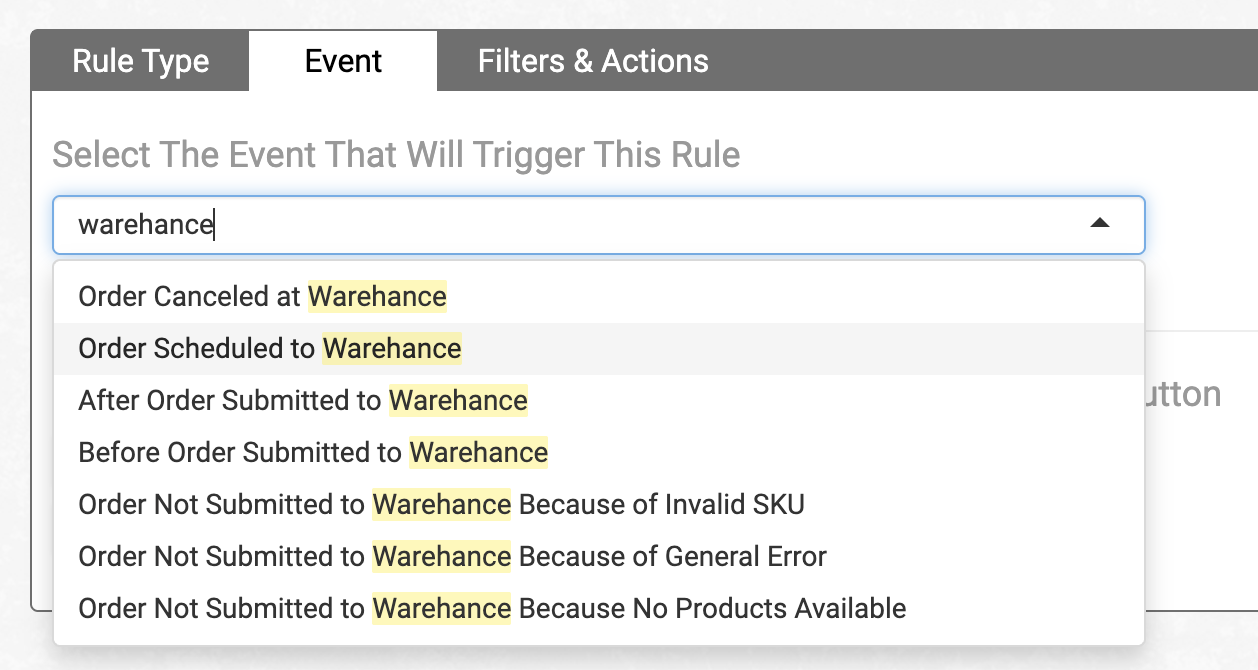
| Event | Description |
|---|---|
| Order Canceled at Warehance | Runs when an order is canceled in Warehance. |
| Order Scheduled to Warehance | Runs as soon as an order is scheduled to be sent from Order Desk to Warehance. Use this when you need to take action on the order before it is submitted. |
| After Order Submitted to Warehance | Runs after an order is successfully submitted to Warehance. |
| Before Order Submitted to Warehance | Runs just before an order is sent from Order Desk to Warehance. Use this when you need to make last minute updates before submission. |
| Order Not Submitted to Warehance Because of Invalid SKU | Runs when an order can’t be submitted because one or more SKUs aren’t valid in Warehance. |
| Order Not Submitted to Warehance Because of General Error | Runs when a general error prevents an order from being submitted to Warehance. |
| Order Not Submitted to Warehance Because No Products Available | Runs when an order can’t be submitted because no valid products were found. |
Rule Actions
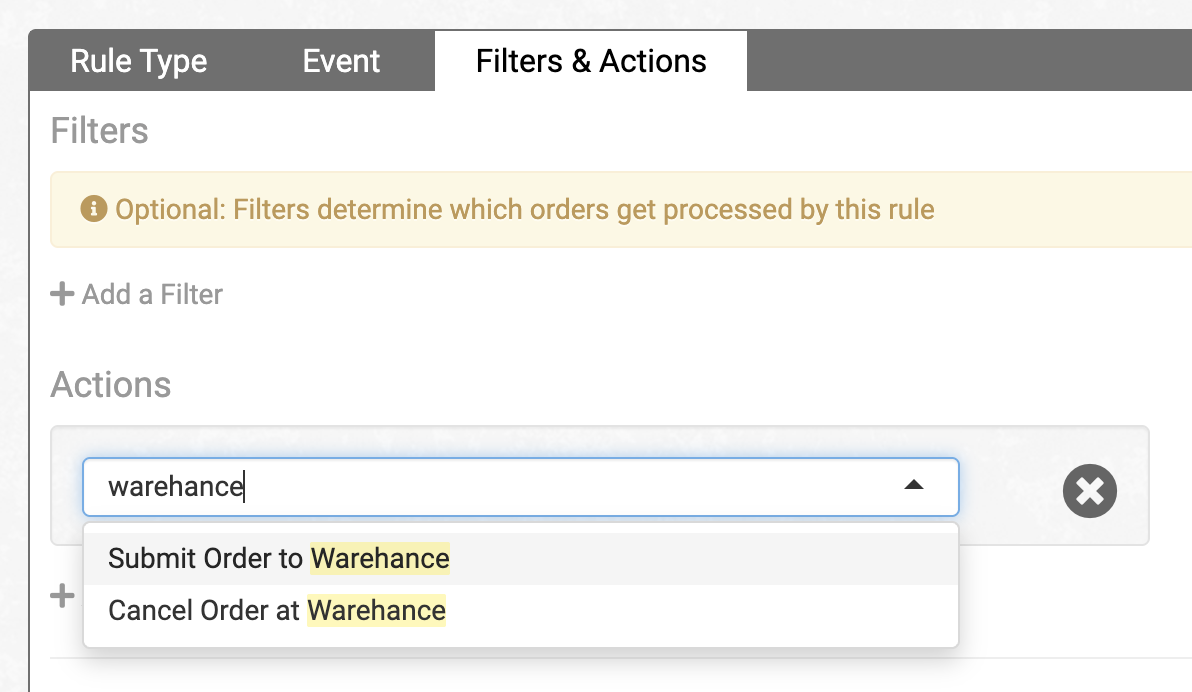
Warehance also has integration specific rule actions. To find them, search for Warehance in the Actions dropdown.
| Action | Description |
|---|---|
| Submit Order to Warehance | Sends an order from Order Desk to Warehance. |
| Cancel Order at Warehance | Attempts to cancel an order that has already been submitted to Warehance. Whether the cancellation succeeds depends on the order’s current status in Warehance. |