
Order Desk can connect to your Adobe Commerce (formerly known as Magento 2) store and import your orders. As orders are fulfilled, tracking details can be sent back to Adobe Commerce.
Only Adobe Commerce 2.1 and greater are supported with this integration.
Important
This integration connects to Adobe Commerce, which is not the same as the original legacy version of Magento. For legacy Magento instructions, see the legacy Magento guide.
Setup
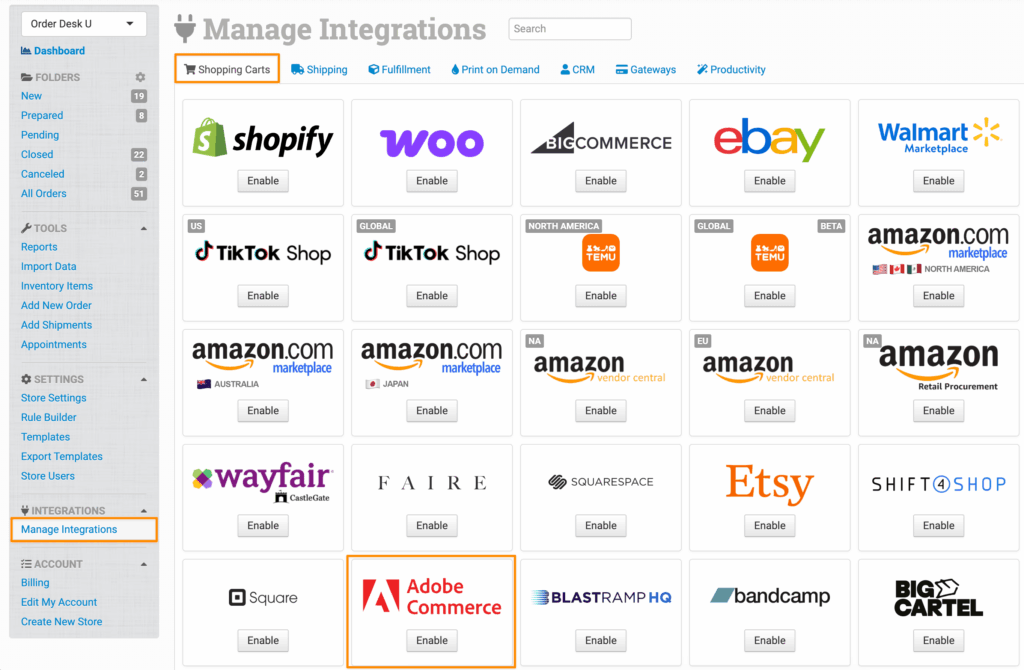
To connect to Adobe Commerce, click Manage Integrations under the Integrations menu in the left sidebar. Under the Shopping Carts tab, find and enable Adobe Commerce.
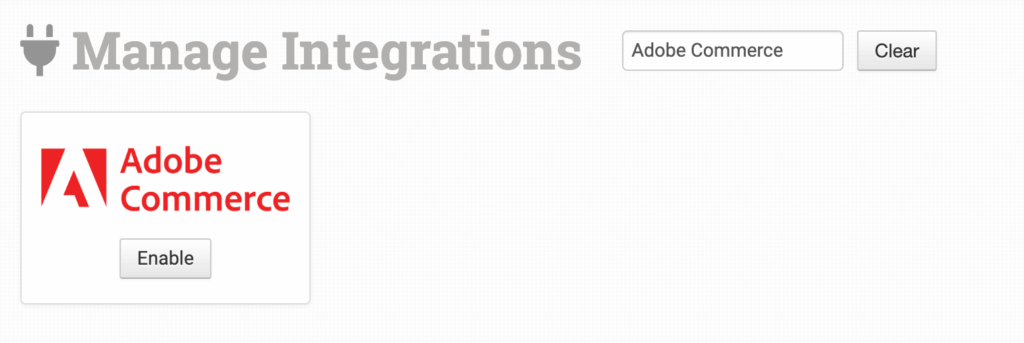
Alternatively, search for Adobe Commerce from the available integration search.
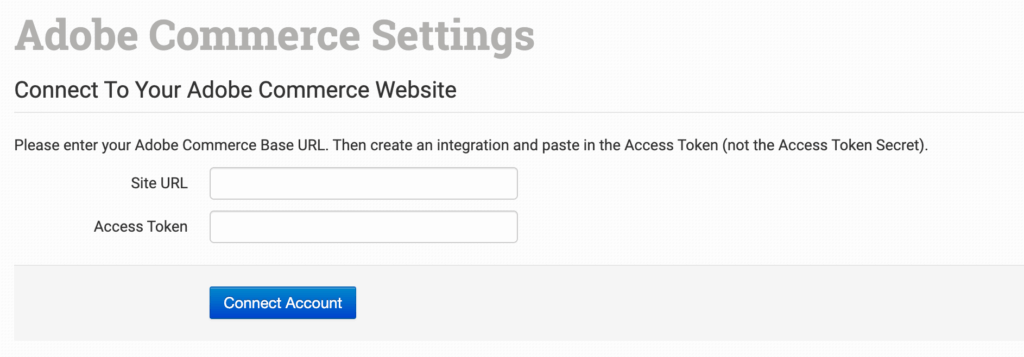
To complete the connection, you’ll need to get an Integration Access Token from Adobe Commerce.
Create Access Token
Follow the instructions in this guide from Adobe Commerce to generate a token with the right permissions.
In step 4, Select the Adobe Commerce resources the integration can access, assign all Sales Operations and Catalog permissions to the integration, including Orders, Shipments, and Inventory.
Inventory Management
If you want to sync inventory details between Order Desk and Adobe Commerce, an additional permission is required. You can find it at:
Stores > Settings > Configuration > Inventory Sections
Adobe Commerce 2.2
If you’re using Adobe Commerce 2.2, you must also select the All Stores permission found under Stores > Settings > All Stores.
Connect Account
Adobe Commerce will supply a Consumer Key, Consumer Secret, Access Token, and Access Token Secret. You’ll only need the Access Token.
Add your website URL and Access Token to the Order Desk Adobe Commerce integration settings, then click Connect.
Order Desk isn’t able to help find or reset your Adobe Commerce credentials, as they can only be provided by Adobe Commerce.
Integration Settings
Once connected to Adobe Commerce, set your preferences in the integration settings.
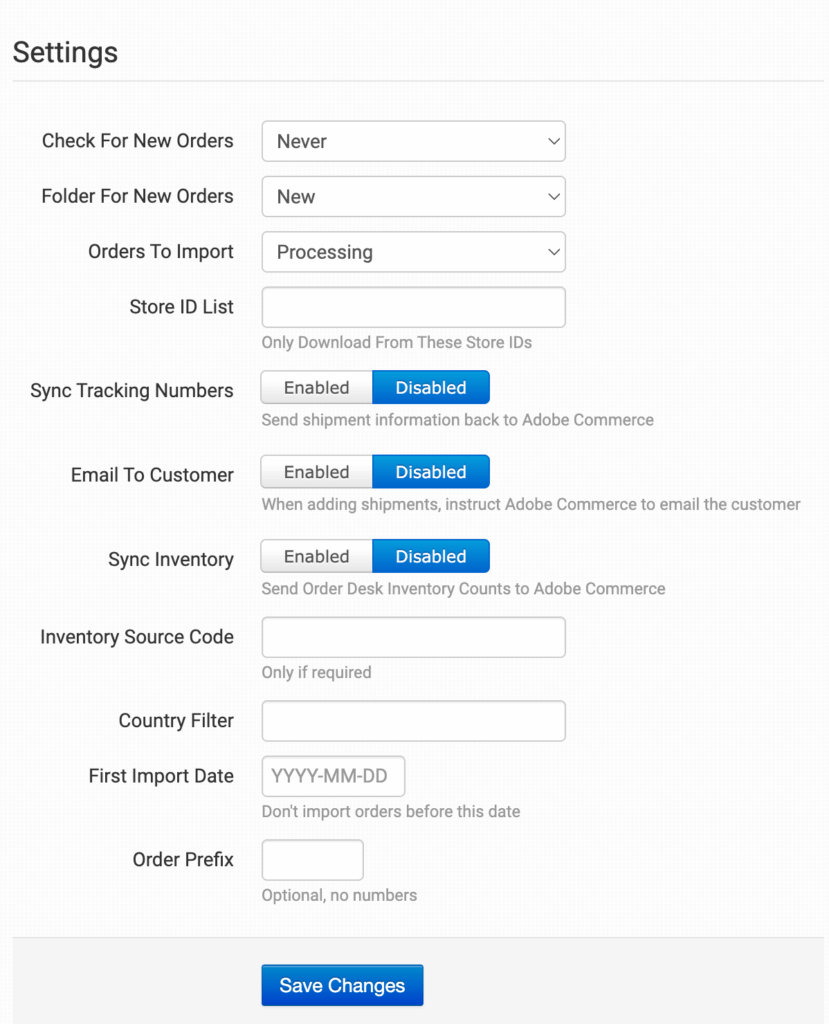
Check for New Orders
Select how often you want Order Desk to pull in new orders from Adobe Commerce.
Folder for New Orders
Select the folder where newly imported orders from Adobe Commerce should be placed.
For more information, see the Working with Folders guide.
Orders to Import
Select which orders you want Order Desk to import from Adobe Commerce.
Store ID List
To only import orders from specific Adobe Commerce stores, add the IDs here, separated by commas.
Sync Tracking Numbers
Enable this to have shipment information sent back to Adobe Commerce as tracking is added to orders in Order Desk.
Email to Customer
Enable this to have Adobe Commerce email the customer when tracking information is sent back for their order.
Sync Inventory
Enable this to have your inventory counts sent to Adobe Commerce as they are updated in Order Desk.
The SKU value is used to match the product between Order Desk and Adobe Commerce.
By default, Order Desk will also mark items as out of stock in Adobe Commerce when their quantity reaches zero. If you’d prefer to keep zero-stock items marked as in stock, you can change this in the Advanced section.
Inventory Source Code
Target specific inventory sources and only update items tied to the source you enter in this field.
Country Filter
Use two-digit country codes, separated by commas, to only import orders from specific countries.
Add a – to exclude orders from specific countries.
Examples:
US,CA,MX will only import orders for the United States, Canada, and Mexico.
-US,-CA,-MX or -US,CA,MX will import all orders except for the United States, Canada, and Mexico.
Order Prefix
You can add a prefix of your choice to all orders downloaded from Adobe Commerce.
Advanced
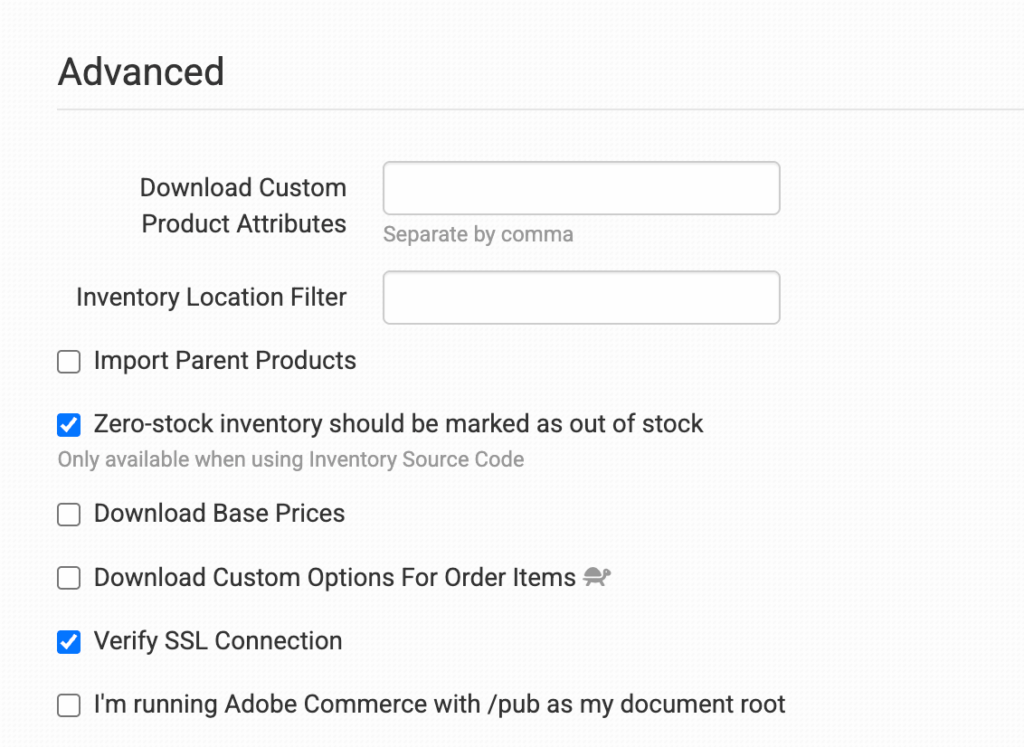
Download Custom Product Attributes
Order Desk can pull in custom product attributes. To set this up, list the attributes you want brought into Order Desk in this field. For multiple attributes, separate each with a comma and don’t add a space after the comma.
Order Desk will look at each product in an order and store any attributes that are found in the item metadata.
Inventory Location Filter
If you only want to download specific orders, use the Inventory Location Filter field to specify which ones you want. Enter multiple locations separated by commas.
The inventory location name must match exactly as it appears on your inventory items in Order Desk. When importing new orders from Adobe Commerce, Order Desk will look at the SKUs on the items and compare them to the SKUs in your inventory. Any orders with items for a location that isn’t listed in this field will not be imported.
For this to work, your inventory must be added to Order Desk, and the inventory location should be set on each item. For details, see How to Add Inventory and How to Store Extra Item Details.
Import Parent Products
If you have bundles set up in Adobe Commerce and want the parent product to import with the bundled items, enable this setting. The parent product will import with the bundle price set to it, and each individual item that makes up the bundle will import with a price of 0.
Leave this setting disabled for Order Desk to ignore the parent product and import only the individual items that make up the bundle.
Zero-Stock Inventory Should Be Marked as Out of Stock
If this setting is enabled, any items with a stock quantity of zero will be marked as out of stock in Adobe Commerce.
If disabled, Order Desk will still sync inventory quantities, but it won’t update the stock status. Adobe Commerce will continue to show the items as in stock.
Tip
This setting only applies if you’re using an Inventory Source Code. Without an inventory source code, Adobe Commerce requires Order Desk to include a stock status with inventory updates, so zero-stock items will continue to be marked as out of stock unless an Inventory Source Code is provided.
Download Base Prices
Enable this setting if you’d like Adobe Commerce orders to be imported with base prices for items, discounts, and shipping costs instead of actual prices.
Download Custom Options for Order Items
Select this if you want to bring in your custom options, or variations. If selected, this can slow down the order import.
Verify SSL Connection
Select this to verify your SSL connection.
I’m running Adobe Commerce with /pub as my document root
If you’re using /pub as your document root in your Adobe Commerce installation, your media file paths will not have the pub/ prefix on them. For example, media/catalog/product/... instead of pub/media/catalog/product/.... Select this checkbox if you’re running Adobe Commerce with this setup.
Manual Imports
If you need to manually import orders or inventory items from Adobe Commerce, you can do this from the Adobe Commerce integration page.
Manually Import Orders
You can manually import orders from Adobe Commerce at any time. You can import orders by Date if you need to bring in multiple orders, or by a specific Order ID if you only need to import one order.
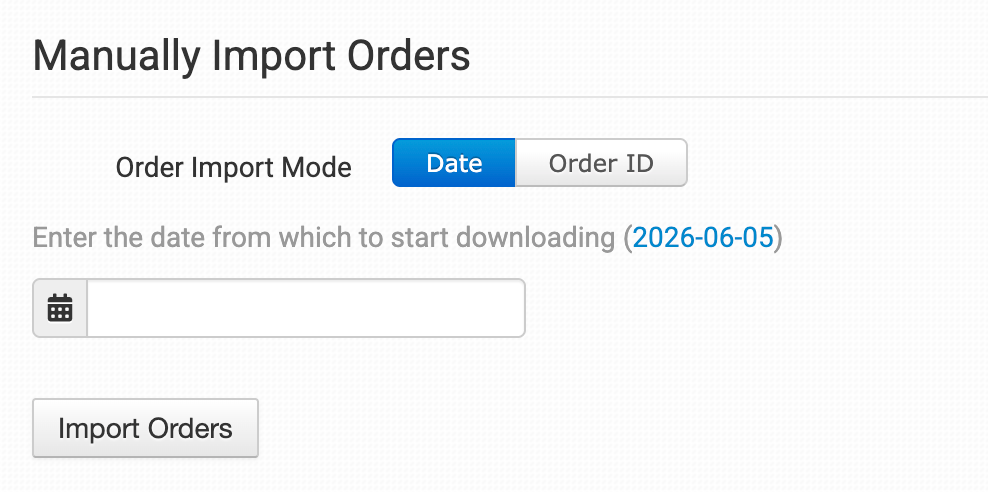
Tip: Importing Orders by Date
If Adobe Commerce has a large number of orders in the selected date range, you may need to click the Import button a few times to bring them all in.
Manually Import Inventory Items
If you need to pull your Adobe Commerce inventory into Order Desk, click the Import Inventory Items Now button.
For more information on Order Desk inventory, see the How to Work with Inventory Details guide.
Custom Features
Set shipment comments on an Adobe Commerce order by adding the comments in a checkout data field called MagentoShipmentComments.
If you’re unfamiliar with checkout data, read the How to Work with Checkout Data guide.
Limitations
Whenever a SKU has a / in it, the Adobe Commerce API is not able to send that data into Order Desk, causing orders to have missing items. This is not a limitation that Order Desk can work around, as it is related to the Adobe Commerce API. The easiest solution is to remove any forward slashes from SKUs used in your Adobe Commerce cart.