> For the complete documentation index, see [llms.txt](https://help.orderdesk.com/llms.txt). Markdown versions of documentation pages are available by appending `.md` to page URLs; this page is available as [Markdown](https://help.orderdesk.com/integration-setup-guides/sales-channels/connecting-temu-to-order-desk.md).
# Connecting Temu to Order Desk
> New to Order Desk? Order Desk collects all your orders from all your sales channels in one place and sends them to your chosen fulfillment services automatically.
>
> :computer: [See all integrations](https://www.orderdesk.com/integrations/) . :wallet: [Pricing](https://www.orderdesk.com/pricing/) . :arrow-right: [Start free trial](https://app.orderdesk.me/account-setup)
Order Desk can be used to receive and manage orders from [Temu](https://seller.temu.com/registration.html?merchant_exclusive_invitation_code=5890195fa0016c20) before sending them to connected fulfillment partners.
This guide covers how to connect both the **North America** and **Global** versions of the integration.
### Setup
First, click on **Manage Integrations** in the left sidebar. You can find Temu within the **Shopping Carts** tab:
You can also find it by typing “Temu” in the integration search bar:
Once found, Click **Enable** to install your preferred integration:
{% hint style="success" %}
#### Choosing the right connection
* The **North America** integration only supports stores based in the **United States**.
* The **Global** integration supports all stores under the TEMU Global Partner area. You can check the list of supported countries on the [**Temu Partner Platform**](https://partner.temu.com/documentation?menu_code=38e79b35d2cb463d85619c1c786dd303\&sub_menu_code=07938e60f95344a0a9444f524ea61e31).
{% endhint %}
### Connecting to Temu
To connect the Temu integration in Order Desk, start by installing the app from the Temu Seller App Store. If you’re already logged into Temu, [**click here**](https://seller.temu.com/open-platform/app-store) to visit the Temu App Store to install it.
Once the app is installed, return to Order Desk while still logged into your Temu store and click the **Connect to Temu** button to complete the setup:
The following scopes are required when installing the app:
* *Local Basic Management*
* *Local Order Fulfillment Management (General)*
* *Local Listings Management (General)*
* *Local Order Management (Sensitive)*
* *Local Order Fulfillment Management (Sensitive)*
* *Local Listings Management (Sensitive)*
### Integration Settings
Once connected, you’ll see a few configuration options.
#### Check For New Orders
Set how often you want orders to be downloaded. This can be set to as often as hourly.
#### Folder For New Orders
Select the folder where orders from Temu should be placed once imported. For more information, see the [Working with Folders](https://help.orderdesk.com/start-here/getting-started-series/quick-start-overview.md#working-with-folders) guide.
#### Order Status
Filter which orders to import by order status.
#### Sync Tracking Numbers
If the Sync Tracking Numbers setting is enabled, Order Desk will send shipment information back to Temu and automatically update the orders there.
#### Item SKU Source
Choose which Temu item field should be used as your order item SKU.
#### Default Warehouse
Temu sometimes requires a warehouse ID when receiving shipment updates. You can choose a default warehouse to send with each update using this setting.
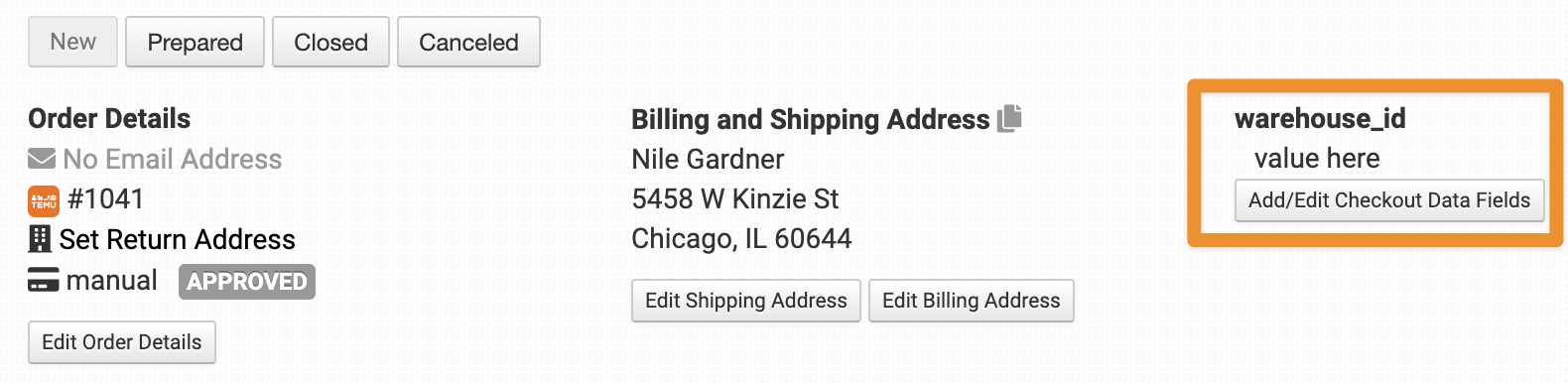
If you need to use a different warehouse for a specific order, set a `warehouse_id` field as either [**Checkout Data**](https://help.orderdesk.com/guided-walkthroughs/orders-and-folders/how-to-work-with-checkout-data.md) or Order Metadata to override the default one:
#### Inventory Location Filter
If you only want to download specific orders, you can use the Inventory Location Filter field to specify which ones you want. Enter multiple locations separated by a comma.
The inventory location name must match exactly as it is on your inventory items in Order Desk. When importing new orders from Temu, Order Desk will look at the SKUs on the items and compare to the SKUs in your inventory here. Any orders with items for a location that isn’t listed in this field will not be imported.
For this to work, your inventory must be added to Order Desk. The inventory Location should be set on each item. For details, please see [How to Add Inventory](https://help.orderdesk.com/start-here/getting-started-series/quick-start-orders-and-inventory.md#working-with-inventory) and [How to Store Extra Item Details](https://help.orderdesk.com/guided-walkthroughs/products-and-inventory/how-to-work-with-inventory-details.md#store-extra-item-details-in-order-desk).
#### Order Prefix
If you’d like to more easily identify imported Temu orders, you can use this setting to add a prefix to the imported order numbers.
#### First Import Date
Set this to be the first import date for your orders. Orders before this date will not be imported. You can use a date like YYYY-MM-DD or a variable date like -2weeks.
Enable this to have Order Desk download extra details or metadata about your order items from Temu.
#### Custom Image Storage
If your Temu orders include customer-uploaded images that aren’t publicly accessible, you can use this option to make those images available to your production team.
First, make sure the [Dropbox integration](https://help.orderdesk.com/integration-setup-guides/tools-and-productivity/dropbox-integration.md) is enabled in your store. This gives Order Desk a place to host the customer-uploaded files from Temu.
Next, choose **Dropbox** from the **Custom Image Storage** dropdown. Once enabled, image links will be added to the order item’s metadata (e.g., custom\_image\_1, custom\_image\_2, etc.), making them publicly accessible for download and use during production.
Notes:
* This feature currently supports *only Dropbox* as the storage provider.
* Be sure to also enable the **Download Additional Item Metadata** option. This ensures Order Desk checks Temu for custom images.
#### Inventory Settings
#### Sync Inventory
If you want Order Desk to sync your inventory availability back to Temu, enable the Sync Inventory setting. As inventory counts are updated here, Order Desk will pass those numbers back over to Temu.
### Shipment Labels
#### Enable Temu Shipping Labels
Enable this option to purchase Temu shipping labels directly from within Order Desk. Once enabled, the following additional settings will be available:
#### Rate Selection Method
Choose how Order Desk should select rates. You can select either **Cheapest** or **Fastest Delivery** as the default option.
#### Unit of Measure
Set whether your package dimensions will use metric units (KG/CM) or imperial units (LB/IN).
#### Default Package Size
Set a default package dimension for all shipments. You can still adjust these dimensions for individual orders if needed.
{% hint style="info" %}
Once enabled, this tool will appear on all Temu orders imported into your store. You can update the package details for each order before fetching rates and purchasing a label.
{% endhint %}
#### Purchasing Labels with rules
You can also use the **Purchase Temu US Label** rule action to automatically buy Temu labels:
When choosing which labels to purchase, we will use the **Rate Selection Method** (Cheapest or Fastest) you previously set.
If you’re new to rules, you can [learn more about them here](https://help.orderdesk.com/guided-walkthroughs/rules-and-automations/how-to-work-with-rules.md).
#### Manually Import Orders
Order Desk can manually download Temu orders when you use this option. Enter the date you’d like to start importing from, then click **Import Orders**.
Orders will download based on your current integration settings. If you need to pull in orders with a different status, update your import settings first before running the manual import.
#### Inventory Items
You can manually import your inventory items from Temu at any time by clicking the **Download Inventory Items** button.
### Order Import Log
If an order from your cart hasn't come into Order Desk, the **Order Import Log** is a good place to start. It shows recent import attempts, including which orders were imported or skipped and any skip reasons.
Learn how to use the log in the [How to Troubleshoot Missing Shopping Cart Orders](https://help.orderdesk.com/guided-walkthroughs/integration-specific-walkthroughs/how-to-troubleshoot-missing-shopping-cart-orders.md) guide.
#### Support
If you’re having trouble setting up the Temu integration, we’re here to help! [Click here](https://www.orderdesk.com/contact) to email Order Desk support.
Note: This guide contains affiliate links. Order Desk may earn a small commission if you sign up for Temu after clicking certain links.
---
# Agent Instructions
This documentation is published with GitBook. GitBook is the documentation platform designed so that both humans and AI agents can read, navigate, and reason over technical content effectively. Learn more at gitbook.com.
## Querying This Documentation
If you need additional information that is not directly available in this page, you can query the documentation by asking a question.
Perform an HTTP GET request on the following URL with the `ask` and `goal` query parameters:
```
GET https://help.orderdesk.com/integration-setup-guides/sales-channels/connecting-temu-to-order-desk.md?ask=&goal=
```
`ask` is the immediate question: it should be specific, self-contained, and written in natural language.
`goal` is what the user is ultimately trying to achieve, the reason they need the answer. Sharing it helps GitBook give you a better, more relevant answer. A goal is most helpful when it describes the outcome the user wants rather than restating the question. For example, with `ask=how do I create an API token`, a goal like `automate deployments from our CI pipeline` lets GitBook tailor the answer to that use case.
The response will contain a direct answer to the question and relevant excerpts and sources from the documentation.
Use this mechanism when the answer is not explicitly present in the current page, you need clarification or additional context, or you want to retrieve related documentation sections.