
Order Desk can connect to your Zoho Books account and automatically send orders there. It can also pull shipment details from Zoho Books and send them back to your sales channels if your store is set up for it.
This guide walks you through how to connect the integration and the options available once it’s set up.
Setup
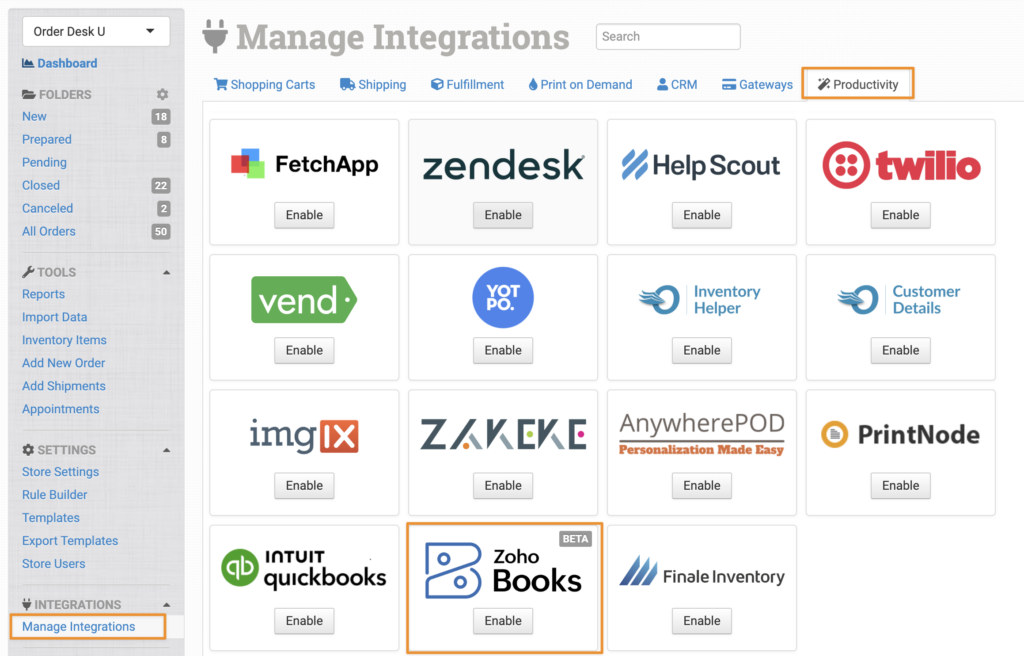
To enable the integration, click on Manage Integrations from the left sidebar in Order Desk. Under the Productivity tab, find and enable Zoho Books.
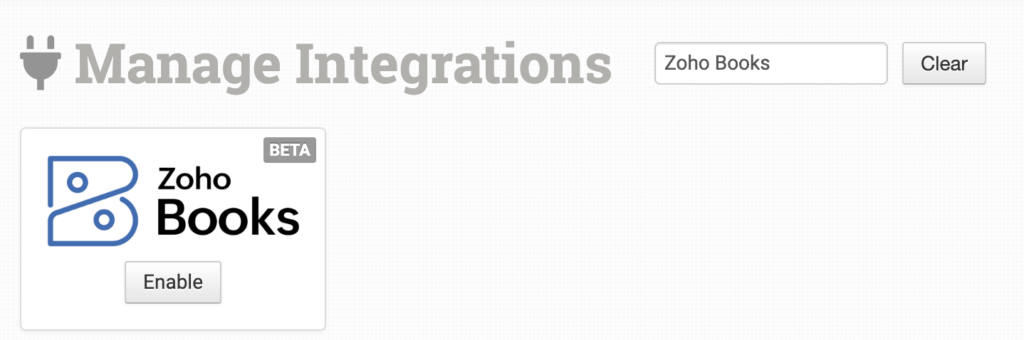
Alternatively, search for Zoho Books from the available integrations and click Enable.
Authorize Order Desk
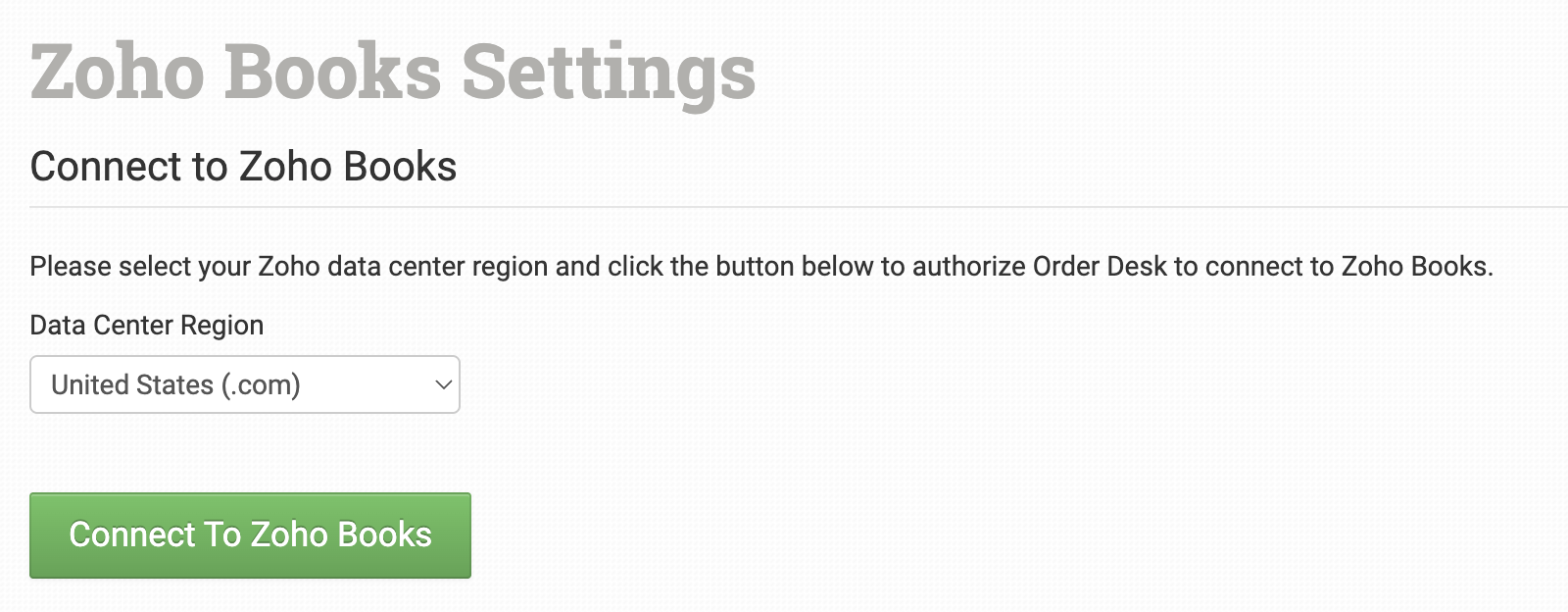
On the next screen, select your data center region from the dropdown and click Connect to Zoho Books.
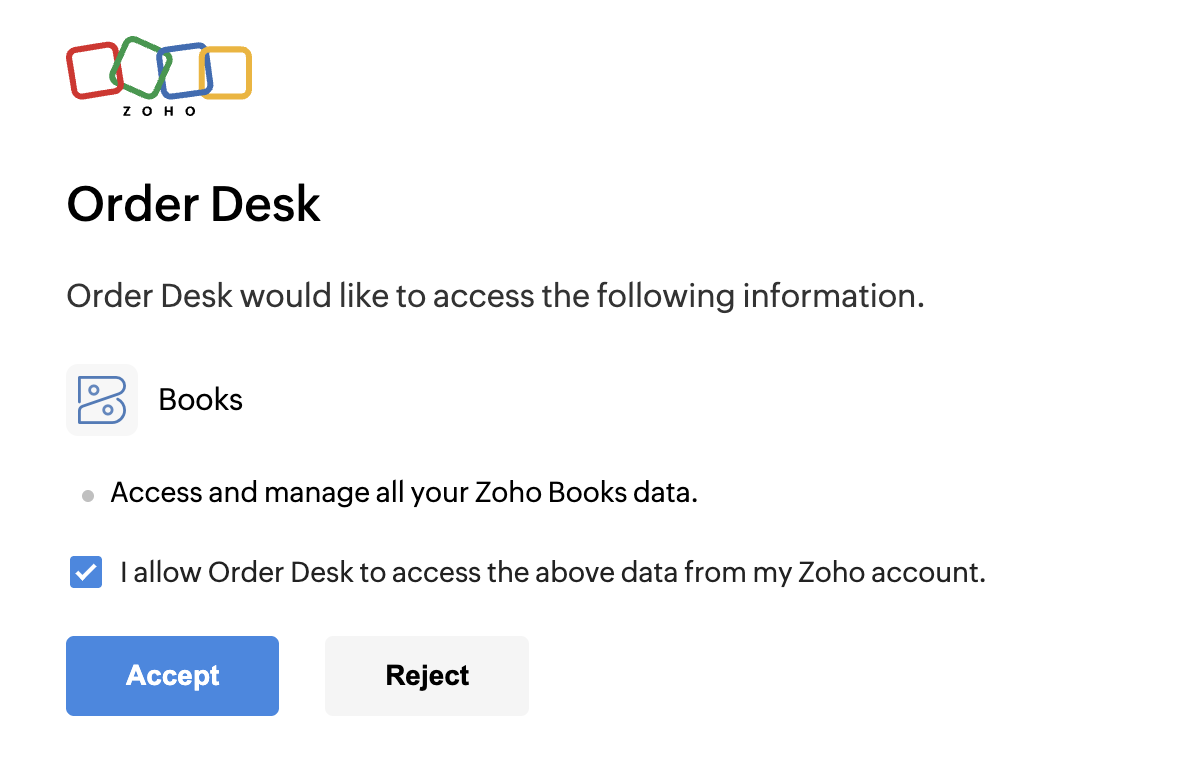
You’ll be redirected to Zoho Books to allow Order Desk access to your account. Once done, click Accept.
After authorization is complete, you’ll be redirected back to Order Desk with the integration connected. You can then finish setting up the integration settings.
Integration Settings
Under the settings section, choose how to set up your Zoho Books integration and which features you want enabled:
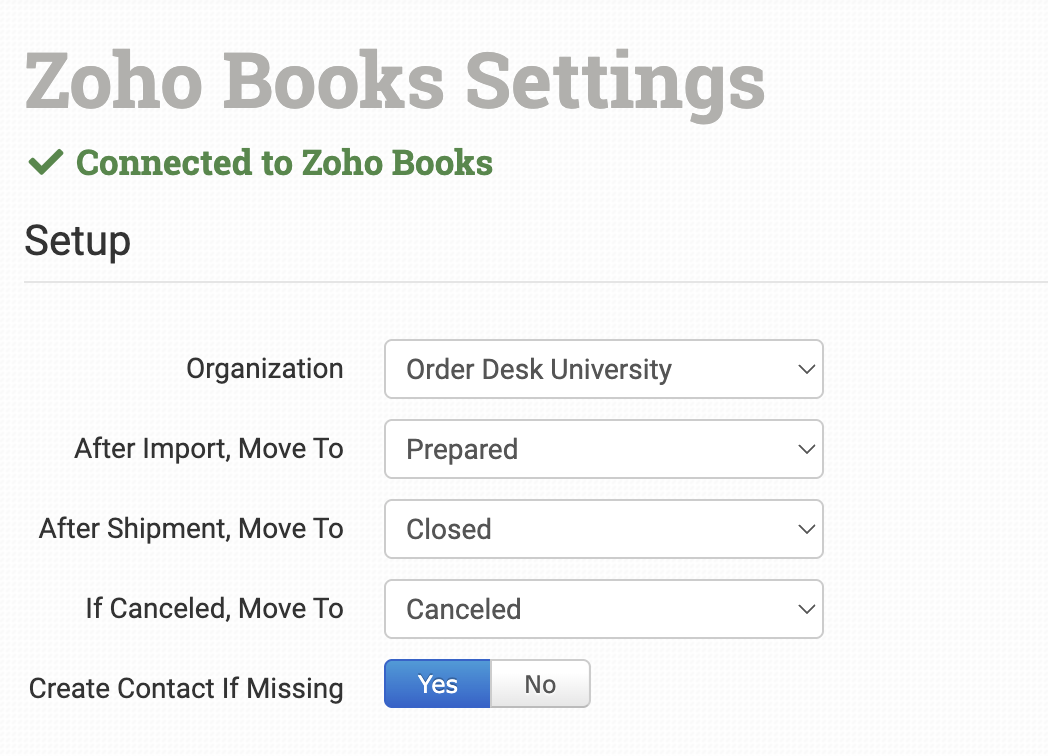
After Import, Move To
Select the folder you want orders to be moved into after they are successfully sent to Zoho Books.
You can use one of the default folders in your store or create your own. See the Working with Folders guide for more details.
After Shipment, Move To
Select the folder you want orders to be moved into when Zoho Books sends tracking details back.
If Canceled, Move To
Select the folder you want canceled orders to be moved into.
Create Contact If Missing
A contact is required when sending sales orders to Zoho Books. If this setting is enabled, Order Desk will automatically create a contact using the email address on the order when one does not already exist.
Product Settings
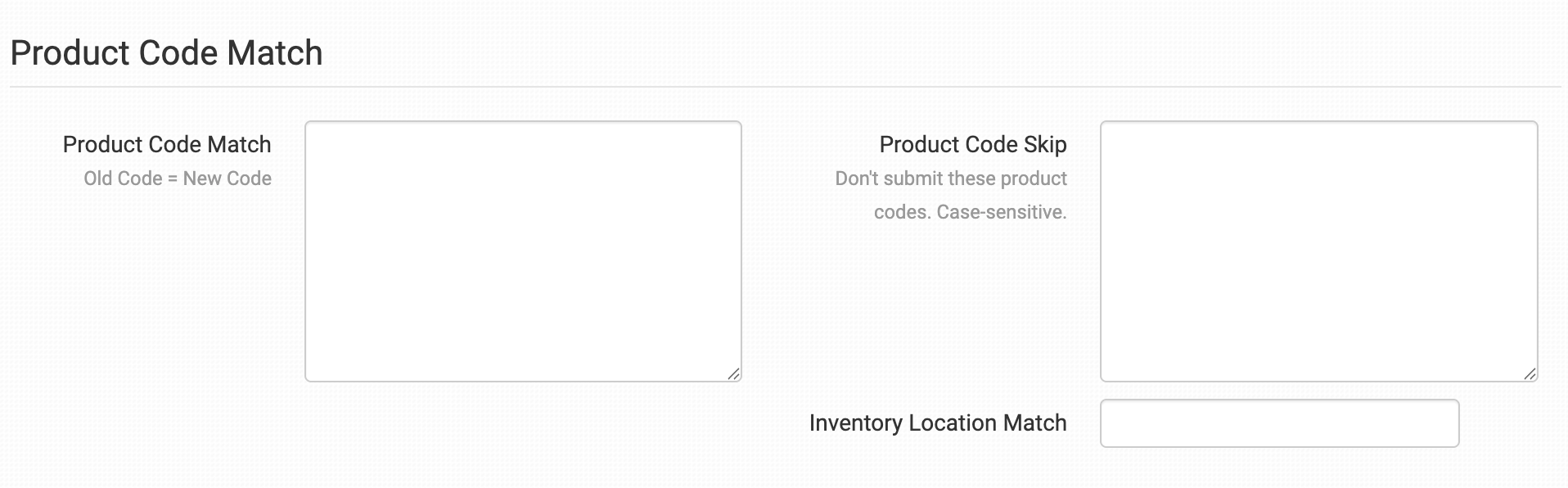
For more information on these product settings and how to use them with the Zoho Books integration, see the Product Settings guide.
Rules Reference
In addition to the general set of rule events and actions in Order Desk, Zoho Books includes a number of rule events and actions that are specific to this integration. These aren’t found directly on the integration page. Instead, you’ll need to use the Rule Builder to access them.
If you’re new to using rules in Order Desk, we recommend starting with the How to Work With Rules guide.
Rule Events
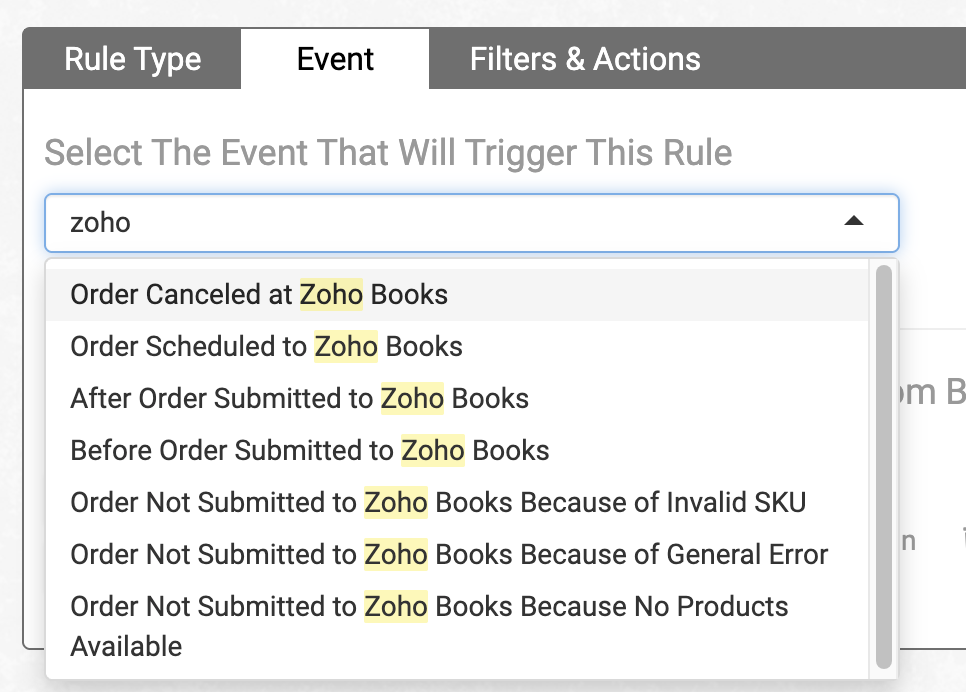
The following events are specific to Zoho Books. To find them, type Zoho in the Event dropdown in the Rule Builder:
| Event | Description |
|---|---|
| Order Canceled in Zoho Books | Triggered when an order is canceled in Zoho Books. |
| Order Scheduled to Zoho Books | Triggered when an order is scheduled to be sent from Order Desk to Zoho Books. This runs immediately after scheduling, so it can be used to take action at that point. |
| After Order Submitted to Zoho Books | Triggered after an order has been successfully submitted to Zoho Books. |
| Before Order Submitted to Zoho Books | Triggered just before an order is sent to Zoho Books. This is useful for making last-minute updates. |
| Order Not Submitted to Zoho Books Because of Invalid SKU | Triggered when an order submission fails because one or more SKUs are not valid in Zoho Books. |
| Order Not Submitted to Zoho Books Because of General Error | Triggered when a general error prevents the order from being submitted. |
| Order Not Submitted to Zoho Books Because No Products Available | Triggered when an order submission fails because no valid products were found. |
Rule Actions
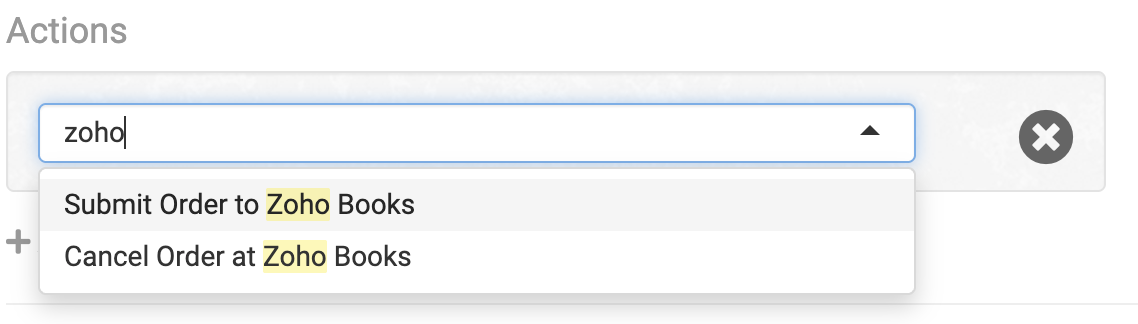
Zoho Books also supports specific rule actions that you can apply to your orders. These can be found in the Actions dropdown by searching for Zoho:
| Action | Description |
|---|---|
| Submit Order to Zoho Books | Sends an order from Order Desk to Zoho Books. |
| Cancel Order in Zoho Books | Attempts to cancel an order that was previously submitted to Zoho Books. |