
Most fulfillment integrations include additional settings that give you more control over the information sent to your fulfillment service. This guide explains what each setting does and how to use it.
If you are looking for help with product settings in a print on demand integration, see the Print on Demand Product Settings guide instead.
Limitations
Each integration page in Order Desk has a 10,000 character limit. If this limit is exceeded, the data on the page will be cleared. If this happens, contact Order Desk support as soon as possible to see if the data can be recovered.
If you expect to enter more than 10,000 characters in the Product Code Match or Product Code Skip fields, use the alternate methods described under those sections instead.
Product Code Match
If the SKUs in your shopping cart or marketplace do not match the SKUs used by your fulfillment service, you can use Product Code Match to map them correctly before orders are submitted.
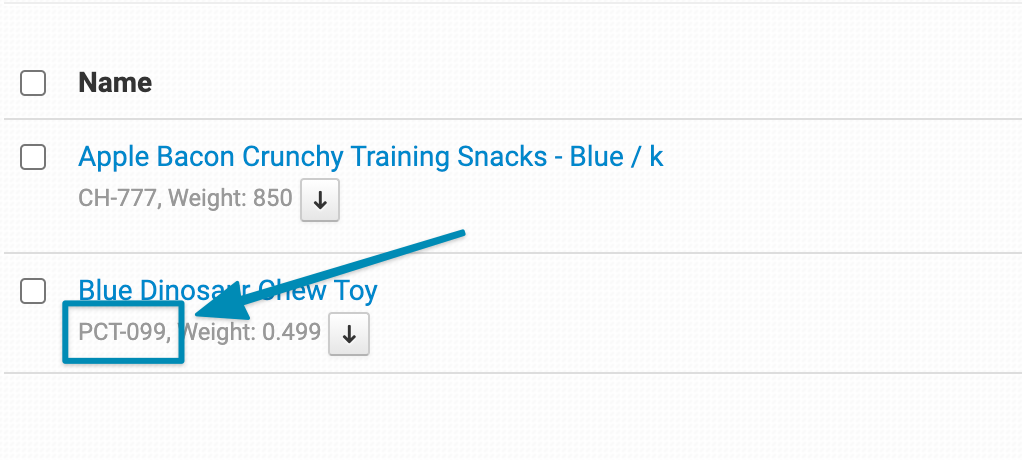
For example, if your cart sends an item with the SKU PCT-099, it will appear in Order Desk like this:
If your fulfillment service requires a different SKU, enter the mapping in this format:
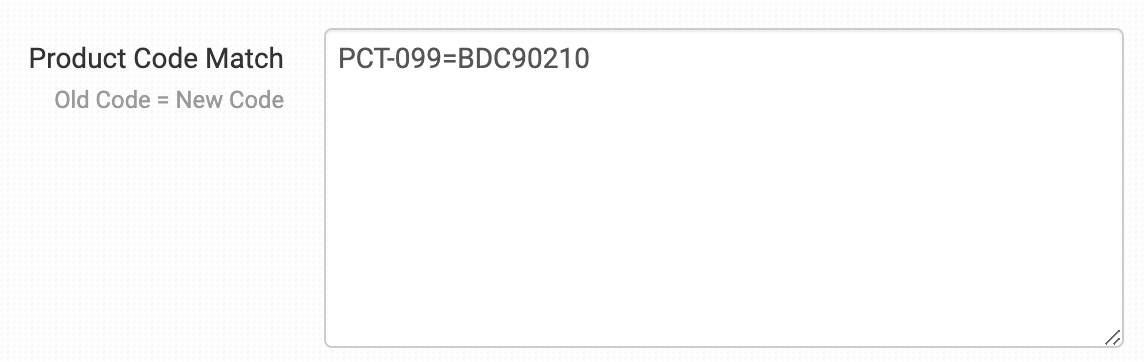
Add one match per line if you are creating multiple mappings.
This does not change the SKU stored in Order Desk. Instead, Order Desk replaces the SKU only in the data sent to your fulfillment service.
The Product Code Match feature is case-sensitive.
Product Code Match Bundles
You can also use Product Code Match to unpack bundles. Instead of mapping one SKU to another, map one SKU to multiple SKUs separated by commas:
PCT099=SKU1,SKU2,SKU3
The same SKU can be used more than once if needed:
DGT123=SKU1,SKU1,SKU2
When to Use Code Replace Instead
When using Product Code Match, stock counts for the original SKUs cannot be synced back into Order Desk or to your shopping cart.
If you need the SKU changed directly inside Order Desk and want to maintain stock syncing, use the Code Replace inventory feature instead.
Depending on your shopping cart or marketplace integration, Code Replace may also offer additional stock syncing options.
Product Code Skip
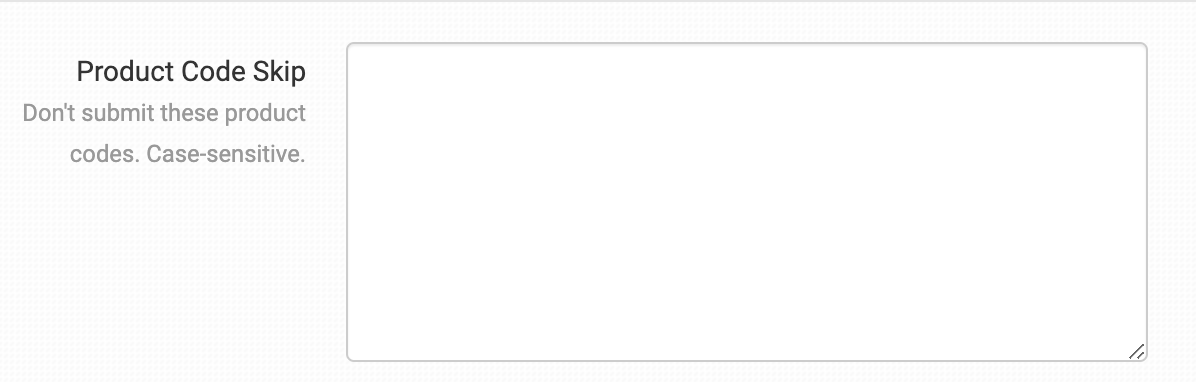
Use Product Code Skip to prevent specific SKUs from being sent to your fulfillment service. Enter multiple SKUs separated by commas or place each SKU on a new line.
If every item in an order is listed in Product Code Skip, the entire order will be skipped and not submitted to the fulfillment integration.
Wildcard
You can use * as a wildcard to skip partial SKU matches. For example, adding mug* will skip any SKU that contains “mug”.
When to Split Orders Instead of Using Product Code Skip
Product Code Skip works best when you need to exclude items that are not physically shipped, such as gift cards, or items that do not require fulfillment action.
If you are routing orders to multiple vendors or fulfillment services, splitting orders is usually a better and more flexible solution.
Gift Message Field
Some shopping carts and marketplaces send gift messages with orders. Order Desk stores these messages as Checkout Data:
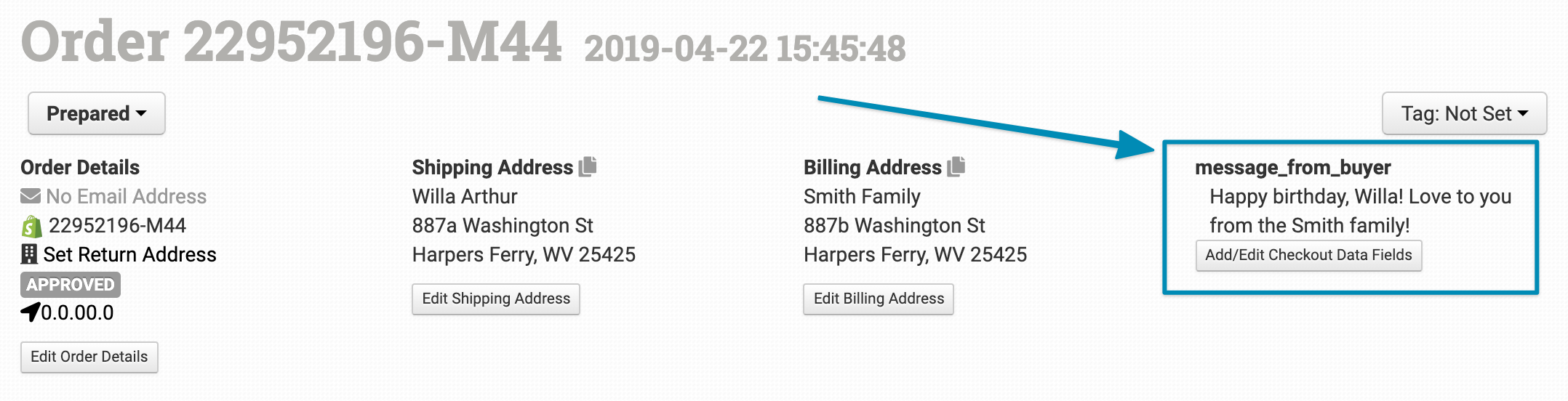
In this example, the Checkout Data field name is message_from_buyer. Enter the exact field name, as it appears on your orders, in the Gift Message Field setting within the fulfillment integration.

If that Checkout Data field exists on an order, its value will be sent to your fulfillment service as the gift message.
For more details on Checkout Data, see the How to Work with Checkout Data guide.
Inventory Location Match
If you store inventory in Order Desk, each item includes a Location field:
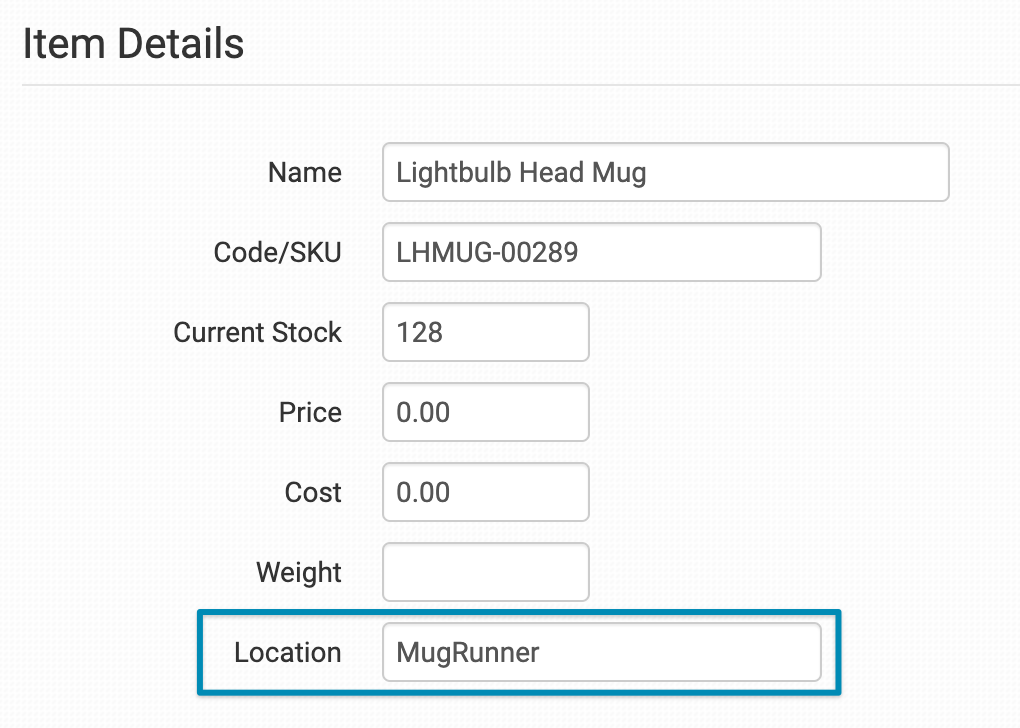
To send specific items to a fulfillment service, assign the same Location name to those items and enter that exact name in the Inventory Location Match setting. This field is case and space sensitive.
If the Location name does not match exactly, those items will be skipped, which may cause errors or delays.
Only items with a matching Location will be submitted. If none of the items in an order match, the order will not be submitted at all.
For this setting to work, the Add Inventory Details to Order Items option must be enabled in your store settings, or you must use a rule to sync inventory details before fulfillment submission.
For more information, see the How to Work with Inventory Details guide.
When to Split Orders Instead of Using Inventory Location Match
This setting works well for simple workflows with a small number of products or fulfillment integrations.
If you work with multiple fulfillment services or frequently add or change products, splitting orders is usually a clearer and more scalable solution.
Picklist Message Field
Use this setting to send the value of a specific Checkout Data field to your fulfillment integration as an internal note about the order.
For more information about Checkout Data, see the How to Work with Checkout Data guide.