
Order Desk can connect to your ShipStation account and automatically download orders.
This guide explains how to set up and use the ShipStation integration in Order Desk to download your ShipStation orders. If you want to send your orders to ShipStation for fulfillment, please refer to the ShipStation Integration guide instead.
Setup
In Order Desk, click on Manage Integrations under the Integrations menu in the left sidebar. Under the Shopping Carts tab, find and enable the ShipStation Order Import integration.
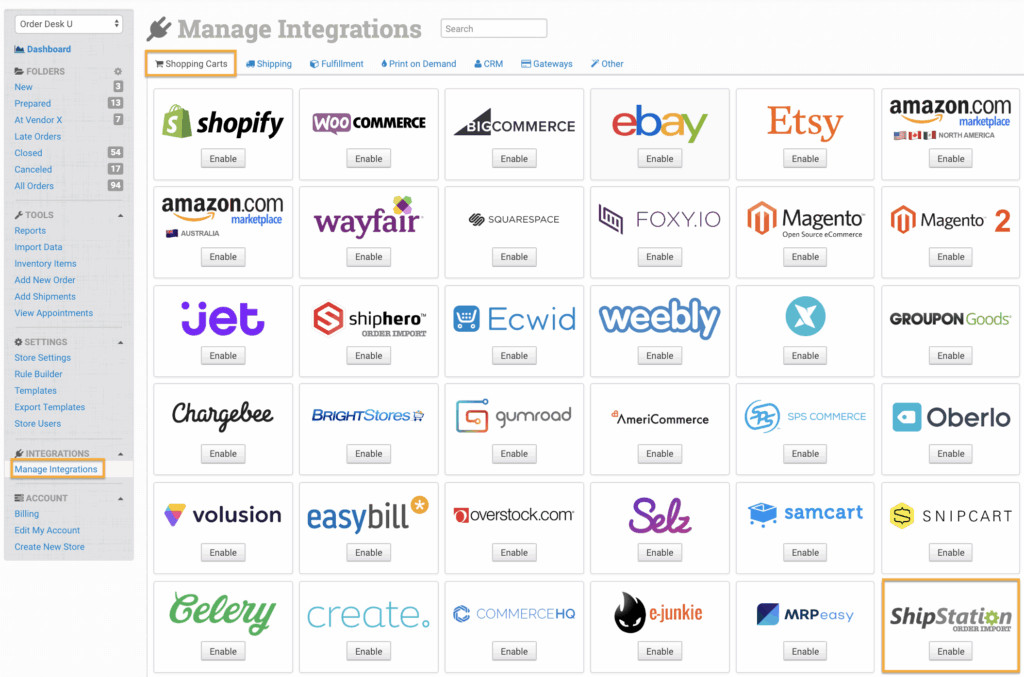
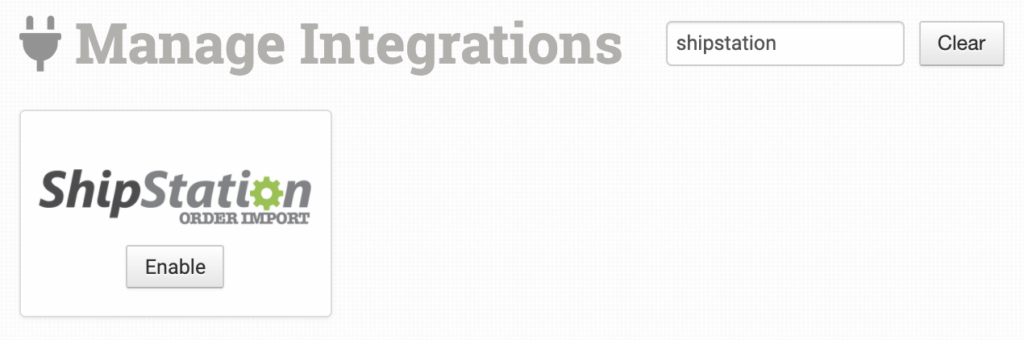
Alternatively, search for ShipStation Order Import from the available integration search.
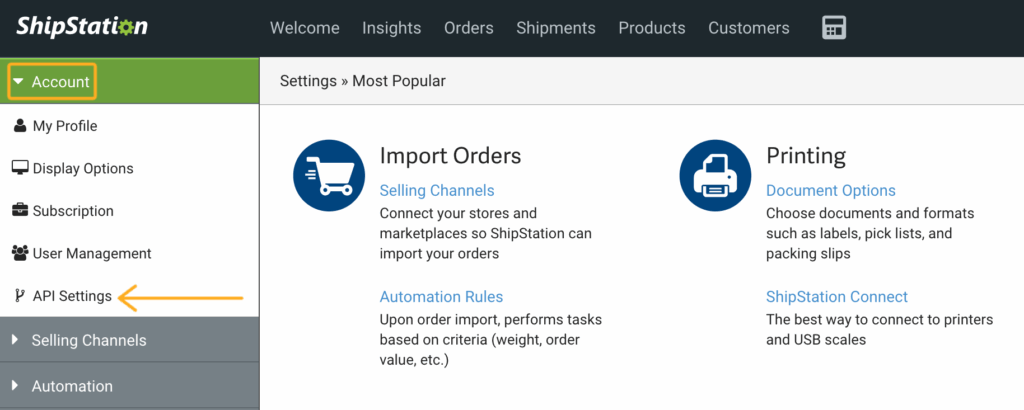
Once enabled, you will need to go into your ShipStation account to get your API keys. To find these in ShipStation, click on Account and then API Settings.
Paste the API Key and API Secret in Order Desk and click to connect.

Integration Settings
Once connected, you can set your integration preferences.
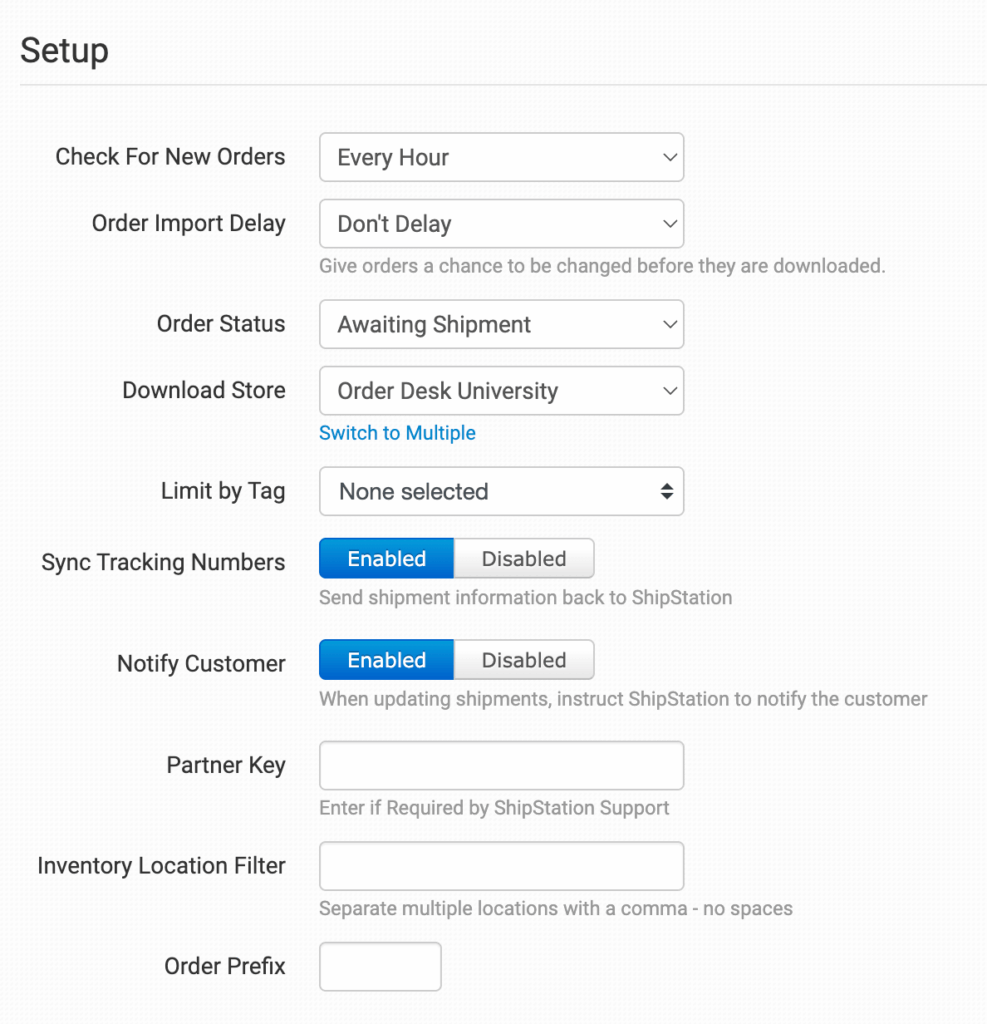
Check for New Orders
Select how often you want Order Desk to look for and download new orders from ShipStation.
Order Status
Select which orders you want Order Desk to download.
Download Store
Select the store in ShipStation where Order Desk should be looking for orders. If you need to download orders from more than one ShipStation store, click on the Switch to Multiple link.
In the Store ID List, add all of the Store IDs, separated by a comma, that Order Desk should be looking at. Click on View Store ID Numbers to see the list of your stores and their IDs.
Limit by Tag
Select a tag from your ShipStation account if you want to filter which orders are imported into Order Desk. Only orders with the selected tag will be imported.
Do not set a tag filter if you want all orders to be imported.
Sync Tracking Numbers
Enable to send shipment information back to ShipStation as tracking is added to orders in Order Desk.
Notify Customer
Enable to have ShipStation notify the customer when orders are shipped.
Partner Key
If ShipStation has given you a partner key, add it here.
Inventory Location Filter
If you only want to download specific orders, you can use the Inventory Location Filter field to specify which ones you want. Enter multiple locations separated by commas.
The inventory location name must match exactly as it appears on your inventory items in Order Desk. When importing new orders from ShipStation, Order Desk will look at the SKUs on the items and compare them to the SKUs in your inventory. Any orders with items for a location that isn’t listed in this field will not be imported.
For this to work, your inventory must be added to Order Desk, and the inventory location should be set on each item. For details, see How to Add Inventory and How to Store Extra Item Details.
Order Prefix
If you’d like to add a unique order prefix to the order numbers that come in from ShipStation, set that here.
You can also set SSID- as the prefix, and when orders are imported, the order ID will display the ShipStation store ID as the prefix followed by the order ID.
Manually Import Orders
You can manually import orders from ShipStation at any time. You can import orders by Date if you need to bring in multiple orders, or by a specific Order ID if you only need to import one order.
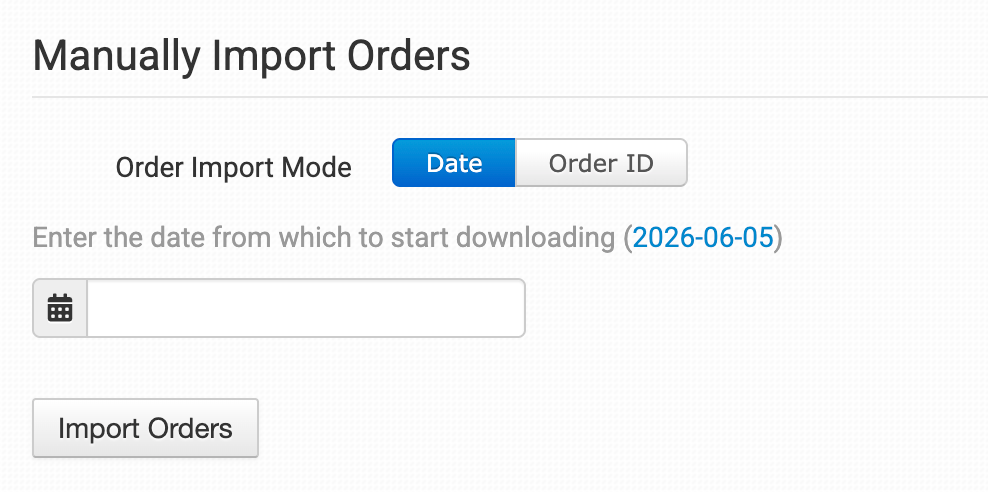
Tip: Importing Orders by Date
If ShipStation has a large number of orders in the selected date range, you may need to click the Import button a few times to bring them all in.