
Setup
In Order Desk, click Manage Integrations under the Integrations menu in the left sidebar. Under the Shopping Carts tab, find and enable the Extensiv Order Manager integration:
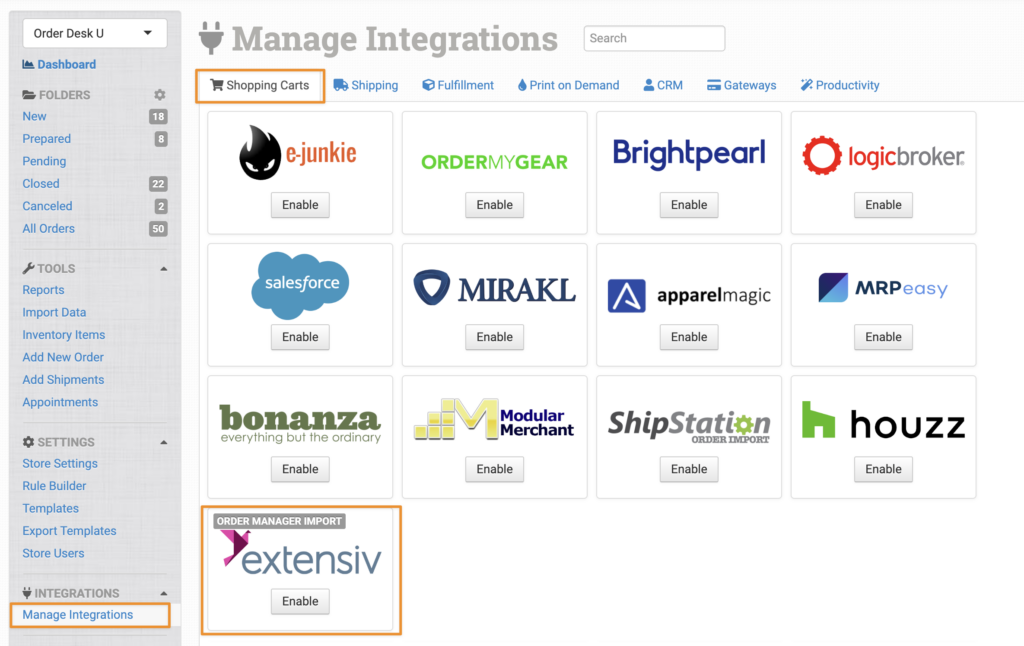
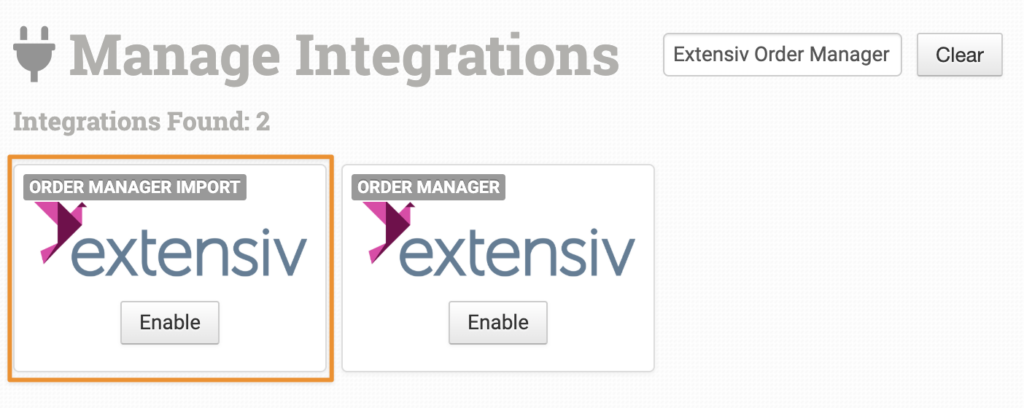
Alternatively, search for Extensiv Order Manager from the available integrations, then click Enable for the import integration.
On the next screen, enter your Installation URL and click Connect:
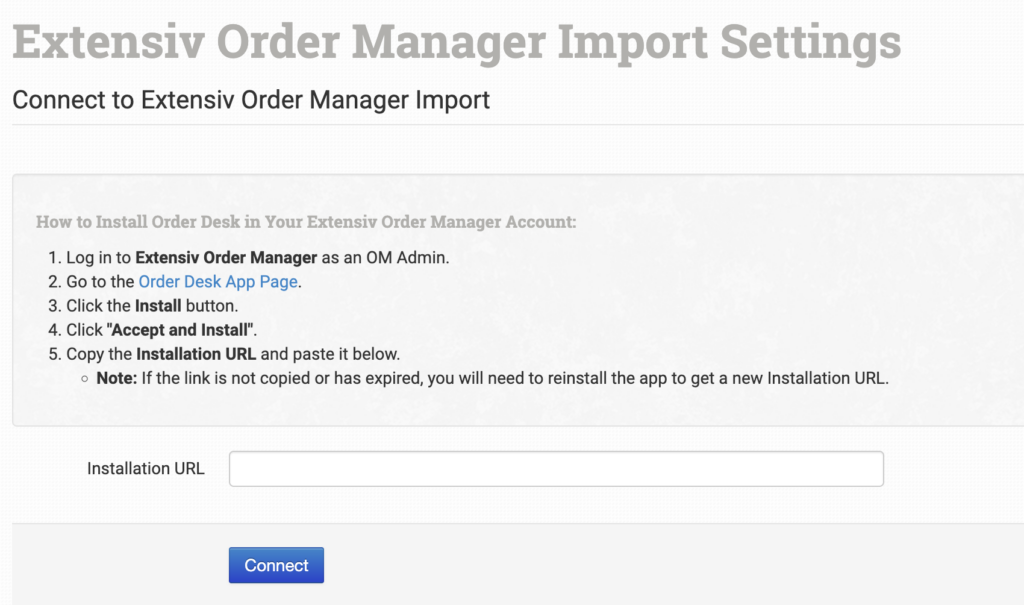
To get your Installation URL, follow the steps below. These steps are also listed on the integration page:
- Log in to Extensiv Order Manager as an OM Admin.
- Go to the Order Desk App Page.
- Click Install.
- Click Accept and Install.
- Copy the Installation URL and paste it into Order Desk.
Settings
Once connected, set your preferences in the integration settings.
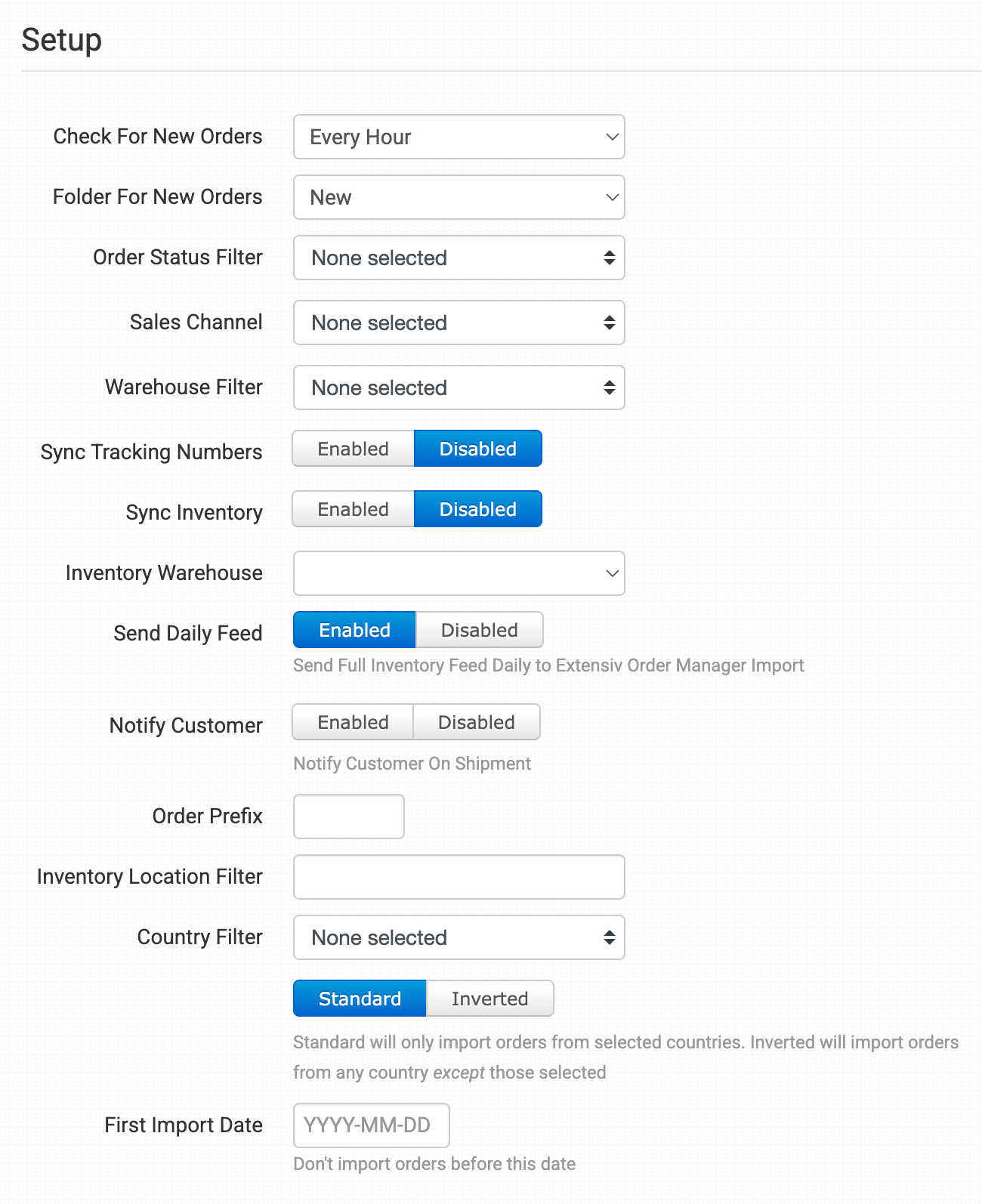
Check for New Orders
Select how often you want Order Desk to import orders from Extensiv Order Manager.
Folder for New Orders
Select the folder where newly imported orders from Extensiv Order Manager should be placed.
For more information about folders, see the Working with Folders guide.
Order Status Filter
Select which order statuses should be imported from Extensiv Order Manager. You can select multiple statuses, if needed.
Sales Channel
Select whether Order Desk should only import orders from specific sales channels. You can select multiple channels, if needed.
Sync Tracking Numbers
Enable this setting to have Order Desk automatically send shipment information back to Extensiv Order Manager and update the orders there.
Sync Inventory
Enable Sync Inventory if you want Order Desk to send inventory availability updates back to Extensiv Order Manager. Whenever an inventory count changes in Order Desk, the updated count will be sent to Extensiv.
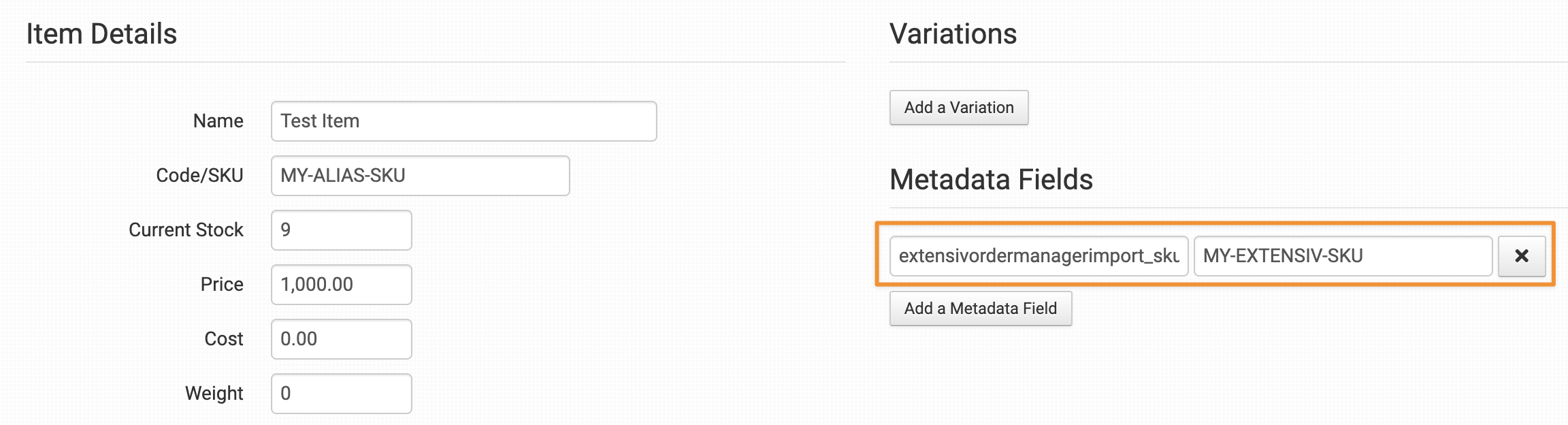
If an item uses a different SKU in Extensiv than it does in Order Desk, add
extensivordermanagerimport_skuas an item metadata field on the inventory item. Set its value to the SKU used in Extensiv.When the item receives a stock update, Order Desk will use this metadata field to find and update the matching SKU in Extensiv.
Preventing Unnecessary Stock Syncs to Extensiv
If an inventory item doesn’t exist in the selected Extensiv warehouse during an inventory sync, Order Desk adds the
skip_push_extensivordermanagerimportmetadata field to the item. This prevents Order Desk from repeatedly trying to sync stock for an item that isn’t available in that warehouse.Once this metadata field has been added, Order Desk will stop trying to sync stock for the item.
If you later add the item to Extensiv or allocate it to the preferred warehouse, remove the skip metadata to resume stock syncing. You can remove it from multiple items at once using an inventory import template.
Inventory Warehouse
Select the Extensiv warehouse where you want Order Desk to update item stock counts during inventory syncs.
Send Daily Feed
Enable this setting to send all your inventory items and their current stock counts to Extensiv at a specific time each day.
Sync Inventory or Send Daily Feed?
Sync Inventory sends stock updates to Extensiv only when an item’s stock count changes in Order Desk.
Send Daily Feed sends the stock counts for every inventory item in Order Desk at a specific time each day, whether or not the counts have changed.
Order Prefix
Enter a value here if you want to add a prefix to Extensiv Order Manager order numbers when the orders are imported into Order Desk.
Inventory Location Filter
Use the Inventory Location Filter to import only orders associated with specific inventory locations. To enter more than one location, separate the location names with commas.
Each location name must exactly match the inventory location shown on your items in Order Desk. When importing orders from Extensiv Order Manager, Order Desk compares the SKUs in each order with the SKUs in your inventory. An order won’t be imported if its items belong to a location that isn’t included in this field.
For this setting to work, your inventory must already be added to Order Desk, and each item must have an inventory location. For more information, see How to Add Inventory and How to Store Extra Item Details.
Country Filter
Select one or more countries from the dropdown menu, or choose Select All.
Choose Standard to import only orders from the selected countries. Choose Inverted to import orders from every country except the selected countries.
First Import Date
Select the earliest date from which you want Order Desk to begin importing orders from Extensiv Order Manager.
Manual Imports
Manually Import Orders
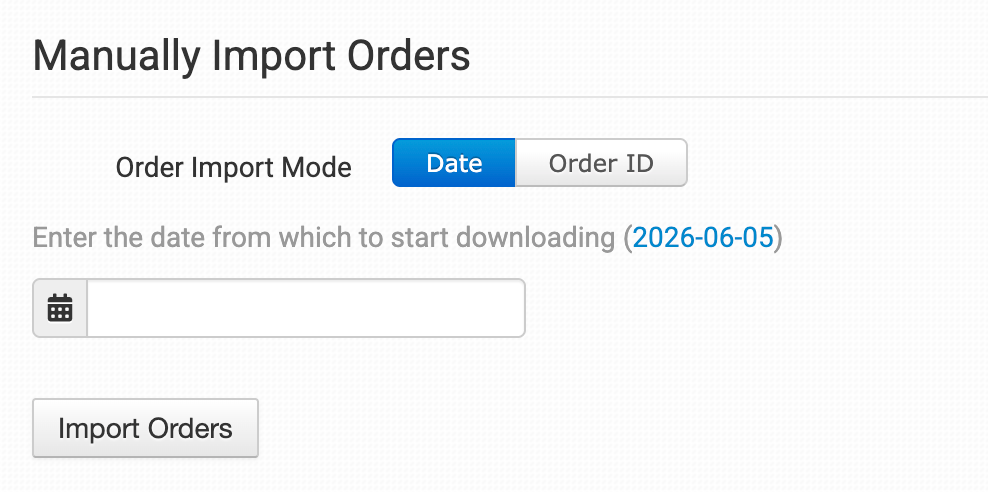
You can manually import orders from Extensiv at any time. You can import orders by Date if you need to bring in multiple orders, or by a specific Order ID if you only need to import one order.
Tip: Importing Orders by Date
If Extensiv has a large number of orders in the selected date range, you may need to click the Import button a few times to bring them all in.
Rules
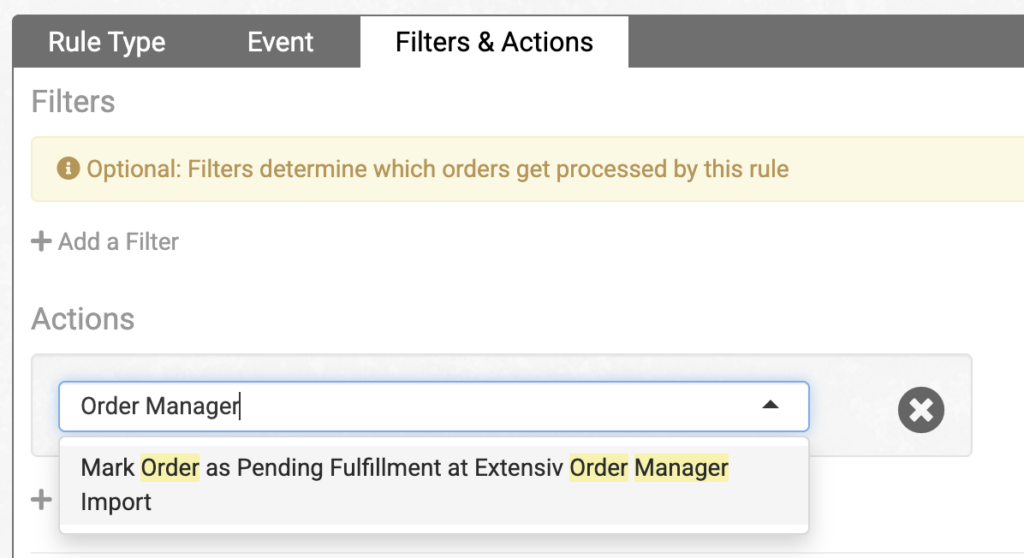
Use the Mark Order as Pending Fulfillment at Extensiv Order Manager Import rule action to mark an order as pending fulfillment in Extensiv Order Manager.
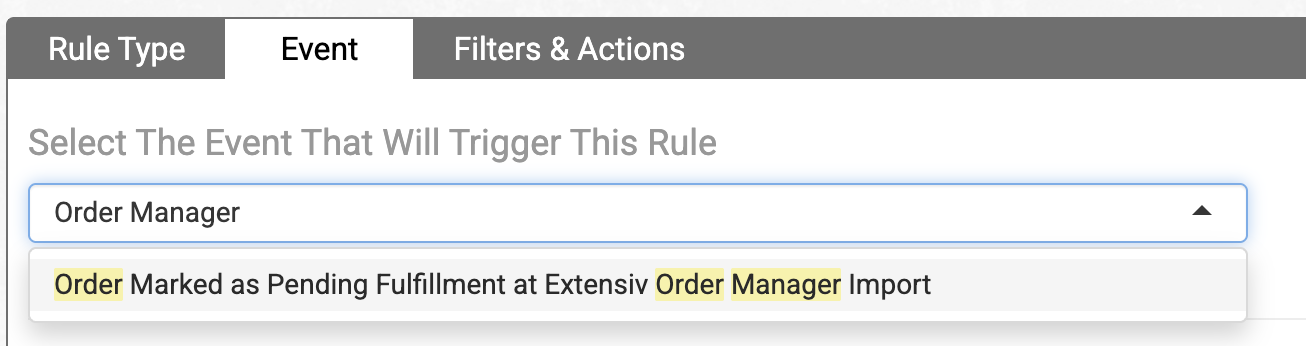
To trigger a rule when an order is marked as pending fulfillment, use the Order Marked as Pending Fulfillment at Extensiv Order Manager Import rule event.
If you’re new to rules, see the How to Work with Rules guide.