
Order Desk can connect to your Wix account and automatically download your orders.
Setup
Before connecting Wix to Order Desk, you’ll need to install the Wix Stores app in your Wix account. Wix requires this app before you can enable the Wix integration in Order Desk.
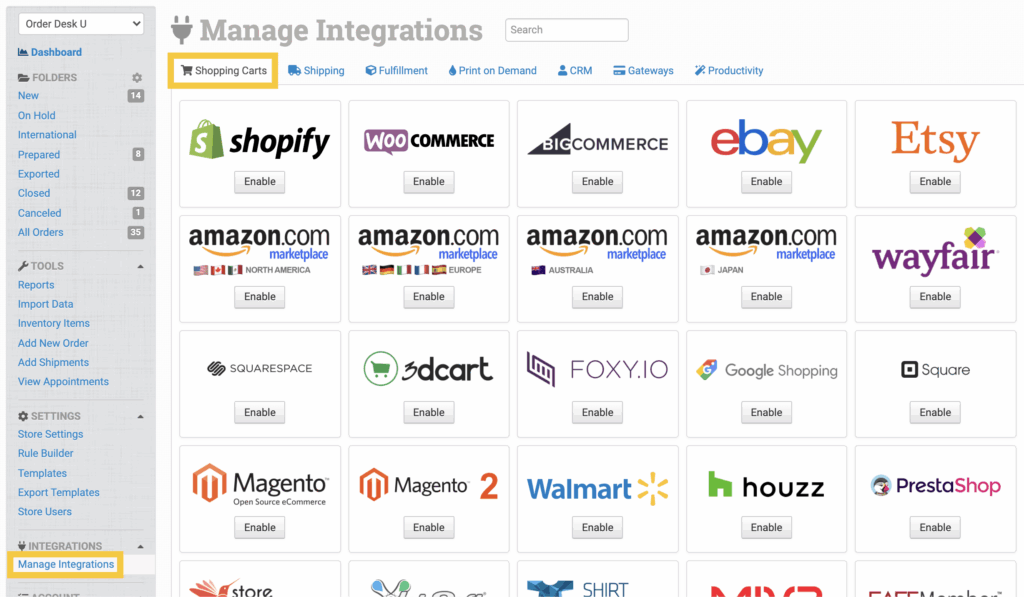
In Order Desk, click Manage Integrations in the left sidebar. Under the Shopping Carts tab, find and enable Wix.
You can also search for Wix using the available integration search.
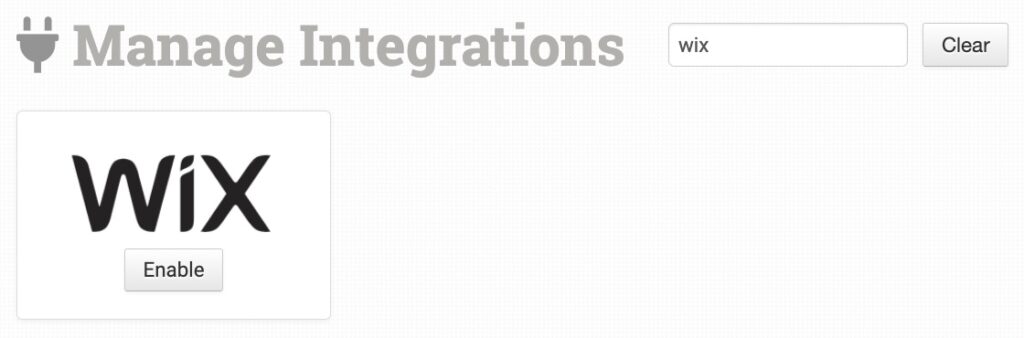
Click Connect to Wix to open Wix in a new browser tab or window. Follow the prompts to give Order Desk permission to connect to your account. Once connected, you can set your integration preferences.
Integration Settings
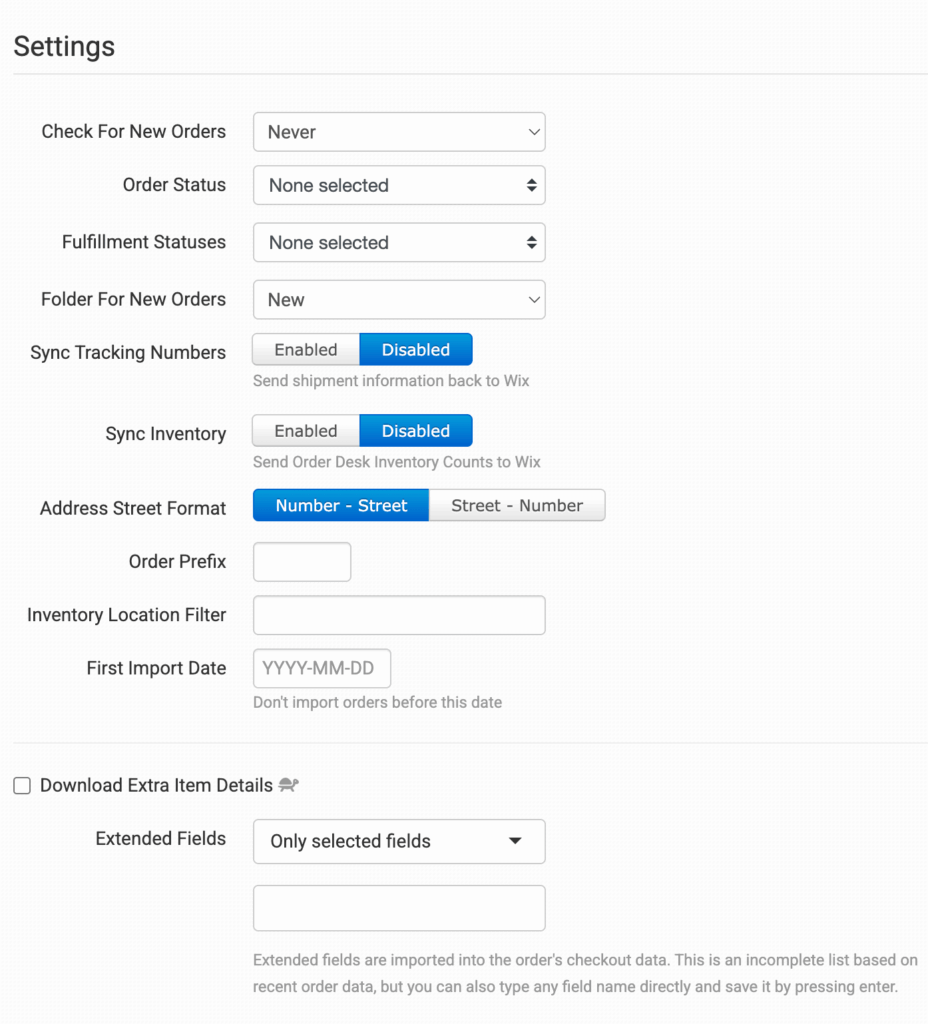
Check for New Orders
Select how often you want Order Desk to check Wix for new orders.
Order Status
Select which Wix order statuses Order Desk should download.
Fulfillment Statuses
Select which Wix fulfillment statuses Order Desk should download.
Folder for New Orders
Select the folder where newly imported Wix orders should be placed.
For more information, see the Working with Folders guide.
Sync Tracking Numbers
Enable Sync Tracking Numbers to automatically send shipment details back to Wix and update the original order.
Sync Inventory
Enable Sync Inventory if you want Order Desk to send inventory availability updates back to Wix.
Address Street Format
Select either Number-Street or Street-Number as the address format for imported orders.
Order Prefix
Enter a prefix here if you want it added to every order number downloaded from Wix.
Inventory Location Filter
Use the Inventory Location Filter to download only orders associated with specific inventory locations. To enter more than one location, separate the location names with commas.
Each location name must exactly match the inventory location shown on your items in Order Desk. When importing an order from Wix, Order Desk compares the SKUs on the order with the SKUs in your inventory. An order won’t be imported if its items belong to a location that isn’t included in this field.
For this setting to work, your inventory must already be added to Order Desk, and each item must have an inventory location. For more information, see How to Add Inventory and How to Store Extra Item Details.
Download Extra Item Details
Enable this setting to download additional details for each order item. Downloading these details may cause a slight delay when orders are imported.
Extended Fields
Use this setting to control which additional order fields Order Desk imports from Wix. Any additional data that is downloaded will be stored as checkout data.
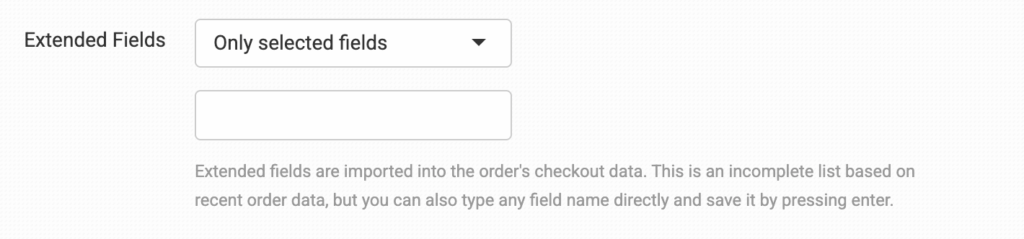
- Download all fields: Order Desk will try to download every available order field. Some data may be left out if the order contains more data than Order Desk can import.
- Only selected fields: Choose the additional fields that Order Desk should import. The selection list will be populated with fields from your most recent orders, but you can also enter other field names.
- All except selected fields: Choose the fields that Order Desk shouldn’t import. The selection list will be populated with fields from your most recent orders, but you can also enter other field names.
Manual Imports
Manually Import Orders
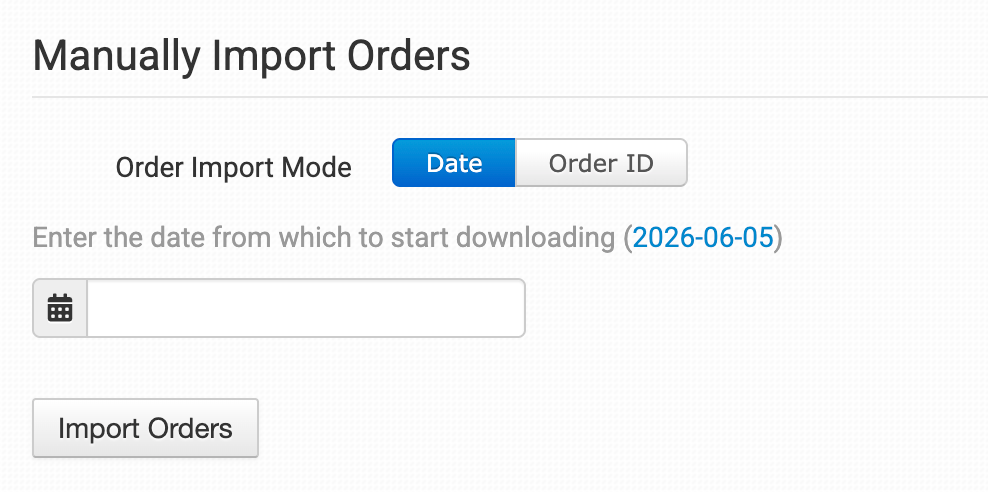
You can manually import orders from Wix at any time. You can import orders by Date if you need to bring in multiple orders, or by a specific Order ID if you only need to import one order.
Tip: Importing Orders by Date
If Wix has a large number of orders in the selected date range, you may need to click the Import button a few times to bring them all in.
Manually Import Inventory Items
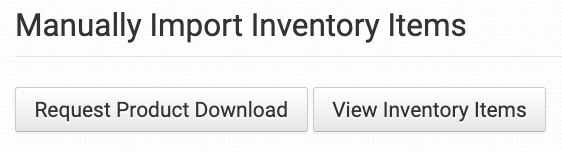
Order Desk can import your inventory items from Wix. To start an import, click Request Product Download.
Once your items have been imported, you can manage your inventory in Order Desk and add extra details to each item. To learn more about the available inventory features, see the Inventory Items guide.
Review Order Desk

Click this button to leave a review for Order Desk in the Wix App Market. You’ll be asked to choose a rating from one to five stars, add a review title, and optionally share more details about your experience using the Order Desk app.