Order Desk can connect to your TikTok Shop account and automatically download your orders.
Choosing the Right Connection
This guide covers both the US and Global TikTok Shop connections.
The Global connection currently supports the following marketplaces:
- North America: Mexico.
- Asia: China.
- Europe: The UK, France, Spain, Germany, Italy, and Ireland.
The US connection only supports shops based in the United States.
Setup
In Order Desk, click Manage Integrations in the left sidebar. Under the Shopping Carts tab, find and enable TikTok Shop.
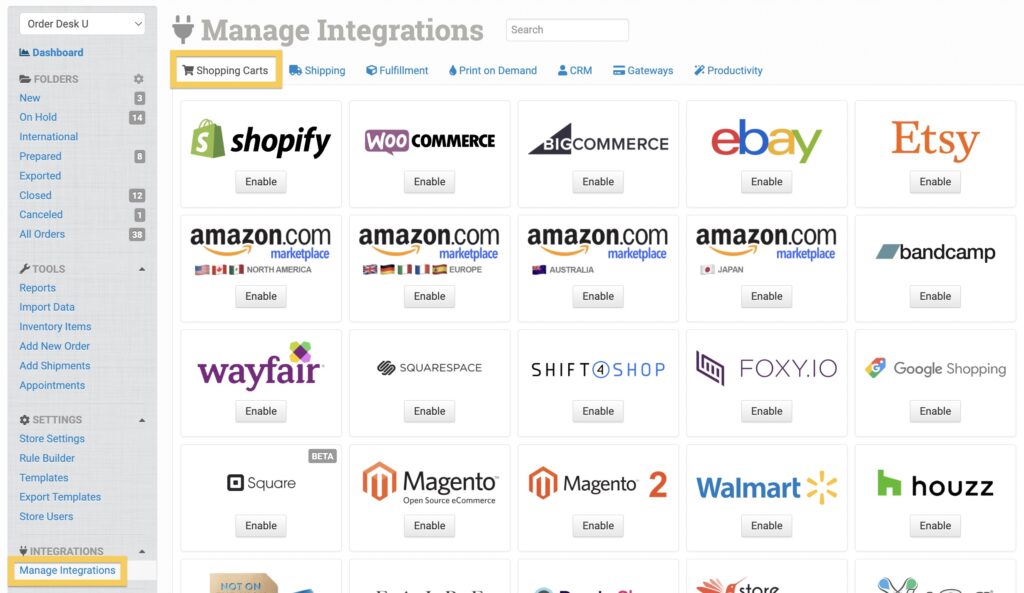
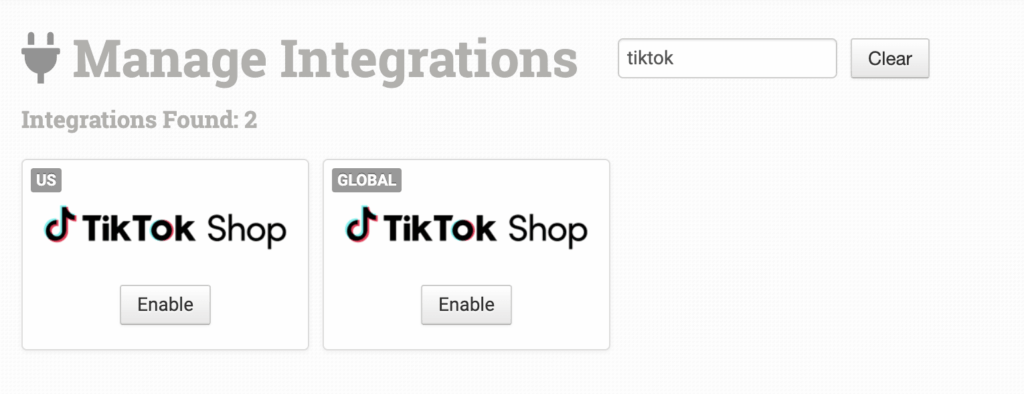
You can also search for TikTok Shop using the available integration search. Choose the connection that matches your shop’s region.
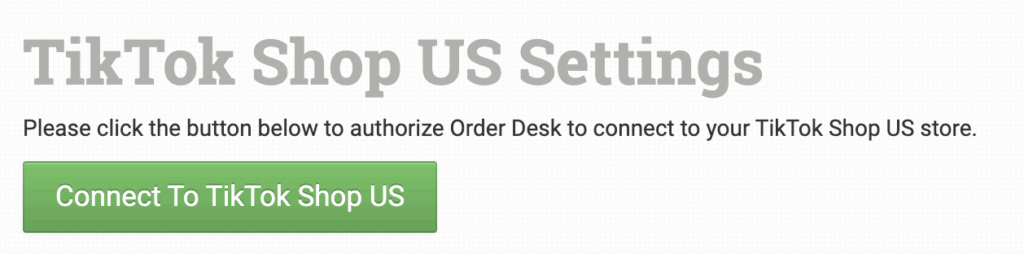
Once the integration is enabled, click Connect to TikTok Shop. You’ll be asked to sign in to your TikTok Shop account and authorize the connection.
Order Desk can’t find or reset your TikTok Shop credentials. You’ll need to get help with them directly from TikTok.
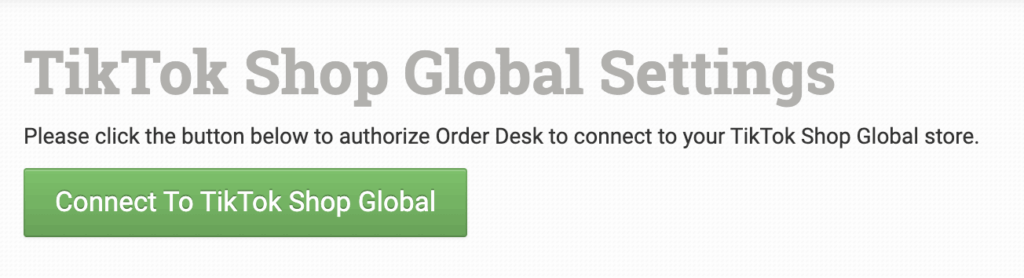
You’ll need an active TikTok Shop account before you can connect the integration. You can create one through the TikTok Shop Seller Center. TikTok Shop accounts can’t be created through Order Desk.
Integration Settings
TikTok Help
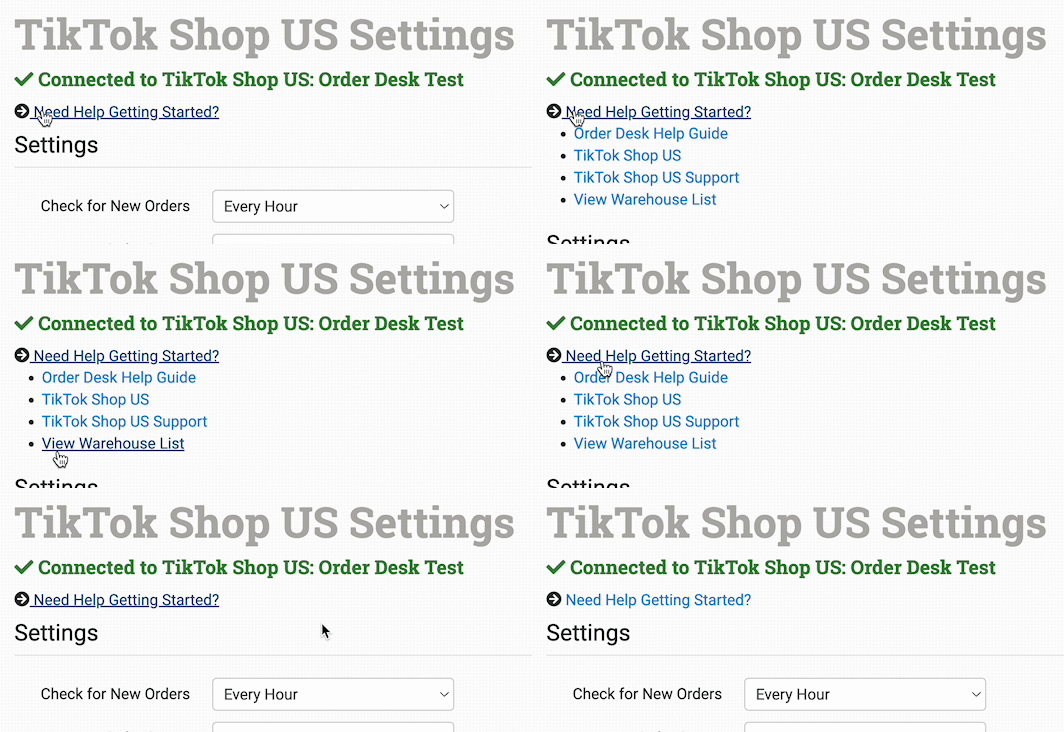
Click Need Help Getting Started? to open helpful resources for using TikTok Shop.
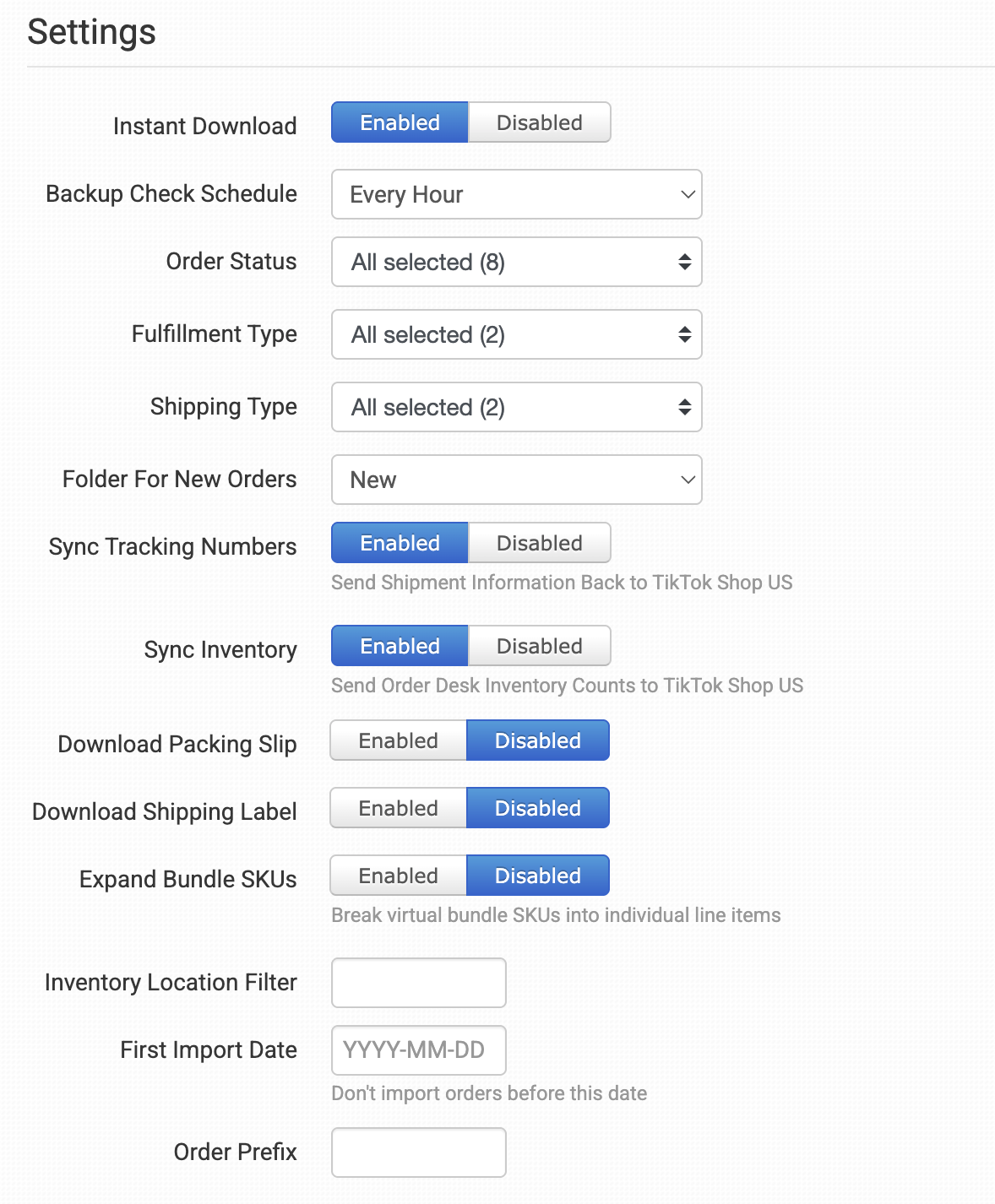
Instant Download
Select Enabled to import TikTok Shop orders into Order Desk as soon as they’re placed.
If Instant Download is enabled but some orders aren’t being imported, make sure you’ve also set up a Backup Check Schedule.
Backup Check Schedule
The Backup Check Schedule tells Order Desk when to check TikTok Shop for new orders.
If Instant Download is enabled, the backup check runs in the background and picks up any orders that weren’t imported when they were placed.
If Instant Download is disabled, Order Desk will import new orders according to the schedule you select.
Order Status
Select which TikTok Shop order statuses Order Desk should download.
Fulfillment Type
Select which fulfillment types Order Desk should download. The available fulfillment types are:
- Fulfilled by TikTok Shop: TikTok Shop manages the fulfillment process, including inventory and shipping.
- Fulfilled by Seller: You fulfill the order. This includes Platform Shipping, which uses a shipping label purchased from TikTok Shop, and Seller Shipping, which uses your own shipping label.
Shipping Type
Select which TikTok Shop shipping types Order Desk should download.
Folder for New Orders
Select the folder where newly imported TikTok Shop orders should be placed.
For more information, see the Working with Folders guide.
Sync Tracking Numbers
Enable this setting to automatically send shipment details back to TikTok Shop and update the original order.
Sync Inventory
Enable Sync Inventory if you want Order Desk to send inventory availability updates back to TikTok Shop. By default, Order Desk will sync inventory to the first available warehouse it finds.
To choose a specific warehouse for an item, add either the tiktokshopus_warehouse_id or tiktokshopglobal_warehouse_id item metadata field and use the warehouse ID as its value. You can find your available warehouses by clicking View Warehouse List in the TikTok Shop help links.
Preventing Unnecessary Stock Syncs to TikTok Shop
If an inventory item isn’t found in TikTok Shop during the first sync attempt, Order Desk adds a skip metadata field to the item. This prevents repeated sync attempts for an item that isn’t available in TikTok Shop.
Depending on your integration region, the metadata field will be one of the following:
skip_push_tiktokshopglobalskip_push_tiktokshopusOnce the skip metadata is added, Order Desk will stop trying to sync stock for that item.
If you list the item on TikTok Shop later, remove the skip metadata to resume syncing. You can remove it from multiple items at once using an inventory import template.
Download Packing Slips
Enable this setting to download packing slips with your TikTok Shop orders.
Download Shipping Label
Enable this setting to download shipping labels with your TikTok Shop orders.
Expand Bundle SKUs
If you use virtual bundles in TikTok Shop, enable this setting to have Order Desk split each bundle into its individual line items after import.
Inventory Location Filter
Use this setting to import only orders associated with specific inventory locations.
First Import Date
Select the earliest date from which you want Order Desk to import orders.
Order Prefix
Enter a prefix here if you want it added to every order number imported from TikTok Shop.
Platform Shipping Label Creation
This feature is only available in the TikTok Shop US integration.
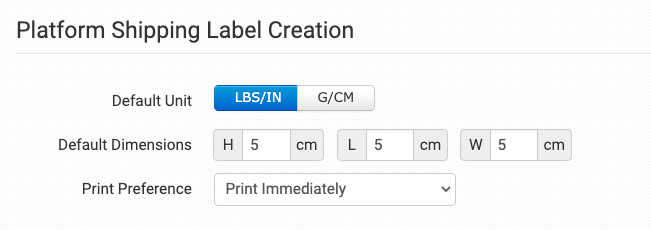
When Platform Shipping is selected under the Shipping Type setting, label package settings will appear on the integration page. Use these settings to choose the default package details applied when you create labels for TikTok Shop orders.
TikTok Shipping Label Creator
When Platform Shipping is enabled in your Shipping Type setting, a label creator will appear below the product details on each TikTok Shop order. Select the box type, enter the package weight, then click Fetch Rates.
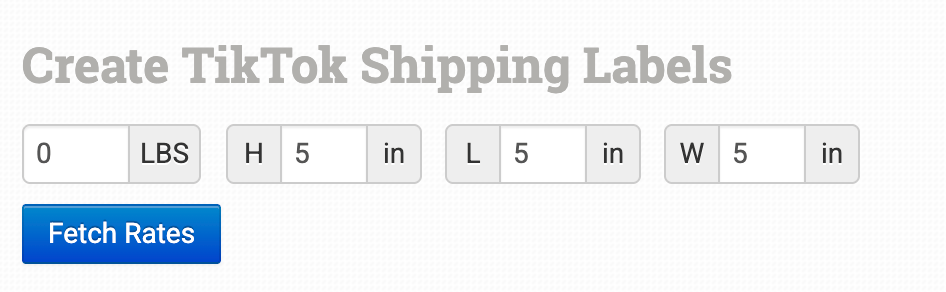
The available rates will appear in a new dropdown menu. Select a rate, then create the label. You can also update the package settings and fetch the rates again.
Manual Imports
You can manually import orders or inventory items from TikTok Shop into Order Desk at any time.
Manually Import Orders
You can manually import orders from TikTok at any time. You can import orders by Date if you need to bring in multiple orders, or by a specific Order ID if you only need to import one order.
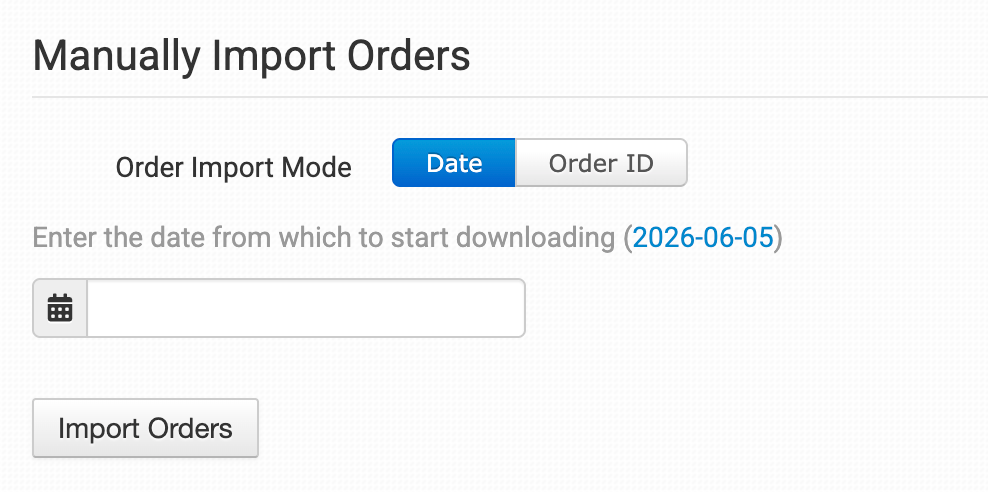
Tip: Importing Orders by Date
If TikTok has a large number of orders in the selected date range, you may need to click the Import button a few times to bring them all in.
Manually Import Inventory Items
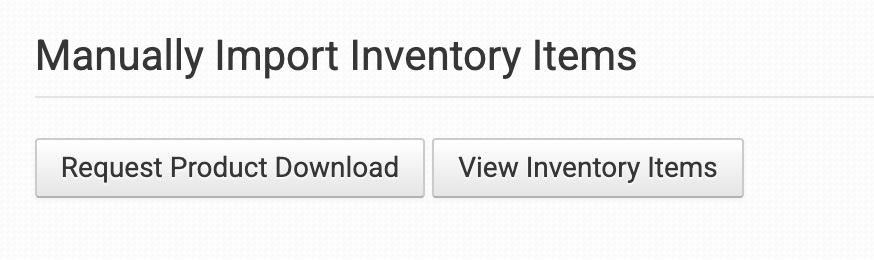
Click Request Product Download to manually import your inventory items. You can also click View Inventory Items to view the inventory already stored in Order Desk.
Handling Cancellations and Returns
When a buyer asks to cancel an order or return or replace an item, Order Desk tracks the request and lets you approve or reject it without leaving Order Desk.
TikTok Shop Global Sellers
When this guide refers to
tiktokshopusin a metadata field or rule action name, usetiktokshopglobalinstead if you’re connected through the Global integration.
Approving or Rejecting a Request
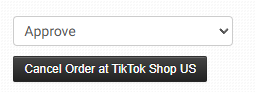
When an order has an open cancellation or return request, Order Desk adds an Approve / Reject dropdown to the order details page. A button will also appear so you can send your response back to TikTok Shop.
For a cancellation request:
For a return request:
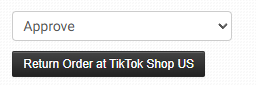
Select your response from the dropdown, then click the button to send it to TikTok Shop.
These controls only appear while the request is waiting for a response. They’ll disappear after TikTok Shop marks the request as complete, canceled, or rejected.
Automating Your Response with a Rule
You can create a rule to respond to requests automatically. If you’re new to rules, start with the How to Work With Rules guide.
Use the Respond to Cancel / Return Request at TikTok Shop US rule action:
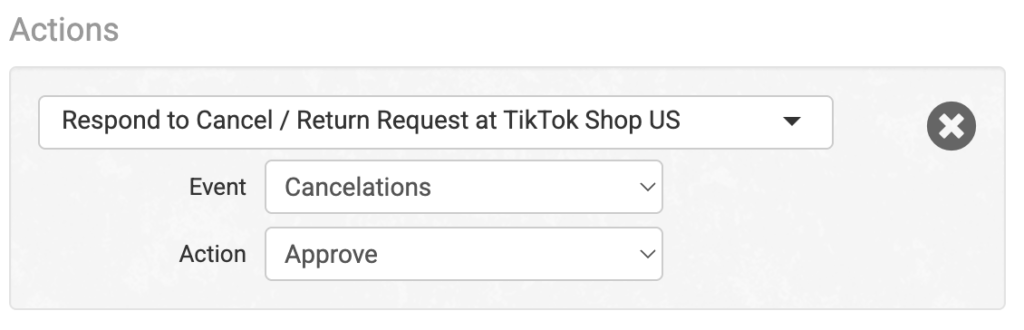
For example, you could automatically approve every buyer cancellation request. You could also approve returns only when certain conditions are met, such as when the order contains a specific product or is below a certain total.
Heads Up
The rule action will fail if the request has already been resolved. For example, it can’t approve a cancellation after the buyer has withdrawn the request.
Building Custom Workflows Around Cancellations and Returns
Order Desk provides rule events you can use to trigger workflows when specific changes happen, such as when a buyer submits a return request or a seller rejects a cancellation.
There are two tracking levels. The level you use determines which rule events are available.
Basic tracking, checked simultaneously as Order Desk imports orders from TikTok Shop:
Buyer Requested Cancelation at TikTok ShopOrder Canceled at TikTok Shop
As Order Desk imports orders from TikTok Shop, it checks whether each order has been imported before. If it finds a match, it runs a second check to see whether the order has a cancelation in progress and then records it.
Detailed tracking, updated when TikTok Shop notifies Order Desk of a change:
Order Cancelation Request Status Change at TikTok ShopOrder Return Status Change at TikTok ShopOrder Status Change at TikTok Shop
When a detailed tracking event runs, Order Desk stores information about the change as order metadata. You can use these fields in your rule filters:
| Metadata Field | What It Tells You |
|---|---|
| tiktokshopus_event_status | The current status of the request, such as pending, canceled, or complete. |
| tiktokshopus_event_role | Who made the change. Possible values are BUYER, SELLER, and TIKTOK. |
| tiktokshopus_event_id | An internal ID used by Order Desk to act on the request. You won’t usually need to filter on this field. |
Example: Catching a Successful Cancellation
To run a rule whenever a cancellation request is completed successfully, use the following example as a starting point:
- Rule Type: Order Rule
- Event: Order Cancelation Request Status Change at TikTok Shop
- Filter: Order Metadata Field
tiktokshopus_event_statusEqualsCANCELLATION_REQUEST_SUCCESS- Action: Your preferred rule action
To run the rule only when the buyer canceled the order, add another filter where tiktokshopus_event_role equals BUYER.
- Rule Type: Order Rule
- Event: Order Cancelation Request Status Change at TikTok Shop
- Filter: Order Metadata Field
tiktokshopus_event_statusEqualsCANCELLATION_REQUEST_SUCCESS- AND
- Filter: Order Metadata Field
tiktokshopus_event_roleEqualsBUYER- Action: Your preferred rule action
Values You Can Filter On
The following values may appear in the event metadata fields. TikTok Shop may add or change values in the future, so use this list as a reference rather than a permanent list.
Order Cancelation Request Status Change at TikTok Shop
Possible values for tiktokshopus_event_status:
CANCELLATION_REQUEST_PENDING: The buyer has submitted a request and is waiting for a response.CANCELLATION_REQUEST_SUCCESS: The request was approved.CANCELLATION_REQUEST_CANCELLED: The request was withdrawn.CANCELLATION_REQUEST_COMPLETE: The request was fully processed.
Order Return Status Change at TikTok Shop
Possible values for tiktokshopus_event_status:
RETURN_OR_REFUND_REQUEST_PENDINGREFUND_OR_RETURN_REQUEST_REJECTBUYER_SHIPPED_ITEMREJECT_RECEIVE_PACKAGERETURN_OR_REFUND_REQUEST_SUCCESSRETURN_OR_REFUND_REQUEST_CANCELRETURN_OR_REFUND_REQUEST_COMPLETEREPLACEMENT_REQUEST_PENDINGREPLACEMENT_REQUEST_REJECTREPLACEMENT_REQUEST_REFUND_SUCCESSREPLACEMENT_REQUEST_CANCELREPLACEMENT_REQUEST_COMPLETE
FAQ
Can You Create a TikTok Seller Account for Me?
Order Desk can’t create a seller account for you. You can create one through the TikTok Shop Seller Center, then connect it to Order Desk.
Why Are the Order Details Redacted on My TikTok Shop Orders?
Order details are redacted when TikTok Shipping, also called Platform Shipping, is selected in your TikTok Shop Seller Center.
To ship orders through another service, such as a fulfillment integration connected to Order Desk, switch the shipping option to Seller Shipping.
Why Can’t I See My TikTok Shop Products in Order Desk After I Click Request Product Download?
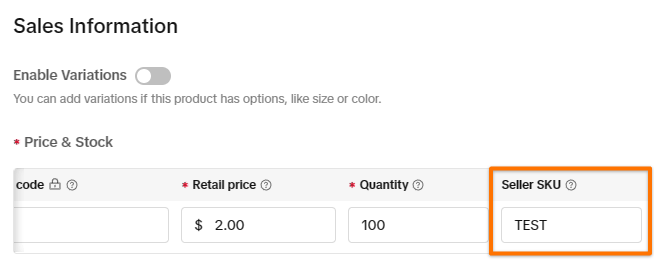
Order Desk can only download products that have a Seller SKU in TikTok Shop Seller Center. Check the product in TikTok Shop Seller Center and make sure a Seller SKU has been added.