
There are two ways to connect Shopify to Order Desk.
If you’re an admin on the Shopify account, you can connect Shopify directly from within Order Desk or Shopify. For that setup, see the Shopify integration guide.
If you’re not an admin on the Shopify account but still need access to orders from the store, you can use the custom app method instead. This is helpful for fulfillment services, vendors, or other teams who need to pull Shopify orders into Order Desk but don’t have access to the Shopify admin account.
With this method, the Shopify admin creates a custom app in Shopify and shares the connection details with you. This gives Order Desk access to the store’s order data without giving you direct access to the Shopify admin account.
This guide explains how to connect Shopify to Order Desk using the custom app method.
Note:
This process involves two roles: the person setting up the Shopify integration in Order Desk and the Shopify admin. The steps in this guide are labeled to show who should complete each part.
Step 1: Start the Custom App Connection in Order Desk
In the Order Desk store where Shopify should be connected, go to this URL:
https://app.orderdesk.me/integration/shopify?enable-custom-app=1
You’ll be asked to enter three details from Shopify:
- Shop Name
- Client ID
- Client Secret
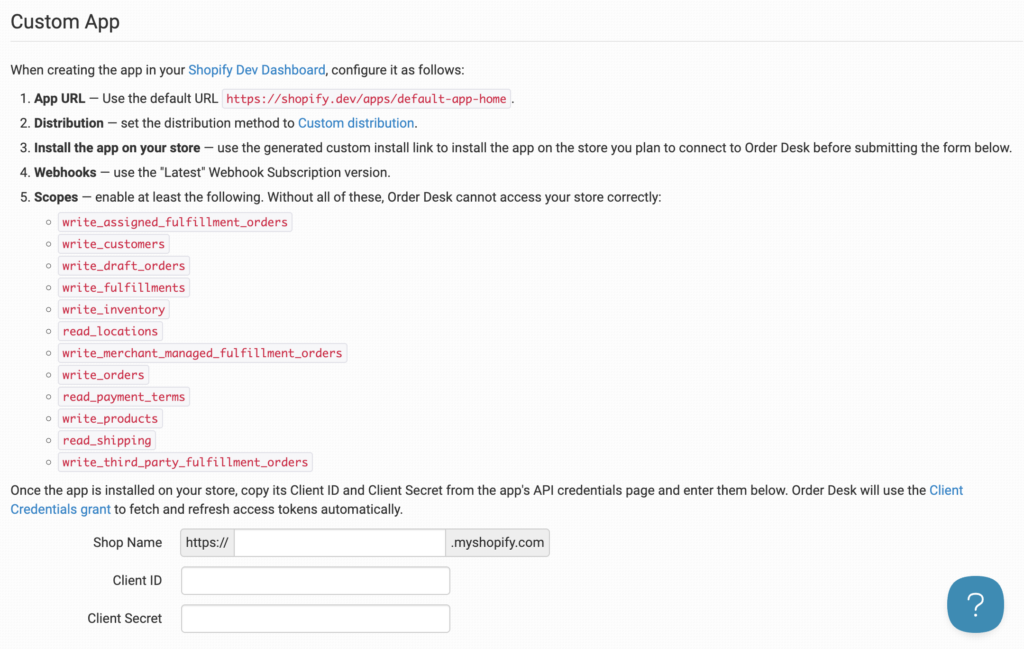
The Shopify admin will need to create a custom app in Shopify first, then share these details with you. You can share the following steps with them.
For the Shopify Admin
Create the Custom App in Shopify
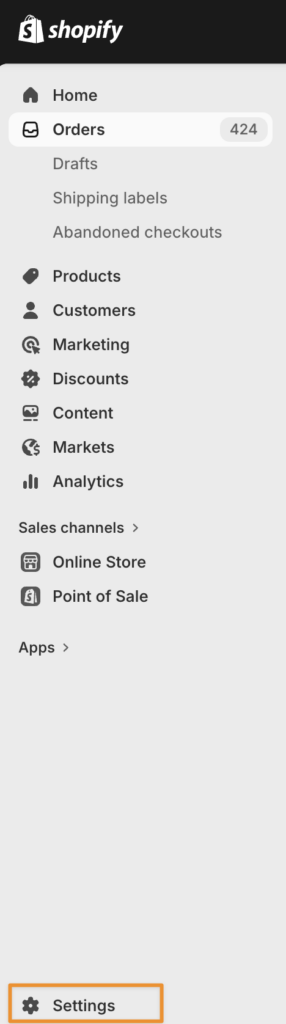
Log in to Shopify and click Settings from the dashboard:
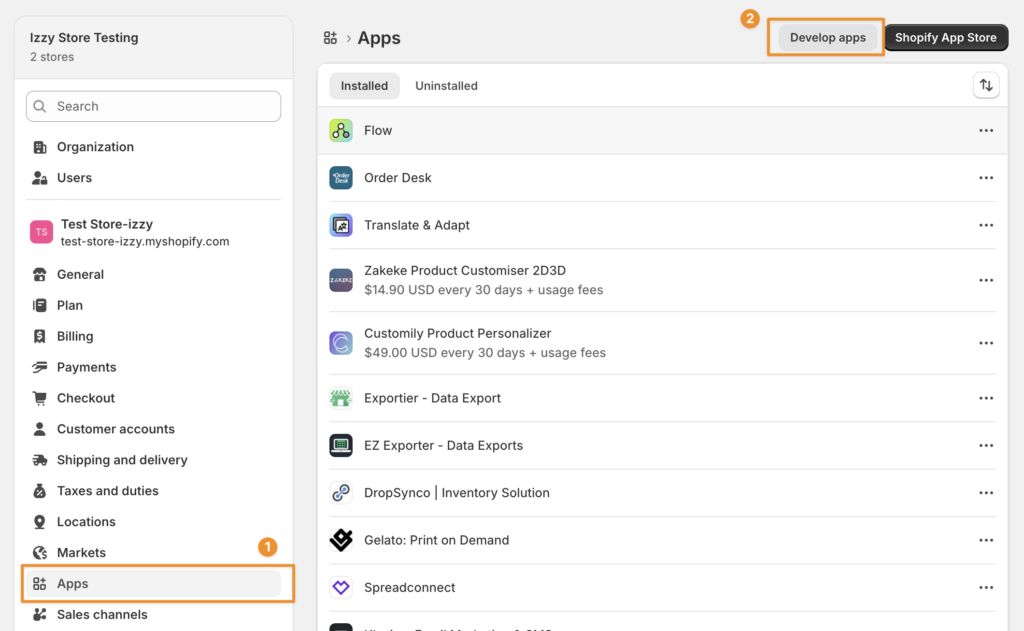
From the Settings page, click Apps, then click Develop apps.
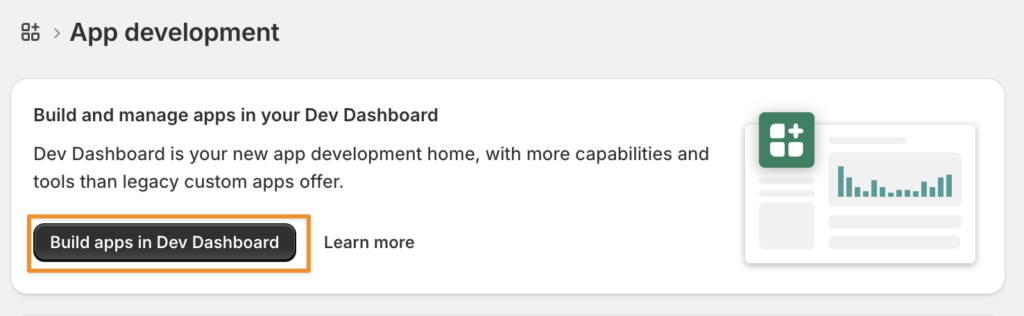
This will open the app development area. From there, click Build apps in Dev Dashboard.
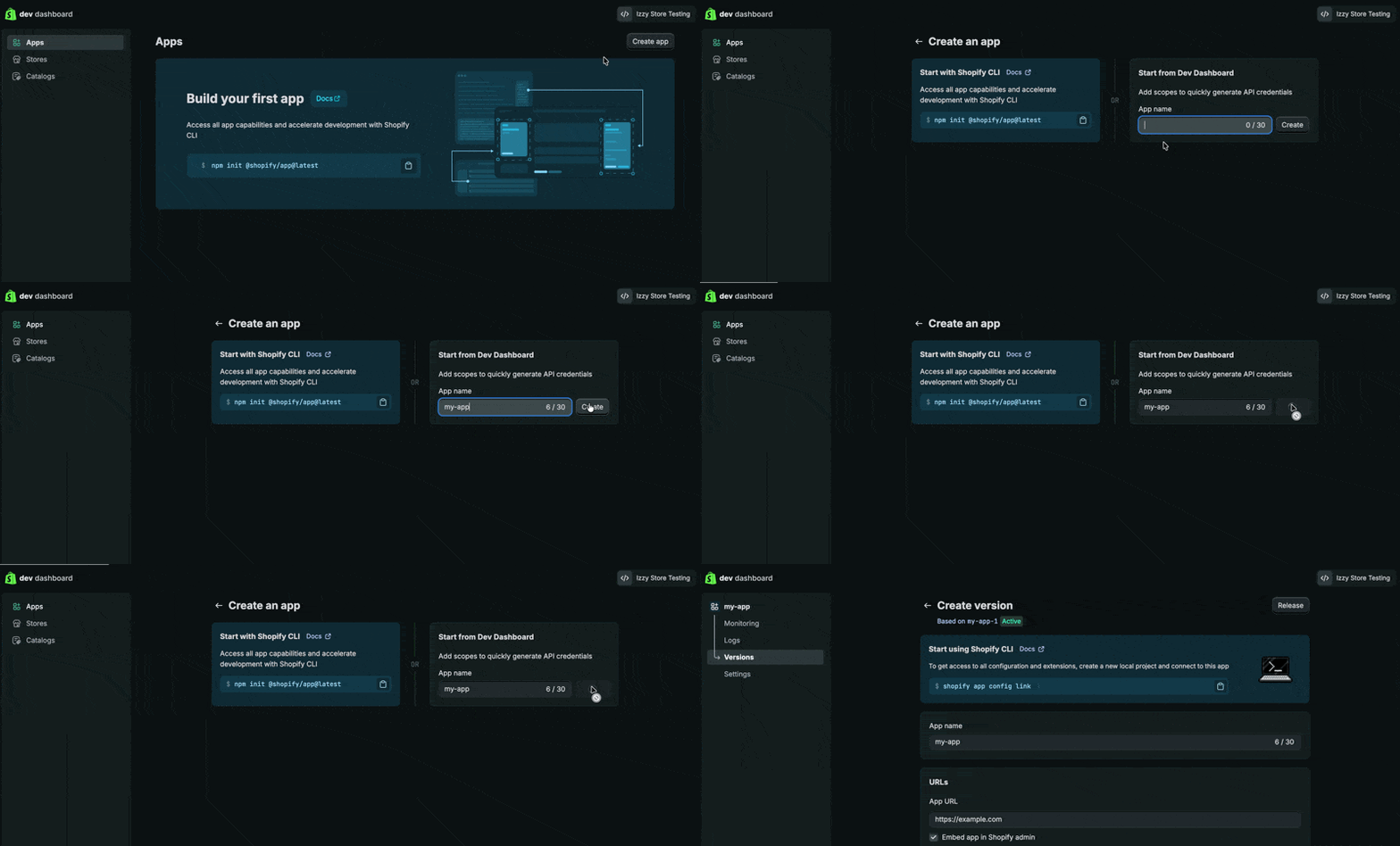
In the Dev Dashboard, click Create app. The app can be given any name. After adding a name, click Create:
Configure the App
Shopify will ask for an App URL. Add this URL in that field:
https://shopify.dev/apps/default-app-home
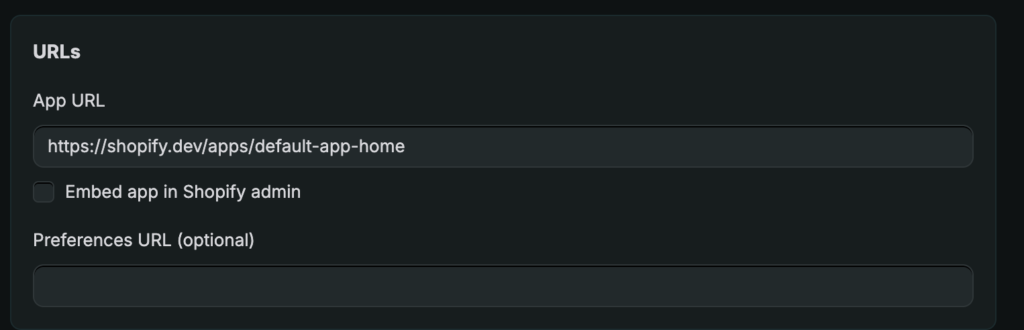
Before continuing, turn off the option to Embed app in Shopify admin.
In the Access Scopes section, copy and paste the following scopes:
read_all_orders, write_assigned_fulfillment_orders, write_customers, write_draft_orders, write_fulfillments, write_inventory, read_locations, write_merchant_managed_fulfillment_orders, write_orders, read_payment_terms, write_products, read_shipping, write_third_party_fulfillment_orders
These scopes are necessary to help Order Desk manage orders from your store correctly without errors.
Some users might run into a Contains invalid scopes error when trying to add
read_all_ordersaccess. If you run into that error, check out this Shopify help thread to learn how to get the access enabled for your account.
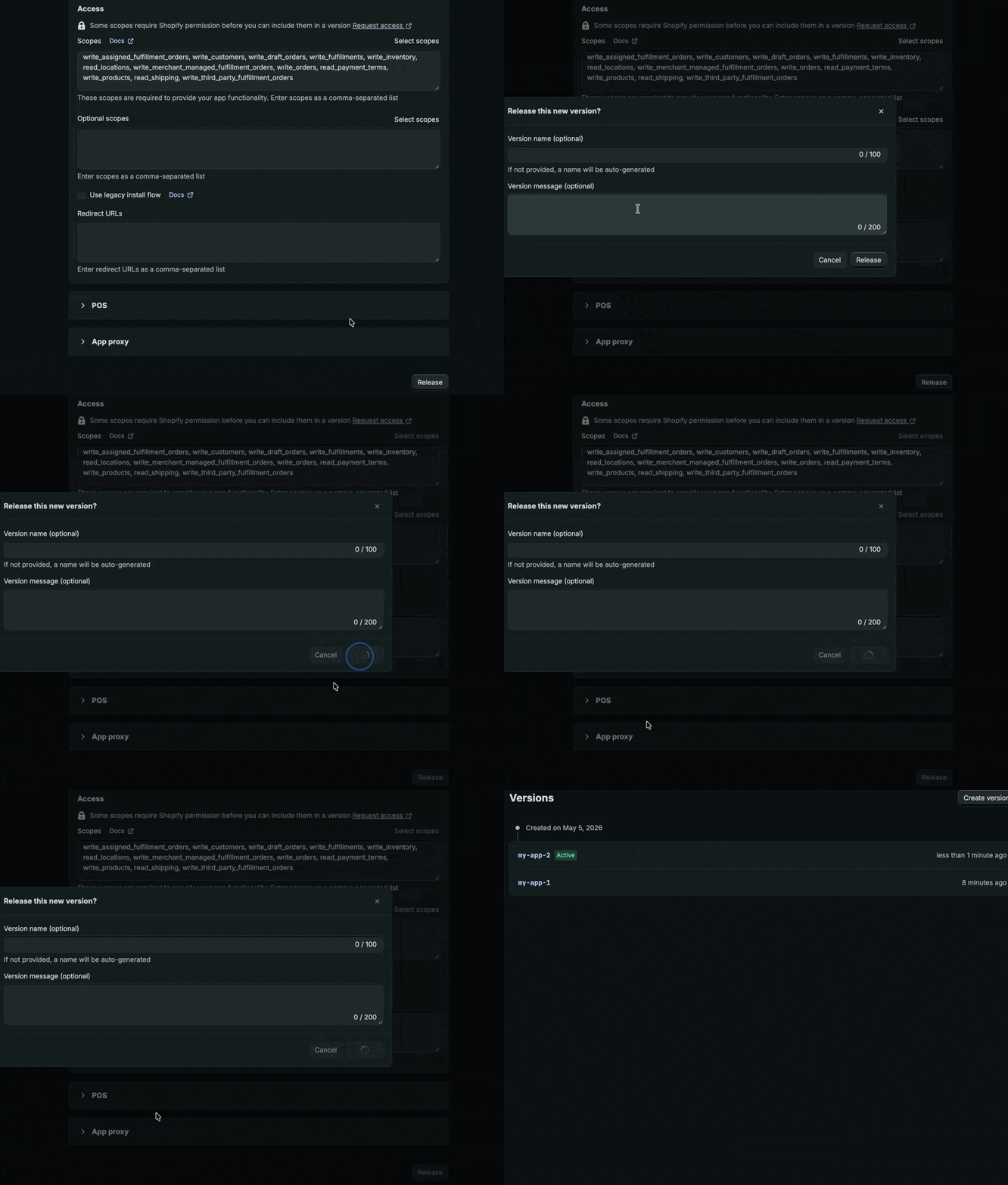
Once the scopes have been added, scroll to the bottom of the page and click Release. On the next page, no extra details are needed. Click Release again to confirm.
After that, Shopify should redirect you back to the Dev Dashboard.
Install the App
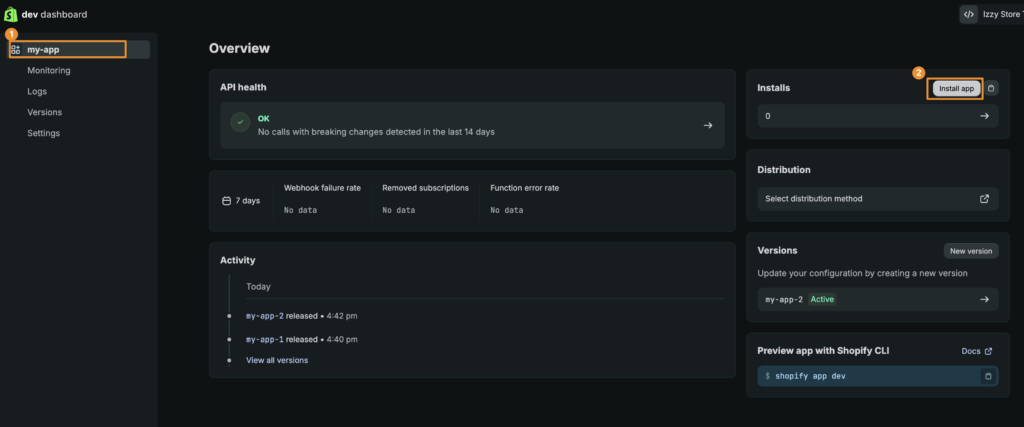
From the Dev Dashboard, click the name of the app you created. Then click the Install app button on the far right.
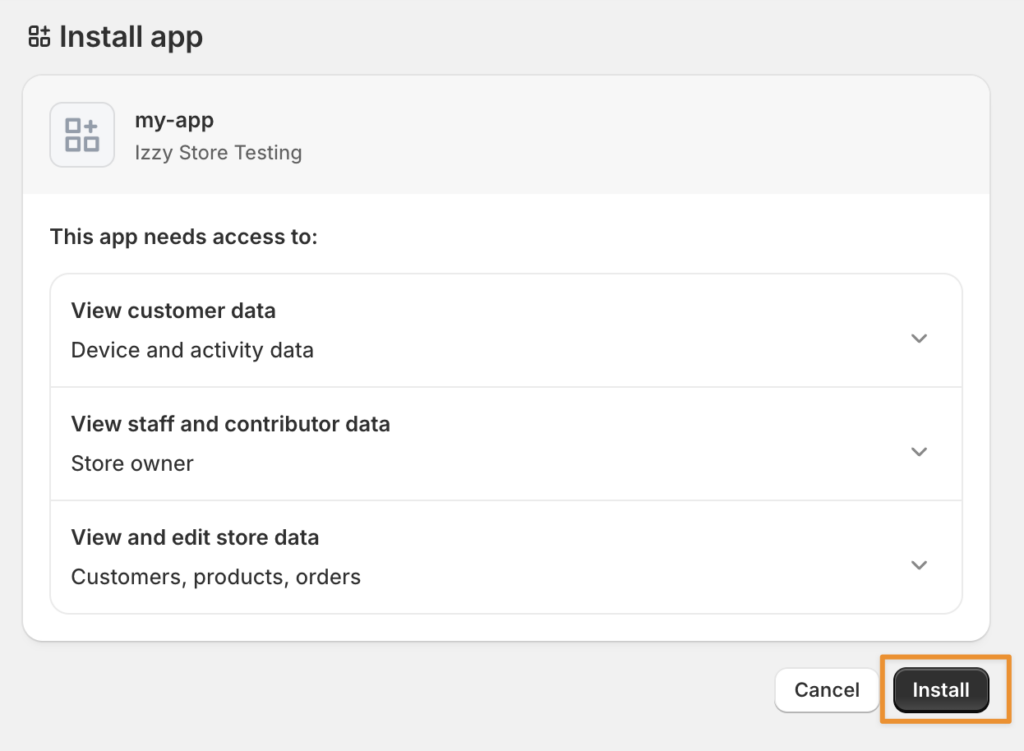
You’ll be redirected to a new tab where you can select your store, then sent back to Shopify to confirm the installation. Click Install.
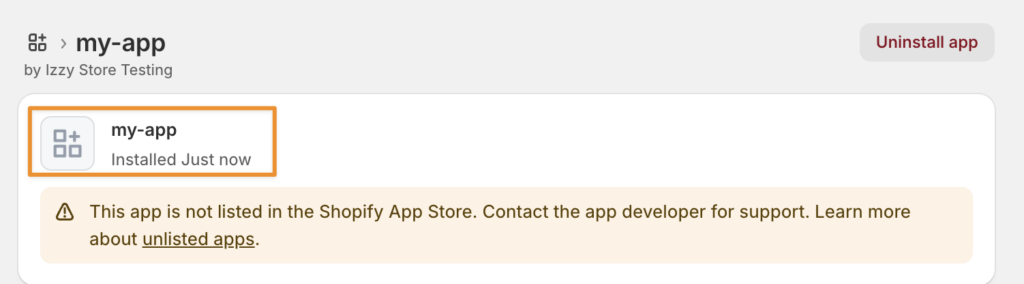
After the app is installed, Shopify will show a confirmation page.
Gather and Share the Credentials
With these steps completed, you can now share the following details with the person connecting Shopify in Order Desk:
- The Shop Name, which is the same store domain used in the earlier step.
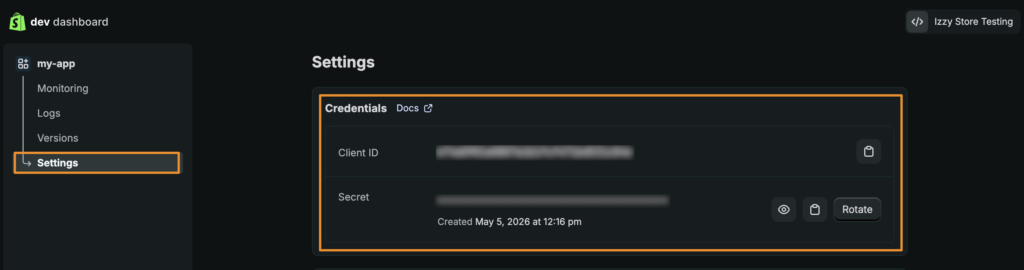
- The Client ID and Client Secret. You can find these by going back to the App Dev Dashboard, opening the app, and clicking Settings.
Step 2: Complete the Connection in Order Desk
As the person connecting Shopify to Order Desk, return to the connection screen you opened in Step 1, then paste in the details provided by the Shopify admin:
- Shop Name
- Client ID
- Client Secret
Once all three fields are filled in correctly, click Connect. The Shopify integration should now be active in your Order Desk store.
Set Up the Integration Preferences
Once connected, you can set up your integration preferences by following the steps in this guide.