
If you use FastEditor to create your visual proofs and production-ready files, Order Desk can import those designs and add them to your orders. You can then send the orders, along with the designs, to your print on demand service for printing (if your store is set up for it).
Setup
To enable the integration, click on Manage Integrations in the left sidebar. Under the Productivity tab, find and enable the FastEditor integration.
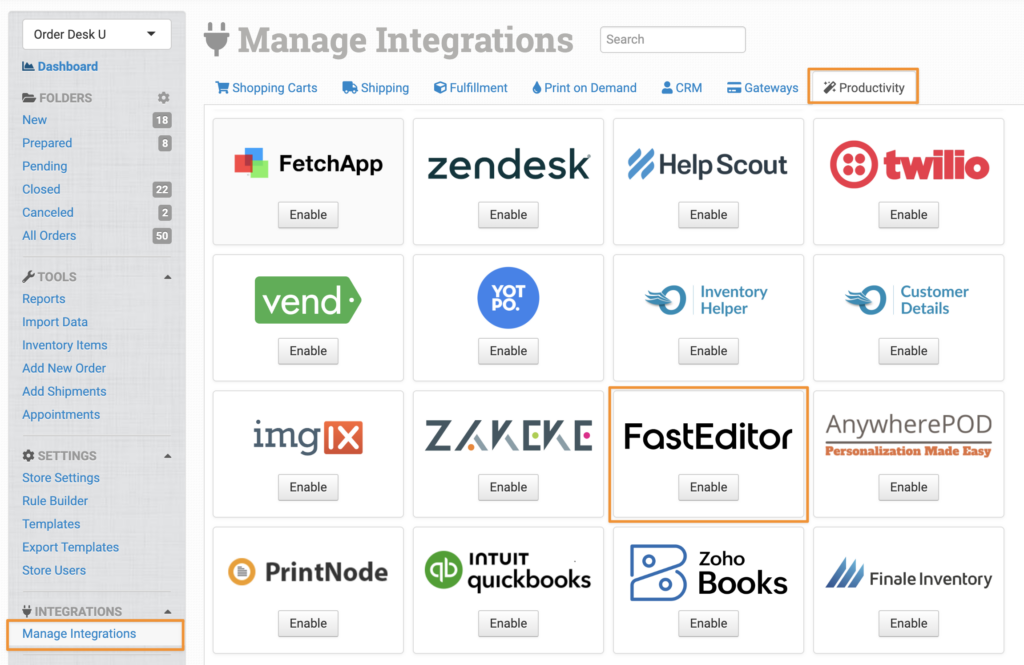
Alternatively, search for fasteditor from the available integrations.

Credentials
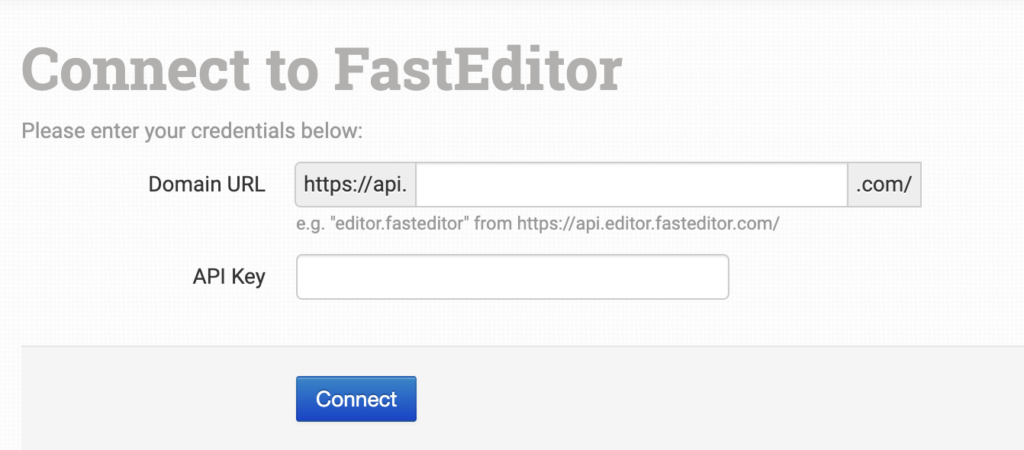
To use the FastEditor integration, you’ll need your account Domain URL and API Key. If you’re not sure where to find these, reach out to the FastEditor support team and they can help. Once you have them, enter the details on the connection page and click Connect.
Settings
Once connected, you’ll be able to adjust the following settings.
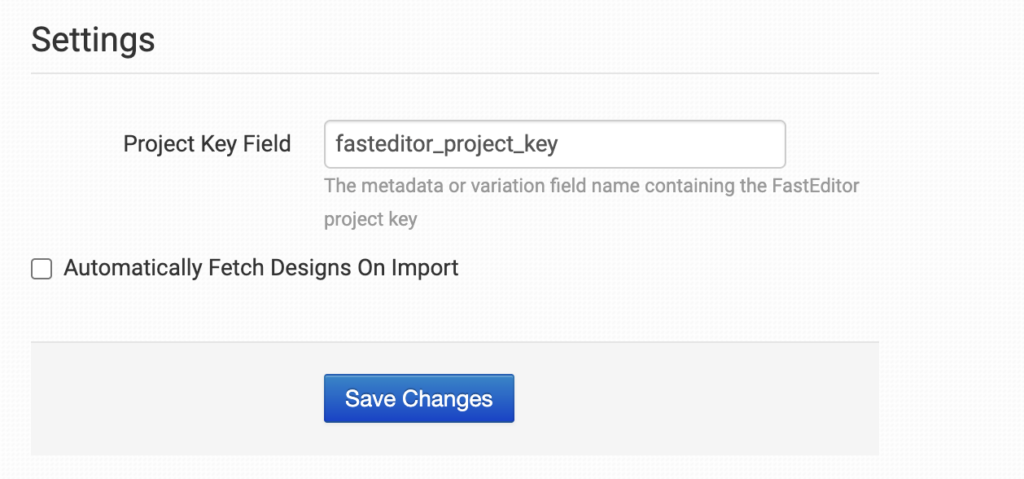
Project Key Field
Enter the name of the item metadata or variation field where Order Desk should look for your FastEditor project identifiers. Order Desk will use this value to request the correct print files for each item from FastEditor.
By default, this is set to fasteditor_project_key. If your cart uses a different field to store the project keys, you can enter that field name here.
Automatically Fetch Designs On Import
Enable this setting to have FastEditor designs imported automatically with your orders.
If you’d prefer to fetch designs later in your workflow, you can leave this setting disabled and set up a rule to do so.
Working with FastEditor Print Files
When FastEditor sends print files back to Order Desk, they are automatically added to your order items using the following fields:
print_url: The actual print file URL.print_location: The position where the print file should be placed.print_preview: A preview or mockup of the final print job.
Rules Reference
The FastEditor integration includes a rule event and action that let you control when print files are requested and what happens after they are received.
Event: FastEditor Print Files Received
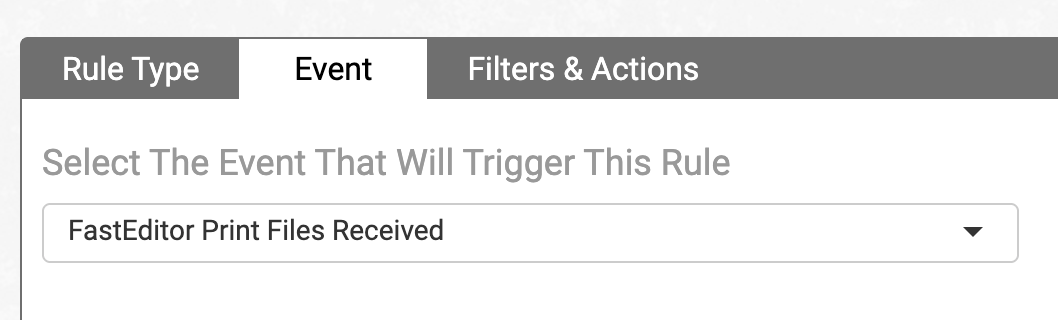
This event is triggered when FastEditor sends print files back to Order Desk. You can use this event to take further action on the order once the files are available.
Action: Send FastEditor Sale Notification
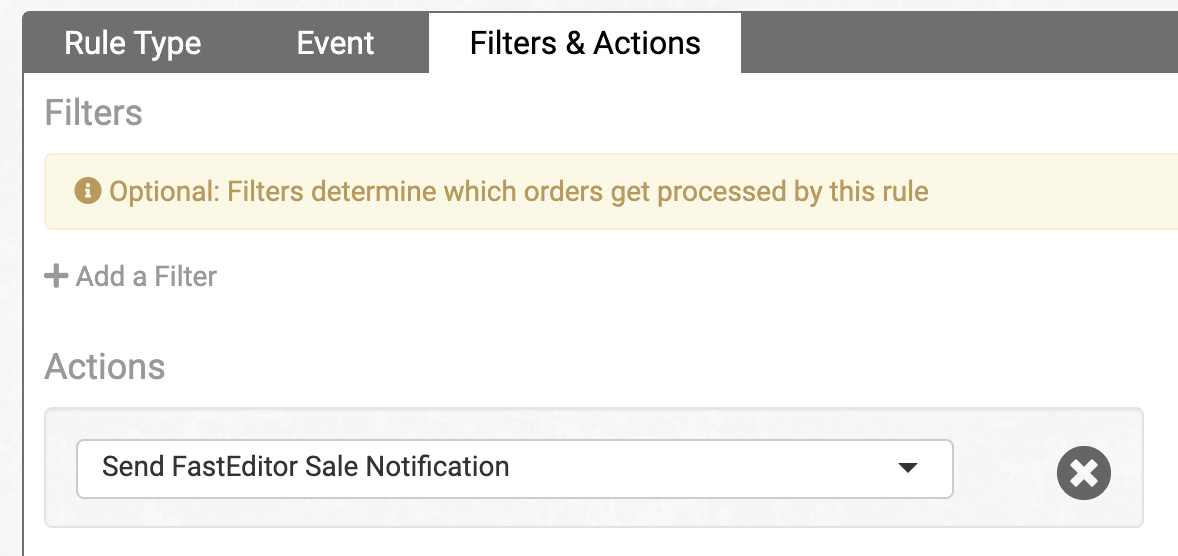
This action tells FastEditor to generate and send print files for an order.
You can use this if you don’t want to automatically fetch designs on import and instead prefer to request them later in your process.