
With Order Desk, you can set up a rule to add a new item to an order. This guide walks you through how to create this type of rule. Please note that this will not replace one item with another, but will instead add an additional item to the order. If you need to replace one item with another, see the Code Replace guide for instructions.
Adding Filters
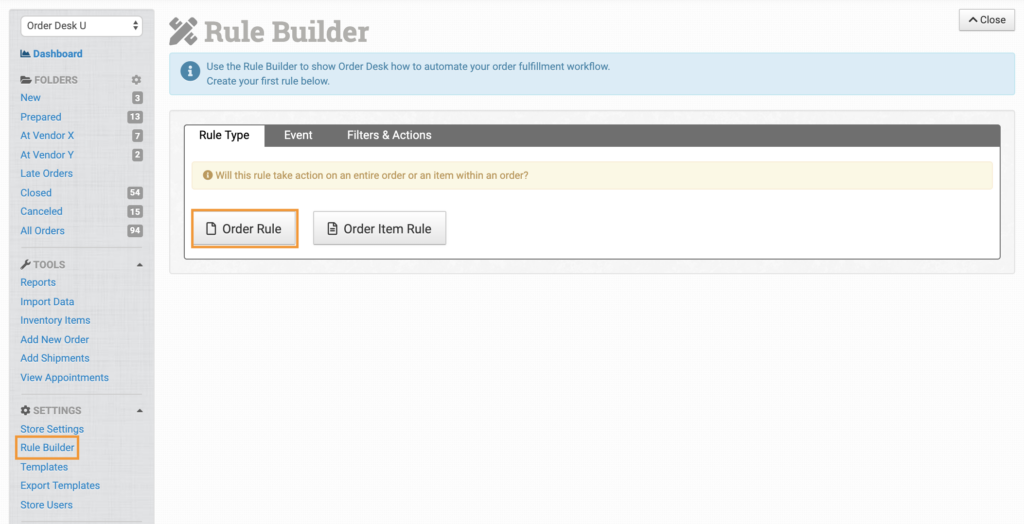
In the Rule Builder, start by selecting the Order Rule rule type:
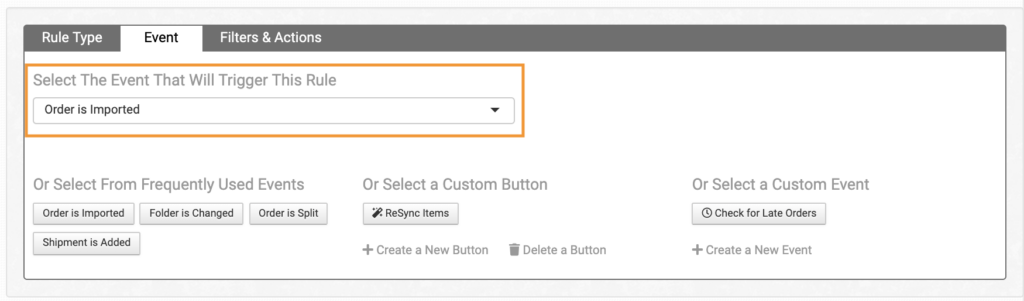
For this example, we’ll use the Order is Imported event to create a rule that adds a new item when the order is imported. You can choose a different event depending on when you want the item added:
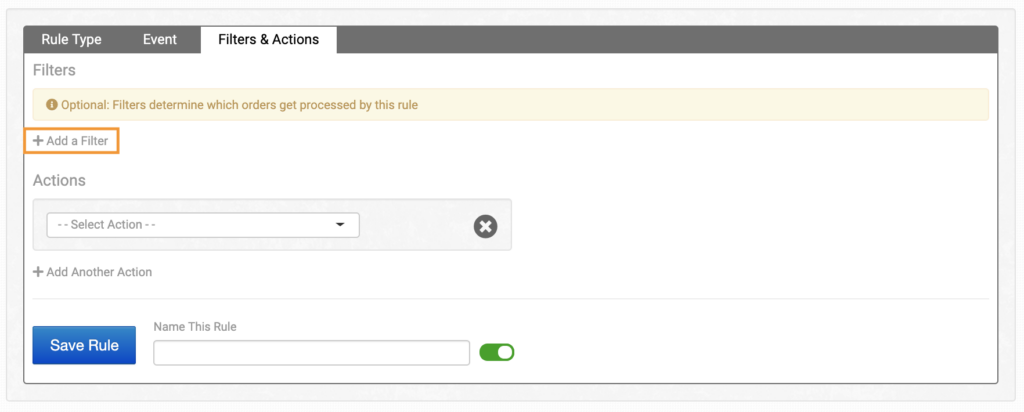
Under the Filters & Actions tab, click Add a Filter to set any conditions that must be met for the rule to run.
In this example, we’ll apply a filter that says If Item Code is YT-2400, run the rule. This means the rule will run on any order that contains the SKU YT-2400.

YT-2400 is just an example SKU. For your rule, use the SKU or filters that match your needs. You can also add additional filters if needed.
Adding Actions
Select Add an Order Item as the action:
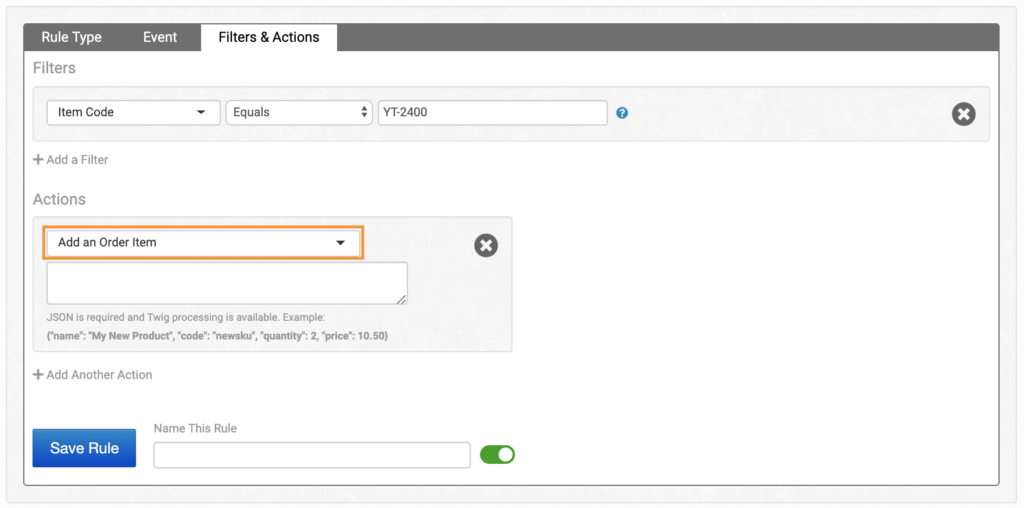
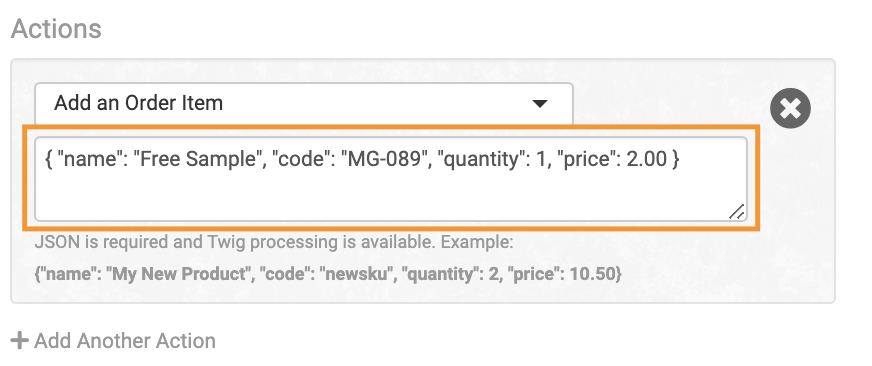
In the empty box below Add an Order Item, you’ll need to enter order JSON. Here’s a sample format:
{ "name": "XXX", "code": "XXX", "quantity": 1, "price": 2.00 }
Copy the JSON above, or use the order_item section in the field name list to find the fields you need. Replace the XXX values with your product name and SKU, then paste it into the box:
Name the rule and save it.