
Order Desk can be used to send emails to your customers or yourself, and the system will periodically email an alert to store admins regarding order statuses. Changes can be made to how emails are sent from your Order Desk store by navigating to the Email tab in your Store Settings.
To learn more about creating email templates to use in your Order Desk store, please read our How to Work with Email Templates guide.
Sending Email with Order Desk’s Server
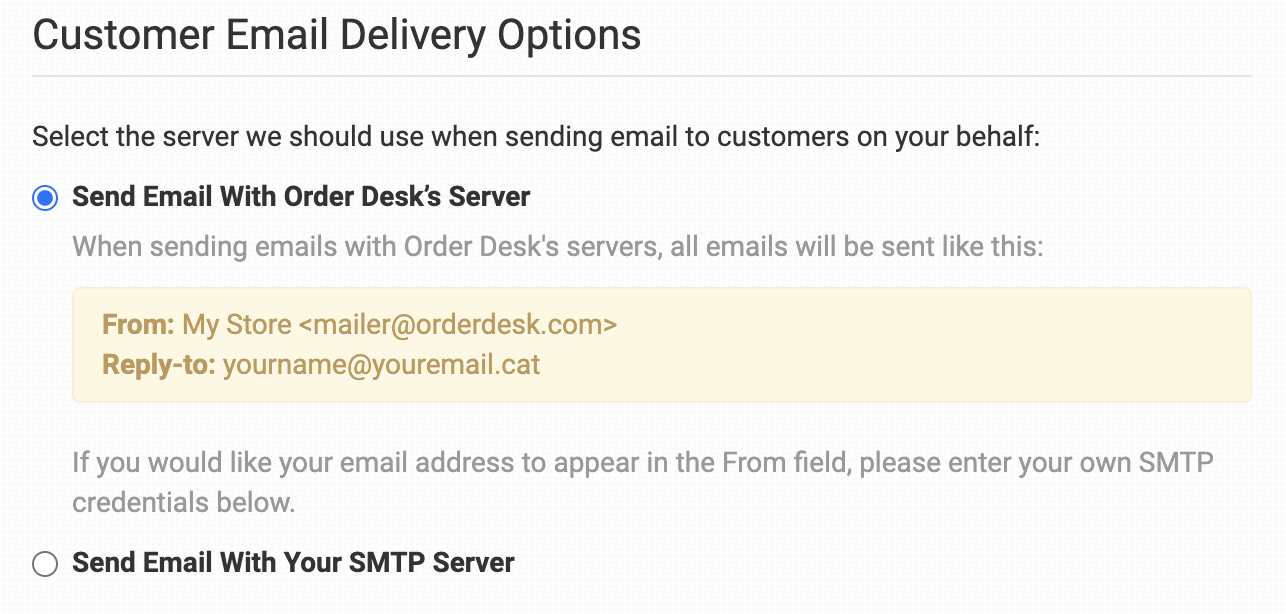
While Order Desk’s email will appear, your store name will be included in the From field and all reply emails will be routed to the email you have set up in your Store Settings.
Custom SMTP
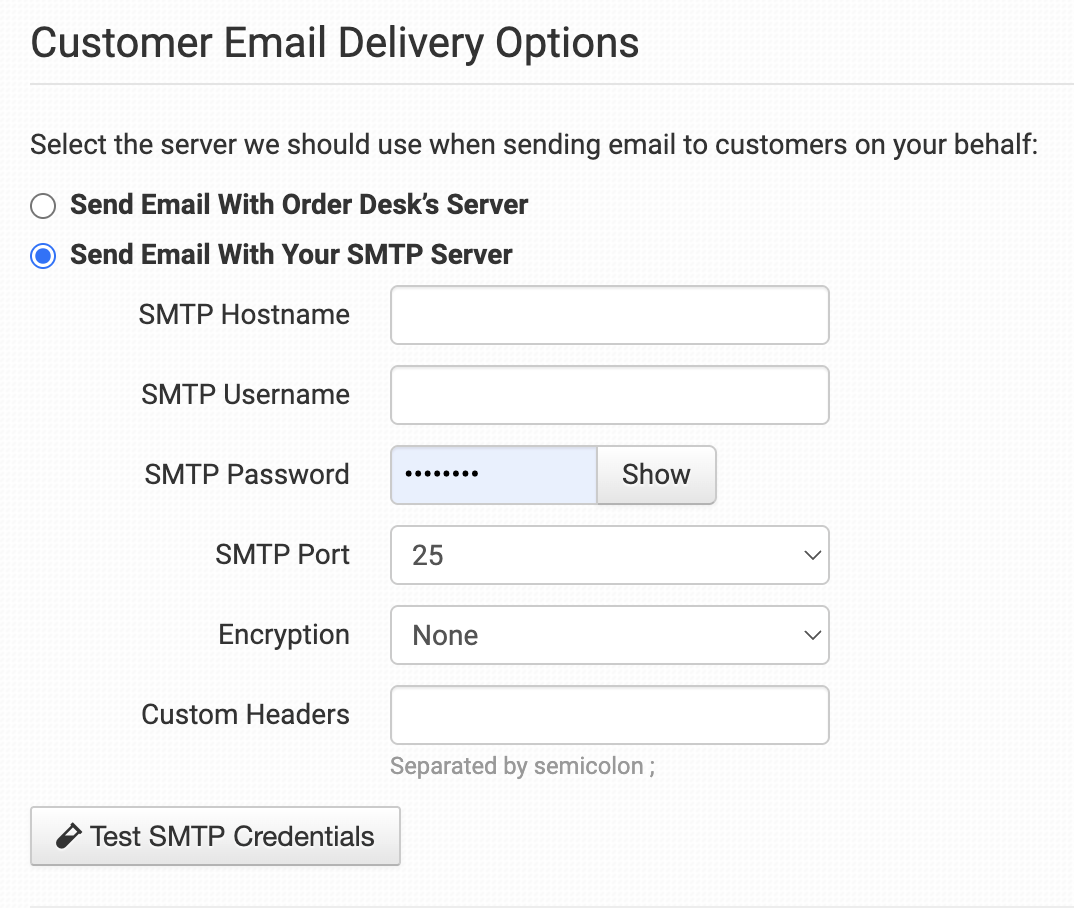
If you prefer to deliver the message from your domain, you can enter your own SMTP credentials and we will deliver the email via your SMTP server. You can also enter custom headers. Separate headers with a semi-colon. Example:
X-CUSTOM-NAME: Order Desk;X-CUSTOM-REF: Mailer
If you do not have ready access to an SMTP account SendGrid, MailGun, and SparkPost all offer tiered pricing for email sending and will provide SMTP credentials for you.
SMTP Testing Tools
If you have added your private SMTP information, you can use the Test SMTP Credentials button to confirm that your connection is properly configured to Order Desk.
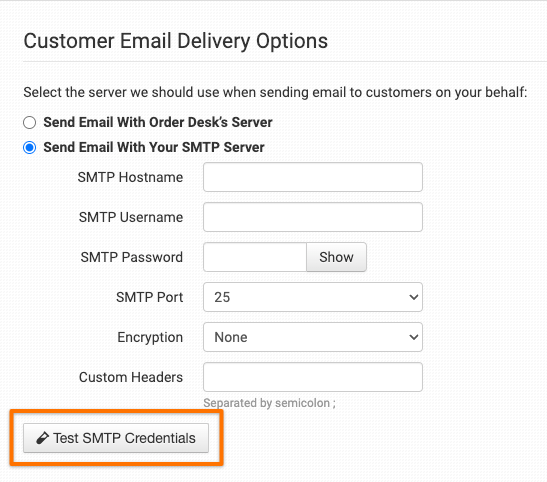
Clicking the button will trigger either a successful response or an error response. An error response would look similar to this:

If an email fails to send using your SMTP settings, Order Desk will send the email from our server as a backup.
In the case of a successful test, an SMTP Accepted Email alert will appear:

Successful test emails will be delivered from your Order Desk store email and sent to the email of the user who is logged into the store at the time of the test. Please note that a success response is not confirmation that the email has been received successfully by the customer. This is simply a confirmation that the sending server successfully received it.
Sending Email with Mailer Integrations
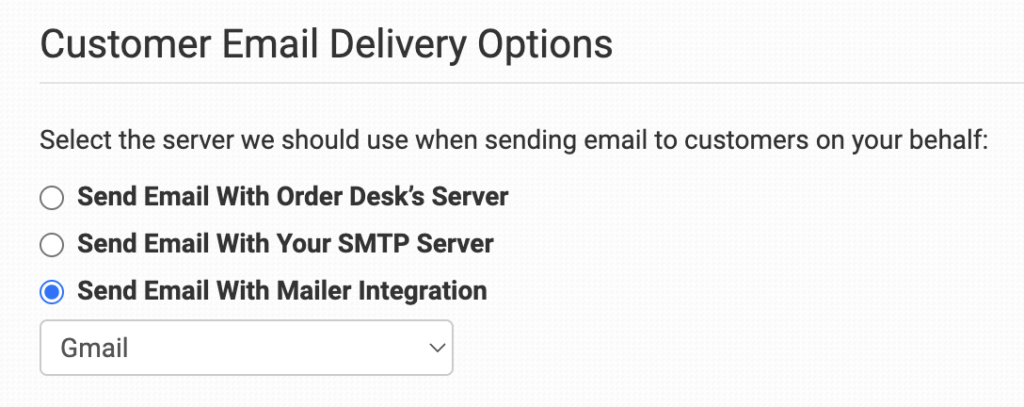
If you have enabled a mailer integration, you can select this option and choose the correct integration from the dropdown.