
Order Desk can connect to your Shein store and import your orders. As orders are fulfilled, shipment details can be sent back to Shein.
Setup
Connect your Shein account to Order Desk by clicking on Manage Integrations under the Integrations menu in the left sidebar.
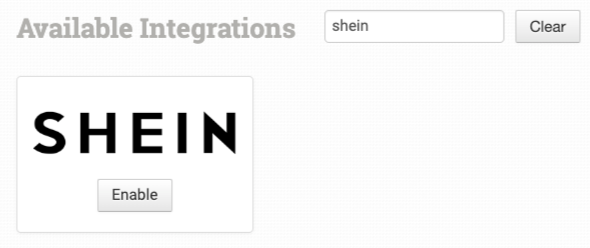
Select Shein from the Shopping Carts section and click Enable.
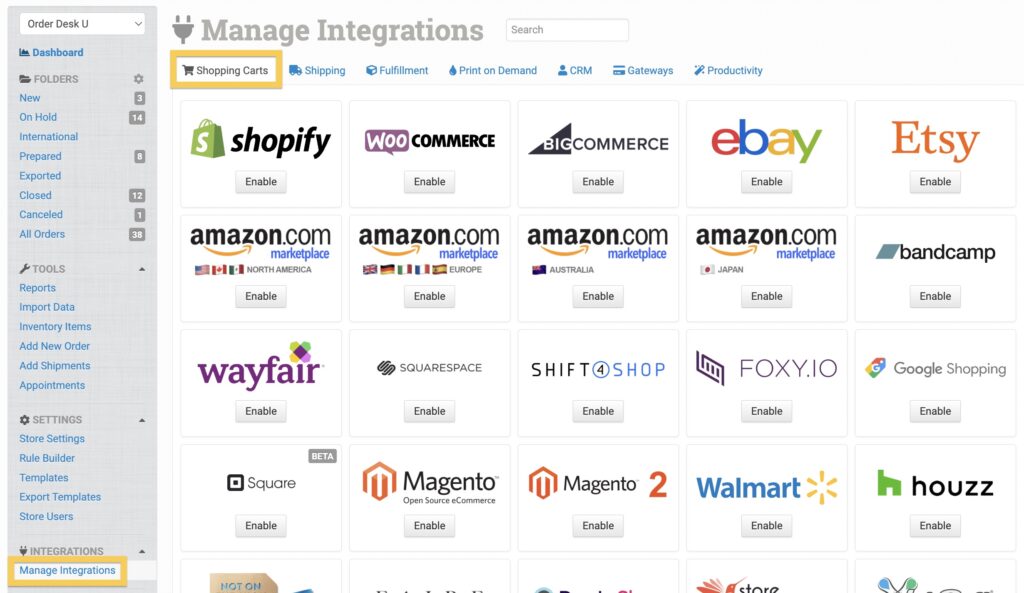
Alternatively, search for Shein from the available integration search.
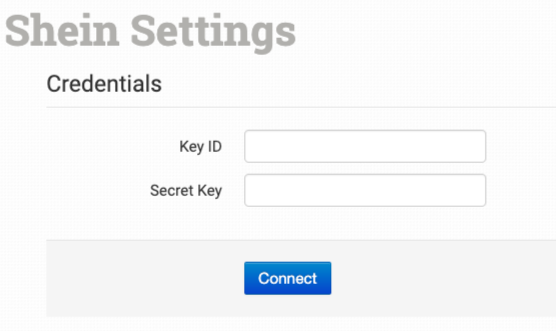
Add your Key ID and Secret Key and click Connect to add Shein to your integrations. Please note, these are API credentials and differ from your Shein log in credentials. You must reach out to Shein directly for access to these.
Integration Settings
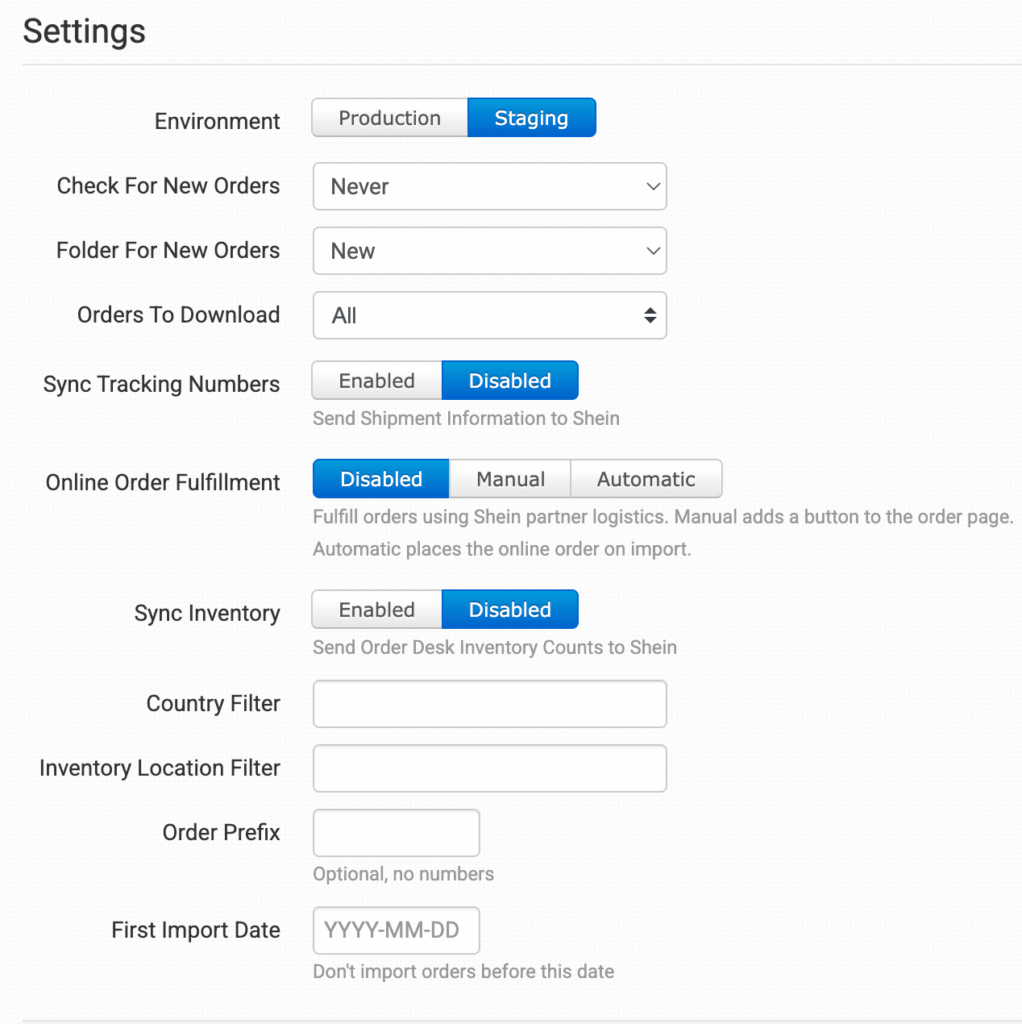
Once enabled, you can set your preferences in the Shein integration settings.
View Available Products
Clicking this link will open a list of your available Shein products.
Shein Help
Click Need Help Getting Started? for access to helpful resources for using the Shein Integration.
Check For New Orders
Choose the frequency that you want orders to be brought in from Shein. Options are: Never, Every Twelve Hours, Every Six Hours, Every Two Hours, Every Hour.
Folder For New Orders
Choose the folder where newly downloaded orders should be placed. If needed, you can create custom folders from your Store Settings page.
Orders to Download
Choose the status of the orders you want Order Desk to download.
Sync Tracking Numbers
Order Desk can tell Shein when a tracking number is added to a shipment. To enable this, select Enabled for the Sync Tracking Numbers option.
Online Order Fulfillment
Use this setting if you need Order Desk to fulfill SHEIN orders using SHEIN partner logistics. These orders require shipping labels to be purchased from SHEIN before they can be fulfilled.
You can choose from the following options:
- Disabled: Order Desk won’t place online orders with SHEIN for label creation.
- Manual: Adds a Place SHEIN Online Order section to the order details page, so you can review and place the online order yourself.
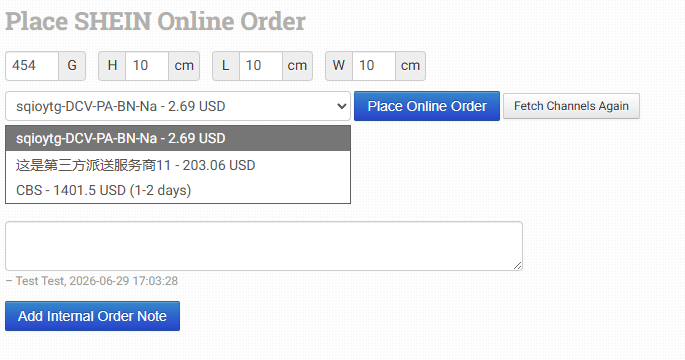
- Automatic: Order Desk will automatically place the online order with SHEIN when orders import.
This setting is only for SHEIN online orders that must be fulfilled through SHEIN partner logistics. If your orders don’t require SHEIN-provided shipping labels, you can leave this setting disabled.
If Manual or Automatic is selected, the following additional settings will be shown:
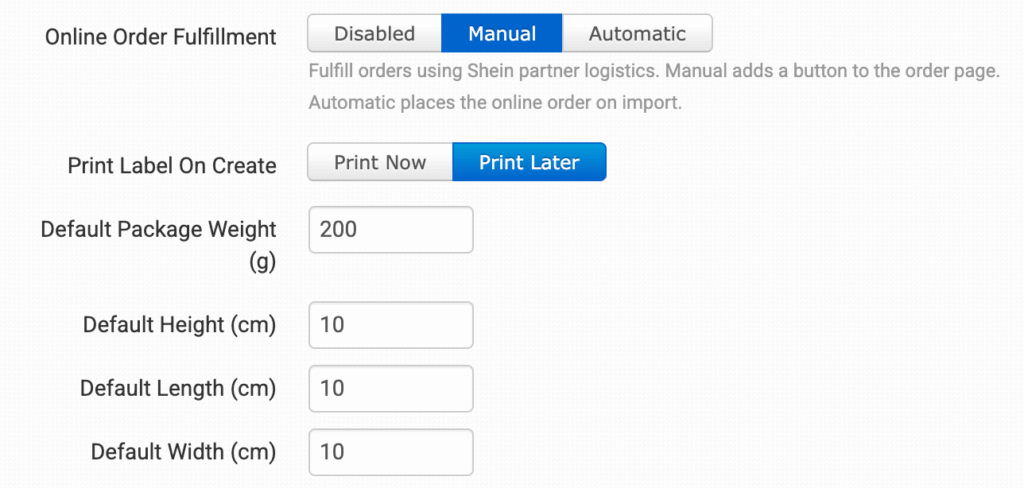
Print Label On Create
Choose whether Order Desk should print the shipping label as soon as the online order is created.
Default Package Weight
Set the default package weight, in grams, that should be used when placing SHEIN online orders.
Default Height
Set the default package height, in centimeters, that should be used when placing SHEIN online orders.
Default Length
Set the default package length, in centimeters, that should be used when placing SHEIN online orders.
Default Width
Set the default package width, in centimeters, that should be used when placing SHEIN online orders.
If you’re using the Manual option, these package details will be shown on the order details page when placing the SHEIN online order. If you’re using the Automatic option, these defaults will be used when Order Desk places the online order on import.
Sync Inventory
If you want Order Desk to sync your inventory availability back to Shein, enable the Sync Inventory setting. As inventory counts are updated here, Order Desk will pass those numbers back over to Shein.
Order Prefix
If you need to add a prefix to your Shein orders as they are downloaded to Order Desk, set that here.
Country Filter
Use two digit country codes, separated by commas, to only import orders from specific countries.
Add a – to exclude orders from specific countries.
Examples:
US,CA,MX – only import orders for the United States, Canada and Mexico.
-US,-CA,-MX (or -US,CA,MX) – import all orders except for the United States, Canada and Mexico.
Inventory Location Filter
If you only want to download specific orders, you can use the Inventory Location Filter field to specify which ones you want. Enter multiple locations separated by a comma.
The inventory location name must match exactly as it is on your inventory items in Order Desk. When importing new orders from Shein, Order Desk will look at the SKUs on the items and compare to the SKUs in your inventory here. Any orders with items for a location that isn’t listed in this field will not be imported.
For this to work, your inventory must be added to Order Desk. The inventory Location should be set on each item. For details, please see How to Add Inventory and How to Store Extra Item Details.
First Import Date
Any orders previous to the date set here will not import into Order Desk.
Manual Imports
You can manually import orders or inventory items from Shein into Order Desk.
Manually Import Orders
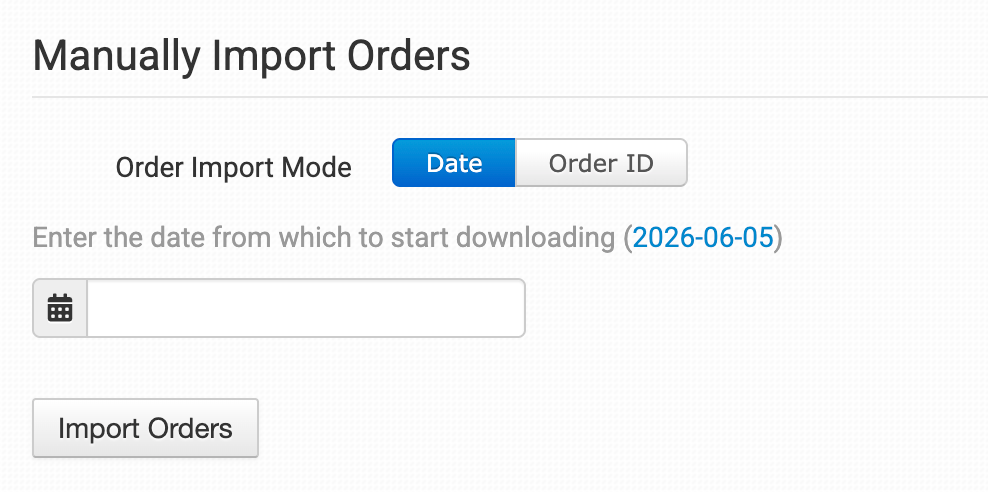
You can manually import orders from Shein at any time. You can import orders by Date if you need to bring in multiple orders, or by a specific Order ID if you only need to import one order.
Tip: Importing Orders by Date
If Shein has a large number of orders in the selected date range, you may need to click the Import button a few times to bring them all in.
Manually Import Inventory Items
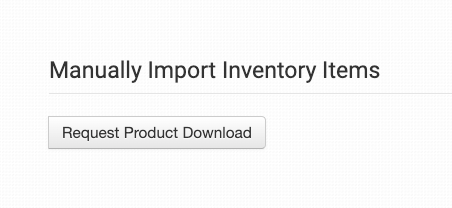
Click Request Product Download to download your Shein products into Order Desk.
For more information on working with inventory in Order Desk, please refer to the working with inventory details guide.
Rules Reference
In addition to the general set of rule events and actions in Order Desk, Shein includes a number of rule events and actions that are specific to the integration. These aren’t found directly on the integration page. Instead, you’ll need to use the Rule Builder to access them.
If you’re new to using rules in Order Desk, we recommend starting with the How to Work With Rules guide.
Rule Events
The following events are specific to Shein. To find them, type Shein in the Event dropdown menu in the Rule Builder:
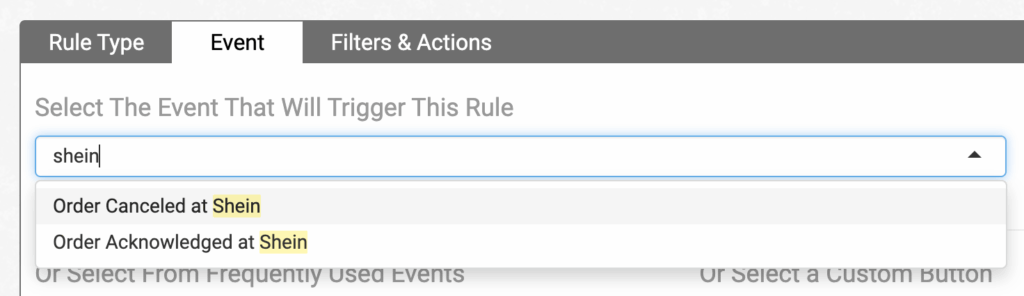
| Event | Description |
|---|---|
| Order Canceled at Shein | Triggered when an order is canceled at Shein. |
| Order Acknowledged at Shein | Triggered when an order is acknowledged at Shein. |
Order Acknowledge Failed at Shein | Triggered if an acknowledgement request fails at Shein. |
Rule Actions
SHEIN also supports specific rule actions that you can apply to your orders. These can be found in the Actions dropdown by searching for Shein:
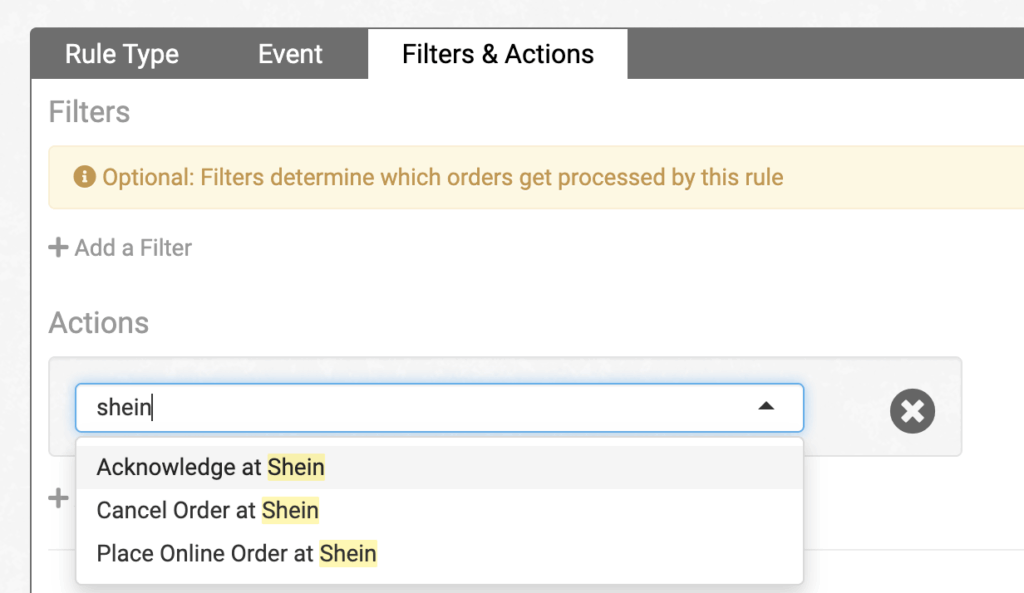
| Action | Description |
|---|---|
| Acknowledge at Shein | Acknowledges an order at Shein. |
| Cancel Order at Shein | Sends a cancellation request from Order Desk to Shein. |
| Place Online Order at Shein | Places an online order with Shein. This is used for Shein online orders that need to be fulfilled through Shein partner logistics. |