> For the complete documentation index, see [llms.txt](https://help.orderdesk.com/llms.txt). Markdown versions of documentation pages are available by appending `.md` to page URLs; this page is available as [Markdown](https://help.orderdesk.com/resources/rules-reference-events-filters-and-actions.md).
# Rules Reference: Events, Filters and Actions
This guide references all available events, filters and actions that can be found and used in the Rule Builder. For information on how to create, run and test rules, please refer to the [How to Work with Rules](/guided-walkthroughs/rules-and-automations/how-to-work-with-rules.md) guide.
## Events Reference
### **Order is Imported**
When the order is imported either from a shopping cart or from an import template.
This event only happens one time. If you set up rules on this event *after* orders have already imported, it will not work on those existing orders, but will work on orders as they import, moving forward. You can run this event on orders or a folder if you need to apply it to old orders.
### **Order is Created Manually**
When the order is manually added to Order Desk from the **Add New Order** page.
### **Folder is Changed**
When an order moves from one folder into another.
If using this event, for the rule to work, make sure to add a filter that specifies the ID for the folder that orders should have moved into, otherwise it will run on every order every time it moves into any folder.
### **Order Confirmed**
When the order is confirmed from the [dropship email](/guided-walkthroughs/shipping-fulfillment-and-returns/how-to-split-and-dropship-orders-for-separate-vendors.md#create-dropship-email-templates).
If you are sending any dropship emails using the default template, there is a button in the email that the recipient can click to confirm they received the email and order details. When this button is clicked, the Order Confirmed event is triggered.
### **Order is Duplicated**
When an order is copied by clicking on the Duplicate Order button:

### **Order is Split**
When an order is split into two or more orders.
This can be done manually by clicking the Split Order button or with [split rules](/guided-walkthroughs/orders-and-folders/how-to-split-orders.md).
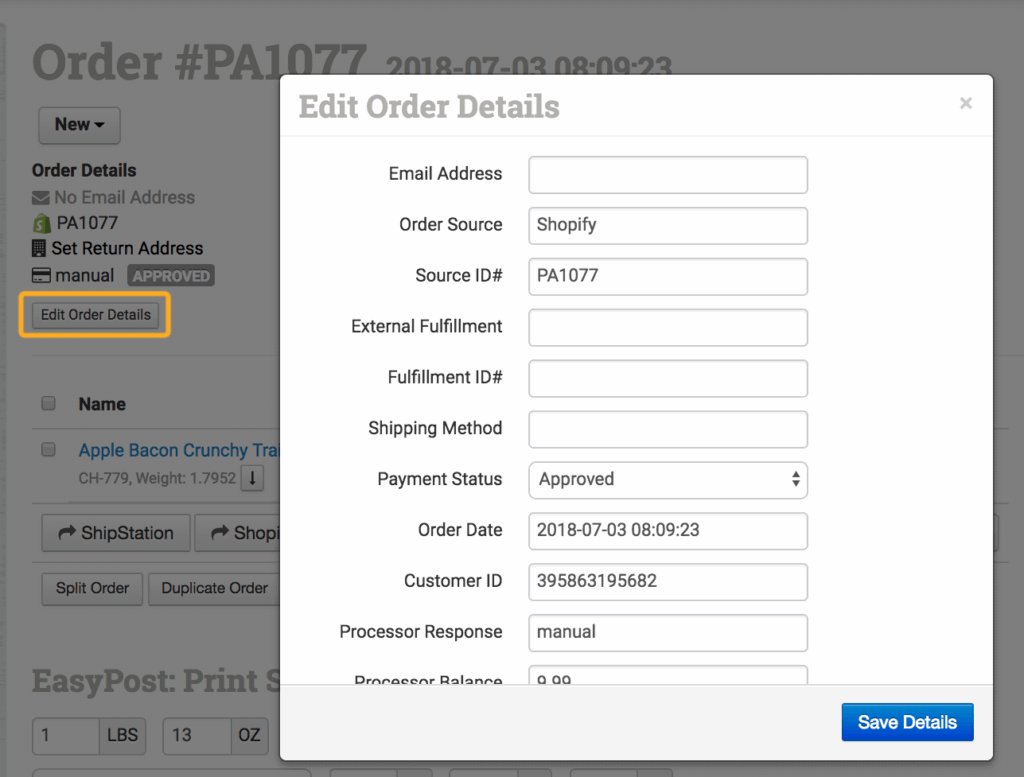
### **Order Details Changed**
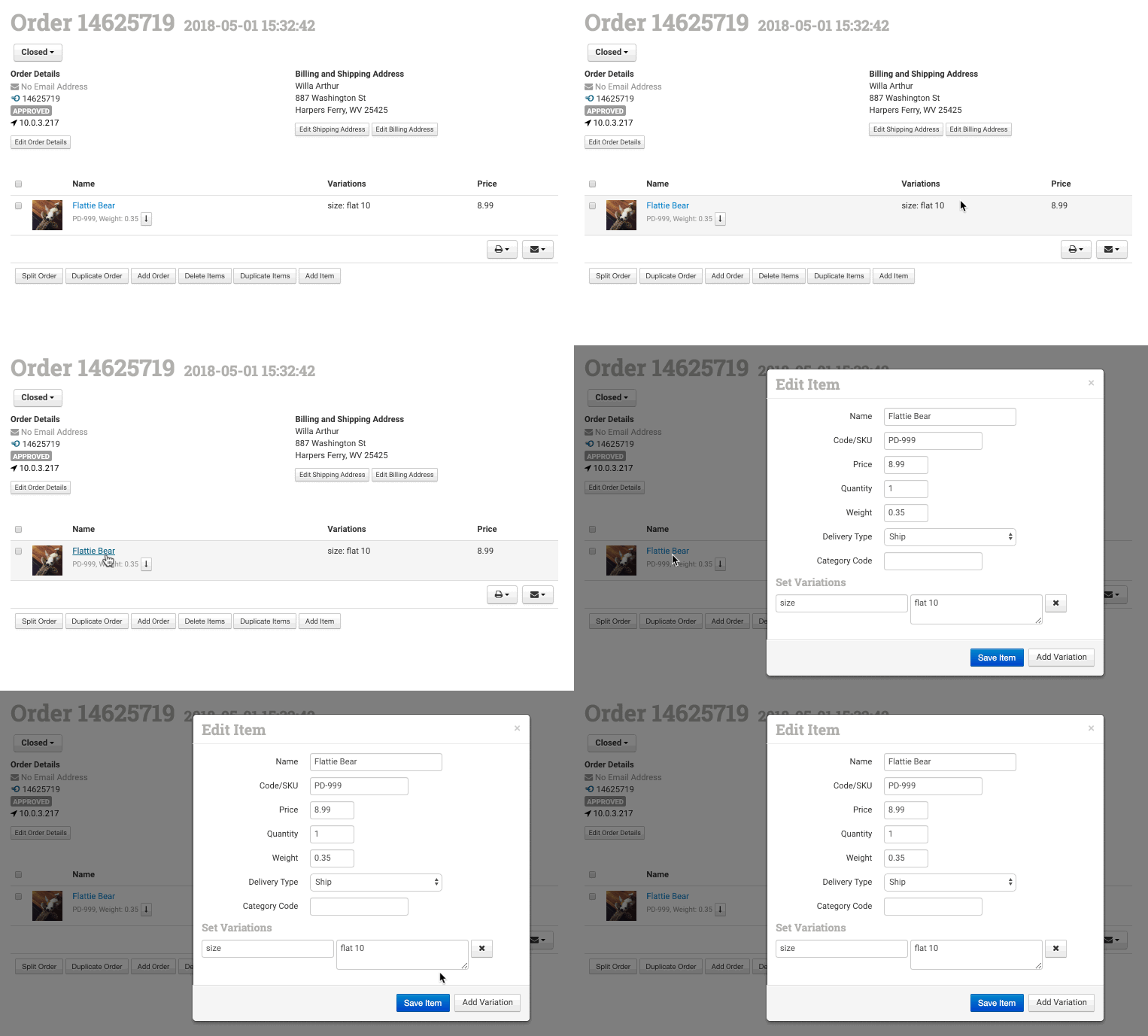
When any details are changed by clicking the Edit Order Details button:
This specifically refers to the information found by clicking the **Edit Order Details** button or by changing [**Checkout Data**](/guided-walkthroughs/orders-and-folders/how-to-work-with-checkout-data.md), not to anything changed *elsewhere* in the order.
### **Order Address Changed**
When any details about either the shipping or customer/billing address are changed on the order.
### **Order Item Changed**
When an item in the order is edited.
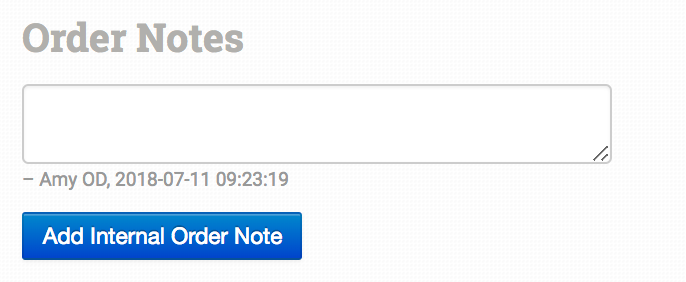
### **Order Note Added**
When an internal note is added to the order:
### **Order Moved From Another Store**
When an order is [moved](/guided-walkthroughs/using-order-desk/how-to-manage-multiple-stores-on-one-account.md#copying-and-moving-orders-between-stores) from one store into another store with a rule. This rule must be set up on the receiving store.
### **Order Copied From Another Store**
When an order is [copied](/guided-walkthroughs/using-order-desk/how-to-manage-multiple-stores-on-one-account.md#copying-and-moving-orders-between-stores) from one store into another store with a rule. This rule must be set up on the receiving store.
### **PDF Created From Order**
When a [PDF is created](/guided-walkthroughs/templates-emails-and-order-documents/how-to-create-pdf-files-for-order-documents.md) on an order with a rule.
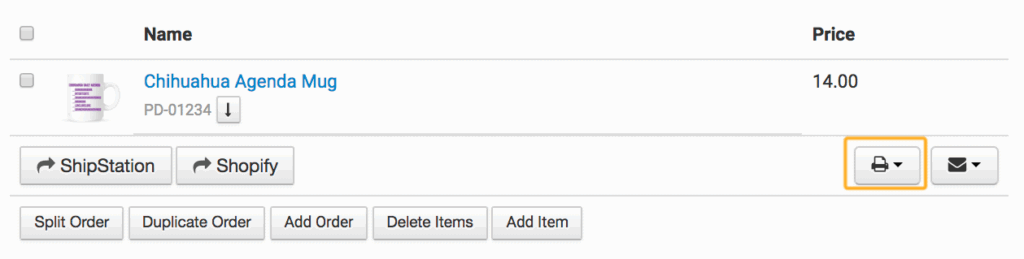
### **Receipt Printed**
When the receipt print button is clicked on an order to build the receipt:
We recommend using this event sparingly and with caution; It is easy to click the print button without realizing, and there may be other actions tied to it from a rule.
### **Shipment is Added**
When a tracking number is added to an order.
This fires regardless of how the shipment was added (from an integration, an import template, manually, or through the API).
### **Shipment is Deleted**
When a tracking number is deleted from an order.
### **Before Order Imported From CSV**
Right before a file is imported, take action. Please note, actions that have a direct effect on orders or order items (e.g. Change Folders, Change Order Item Name) will not be triggered by this event. Orders must already be imported for actions of this kind to take place.
### **After Order JSON Has Been Posted**
When [order JSON has successfully posted](/guided-walkthroughs/rules-and-automations/how-to-post-order-information-to-a-custom-script.md) to the endpoint specified in another rule.
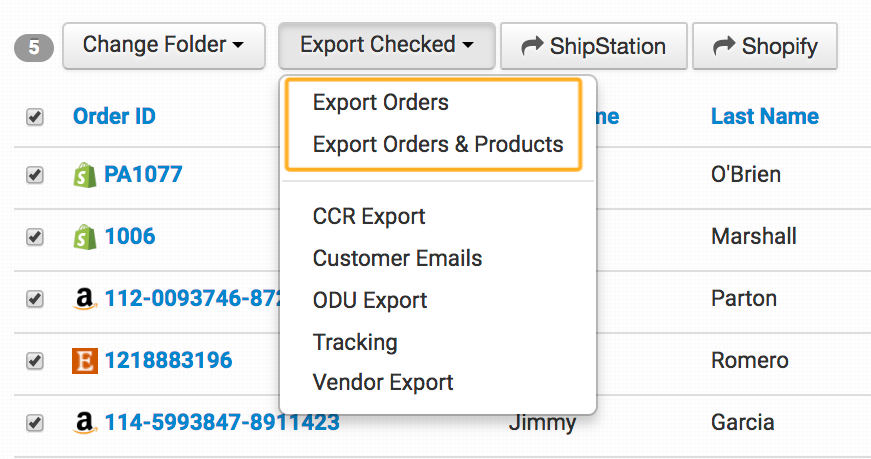
### **Export Orders**
When orders have been exported, either manually or from an appointment.
Export Orders and Export Orders & Products are default exports on every Order Desk store:
If you have any [custom export templates](/guided-walkthroughs/templates-emails-and-order-documents/how-to-build-export-templates.md) that you have built, these will show up as events in the Rule Builder as: `Export Orders: export name`
### **Custom Buttons**
When a [custom button](/guided-walkthroughs/rules-and-automations/how-to-use-custom-buttons.md) is clicked. If you have any custom buttons, this will show up as: `Custom Button: button name`
### **Custom Events**
Rules can run on a set schedule based on Custom Events. You can learn more about [**working with Custom Events here**](/guided-walkthroughs/rules-and-automations/how-to-use-custom-events.md).
### **Integration Specific Events**
Some integrations come with integration specific events such as:
* After Order Submitted to Amazon MCF
* Order Canceled at ShipStation
* Shopify Authorization is Captured
These events are unique to the integrations and will only be available if the integration is enabled.
## Filters Reference
Filters determine what orders, items or shipments a rule should run on. If you want a rule to run on every order, you won’t need any filters, but if you need to specify actions for certain orders or items, use filters to tell Order Desk this information.
When adding filters, select the field name from the order or item, choose an operator (details [below](#operators)) and set the value.
### **Custom Field Names**
Some fields in Order Desk—variations, checkout data and order and item metadata—use your own custom field names. When adding filters for these fields, an additional Field Name box is included. Add the field name you use on your orders or items in this box. It must be an exact match and is case sensitive.
For example, if you have a variation called “Color” on your items:

The word “Color” must be an exact match in your field name:

### **Fields**
Available fields are:
* Folder Name
* Folder ID
* Shipping First Name
* Shipping Last Name
* Shipping Full Name
* Shipping Company
* Shipping Address 1
* Shipping Address 2
* Shipping Address 3
* Shipping Address 4
* Shipping City
* Shipping State
* Shipping Postal Code
* Shipping Country
* Shipping Phone
* Customer First Name
* Customer Last Name
* Customer Full Name
* Customer Company
* Customer Address 1
* Customer Address 2
* Customer City
* Customer State
* Customer Postal Code
* Customer Country
* Customer Phone
* Return Address Title
* Return Address State
* Return Address Country
* Email
* Customer Order Count
* Shipping Method
* Number of Shipments
* Customer IP Address
* Tag Color
* Product Total
* Item Quantity Total
* Weight Total
* Shipping Total
* Tax Total
* Discount Total
* Order Total
* Credit Card Number (last 4)
* Credit Card Expiration Date
* Processor Response
* Processor Balance
* Payment Type
* Payment Status
* Discount Name
* Discount Code
* Order Source
* Order Source ID
* Order Fulfillment Service
* Order Fulfillment ID
* Order Date Created
* Order Date Updated
* Order Notes
* Checkout Data Field
* Order Metadata Field
* Item Name
* Item Price
* Item Quantity
* Item Weight
* Item Code
* Item Variation
* Item Metadata
* Item Delivery Type
* Item Category Code
* Previous Folder ID
* Current Minute
* Current Hour (supports whole numbers up to 24 in local store time)
* Current Day Name
* Current Month Name
* Current Date
* Order History
When creating a [**Shipment Rule**](#shipment-rule-actions-reference), four additional fields are available:
* Tracking Number
* Carrier Code
* Shipment Method
* Shipment Status
### **Operators**
Operators tell the rule how to compare and check the value with the field.
| Equals | Must be an exact match. Case, space and punctuation sensitive |
| --------------------- | --------------------------------------------------------------------------------------------------------------------------------------------------------- |
| Does Not Equal | Is not a match |
| Is Blank | The field is empty, blank or 0 |
| Is Not Blank | The field is not empty, blank or 0 |
| Greater Than | Is greater than |
| Less Than | Is less than |
| Greater Than or Equal | Is greater than or equal to |
| Less Than or Equal | Is less than or equal to |
| In List | Is somewhere in this list of items. Eg. If Shipping State *in* AK,CO,KS,NC,ID,CA,NJ |
| Not in List | Is not in this list of items |
| Contains | Contains this value (case insensitive). Similar to *equals* but allows for minor differences |
| Does Not Contain | Does not contain this value (case insensitive) |
| Starts With | Starts with these characters |
| Does Not Start With | Does not start with these characters |
| Ends With | Ends with these characters |
| Does Not End With | Does not end with these characters |
| Length Greater Than | Character count for this field must be greater than this value |
| Length Less Than | Character count for this field must be less than this value |
| Before Time | If the current time is earlier than the target time being looked at |
| After Time | If the current time is later than the target time being looked at |
| Before Local Time | Use 24hr time representation, such as 22:00. The local time of the field value must be before this date. Only use with Order Date Created/Updated fields. |
| After Local Time | Use 24hr time representation, such as 22:00. The local time of the field value must be after this date. Only use with Order Date Created/Updated fields. |
### **Values**
The value will vary depending on the field and operator being used. Hover your cursor over the help icon for hints about how to format the value field based on the operator you have selected:
Filter values also support Twig coding. Inside Twig expressions, the order, order items, and shipment objects are available. For example, `{{ order.source_id }}`, `{{ variation_list.color }}`, or `{{ shipment.carrier_code }}`.
## Order Rule Actions Reference
When creating a new rule, the first step is to select the rule type—whether you want the rule to run on an order or on an item in an order.
If you select Order Rule, these are the actions that will be available in the rule. They will affect the entire order if the filters apply.
### **Change Folder**
Move the order into a different folder.
### **Set Shipping Method**
Set a new or different shipping method on the order.
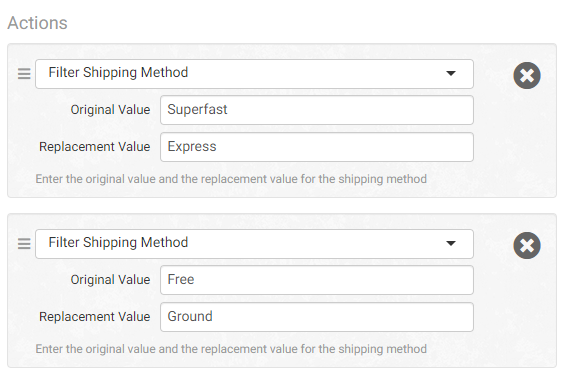
### **Filter Shipping Method**
If the shipping method is X, change it to Y. Multiple Actions can be used in the same rule.
A simpler method is to use the Set Shipping Method action which lets you change the method directly.
### **Filter Shipping State**
If the shipping state is X, change it to Y. Multiple Actions can be used in the same rule.

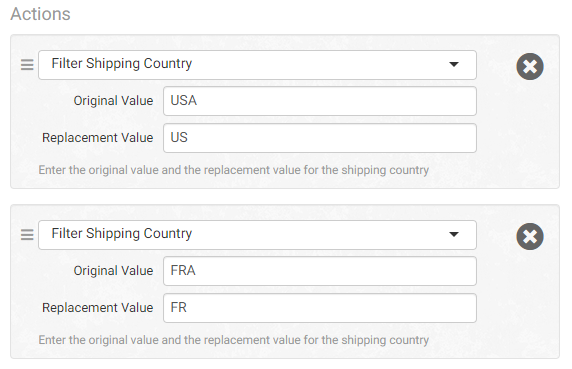
### **Filter Shipping Country**
If the shipping country is X, change it to Y. Multiple Actions can be used in the same rule.
### **Tag Order**
Tag the order a specific color.
### **Split Order**
[Split the order](/guided-walkthroughs/orders-and-folders/how-to-split-orders.md) into two or more orders.
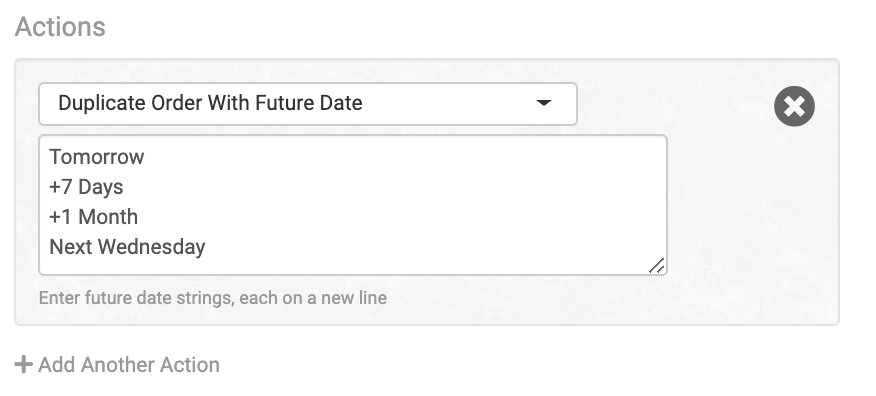
### **Duplicate Order With Future Date**
Create a copy of the order with a date in the future. The format requires a date or phrase to be added, one per line, and a copy of the order will be made with each order date.
This example would create four copies of the order on these dates relative to the original.
### **Move to Store**
[Move the order](/guided-walkthroughs/using-order-desk/how-to-manage-multiple-stores-on-one-account.md#copying-and-moving-orders-between-stores) into a separate store on the same account. This will remove the order from its current store and place it into another one.
### **Copy to Store**
[Copy the order](/guided-walkthroughs/using-order-desk/how-to-manage-multiple-stores-on-one-account.md#copying-and-moving-orders-between-stores) into a separate store on the same account. This will leave the order in its current store and create an additional version in another one.
### **Send Email to Customer**
Send an [email](/guided-walkthroughs/templates-emails-and-order-documents/how-to-work-with-email-templates.md) to the customer on the order. This is also used to send an email to a vendor or other party if their email address is added to the template Email Delivery Override.
### **Send Email to Admin**
Send an [email](/guided-walkthroughs/templates-emails-and-order-documents/how-to-work-with-email-templates.md) to the admin of the Order Desk account. The [admin email](/guided-walkthroughs/using-order-desk/manage-store-settings.md#email) is set in the Store Settings.
### **Post Order JSON**
Enter the URL of your custom endpoint and a [JSON representation of the order](/guided-walkthroughs/rules-and-automations/how-to-post-order-information-to-a-custom-script.md) will be sent to this location. If your server responds with anything other than a status code of 200 or 201, Order Desk will keep trying.
### **Deduct Inventory From Stock**
Reduce the stock quantity of the order items from your Order Desk inventory.
### **Put Inventory Back In Stock**
Add quantity from order items to Order Desk inventory.
### **Wait a Few Seconds and Refresh Order**
Tell Order Desk to wait either 5, 10 or 30 seconds before refreshing an order and continuing to run rules on it. This is helpful for dealing with asynchronous data calls, to ensure all previous rules have already run and the order has been updated with any new changes before the next rule takes action.
### **Set Return Address**
[Choose a preset return address](/guided-walkthroughs/using-order-desk/manage-store-settings.md#return-addresses) to be applied to the order.
### **Change Return Address Field**
Update a specific part of an order’s return address.
### **Post Inventory Items to Website**
Enter the URL of your custom endpoint and a JSON file of your inventory items will be sent to this location.
### **Set Order Metadata Local Timestamp**
[Add a timestamp](/guided-walkthroughs/orders-and-folders/how-to-work-with-timestamps.md) to the order in the store’s local time.
### **Set Order Metadata UTC Timestamp**
[Add a timestamp](/guided-walkthroughs/orders-and-folders/how-to-work-with-timestamps.md) to the order in the UTC time.
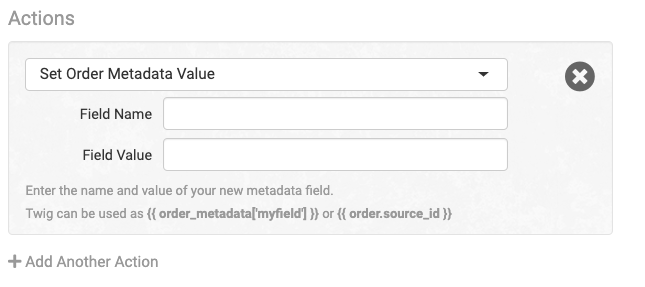
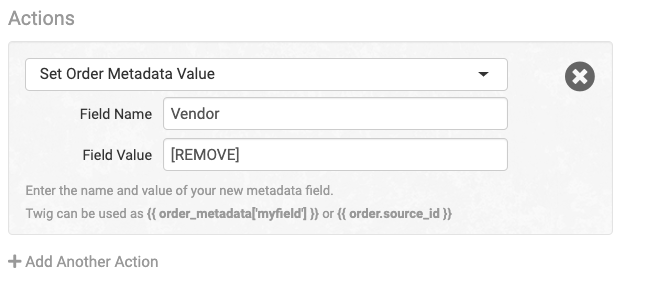
### **Set Order Metadata Value**
Add custom order metadata to the order.
To remove a single metadata field, replace “name” with the actual field name and set \[REMOVE] as the value:
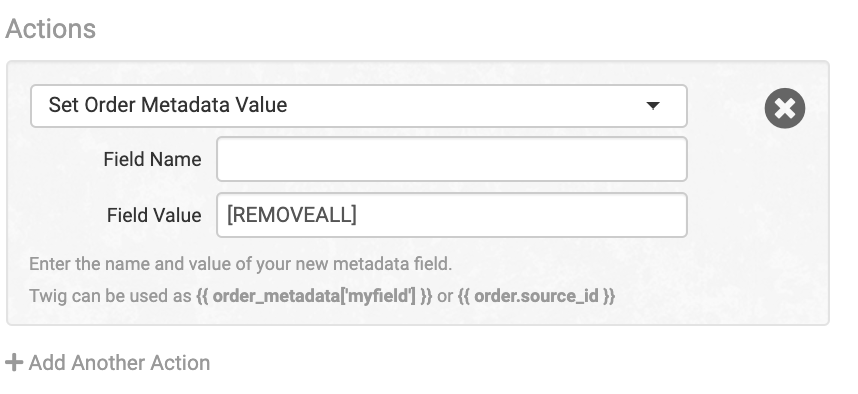
To remove all metadata fields **(not recommended)**:
Add `[REMOVEALL]` as the field value.
To set a date:
```
[DATE+5days] or [DATE-1week]
```
To set a short-format date:
```
[SHORTDATE+5days] or [SHORTDATE-1week]
```
To add or subtract from the current number
```
++ or --
```
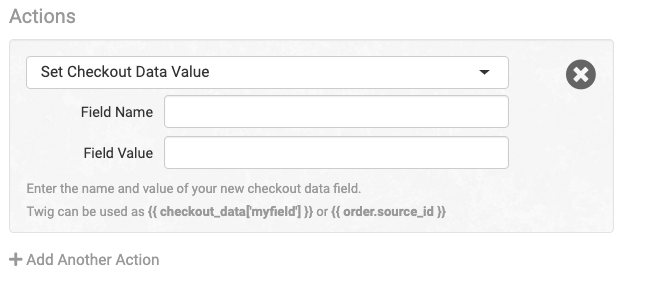
### **Set Checkout Data Value**
[Add custom checkout data](/guided-walkthroughs/orders-and-folders/how-to-work-with-checkout-data.md) to the order.
The same examples from checkout data will also apply with metadata.
### **Set Checkout Data Receipt URL**
[Add the URL from a PDF](/guided-walkthroughs/templates-emails-and-order-documents/how-to-create-pdf-files-for-order-documents.md#send) to the checkout data of an order.
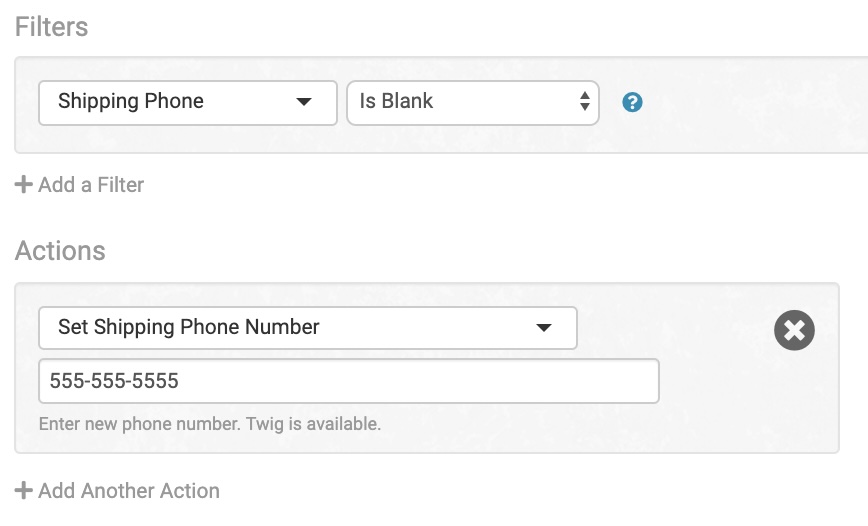
### **Set Shipping Phone Number**
Add a shipping phone number to the order.
To set a shipping phone on an order when one doesn’t exist, use this action with the filter Shipping Phone Is Blank:
### **Sync Order Items With Inventory Details**
Sync inventory details saved in Order Desk into the same items in the order.
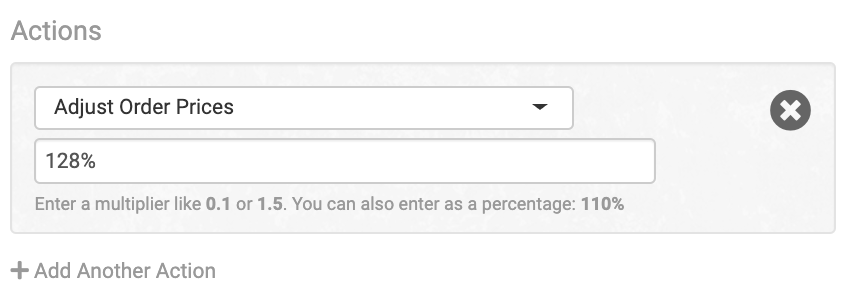
### **Adjust Order Prices**
Convert prices to account for different currencies and conversion rates.
For example, if converting from USD in one store to AUD in another store where the conversation rate is 1.28, create a rule in the AUD store that says:
Event: When Order Copied From Another Store
Action: Adjust Order Prices – 1.28 or 128%
The rule must be manually changed to reflect current rates.
### **Convert Item Quantities to Separate Items**
Split multiple quantities of the same item into separate line items in a single order.
### **Merge Items With Same SKU**
If any items in an order have the same SKU but are on separate lines, use this action to combine them back into a single item with multiple quantities.
### **Add Order Prefix, Add Order Suffix, and Change Order ID Actions**
Use these actions to add order prefixes, add order suffixes, or change the order number.
1. Duplicate order numbers cannot exist in Order Desk, so consider using Twig in the Change Order ID rule to create unique order numbers for each order.
2. Most shopping cart integrations will re-import orders that have already been imported into Order Desk when the order number changes on the assumption that the order isn’t in Order Desk. At worst, this can create a loop where orders are continuously imported and reimported. At best, you may unintentionally fulfill the same orders multiple times because they have different order numbers in each instance.
### **Add an Order Item**
Add a new item to the order.
See [this guide](/guided-walkthroughs/rules-and-automations/how-to-add-an-item-to-an-order-with-a-rule.md) for instructions.
### **Add a Shipment**
Add a tracking number and other shipment details to an order. Because this is a static field, this is best used for adding n/a to orders that won’t have a tracking number but need the Shipment is Added event to be triggered.
### **Create PDF**
Create a PDF out of a receipt template.
See [this guide](/guided-walkthroughs/templates-emails-and-order-documents/how-to-create-pdf-files-for-order-documents.md) for instructions.
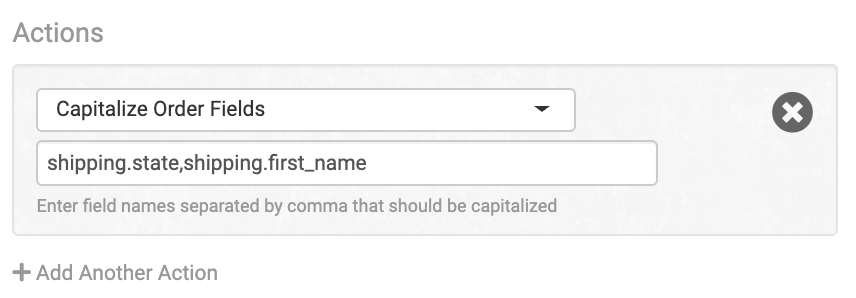
### **Capitalize Order Fields**
Add any Order Desk field names, separated by a comma, that should be capitalized in the order.
List of field names can be found [here](/resources/order-desk-field-names.md).
### **Change Payment Status**
Change the Payment Status on the order.
### **Remove US Postal Code +4**
Remove the last 4 digits of the 9 digit US postal code, leaving only the 5 digit zip code.
### **Convert Country to Full Name**
Changes the country name from the 2 letter abbreviation to the full name.
### **Convert State or Region to Full Name**
Changes the state or region name from the 2 letter abbreviation to the full name. This only works for states and regions in US, CA, DE, AU, NZ, IE and JP.
### **Convert Country to Abbreviated**
Changes the full country name to the 2 letter abbreviation.
### **Convert State or Region to Abbreviated**
Changes the full state or region name to the 2 letter abbreviation. This only works for states and regions in US, CA, DE, AU, NZ and JP.
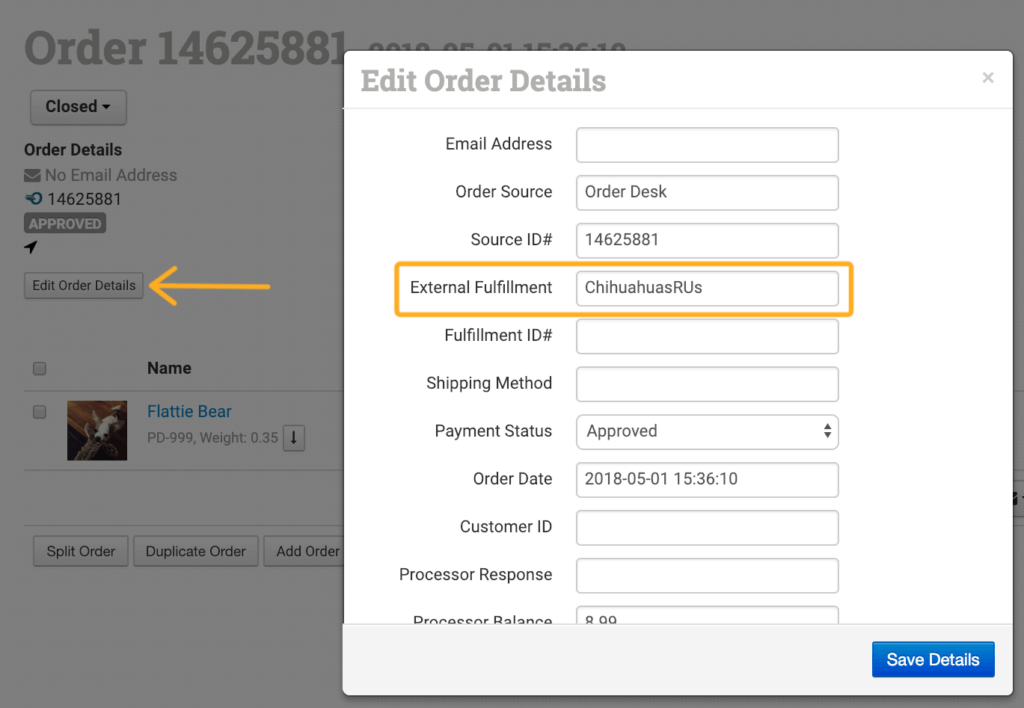
### **Set Fulfillment Name**
Set the name of the company the order is being sent to for fulfillment. This information is found from **Edit Order Details** in the **External Fulfillment** field:
When submitting orders to an official Order Desk integration for fulfillment, the integration name will automatically be added here, so a rule is not necessary for these orders.
### **Set Email Address**
Add or update the email address to the order details:

This is the email address for the customer, which can be used to communicate with them from Order Desk.
### **Set Processor Balance**
Add a processor balance to the order details. Twig can be used.
### **Set Tax Total**
Add the amount to be added as the tax total on the order.
### **Set Shipping Total**
Add the amount to be added as the shipping total on the order.
### **Set Handling Total**
Add the amount to be added as a handling fee on the order.
### **Remove Discounts**
Remove the discounts from the order totals.
### **Remove Discount Code**
Remove any discounts from an order that match the code.
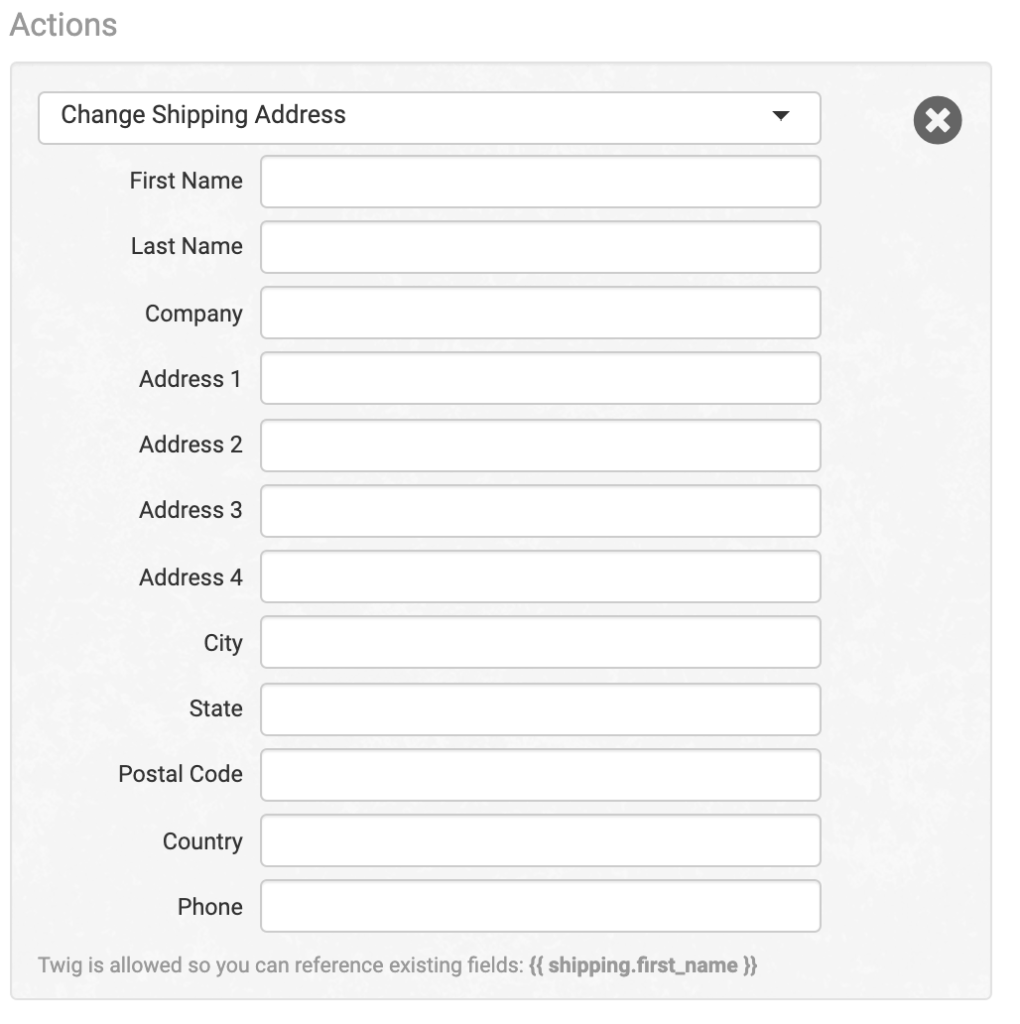
### **Change Shipping Address**
Change the shipping address on the order. Fill out each field or they will be left blank. Twig is allowed to copy the existing field into the updated information.
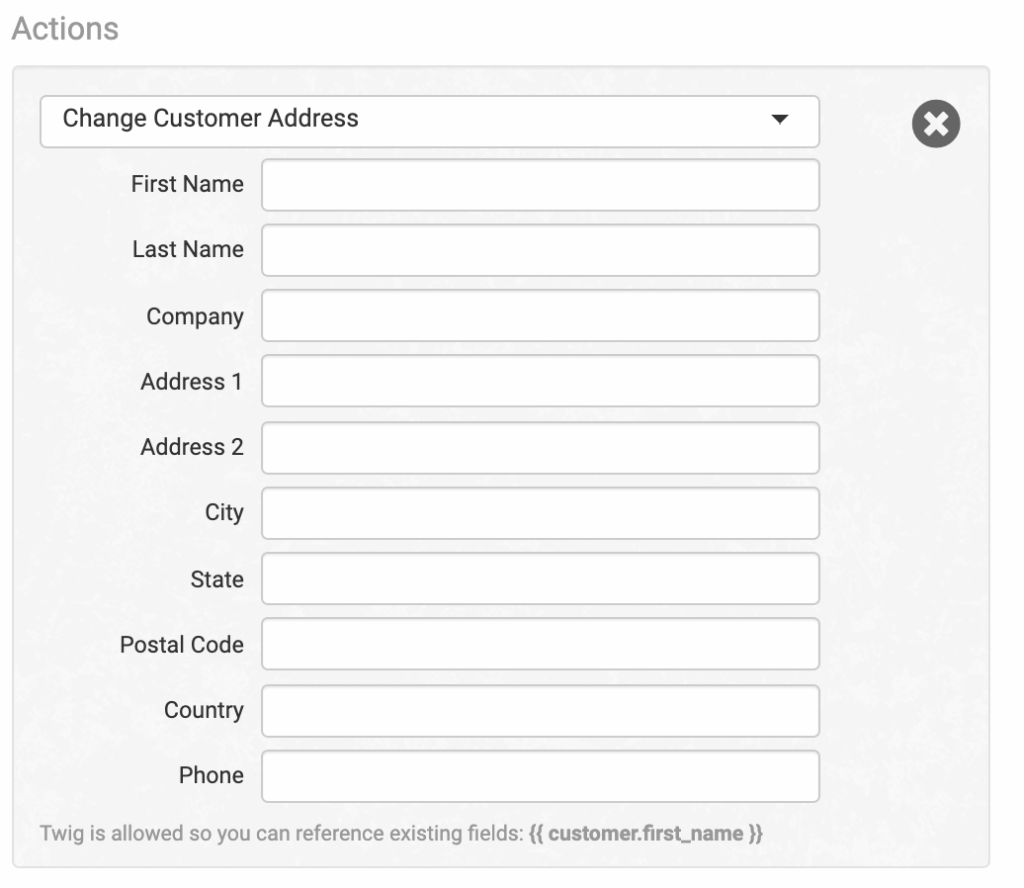
### **Change Customer Address**
Change the customer/billing address on the order. Fill out each field or they will be left blank. Twig is allowed to copy the existing field into the updated information.
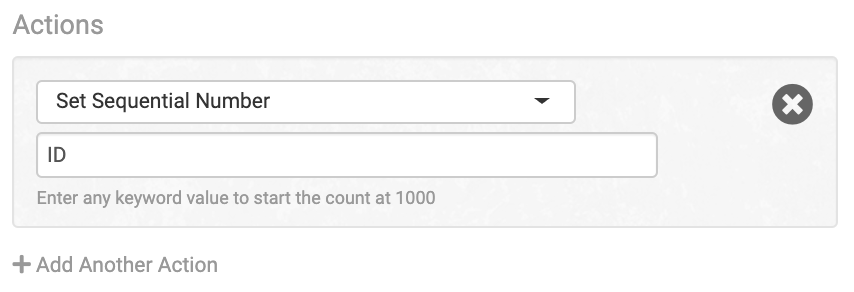
### **Set Sequential Number**
Adds a sequential number on every order when the rule runs. This will be added as checkout data and needs to be named in the rule, such as ID:
### **Add Order History**
Add your own comment to the order history. Twig can be used.
### **Process Shipments Manually**
Available for the Easypost integration. Use this action to delay when the shipment added event runs on shipped orders. For more details see the [Easypost integration guide](/integration-setup-guides/shipping-services/easypost-integration.md).
We recommend setting up a custom button with this action. For details, see the [How to Use Custom Buttons](/guided-walkthroughs/rules-and-automations/how-to-use-custom-buttons.md) guide.
### **Delete Order Item Variations**
This action will delete all variations from the items in the order.
### **Move Order Back to Previous Folder**
This action will move any order it is run on to the previous folder it was in.
This is good for scenarios where a large group of orders are accidentally moved by an automatic action or export template. You can set up a temporary rule or button with this action to move those orders back.
### **Cancel This Event**
Cancel the event that is supposed to run for any orders the rule you set up would otherwise apply to.
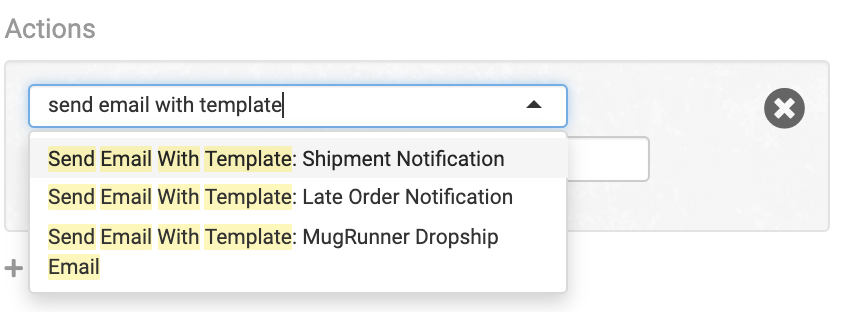
### **Send Email With Template**
Every email template you create will show up in the Rule Builder after this action:
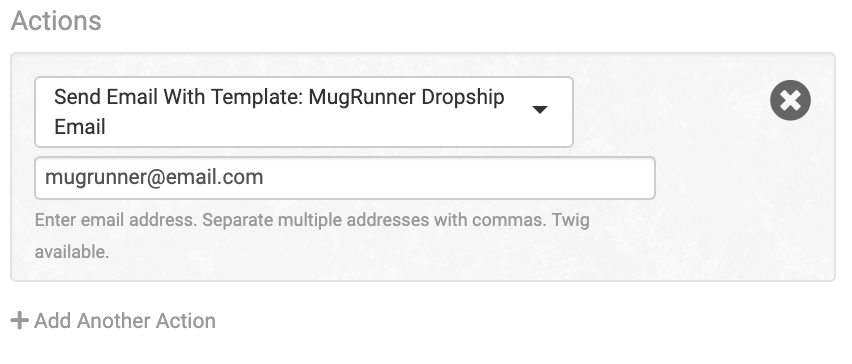
To send the email template to a specific email address, choose the Send Email With Template action for the corresponding template. Set the email address you want the email to be sent to right in the rule:
Separate multiple email addresses with commas.
The alternative option to this is to use the Send Email to Customer rule action and set the email address in the Email Delivery Override field. Details [here](/guided-walkthroughs/templates-emails-and-order-documents/how-to-work-with-email-templates.md#edit-email-templates).
### **Export Order with Template**
Use this action to export a single order using an [Export Template](/guided-walkthroughs/templates-emails-and-order-documents/how-to-build-export-templates.md).
### **Integration Specific Actions**
Some integrations come with integration specific actions such as:
* Submit Order to Amazon MCF
* Cancel Order at ShipStation
* Capture Authorized Charge With Shopify
## Order Item Rule Actions Reference
If you select Order Item Rule type, these are the actions that will be available in the rule. They will only affect any items in the order that the filters apply to. If no filters are added, they will affect every item in an order.
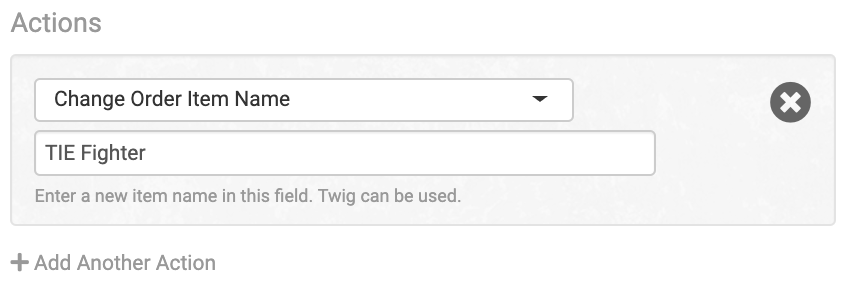
### **Change Order Item Name**
Change the name of the item to the name written into this rule.
### **Change Order Item Code**
Enter a new SKU (code) for the item in the order.
### **Set Order Item Metadata**
Add metadata to the item.
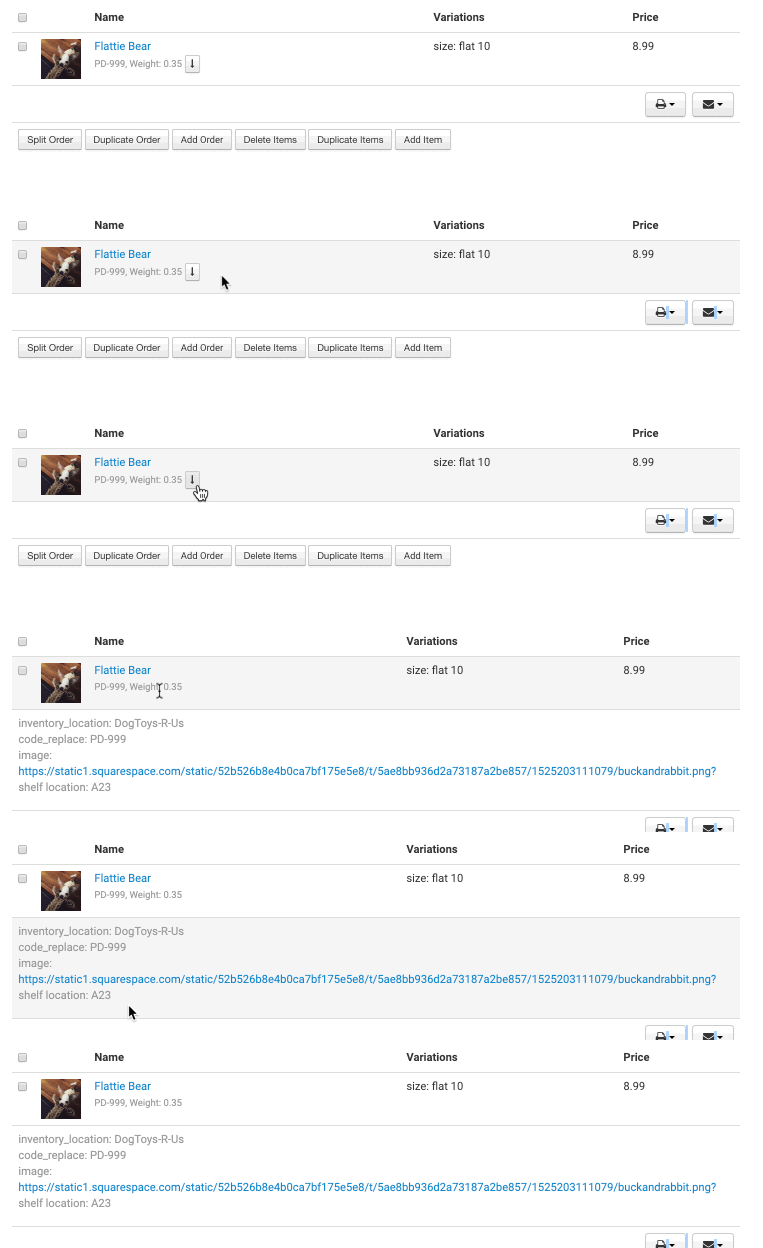
Please note that this is not the same as Order Metadata. Item metadata is stored directly on the item and can be seen by clicking the arrow under the item name:
Item metadata cannot easily be edited or removed once it is on an item. If you need to be able to edit what you add, use Set Order Item Variation instead.
Item metadata can also be added directly to inventory items in Order Desk and synced into the orders on import. Details [here](/guided-walkthroughs/products-and-inventory/how-to-sync-item-details-into-orders.md).
### **Set Order Item Variation**
Add a variation to the item. Variations function exactly the same as item metadata, however they are easier to access and edit directly on the items in the order:
### **Set Inventory Location**
Add or update the location of the item. The location is a specific item metadata field.
More information on inventory details, including the location, can be found [here](/guided-walkthroughs/products-and-inventory/how-to-work-with-inventory-details.md#store-extra-item-details-in-order-desk).
### **Change Quantity**
Change the quantity of the item in the order.
### **Change Price**
Change the price of the item in the order.
### **Change Weight**
Change the weight of the item in the order.
### **Set Order Checkout Data**
Add custom checkout data to the order.
If you are unfamiliar with checkout data, learn more [here](/guided-walkthroughs/orders-and-folders/how-to-work-with-checkout-data.md).
### **Set Order Metadata**
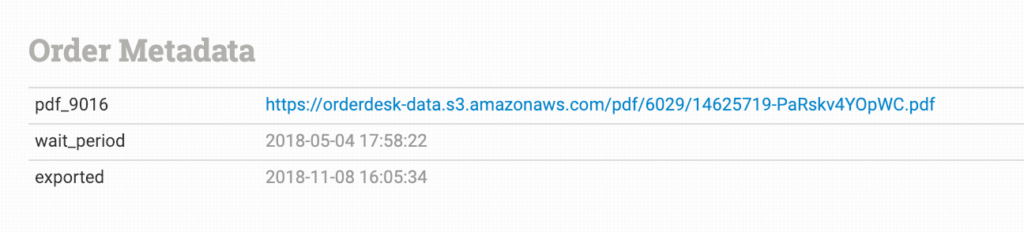
Add custom metadata to the order.
Please note that this is not the same as item metadata. Order metadata is found at the bottom of the order details page:
### **Delete Order Item**
Remove the item from the order.
## Shipment Rule Actions Reference
If you select Shipment Rule, these are the actions that will be available in the rule. They will affect the shipments on the order.
### **Modify Shipment**
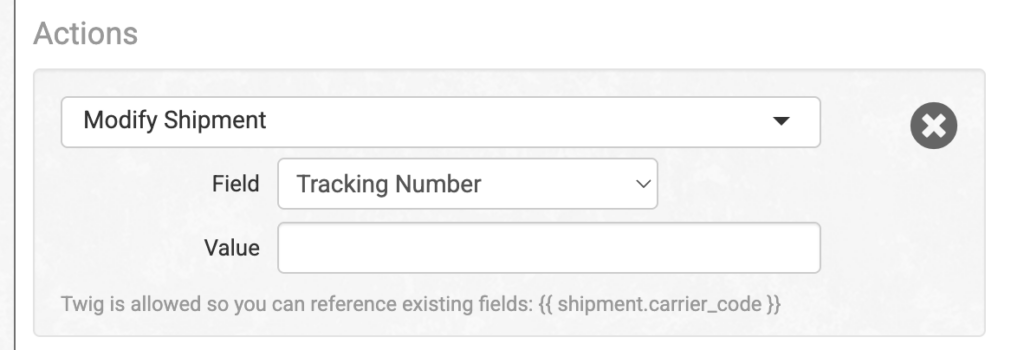
Change a field on the shipment that triggered the rule. The value field supports Twig, so you can reference existing shipment data. For example, you can use `{{ shipment.carrier_code }}` to grab the carrier code. The fields you can modify are:
* Tracking Number
* Carrier Code
* Shipment Method
* Tracking URL
* Date Shipped
* Cost
### **Change Folder**
Move an order to a different folder when a shipment matches the rule’s conditions.
---
# Agent Instructions
This documentation is published with GitBook. GitBook is the documentation platform designed so that both humans and AI agents can read, navigate, and reason over technical content effectively. Learn more at gitbook.com.
## Querying This Documentation
If you need additional information that is not directly available in this page, you can query the documentation by asking a question.
Perform an HTTP GET request on the following URL with the `ask` and `goal` query parameters:
```
GET https://help.orderdesk.com/resources/rules-reference-events-filters-and-actions.md?ask=&goal=
```
`ask` is the immediate question: it should be specific, self-contained, and written in natural language.
`goal` is what the user is ultimately trying to achieve, the reason they need the answer. Sharing it helps GitBook give you a better, more relevant answer. A goal is most helpful when it describes the outcome the user wants rather than restating the question. For example, with `ask=how do I create an API token`, a goal like `automate deployments from our CI pipeline` lets GitBook tailor the answer to that use case.
The response will contain a direct answer to the question and relevant excerpts and sources from the documentation.
Use this mechanism when the answer is not explicitly present in the current page, you need clarification or additional context, or you want to retrieve related documentation sections.