> For the complete documentation index, see [llms.txt](https://help.orderdesk.com/llms.txt). Markdown versions of documentation pages are available by appending `.md` to page URLs; this page is available as [Markdown](https://help.orderdesk.com/integration-setup-guides/sales-channels/walmart-integration.md).
# Walmart Integration
Order Desk can connect to your United States, Canada or Mexico Walmart Marketplace account or to your United States Walmart Drop Ship Vendor (DSV) account, then download and acknowledge your orders. As orders are fulfilled, shipment details will be sent back to Walmart.
### Setup
{% hint style="info" %}
Please note that Canada DSV and Mexico DSV are not supported at this time.
{% endhint %}
You can connect to either Walmart Marketplace or Walmart DSV with the Walmart integration. If you need to connect to both, you will first have to create a second Order Desk store to set up a second Walmart integration. Instructions for creating a new store can be found [here](/guided-walkthroughs/using-order-desk/how-to-manage-multiple-stores-on-one-account.md).
To enable the integration in Order Desk, click on **Manage Integrations** in the left sidebar. Under the **Shopping Carts** tab, look for and enable the Walmart integration.
Once enabled, you can choose whether to connect directly to your Walmart account from within Order Desk or connect manually with your API keys.
#### Connect Automatically With Walmart
To connect automatically, click the **Connect to Walmart** button. You’ll be redirected to your Walmart account login screen if you aren’t already logged in. Enter your credentials and log in.
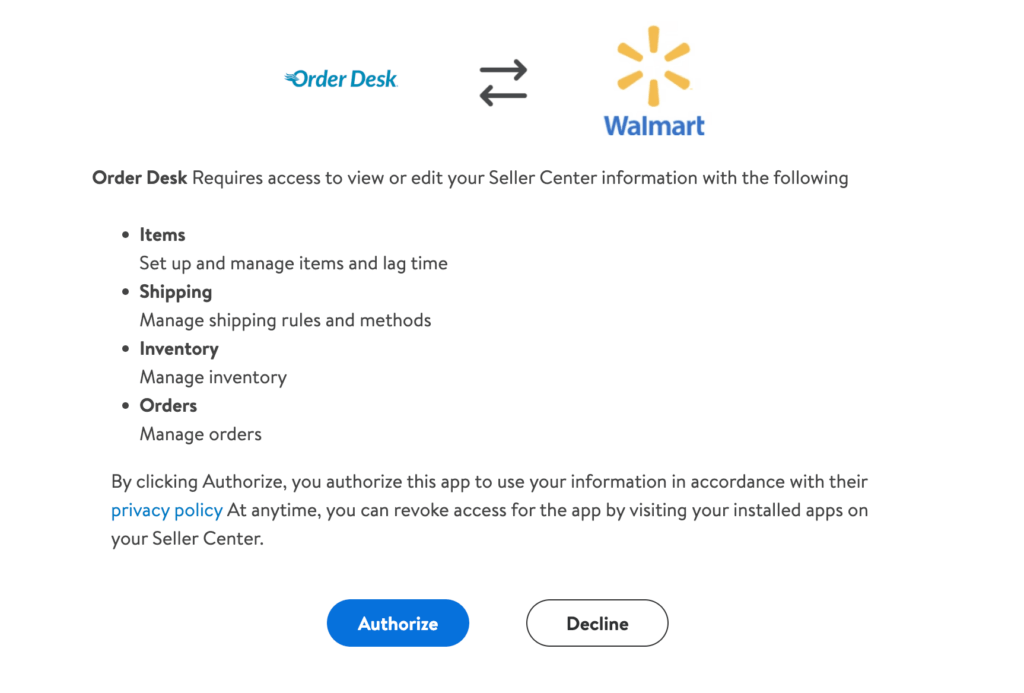
On the next screen, you’ll be asked to give Order Desk the necessary permissions to access your Walmart account:
Click **Authorize**, and Walmart will redirect you back to Order Desk with the integration connected. Continue with the rest of the setup on the [integration settings page](#integration-settings).
#### Connect to Walmart Manually
To connect to Walmart manually, click the **Connect With Your Own API Keys Instead** option. This will take you to a page where you can choose the country and account type. Follow the instructions below based on whether you’re connecting to a Marketplace or DSV account.
#### Marketplace Instructions
To retrieve your API Keys, please login to the [Walmart Developer Center](https://developer.walmart.com/#/generateKey) and click on the API Keys page.
Under the **My API Key** section, copy the Client ID and Client Secret keys and paste them into Order Desk.
#### DSV Instructions

To connect a Walmart DSV account, login to the [Walmart Supplier Center](https://supplier.walmart.com/) and follow these steps:
1. Click on **Settings** in the upper right corner.
2. Click on Distribution Facility to find your Distributor ID.
3. Click on **API Keys** to locate your Client ID and Client Secret.
Order Desk can only download from a single Distributor ID in a single store. If you need to download from a second Distributor ID, you will need to create a second Order Desk store.
### Integration Settings
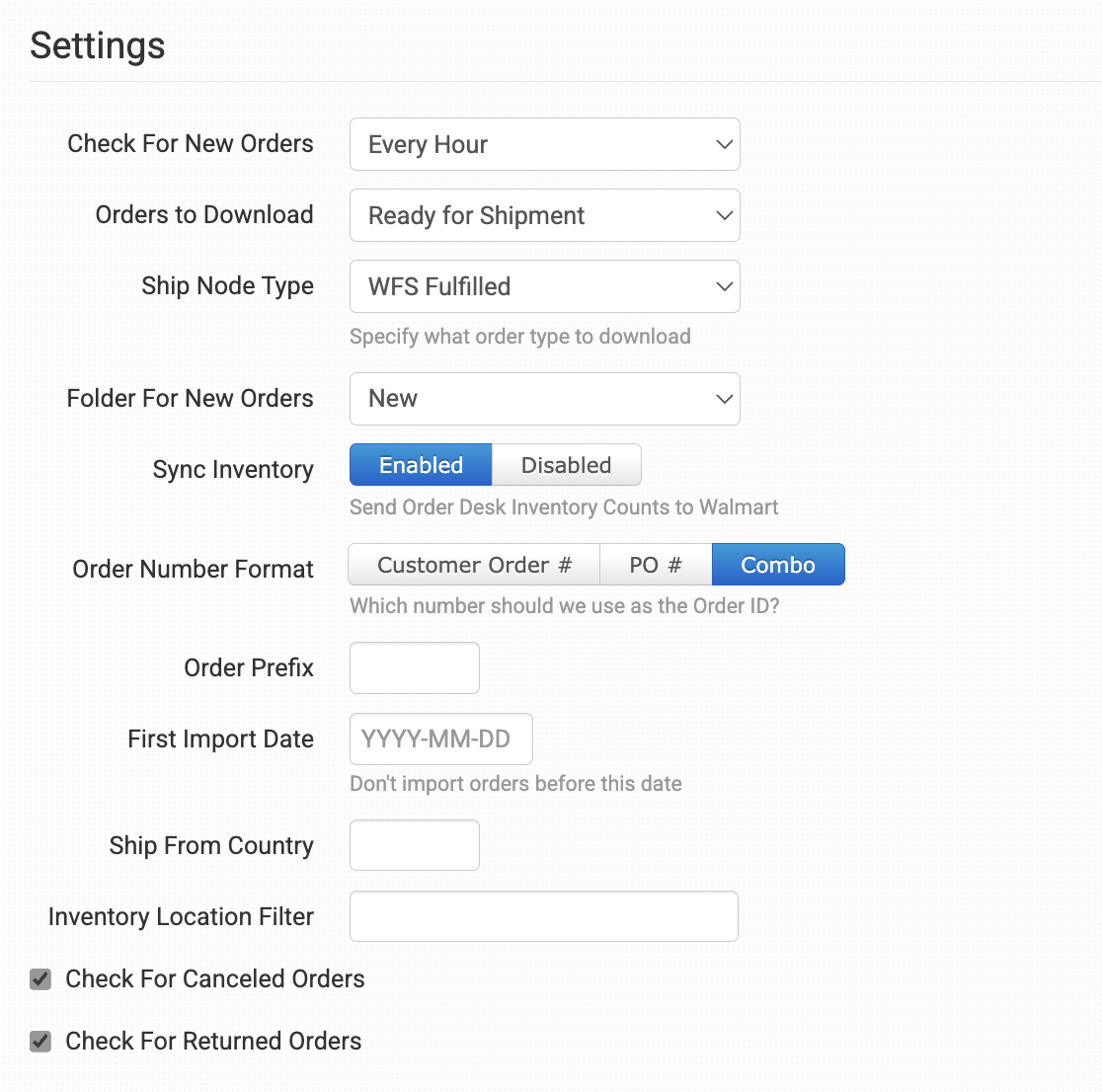
Once connected, set your download preferences so Order Desk knows which orders you want imported.
{% hint style="info" %}
Depending on your connected marketplace region, some of these settings may or may not be available.
{% endhint %}
#### Check For New Orders
Select how often you want orders to be downloaded, up to one hour.
Walmart requires new orders to be acknowledged within one hour of being placed. If an order has a status of **Ready for Shipment** (or **Released**) when it is imported from Walmart, Order Desk will automatically attempt to acknowledge the order in Walmart for you.
{% hint style="info" icon="hand-back-point-right" %}
#### Acknowledging orders regardless of their status
If you want Order Desk to acknowledge all Walmart orders regardless of their status, you can consider creating a rule to do so:
* **Rule Type:** Order Rule
* **Event:** Order Is Imported
* **Filter:** Order Source Equals Walmart
* **Action:** Acknowledge at Walmart
[Check out this guide](/guided-walkthroughs/rules-and-automations/how-to-work-with-rules.md) to learn more about working with rules.
{% endhint %}
#### Orders to Download
Select which orders you want Order Desk to download.
If an order is not yet released and in Walmart’s “Created” status, it will not be downloaded.
#### Ship Node Type
Specify which types of orders you would like to import from Walmart (Seller Fulfilled, WFS Fulfilled, or 3PL Fulfilled). This option is only available when you’ve connected the integration as a Marketplace account.
#### Folder for New Orders
Select the folder where newly imported orders from Walmart should be placed.
For more information, see the [Working with Folders](/start-here/getting-started-series/quick-start-overview.md#working-with-folders) guide.
#### Sync Inventory
Enable to have Order Desk send your inventory numbers to Walmart.
By default the unit of measurement for these updates will be EACH. If you need to have a different unit, set go into the inventory item(s) here in Order Desk and add item metadata called “uom” with the value set as your custom unit of measurement.
Please note, Walmart DSV requires the GTIN for your items in place of the SKU. The GTIN can be passed to Walmart DSV in your item metadata using the field name **gtin**.
For more information on Order Desk inventory, see the [How to Work with Inventory Details](/guided-walkthroughs/products-and-inventory/how-to-work-with-inventory-details.md) guide.
#### Order Number Format
Select which number should be the order ID in Order Desk.
If you select Combo, the order number will combine both numbers in this format:
`Customer Order Number-PO Number`
#### Fulfillment Lag Time (CA Marketplace Only)
This is the number of days you expect it to take from when you receive an order until you plan to ship it.
The default number is set to 2 days. Edit this if you expect a different time frame for your fulfillment, as Walmart requires this data from each store and will expect you to meet your own time frame.
#### Distributor ID (DSV Only)
If you need to change your Distributor ID, do so here.
#### Order Prefix
If you need your order numbers to have a prefix on them when they are imported into Order Desk, set that prefix here.
#### First Import Date
Any orders placed before the date set here will not import into Order Desk.
#### Ship From Country
Sets the shipping country of origin when submitting fulfillment details back to Walmart.
#### Inventory Location Filter
If you only want to download specific orders, you can use the Inventory Location Filter field to specify which ones you want. Enter multiple locations separated by a comma.
The inventory location name must match exactly as it is on your inventory items in Order Desk. When importing new orders from Walmart, Order Desk will look at the SKUs on the items and compare to the SKUs in your inventory here. Any orders with items for a location that isn’t listed in this field will not be imported.
For this to work, your inventory must be added to Order Desk. The inventory Location should be set on each item. For details, please see [How to Add Inventory](/start-here/getting-started-series/quick-start-orders-and-inventory.md#working-with-inventory) and [How to Store Extra Item Details](/guided-walkthroughs/products-and-inventory/how-to-work-with-inventory-details.md#store-extra-item-details-in-order-desk).
#### Check for Canceled Orders
Enable this setting if you want Order Desk to check Walmart for orders that have been canceled.
This check will run twice a day. If an order that has already been downloaded into Order Desk has since been canceled, a new event will run in Order Desk (Walmart Order Canceled), and the admin of the store will be emailed a notification.
You can use the Walmart Order Canceled event to set up rules to take action on these canceled orders. No actions will be taken on these orders *unless* there is a rule to do so, though the email notification to the admin will happen automatically and does not need a rule.
As an example, you may want to move the orders into the Canceled Folder.
If you aren’t familiar with rules, please see the [Rule Builder](/guided-walkthroughs/rules-and-automations/how-to-work-with-rules.md) guide.
If the order has already been sent for fulfillment, you will need to follow up with your fulfillment service to make sure it gets canceled in time. This is typically a manual process and cannot be done automatically by Order Desk or with a rule. For more information, please see the [How to Cancel an Order](/guided-walkthroughs/orders-and-folders/how-to-cancel-an-order.md) guide.
#### Check for Returned Orders (US Marketplace only)
If enabled, Order Desk will check three times a day for initiated order returns with Walmart. If any are found, they will be noted with order and item metadata.
Item metadata may include the walmart\_returned\_reason and walmart\_returned\_quantity fields.
Order metadata may include the walmart\_returned, walmart\_return\_order\_id, walmart\_return\_tracking\_number, walmart\_all\_items\_returned and walmart\_return\_order\_id\_first fields.
Use the **Walmart Order Returned** [rule event](/guided-walkthroughs/rules-and-automations/how-to-work-with-rules.md) to have Order Desk take action on returned orders.
#### Manually Import Orders
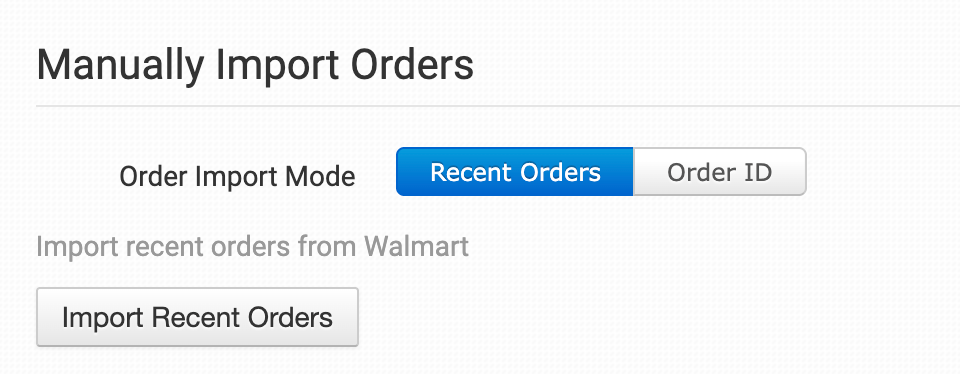
Order Desk can download orders manually if you click the **Import Recent Orders** button.
Orders will download based on the [Orders to Download setting](#integration-settings). If you need to pull in orders with a different status, change your setting first, then manually download orders.
You can also import a single order by using the **Order ID** option.
### Order Import Log
If an order from your cart hasn't come into Order Desk, the **Order Import Log** is a good place to start. It shows recent import attempts, including which orders were imported or skipped and any skip reasons.
Learn how to use the log in the [How to Troubleshoot Missing Shopping Cart Orders](/guided-walkthroughs/integration-specific-walkthroughs/how-to-troubleshoot-missing-shopping-cart-orders.md) guide.
### Special Features
The following fields can be set as checkout data or order metadata to your Walmart orders.
| Field Name | Field Value |
| ------------------- | ---------------------------------------------------------------------------------------------------- |
| ship\_from\_country | Manually overrides the country value set in the [integration settings](#integration-settings) above. |
If you are unfamiliar with checkout data, see the [How to Work with Checkout Data](/guided-walkthroughs/orders-and-folders/how-to-work-with-checkout-data.md) guide.
---
# Agent Instructions
This documentation is published with GitBook. GitBook is the documentation platform designed so that both humans and AI agents can read, navigate, and reason over technical content effectively. Learn more at gitbook.com.
## Querying This Documentation
If you need additional information that is not directly available in this page, you can query the documentation by asking a question.
Perform an HTTP GET request on the following URL with the `ask` and `goal` query parameters:
```
GET https://help.orderdesk.com/integration-setup-guides/sales-channels/walmart-integration.md?ask=&goal=
```
`ask` is the immediate question: it should be specific, self-contained, and written in natural language.
`goal` is what the user is ultimately trying to achieve, the reason they need the answer. Sharing it helps GitBook give you a better, more relevant answer. A goal is most helpful when it describes the outcome the user wants rather than restating the question. For example, with `ask=how do I create an API token`, a goal like `automate deployments from our CI pipeline` lets GitBook tailor the answer to that use case.
The response will contain a direct answer to the question and relevant excerpts and sources from the documentation.
Use this mechanism when the answer is not explicitly present in the current page, you need clarification or additional context, or you want to retrieve related documentation sections.