> For the complete documentation index, see [llms.txt](https://help.orderdesk.com/llms.txt). Markdown versions of documentation pages are available by appending `.md` to page URLs; this page is available as [Markdown](https://help.orderdesk.com/integration-setup-guides/sales-channels/tiktok-shop-integration.md).
# TikTok Shop Integration
Order Desk can connect to your [TikTok Shop](https://www.tiktok.com/) account and automatically download orders.
{% hint style="info" icon="lightbulb" %}
#### **Choosing the Right Connection**
This integration guide covers both the **US** and **Global** TikTok Shop integration connections.
The **Global** TikTok Shop connection currently supports the following marketplaces:
* **North America:** Mexico marketplace.
* **Asia:** China marketplace.
* **Europe:** The UK, France, Spain, Germany, Italy, and Ireland marketplaces.
The **US** connection supports shops based in the United States only.
{% endhint %}
### Setup
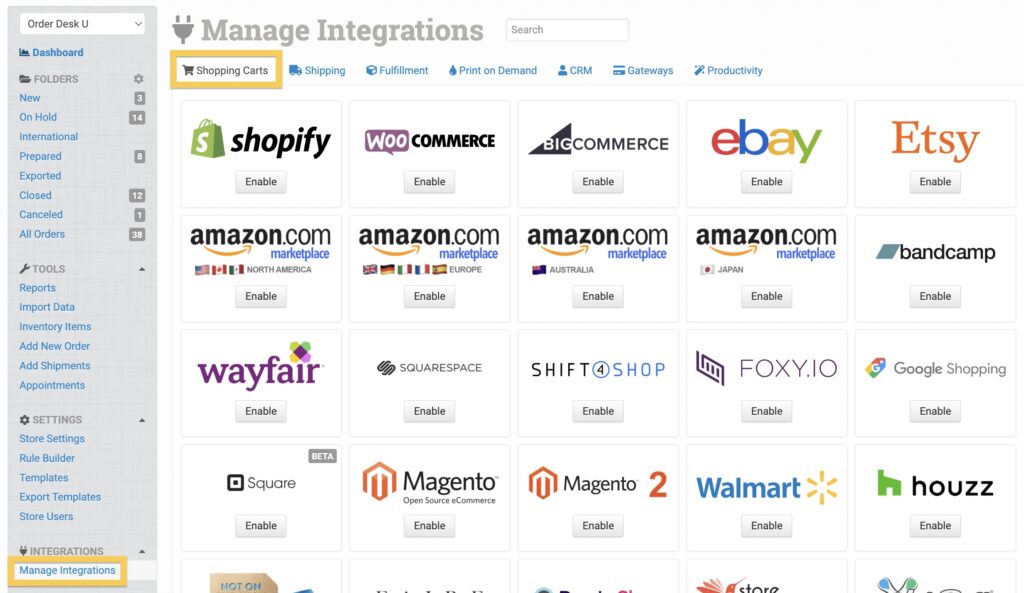
In Order Desk, click **Manage Integrations** under the Integrations menu in the left sidebar. Under the **Shopping Carts** tab, find and enable TikTok Shop.
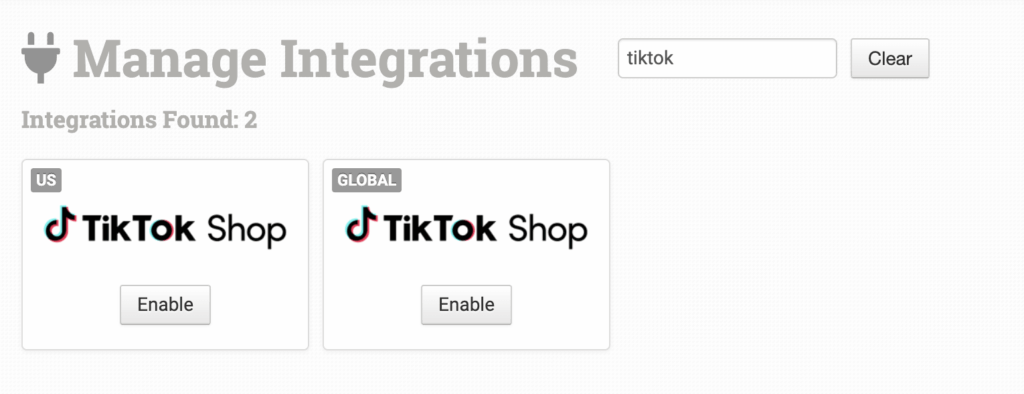
Alternatively, search for *TikTok Shop* from the list of integrations and select your preferred connection.
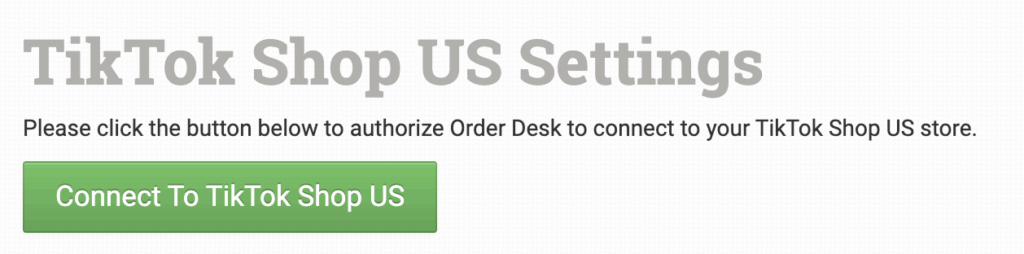
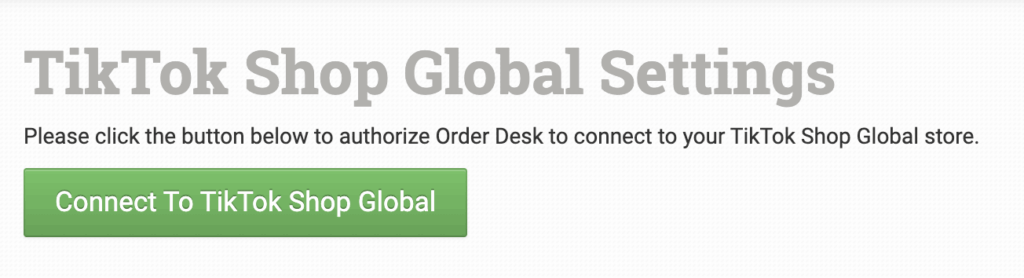
Once enabled, click the **Connect to TikTok Shop** button to complete the connection. You’ll be prompted to log in to your TikTok Shop account and authorize the connection.
{% hint style="info" icon="hand-back-point-right" %}
Order Desk isn’t able to help find or reset your TikTok Shop credentials, as they can only be provided by TikTok.
{% endhint %}
{% hint style="info" icon="hand-back-point-right" %}
#### You’ll need an active TikTok Shop account to connect to the integration.
You can create an account through the [**TikTok Shop Seller Center**](https://seller.tiktok.com/). You won’t be able to create a TikTok Shop account through Order Desk.
{% endhint %}
### Integration Settings
#### TikTok Help
Click *Need Help Getting Started?* to access helpful resources for using TikTok Shop.
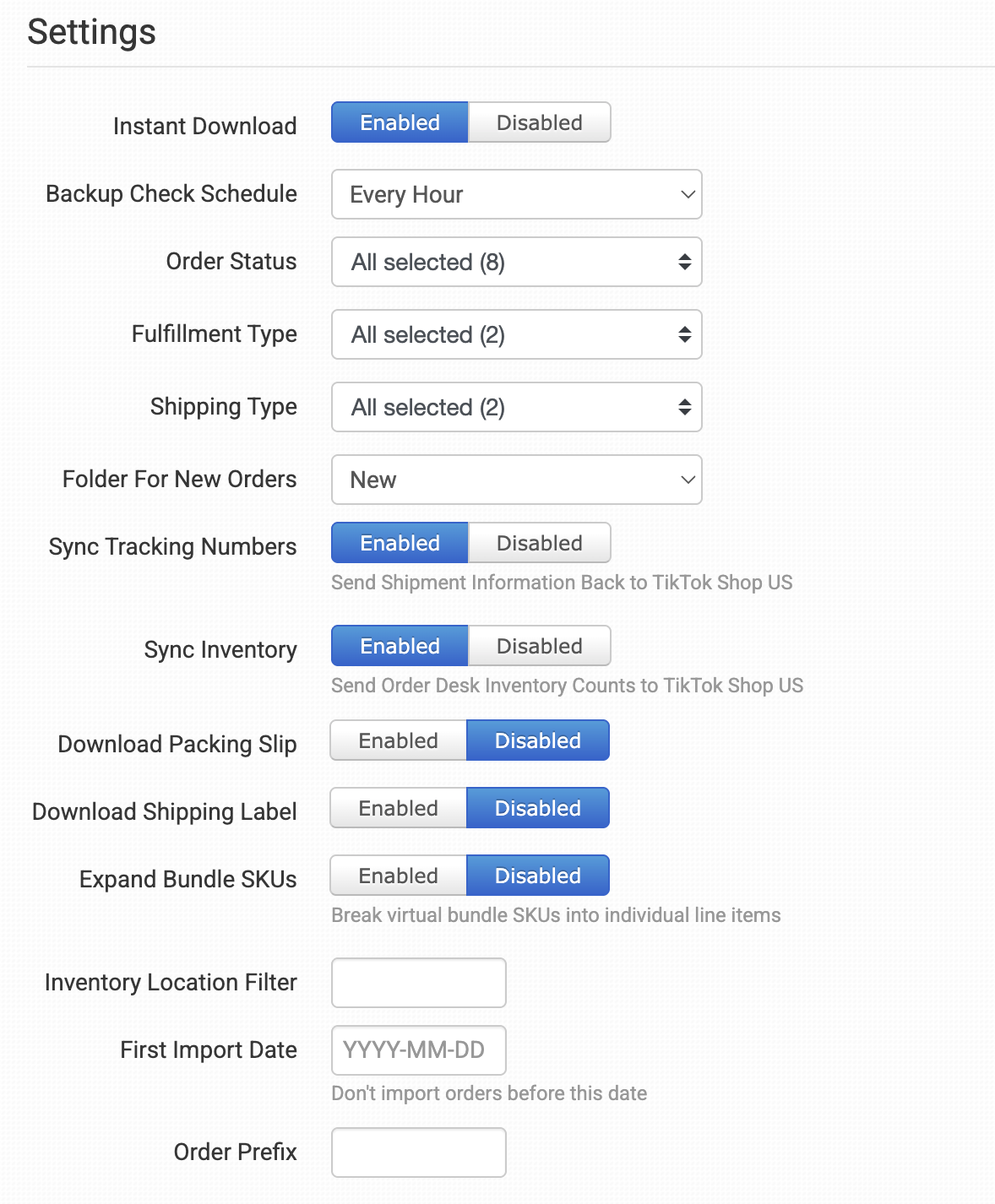
#### Instant Download
Select **Enabled** if you want your TikTok Shop orders to instantly come into Order Desk as they’re placed.
{% hint style="info" icon="hand-back-point-right" %}
If instant download is enabled but some of your orders aren’t coming in, make sure to set up your **Backup Check Schedule**.
{% endhint %}
#### Backup Check Schedule
The backup check schedule is a scheduled appointment to check TikTok Shop for any new orders. If **Instant Download** is enabled, the backup check schedule will run in the background in case any orders were *not* downloaded when they were placed.
If **Instant Download** is disabled, the backup check schedule can be used to pull in orders on the schedule you select instead.
#### Order Status
Select the order status of the orders to be downloaded into Order Desk.
#### Fulfillment Type
Select the fulfillment type of the orders to be downloaded into Order Desk. Fulfillment types are:
* **Fulfilled by TikTok Shop:** TikTok Shop manages the entire fulfillment process, including inventory and shipping.
* **Fulfilled by Seller:** The seller fulfills the order. Two shipping types are available: Platform Shipping, which uses a shipping label purchased from TikTok Shop, and Seller Shipping, which uses your own shipping label.
#### Shipping Type
Select the shipping type of the orders to be downloaded into Order Desk.
#### Folder for New Orders
Select the folder where newly imported orders from TikTok Shop should be placed.
For more information, see the Working with Folders guide.
#### Sync Tracking Numbers
If this setting is enabled, Order Desk will automatically send shipment information back to TikTok Shop and update the orders there.
#### Sync Inventory
If you want Order Desk to sync your inventory availability back to TikTok Shop, enable the **Sync Inventory** setting. Enabling this setting allows Order Desk to sync inventory from the first available warehouse that is detected.
If you’d like to specify a warehouse for inventory syncing, you can set it on an item-by-item basis using the `` `tiktokshopus_warehouse_id` `` or `tiktokshopglobal_warehouse_id` item metadata field with the warehouse ID as the value. Available warehouses can be found by clicking **View Warehouse List** in the TikTok Shop help links.
{% hint style="warning" %}
#### **Preventing Unnecessary Stock Syncs to TikTok Shop**
To keep things running efficiently, Order Desk will automatically add a skip metadata field to any inventory items that aren’t found in TikTok Shop during the first sync attempt.
Depending on your integration region, this metadata will appear as one of the following:
* `skip_push_tiktokshopglobal`
* `skip_push_tiktokshopus`
Once added, Order Desk will stop trying to sync stock for that item.
If you later list those items on TikTok Shop, remove the skip metadata to resume syncing. This can be done in bulk using an **inventory import template**.
{% endhint %}
#### Download Packing Slips
Enable this setting to download packing slips with your orders from TikTok Shop.
#### Download Shipping Label
Enable this setting to download shipping labels with your orders from TikTok Shop.
#### Expand Bundle SKUs
If you’re using virtual bundles in TikTok Shop, enable this setting to have Order Desk break them down into individual line items after import.
#### Inventory Location Filter
Set an inventory location filter for your items.
#### First Import Date
Set a date if you don’t want Order Desk to import orders before a specific date.
#### Order Prefix
If you’d like to add a unique order prefix to the order numbers that come in from TikTok Shop, set that here.
### Platform Shipping Label Creation
{% hint style="info" icon="hand-back-point-right" %}
This tool is only available in the TikTok Shop US integration settings.
{% endhint %}
If **Platform Shipping** is selected under the Shipping Type integration setting, this tool will appear to allow for the use of label creation settings.
### Manual Imports
You can manually import orders or inventory items from TikTok Shop into Order Desk at any time.
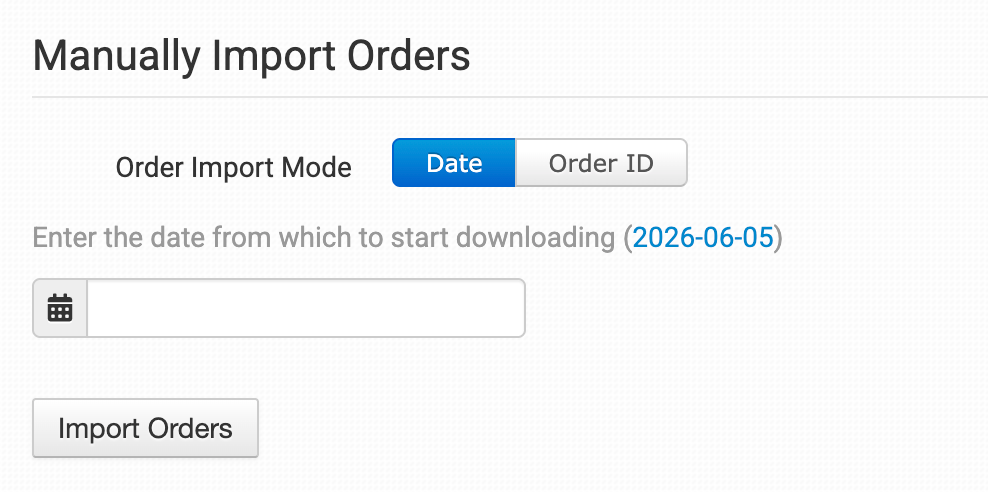
#### Manually Import Orders
You can manually import orders from TikTok at any time. You can import orders by **Date** if you need to bring in multiple orders, or by a specific **Order ID** if you only need to import one order.
> **Tip: Importing Orders by Date**
>
> If TikTok has a large number of orders in the selected date range, you may need to click the **Import** button a few times to bring them all in.
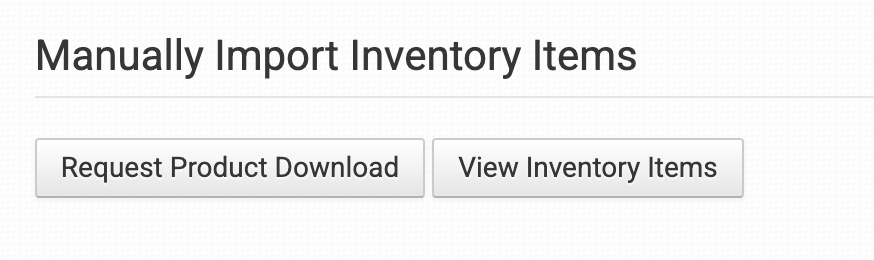
#### Manually Import Inventory Items
To manually import inventory items, click the **Request Product Download** button. You can also view your current inventory by clicking the **View Inventory Items** button.
### Order Import Log
If an order from your cart hasn't come into Order Desk, the **Order Import Log** is a good place to start. It shows recent import attempts, including which orders were imported or skipped and any skip reasons.
Learn how to use the log in the [How to Troubleshoot Missing Shopping Cart Orders](/guided-walkthroughs/integration-specific-walkthroughs/how-to-troubleshoot-missing-shopping-cart-orders.md) guide.
### Handling Cancellations and Returns
Sometimes a buyer will change their mind and ask to cancel an order, or ask to return or replace an item after it ships. Order Desk keeps track of these requests as they happen at TikTok Shop and lets you approve or reject them without leaving Order Desk.
{% hint style="info" icon="hand-back-point-right" %}
#### **TikTok Shop Global Sellers**
Everywhere you see `tiktokshopus` on this page, such as in metadata field names or rule action names, use `tiktokshopglobal` instead if you’re using the Global integration.
{% endhint %}
#### Approving or Rejecting a Request
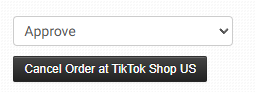
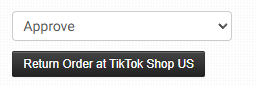
When a buyer has an open cancellation or return request on one of your orders, Order Desk adds an **Approve / Reject** dropdown to the order details page, along with a button to send your response back to TikTok Shop.
#### For a cancellation request:
#### For a return request:
Pick your response from the dropdown, then click the button. Order Desk will send the response to TikTok Shop for you.
These controls only appear while the request is still waiting. Once TikTok Shop marks the request as complete, canceled, or rejected, the buttons will no longer appear.
#### Automating Your Response with a Rule
If you’d rather not review each request by hand, you can build a rule that responds automatically. If you’re new to rules, start with the How to Work With Rules guide.
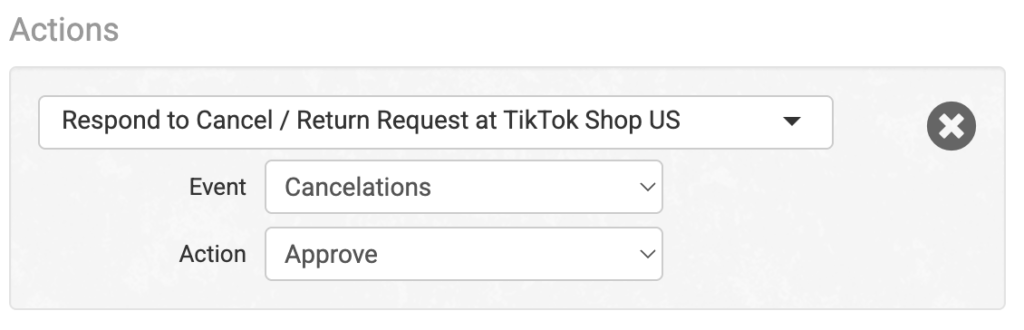
You can use the **Respond to Cancel / Return Request at TikTok Shop US** rule action:
For example, you could set up a rule that automatically approves every buyer cancellation request, or one that only approves returns under certain conditions, such as a specific product or order total.
{% hint style="warning" %}
#### **Heads up**
The rule action will fail if the order’s request has already been resolved. For example, if you try to approve a cancellation on an order where the buyer has already withdrawn the cancellation, the action can’t complete.
{% endhint %}
#### Building Custom Workflows Around Cancellations and Returns
If you want to trigger rules based on specific things happening, such as when a buyer files a return request or when a seller rejects a cancellation, Order Desk gives you rule events you can filter on.
There are two levels of tracking, depending on how much detail you need. These tracking levels determine the rule events you can choose from.
#### Basic tracking, checked when Order Desk imports the order:
* `Buyer Requested Cancelation at TikTok Shop`
* `Order Canceled at TikTok Shop`
#### Detailed tracking, updated immediately when TikTok Shop notifies Order Desk of a change:
* `Order Cancelation Request Status Change at TikTok Shop`
* `Order Return Status Change at TikTok Shop`
* `Order Status Change at TikTok Shop`
When one of the detailed tracking events fires, Order Desk stores information about the change on the order as metadata fields you can filter on:
| Metadata Field | What It Tells You |
| --------------------------- | ----------------------------------------------------------------------------------------------------- |
| tiktokshopus\_event\_status | Where the request stands right now, such as pending, canceled, or complete. |
| tiktokshopus\_event\_role | Who made the change. Possible values are `BUYER`, `SELLER`, or `TIKTOK`. |
| tiktokshopus\_event\_id | An internal ID Order Desk uses to act on the request. You won’t usually need to filter on this field. |
#### Example: Catching a Successful Cancellation
If you want a rule that runs whenever a cancellation request goes through successfully, you can use the following rule as a starting point:
* **Rule Type:** Order Rule
* **Event:** Order Cancelation Request Status Change at TikTok Shop
* **Filter:** Order Metadata Field `tiktokshopus_event_status` Equals `CANCELLATION_REQUEST_SUCCESS`
* **Action:** *Your preferred rule action*
If you also want to know *who* made the request, such as only running the rule when the buyer canceled, add a second filter where `tiktokshopus_event_role` equals `BUYER`.
* **Rule Type:** Order Rule
* **Event:** Order Cancelation Request Status Change at TikTok Shop
* **Filter:** Order Metadata Field `tiktokshopus_event_status` Equals `CANCELLATION_REQUEST_SUCCESS`
* **AND**
* **Filter:** Order Metadata Field `tiktokshopus_event_role` Equals `BUYER`
* **Action:** *Your preferred rule action*
#### Values You Can Filter On
When you’re building filters, these are the values you may see in the two metadata fields. TikTok Shop can add or change these on their end, so this list should be used as a reference and may not always be permanent.
#### Order Cancelation Request Status Change at TikTok Shop:
Possible values for `tiktokshopus_event_status`:
* `CANCELLATION_REQUEST_PENDING`: Buyer has filed a request and is waiting for a response.
* `CANCELLATION_REQUEST_SUCCESS`: Request approved.
* `CANCELLATION_REQUEST_CANCELLED`: Request withdrawn.
* `CANCELLATION_REQUEST_COMPLETE`: Request fully processed.
#### Order Return Status Change at TikTok Shop:
Possible values for `tiktokshopus_event_status`:
* `RETURN_OR_REFUND_REQUEST_PENDING`
* `REFUND_OR_RETURN_REQUEST_REJECT`
* `BUYER_SHIPPED_ITEM`
* `REJECT_RECEIVE_PACKAGE`
* `RETURN_OR_REFUND_REQUEST_SUCCESS`
* `RETURN_OR_REFUND_REQUEST_CANCEL`
* `RETURN_OR_REFUND_REQUEST_COMPLETE`
* `REPLACEMENT_REQUEST_PENDING`
* `REPLACEMENT_REQUEST_REJECT`
* `REPLACEMENT_REQUEST_REFUND_SUCCESS`
* `REPLACEMENT_REQUEST_CANCEL`
* `REPLACEMENT_REQUEST_COMPLETE`
### FAQ
#### Can You Create a TikTok Seller Account for Me?
Order Desk can’t create a seller account for you, but you can do so from the [TikTok Shop Seller Center](https://seller.tiktok.com/). Once you’ve created an account there, you can connect to the TikTok Shop integration in Order Desk.
#### Why Are the Order Details Redacted on My TikTok Shop Orders?
Your order details will be redacted if you have selected TikTok Shipping, also called Platform Shipping, in the shipping options within your TikTok Shop Seller Center.
If you’d like to ship your orders using another method, such as with an integration within your Order Desk account, switch to Seller Shipping in the shipping options instead.
#### Why Can’t I See My TikTok Shop Products in Order Desk After I Click Request Product Download?
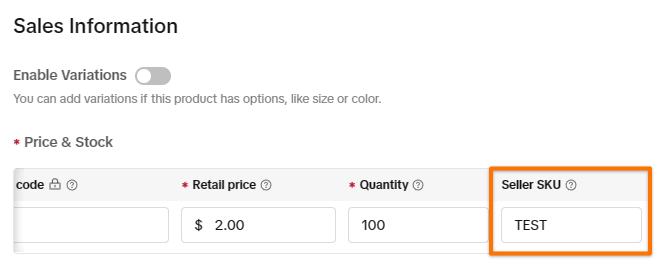
Order Desk can only download products that have a Seller SKU set up in your TikTok Shop Seller Center. You can check for a Seller SKU from within TikTok Shop Seller Center:
---
# Agent Instructions
This documentation is published with GitBook. GitBook is the documentation platform designed so that both humans and AI agents can read, navigate, and reason over technical content effectively. Learn more at gitbook.com.
## Querying This Documentation
If you need additional information that is not directly available in this page, you can query the documentation by asking a question.
Perform an HTTP GET request on the following URL with the `ask` and `goal` query parameters:
```
GET https://help.orderdesk.com/integration-setup-guides/sales-channels/tiktok-shop-integration.md?ask=&goal=
```
`ask` is the immediate question: it should be specific, self-contained, and written in natural language.
`goal` is what the user is ultimately trying to achieve, the reason they need the answer. Sharing it helps GitBook give you a better, more relevant answer. A goal is most helpful when it describes the outcome the user wants rather than restating the question. For example, with `ask=how do I create an API token`, a goal like `automate deployments from our CI pipeline` lets GitBook tailor the answer to that use case.
The response will contain a direct answer to the question and relevant excerpts and sources from the documentation.
Use this mechanism when the answer is not explicitly present in the current page, you need clarification or additional context, or you want to retrieve related documentation sections.