
Order Desk can import orders placed through your OrderMyGear pop-up stores, process them, and send them for fulfillment based on the settings you choose.
Setup
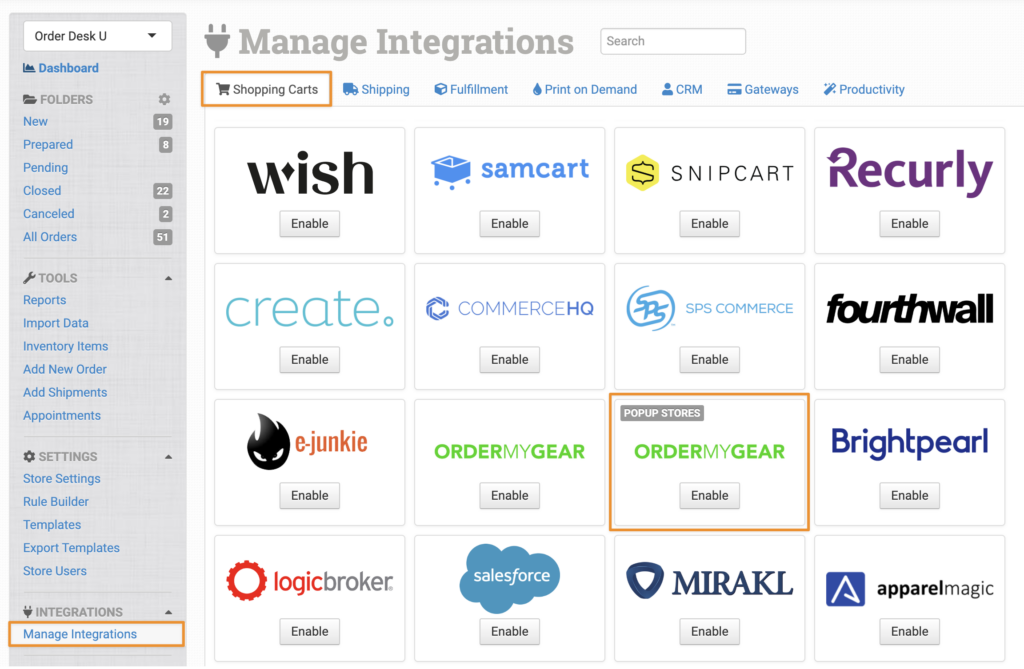
In Order Desk, click Manage Integrations under the Integrations menu in the left sidebar. Under the Shopping Carts tab, find and enable the OrderMyGear import integration:
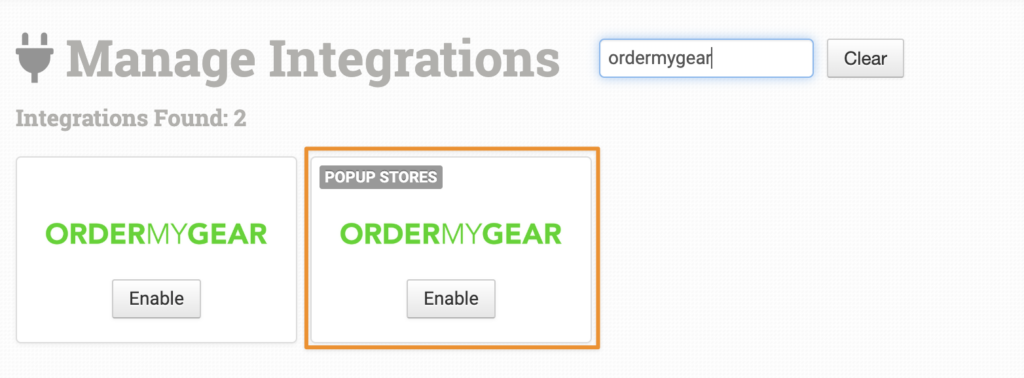
Alternatively, search for ordermygear from the available integration search, then click Enable for the import integration.
On the next screen, enter your OrderMyGear Access Token, then click Connect:
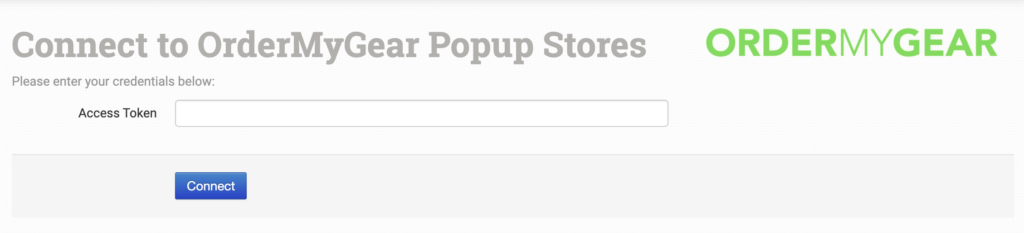
Please note that Order Desk can’t help find or reset your credentials, as these can only be provided by the OrderMyGear team.
Integration Settings
Once connected, you’ll have a few settings where you can set your preferences for this integration.
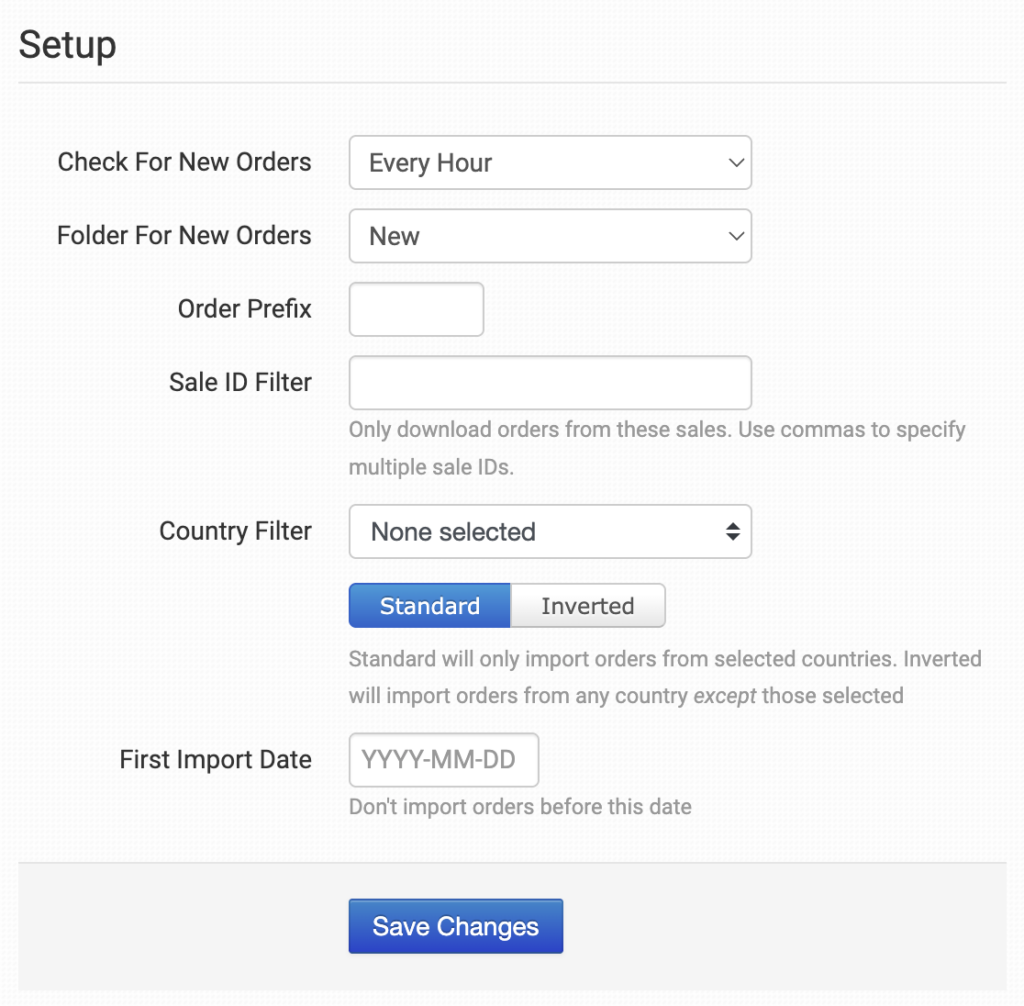
Check for New Orders
Select how often you want Order Desk to download orders from OrderMyGear.
Folder for New Orders
Select the folder where newly imported orders from OrderMyGear should be placed.
For more information about folders, see the Working with Folders guide.
Order Prefix
If you would like to add an order prefix to your OrderMyGear orders as they import into Order Desk, add that value here.
Sale ID Filter
If you’d like to only download orders placed from specific sale IDs, enter those IDs here, separated by commas. Order Desk will leave out orders from sales not listed here during the import process.
Country Filter
Select countries from the dropdown menu, or choose Select All.
Choose Standard for Order Desk to only import orders from the selected countries. Choose Inverted to import all orders except from the selected countries.
First Import Date
Set the date from which you would like orders to begin importing from OrderMyGear.
Manual Imports
Manually Import Orders
You can manually import orders from OrderMyGear Popup Stores at any time. You can import orders by Date if you need to bring in multiple orders, or by a specific Order ID if you only need to import one order.
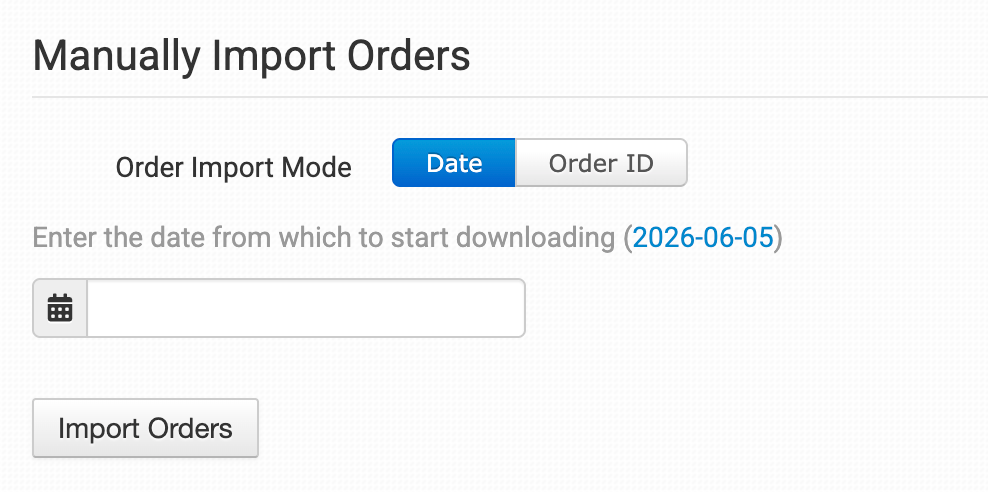
Tip: Importing Orders by Date
If OrderMyGear Popup Stores has a large number of orders in the selected date range, you may need to click the Import button a few times to bring them all in.