> For the complete documentation index, see [llms.txt](https://help.orderdesk.com/llms.txt). Markdown versions of documentation pages are available by appending `.md` to page URLs; this page is available as [Markdown](https://help.orderdesk.com/integration-setup-guides/sales-channels/mirakl-integration.md).
# Mirakl Integration
Order Desk can connect to your [**Mirakl**](https://www.mirakl.com/) account and automatically download orders. As orders are fulfilled, shipment details can automatically be sent back to update Mirakl.
### Setup
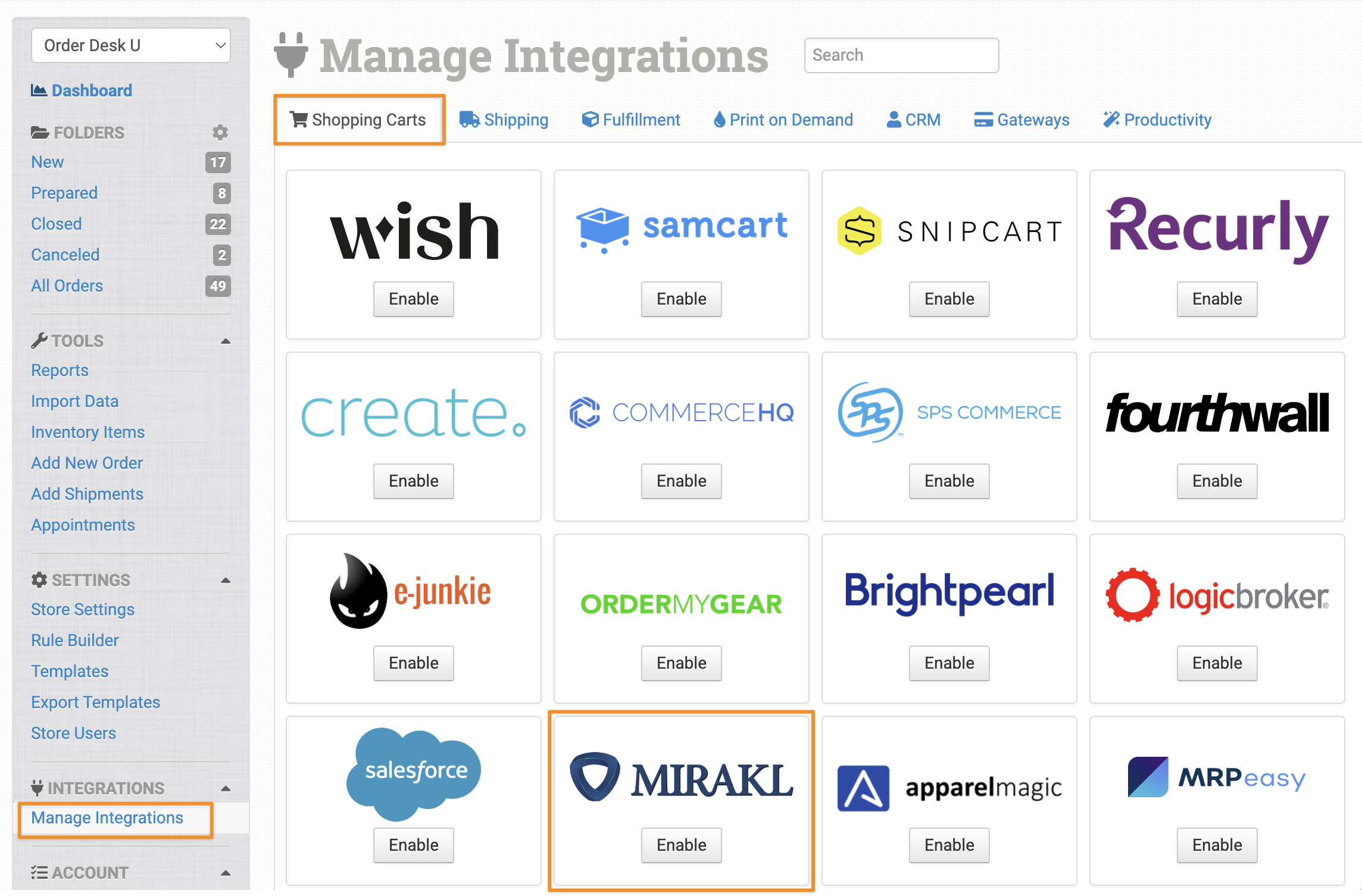
To connect your Mirakl account to Order Desk, click on **Manage Integrations** under the Integrations menu in the left sidebar. Under the **Shopping Carts** tab, find and enable the Mirakl integration:
Alternatively, search for *Mirakl* from the available integration search.
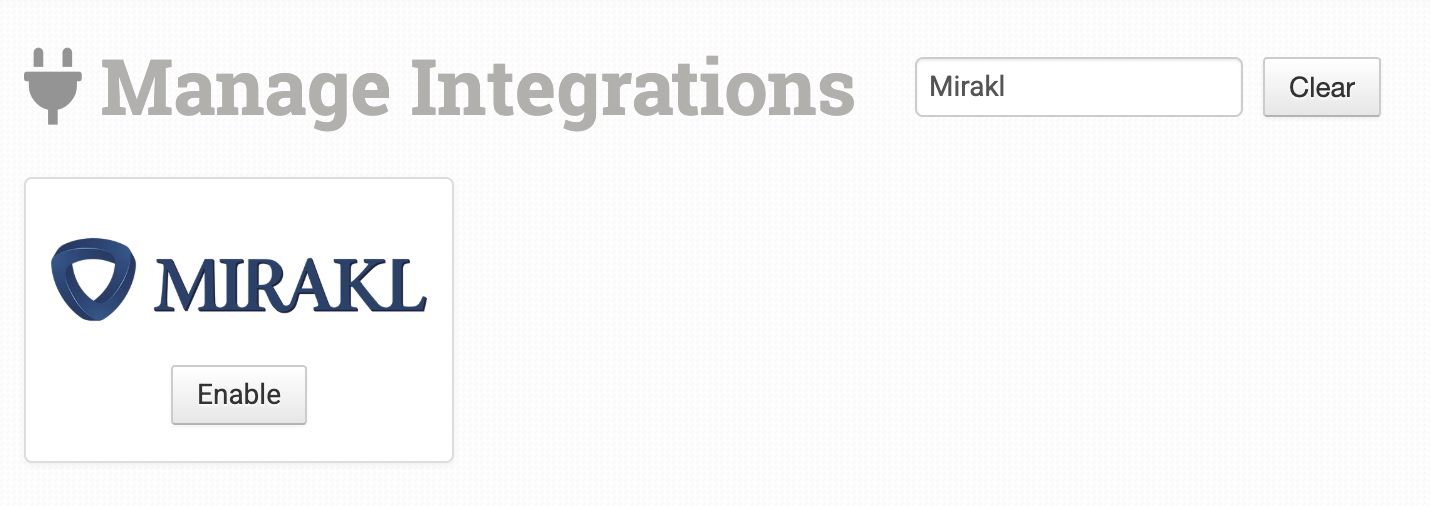
Click **Enable** to get started with connecting the integration.
On the next screen, you’ll be asked to enter your **Instance Name** and **API Key**.
{% hint style="info" %}
#### Finding your Instance Name
Your **Instance Name** is the part that comes before `.mirakl.net` in your Mirakl URL. For example, if your Mirakl dashboard is `https://bestbuyca.mirakl.net`, your instance name is `bestbuyca` —just the word before `.mirakl.net`.
{% endhint %}
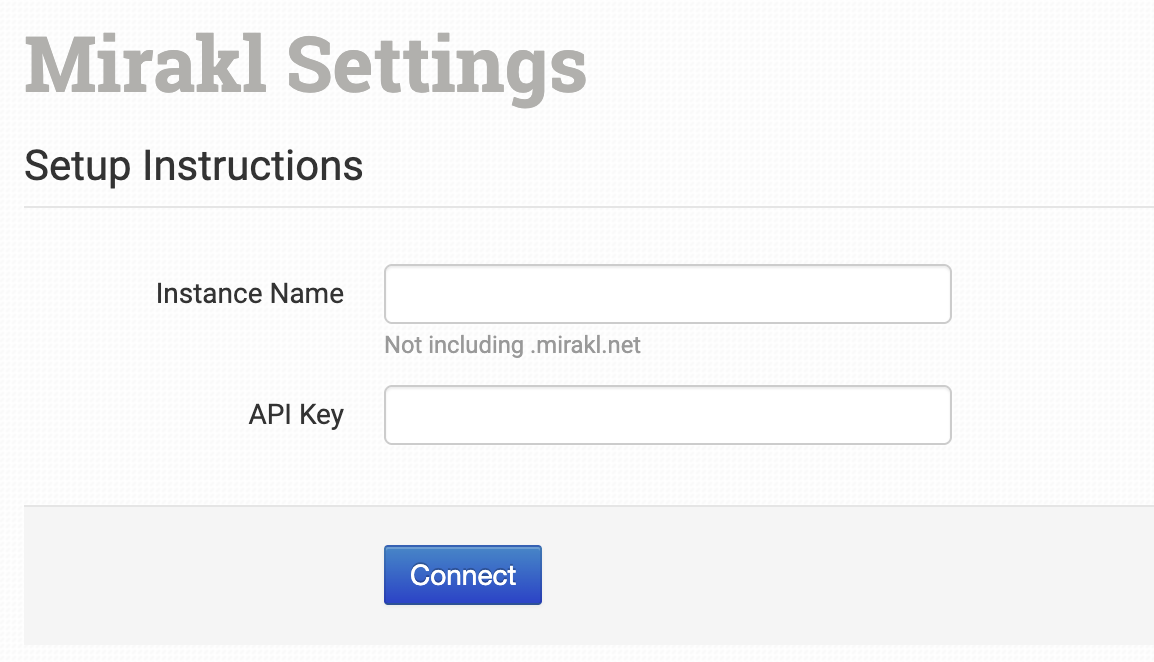
Once you’ve entered both values, click **Connect** to complete the setup.
{% hint style="info" %}
Order Desk isn’t able to help find or help reset your API credentials, as they can only be provided by Mirakl.
{% endhint %}
### Settings
Once enabled, you can set your preferences in the Mirakl integration settings.
#### Check for New Orders
Choose how often you want Order Desk to check for new orders from Mirakl. Options are: Never, Every Day, Every Twelve Hours, Every Six Hours, Every Two Hours, Every Hour.
#### Folder for New orders
Select the folder where newly imported orders from Mirakl should be placed. If you would like to work with your own custom folders, please read [**this guide**](/start-here/getting-started-series/quick-start-overview.md#working-with-folders) for how to create them.
#### Order Status Download
Select which Mirakl order statuses you want Order Desk to import. Orders that don’t match the selected status will be skipped.
#### Payment Terms to Download
Choose the payment terms of the orders to be imported from Mirakl. Orders that don’t match the selected payment terms will be skipped.
#### Auto Accept Orders
Enable this if you want Order Desk to automatically send an order acceptance notice to Mirakl as soon as the order is imported.
#### Sync Inventory
Enable this if you want Order Desk to regularly send stock level updates to Mirakl. When on, Order Desk will try to keep your Mirakl inventory quantities in sync with the stock levels you have in Order Desk.
#### SKU Type
Choose the Mirakl field you’d like to use as the Item Code in Order Desk. You can choose whether to use the **Offer SKU** or **Shop SKU**.
#### Match Mirakl Inventory
This setting tells Order Desk *how* to match items between your Order Desk inventory and your Mirakl listings *before* sending a stock update. This ensures that the correct products in Mirakl are updated.
* **Do Not Lookup:** Select this if you don’t want Order Desk to try matching items between Order Desk and Mirakl.
* **Match by Mirakl Store SKU:** Select this if your items in Mirakl are identified by their **Mirakl Store SKU**. Order Desk will use this field to match items.
* **Match by UPC:** Select this if your items in Mirakl are identified by their **UPC**. Order Desk will use this field to match items.
#### Lookup Source Type
This tells Order Desk *where* in your Order Desk inventory to find the matching value (the SKU or UPC you selected above). You can choose whether Order Desk should look at your item’s **Code/SKU** or a value in an **Item Metadata field**.
#### Source Field Name
If your **Lookup Source Type** is set to **Item Metadata**, enter the exact metadata field name here. Order Desk will use the value in this field to match items.
#### Sync Tracking Numbers
If you want Order Desk to notify Mirakl when orders are fulfilled, enable the Sync Tracking Numbers setting. If tracking details are added to the order, it will be passed back to Mirakl as well.
#### Shop ID
Enter the ID of the Mirakl shop you’d like Order Desk to download orders from. If this is left blank, Order Desk will pull orders from your default shop.
{% hint style="info" %}
Only one **Shop ID** can be entered in this field. If your Mirakl account has access to multiple shops and you’d like to pull orders from each one, you’ll need [a separate Order Desk store](/guided-walkthroughs/using-order-desk/how-to-manage-multiple-stores-on-one-account.md) for each **Shop ID**.
{% endhint %}
#### Inventory Location Filter
If you only want to download specific orders, you can use the Inventory Location Filter field to specify which ones you want. Enter multiple locations separated by a comma.
The inventory location name must match exactly as it is on your inventory items in Order Desk. When importing new orders from Mirakl, Order Desk will look at the SKUs on the items and compare to the SKUs in your inventory here. Any orders with items for a location that isn’t listed in this field will not be imported.
For this to work, your inventory must be added to Order Desk. The inventory Location should be set on each item. For details, please see [How to Add Inventory](/start-here/getting-started-series/quick-start-orders-and-inventory.md#working-with-inventory) and [How to Store Extra Item Details](/guided-walkthroughs/products-and-inventory/how-to-work-with-inventory-details.md#store-extra-item-details-in-order-desk).
#### Order Prefix
If you’d like to add a prefix to your Mirakl order numbers as they import to Order Desk, set that value here. This will be added to the beginning of the order number.
#### Country Filter
Select countries from a dropdown menu, or toggle “select all”.
Choose **Standard** to import only from selected countries. Choose **Inverted** to import all orders *except* from the selected countries.
#### First Import Date
Any orders created before the date set here will not be imported into Order Desk.
#### Check for Order Returns
Enable this setting if you want Order Desk to check Mirakl for returned orders. When a return is found, a note will be added to the Order History section on the order page.
{% hint style="info" %}
You can also take automatic action on returned orders by using the **Order Returned at Mirakl** rule event. To learn how to work with rules, check out this guide: [**How to Work with Rules**](/guided-walkthroughs/rules-and-automations/how-to-work-with-rules.md).
{% endhint %}
### Manual Imports
#### Manually Import Orders
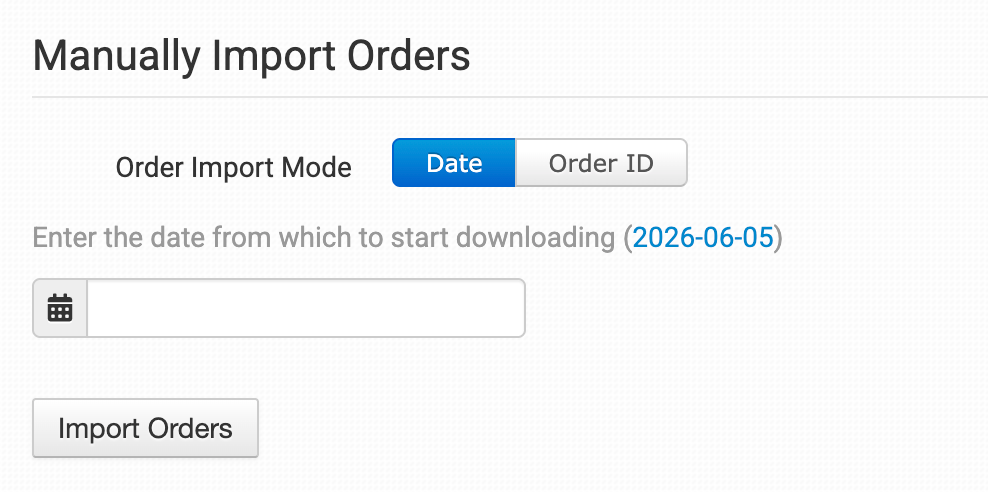
You can manually import orders from Mirakl at any time. You can import orders by **Date** if you need to bring in multiple orders, or by a specific **Order ID** if you only need to import one order.
{% hint style="info" %}
**Tip: Importing Orders by Date**
If Mirakl has a large number of orders in the selected date range, you may need to click the **Import** button a few times to bring them all in.
{% endhint %}
#### Manually Import Inventory Items
Click the **Download Inventory Items** button to download your Mirakl products into Order Desk.

#### Mirakl Rules Reference
In addition to the [**general set of rule events and actions**](/resources/rules-reference-events-filters-and-actions.md) in Order Desk, Mirakl includes a number of rule events and actions that are specific to the integration. These aren’t found directly on the integration page. Instead, you’ll need to use the **Rule Builder** to access them.
If you’re new to using rules in Order Desk, we recommend starting with our [**How to Work With Rules**](/guided-walkthroughs/rules-and-automations/how-to-work-with-rules.md) guide.
#### Rule Events
In addition to the general rule events available for all orders, the following events are specific to Mirakl. To find them, type *mirakl* in the **Event** dropdown menu in the **Rule Builder**:

| Event | Description |
| ------------------------ | ----------------------------------------------------------- |
| Order Returned at Mirakl | Triggered when an order gets returned at Mirakl. |
| Order Accepted at Mirakl | Triggered when an order is successfully accepted at Mirakl. |
| Order Canceled at Mirakl | Triggered when an order is canceled at Mirakl. |
#### Rule Actions
Mirakl also supports specific rule actions that you can apply to your orders. These can be found in the **Actions** dropdown by searching for *mirakl*:

| Action | Description |
| ---------------------- | -------------------------------------------------- |
| Accept Order at Mirakl | Sends an acceptance notice to Mirakl for an order. |
| Cancel Order at Mirakl | Tries to cancel an order at Mirakl. |
---
# Agent Instructions
This documentation is published with GitBook. GitBook is the documentation platform designed so that both humans and AI agents can read, navigate, and reason over technical content effectively. Learn more at gitbook.com.
## Querying This Documentation
If you need additional information that is not directly available in this page, you can query the documentation dynamically by asking a question.
Perform an HTTP GET request on the current page URL with the `ask` query parameter, and the optional `goal` query parameter:
```
GET https://help.orderdesk.com/integration-setup-guides/sales-channels/mirakl-integration.md?ask=&goal=
```
`ask` is the immediate question: it should be specific, self-contained, and written in natural language.
`goal` is optional and describes the broader end goal you are ultimately trying to accomplish on behalf of the user. GitBook uses it to tailor the answer towards what is most useful for that goal.
The response will contain a direct answer to the question and relevant excerpts and sources from the documentation.
Use this mechanism when the answer is not explicitly present in the current page, you need clarification or additional context, or you want to retrieve related documentation sections.
