> For the complete documentation index, see [llms.txt](https://help.orderdesk.com/llms.txt). Markdown versions of documentation pages are available by appending `.md` to page URLs; this page is available as [Markdown](https://help.orderdesk.com/integration-setup-guides/sales-channels/foxy-integration.md).
# Foxy Integration
Order Desk can pull in your [Foxy](https://www.foxy.io/) orders, process them and send them for fulfillment based on the settings you choose. As orders are fulfilled, the tracking details will be sent back to Foxy.
### Setup
To connect to your Foxy account, click on **Manage Integrations** in the left sidebar. Under the **Shopping Carts** tab, look for and enable the Foxy integration.

Once enabled, click the **Connect To Foxy** button. You will be redirected to Foxy so you can sign in and authorize the Order Desk app.

### Integration Settings

Once authorized, there will be a few preferences you can set in Order Desk.
#### Check For New Orders
Choose how often you want Order Desk to pull new orders in from Foxy. The most frequent check is for every hour.
#### Folder for New Orders
Choose the folder where orders should be moved into as they are pulled into Order Desk from Foxy..
You can choose the default New folder for this, or create your own folders in your Store Settings. Read the [Working with Folders](/start-here/getting-started-series/quick-start-overview.md#working-with-folders) guide for more information.
#### Order Prefix
If you need to add a prefix to your orders as they are downloaded to Order Desk, set that here.
#### Download Archived Orders
Select this setting for Order Desk to look for archived orders in addition to new orders.
#### Import Orders
If you would like to manually import orders from a specific date or instead of letting them automatically download, do so from here. Set the date you want Order Desk to start looking for orders.
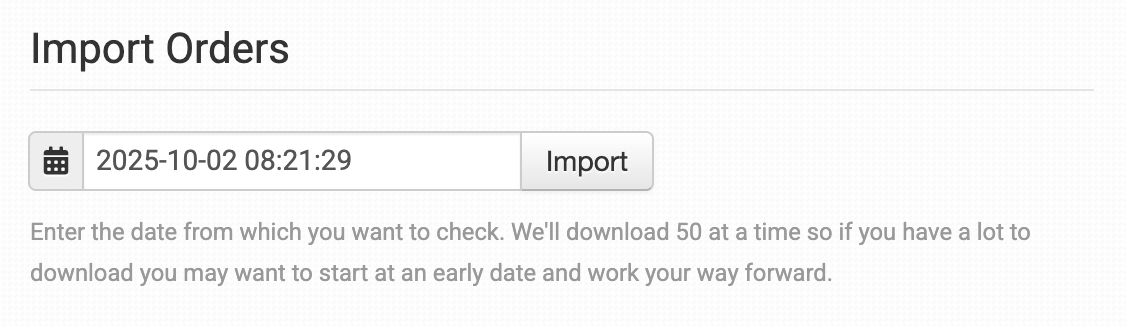
Orders will be downloaded 50 at a time, so depending on how far back you search or how many orders you have had since that date, you may have to run several searches as the date moves forward each 50 orders.
### Order Import Log
If an order from your cart hasn't come into Order Desk, the **Order Import Log** is a good place to start. It shows recent import attempts, including which orders were imported or skipped and any skip reasons.
Learn how to use the log in the [How to Troubleshoot Missing Shopping Cart Orders](/guided-walkthroughs/integration-specific-walkthroughs/how-to-troubleshoot-missing-shopping-cart-orders.md) guide.
#### Sending Shipment Updates to Foxy
Sending shipment updates to Foxy requires using rules in Order Desk. If you have not worked with rules before, it’s a good idea to first read the [**how to work with rules guide**](/guided-walkthroughs/rules-and-automations/how-to-work-with-rules.md) so you understand how they work.
You can send shipment details to Foxy using the **Set Transaction Attribute at FoxyCart** rule action. This rule lets you set any transaction field in Foxy, including custom fields. Since tracking fields in Foxy are custom, this is the way to send tracking numbers from Order Desk.
When setting this up, use the name of your custom tracking field in Foxy as the field name. Then set the field value to `tracking_numbers`.
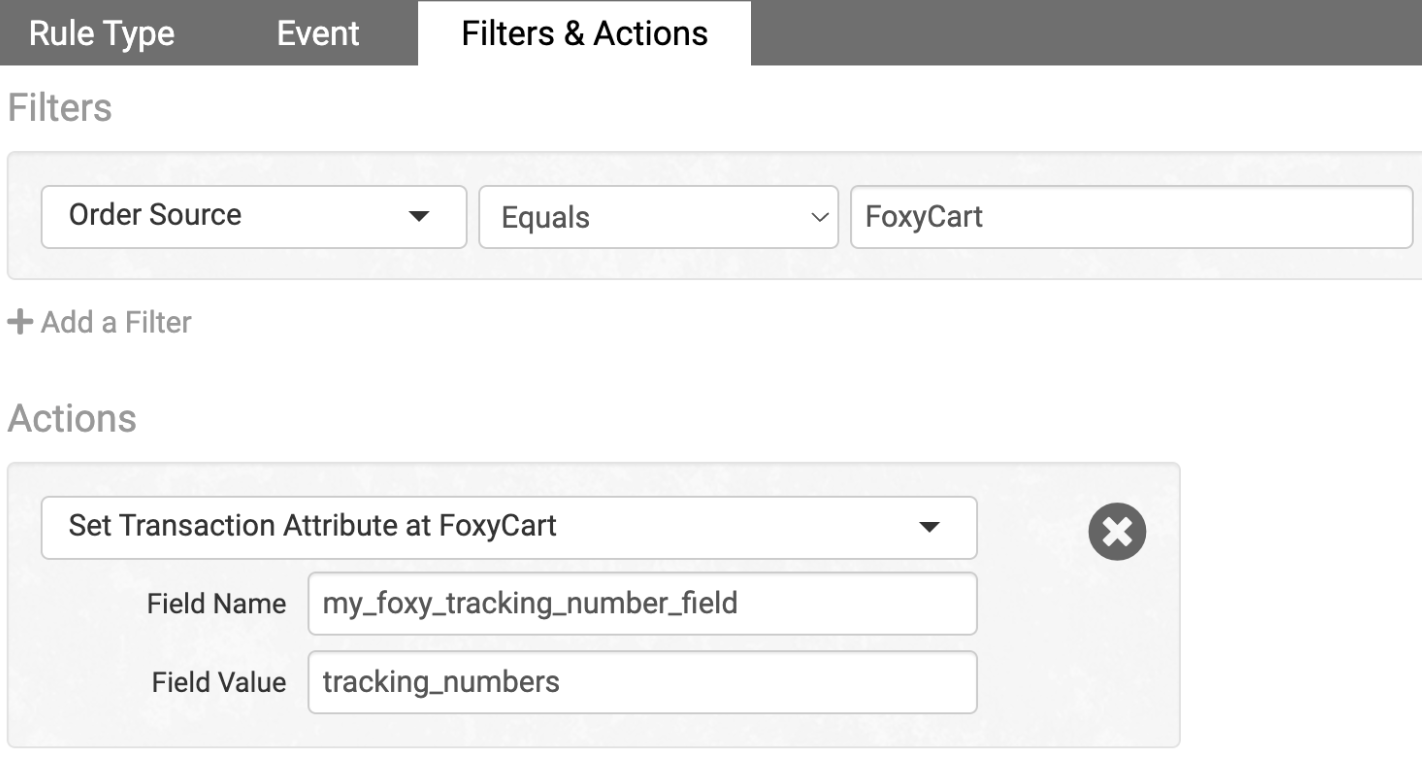
For example, if your custom field in Foxy is called `my_foxy_tracking_number_field`, you would use that as the field name and use `tracking_numbers` as the field value. The rule would be set up like this:
* **Rule Type:** Order Rule
* **Event:** Shipment Is Added
* **Filter:** Order Source Equals FoxyCart
* **Action:** Set Transaction Attribute at FoxyCart
* **Field name:** my\_foxy\_tracking\_number\_field
* **Field Value:** tracking\_numbers
When the rule runs, Order Desk will send the tracking numbers to that custom field in Foxy. This makes the tracking information show up directly on the transaction.
#### Custom Tools
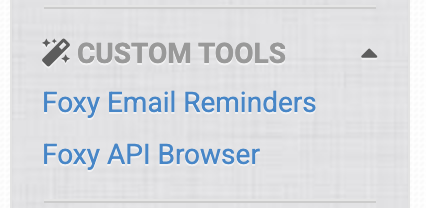
The Foxy integration comes with a few custom tools to help you better manage your store and your subscriptions from Foxy. To access these tools, look under the **Custom Tools** menu in the left sidebar. The information shown here is a view into your Foxy account.
#### Foxy Email Reminders
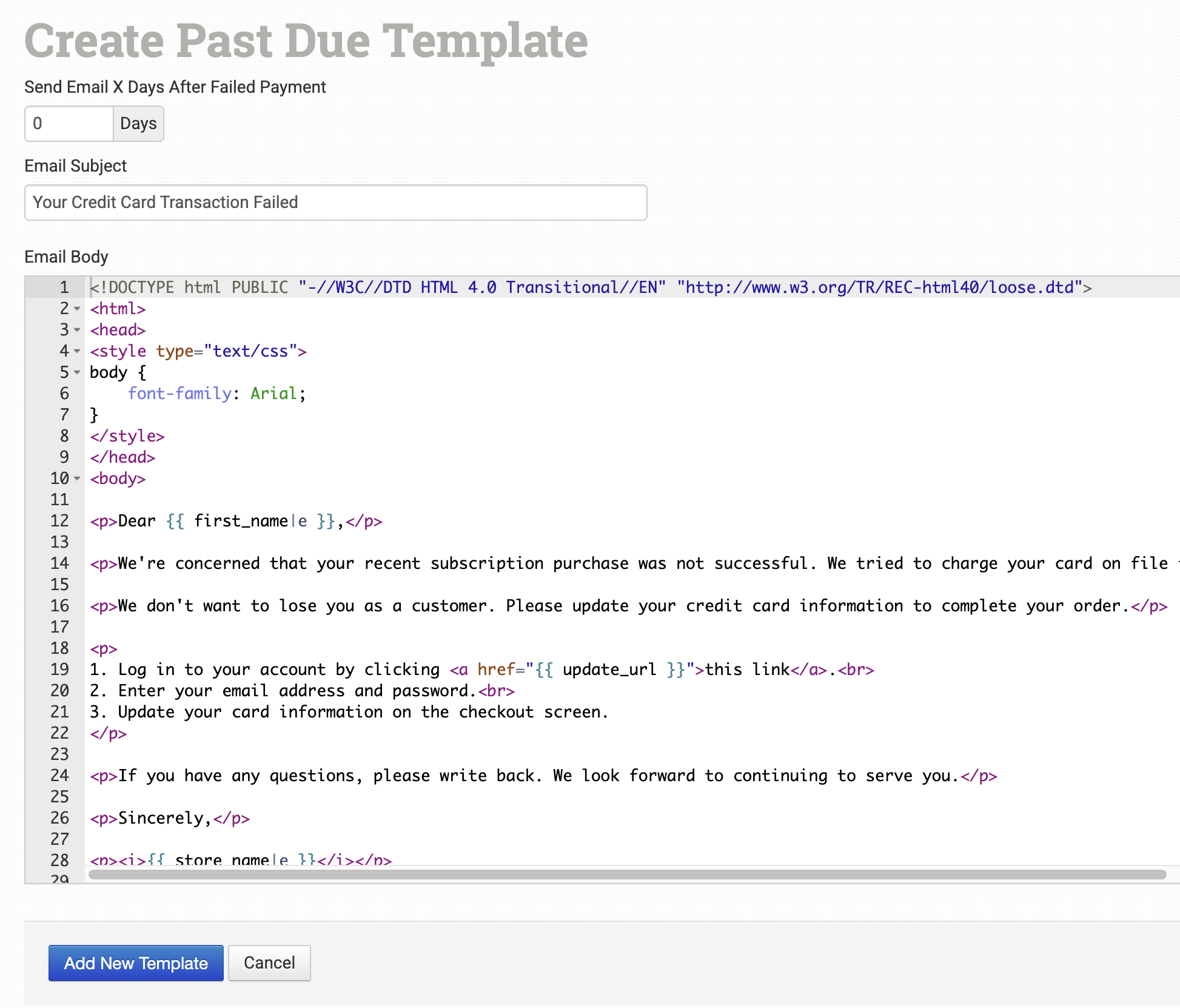
When on this page, click **Add New Reminder Email** to create an email template to be sent to customers with failed subscription payments:
You can choose how many days after the failed payment to send the notice and edit the subject and content of the email here.
#### Foxy API Browser
Foxy has supplied API information for merchants to gain more insight into their store data using the API Browser. Learn more about the details that are going on behind the scenes by searching your Transactions or subscriptions, among other data in the API.
---
# Agent Instructions
This documentation is published with GitBook. GitBook is the documentation platform designed so that both humans and AI agents can read, navigate, and reason over technical content effectively. Learn more at gitbook.com.
## Querying This Documentation
If you need additional information that is not directly available in this page, you can query the documentation by asking a question.
Perform an HTTP GET request on the following URL with the `ask` and `goal` query parameters:
```
GET https://help.orderdesk.com/integration-setup-guides/sales-channels/foxy-integration.md?ask=&goal=
```
`ask` is the immediate question: it should be specific, self-contained, and written in natural language.
`goal` is what the user is ultimately trying to achieve, the reason they need the answer. Sharing it helps GitBook give you a better, more relevant answer. A goal is most helpful when it describes the outcome the user wants rather than restating the question. For example, with `ask=how do I create an API token`, a goal like `automate deployments from our CI pipeline` lets GitBook tailor the answer to that use case.
The response will contain a direct answer to the question and relevant excerpts and sources from the documentation.
Use this mechanism when the answer is not explicitly present in the current page, you need clarification or additional context, or you want to retrieve related documentation sections.