> For the complete documentation index, see [llms.txt](https://help.orderdesk.com/llms.txt). Markdown versions of documentation pages are available by appending `.md` to page URLs; this page is available as [Markdown](https://help.orderdesk.com/integration-setup-guides/sales-channels/adobe-commerce-integration.md).
# Adobe Commerce Integration
Order Desk can connect to your [Adobe Commerce](https://www.magentocommerce.com/download) (formerly known as Magento 2) store and import your orders. As orders are fulfilled, tracking details can be sent back to Adobe Commerce.
Only Adobe Commerce 2.1 and greater are supported with this integration.
{% hint style="warning" %}
**Important**
This integration connects to Adobe Commerce, which is not the same as the original legacy version of Magento. For legacy Magento instructions, see the [legacy Magento guide](/integration-setup-guides/sales-channels/magento-integration.md).
{% endhint %}
### **Setup**
To connect to Adobe Commerce, click **Manage Integrations** under the Integrations menu in the left sidebar. Under the **Shopping Carts** tab, find and enable Adobe Commerce.

Alternatively, search for *Adobe Commerce* from the available integration search.
To complete the connection, you’ll need to get an **Integration Access Token** from Adobe Commerce.
#### **Create Access Token**
Follow the instructions in [this guide](https://developer.adobe.com/commerce/webapi/get-started/authentication/gs-authentication-token/) from Adobe Commerce to generate a token with the right permissions.
In step 4, *Select the Adobe Commerce resources the integration can access*, assign all **Sales Operations** and **Catalog** permissions to the integration, including Orders, Shipments, and Inventory.
#### **Inventory Management**
If you want to sync inventory details between Order Desk and Adobe Commerce, an additional permission is required. You can find it at:
**Stores** > **Settings** > **Configuration** > **Inventory Sections**
#### **Adobe Commerce 2.2**
If you’re using Adobe Commerce 2.2, you must also select the **All Stores** permission found under **Stores** > **Settings** > **All Stores**.
#### **Connect Account**
Adobe Commerce will supply a Consumer Key, Consumer Secret, Access Token, and Access Token Secret. You’ll only need the **Access Token**.
Add your website URL and Access Token to the Order Desk Adobe Commerce integration settings, then click **Connect**.

{% hint style="info" %}
Order Desk isn’t able to help find or reset your Adobe Commerce credentials, as they can only be provided by Adobe Commerce.
{% endhint %}
### **Integration Settings**
Once connected to Adobe Commerce, set your preferences in the integration settings.
#### **Check for New Orders**
Select how often you want Order Desk to pull in new orders from Adobe Commerce.
#### **Folder for New Orders**
Select the folder where newly imported orders from Adobe Commerce should be placed.
For more information, see the [Working with Folders](/start-here/getting-started-series/quick-start-overview.md#working-with-folders) guide.
#### **Orders to Import**
Select which orders you want Order Desk to import from Adobe Commerce.
#### **Store ID List**
To only import orders from specific Adobe Commerce stores, add the IDs here, separated by commas.
#### **Sync Tracking Numbers**
Enable this to have shipment information sent back to Adobe Commerce as tracking is added to orders in Order Desk.
#### **Email to Customer**
Enable this to have Adobe Commerce email the customer when tracking information is sent back for their order.
#### **Sync Inventory**
Enable this to have your inventory counts sent to Adobe Commerce as they are updated in Order Desk.
The SKU value is used to match the product between Order Desk and Adobe Commerce.
By default, Order Desk will also mark items as **out of stock** in Adobe Commerce when their quantity reaches zero. If you’d prefer to keep zero-stock items marked as **in stock**, you can change this in the [Advanced](#zero-stock-inventory-should-be-marked-as-out-of-stock) section.
#### **Inventory Source Code**
Target specific inventory sources and only update items tied to the source you enter in this field.
#### **Country Filter**
Use two-digit country codes, separated by commas, to only import orders from specific countries.
Add a **–** to exclude orders from specific countries.
*Examples:*
**US,CA,MX** will only import orders for the United States, Canada, and Mexico.
**-US,-CA,-MX** or **-US,CA,MX** will import all orders except for the United States, Canada, and Mexico.
#### **Order Prefix**
You can add a prefix of your choice to all orders downloaded from Adobe Commerce.
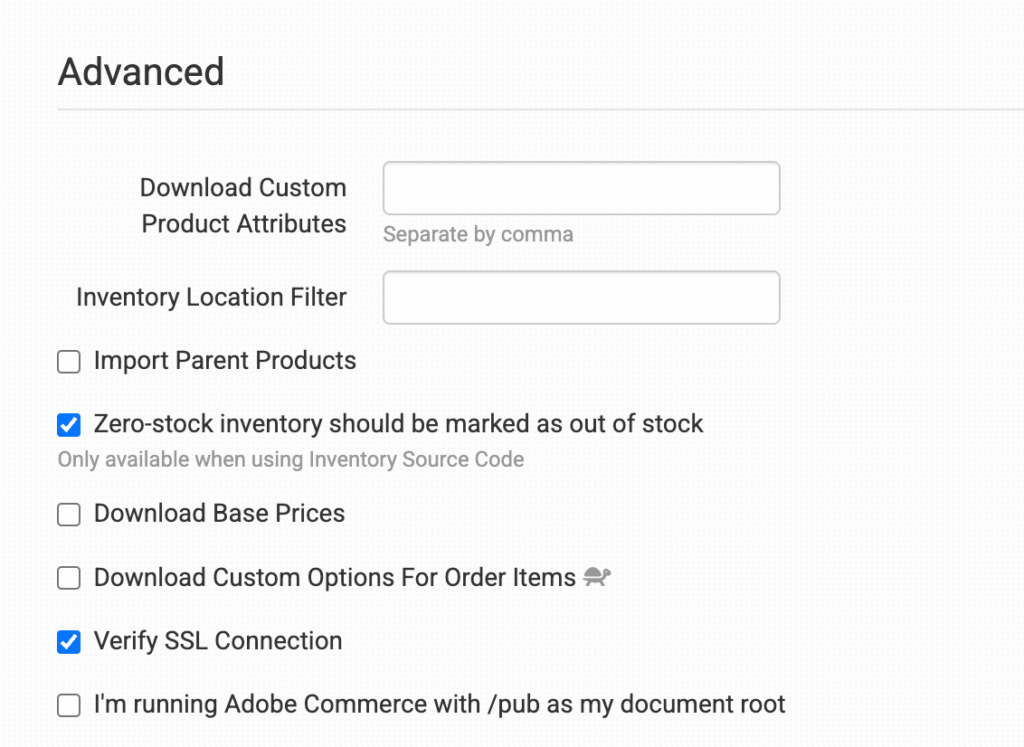
#### **Advanced**
#### **Download Custom Product Attributes**
Order Desk can pull in custom product attributes. To set this up, list the attributes you want brought into Order Desk in this field. For multiple attributes, separate each with a comma and don’t add a space after the comma.
Order Desk will look at each product in an order and store any attributes that are found in the item metadata.
#### **Inventory Location Filter**
If you only want to download specific orders, use the **Inventory Location Filter** field to specify which ones you want. Enter multiple locations separated by commas.
The inventory location name must match exactly as it appears on your inventory items in Order Desk. When importing new orders from Adobe Commerce, Order Desk will look at the SKUs on the items and compare them to the SKUs in your inventory. Any orders with items for a location that *isn’t* listed in this field will not be imported.
For this to work, your inventory must be added to Order Desk, and the inventory location should be set on each item. For details, see [How to Add Inventory](/start-here/getting-started-series/quick-start-orders-and-inventory.md#working-with-inventory) and [How to Store Extra Item Details](/guided-walkthroughs/products-and-inventory/how-to-work-with-inventory-details.md#store-extra-item-details-in-order-desk).
#### **Import Parent Products**
If you have bundles set up in Adobe Commerce and want the parent product to import with the bundled items, enable this setting. The parent product will import with the bundle price set to it, and each individual item that makes up the bundle will import with a price of **0**.
Leave this setting disabled for Order Desk to ignore the parent product and import only the individual items that make up the bundle.
#### **Zero-Stock Inventory Should Be Marked as Out of Stock**
If this setting is enabled, any items with a stock quantity of zero will be marked as **out of stock** in Adobe Commerce.
If disabled, Order Desk will still sync inventory quantities, but it won’t update the stock status. Adobe Commerce will continue to show the items as **in stock**.
{% hint style="info" %}
This setting only applies if you’re using an [Inventory Source Code](#inventory-source-code). Without an inventory source code, Adobe Commerce requires Order Desk to include a stock status with inventory updates, so zero-stock items will continue to be marked as **out of stock** unless an Inventory Source Code is provided.
{% endhint %}
#### **Download Base Prices**
Enable this setting if you’d like Adobe Commerce orders to be imported with base prices for items, discounts, and shipping costs instead of actual prices.
#### **Download Custom Options for Order Items**
Select this if you want to bring in your custom options, or variations. If selected, this can slow down the order import.
#### **Verify SSL Connection**
Select this to verify your SSL connection.
#### **I’m running Adobe Commerce with /pub as my document root**
If you’re using `/pub` as your document root in your Adobe Commerce installation, your media file paths will not have the `pub/` prefix on them. For example, `media/catalog/product/...` instead of `pub/media/catalog/product/...`. Select this checkbox if you’re running Adobe Commerce with this setup.
### **Manual Imports**
If you need to manually import orders or inventory items from Adobe Commerce, you can do this from the Adobe Commerce integration page.
#### **Manually Import Orders**
You can manually import orders from Adobe Commerce at any time. You can import orders by **Date** if you need to bring in multiple orders, or by a specific **Order ID** if you only need to import one order.
{% hint style="info" %}
**Importing Orders by Date**
If Adobe Commerce has a large number of orders in the selected date range, you may need to click the **Import** button a few times to bring them all in.
{% endhint %}
#### **Manually Import Inventory Items**
If you need to pull your Adobe Commerce inventory into Order Desk, click the **Import Inventory Items Now** button.
For more information on Order Desk inventory, see the [How to Work with Inventory Details](/guided-walkthroughs/products-and-inventory/how-to-work-with-inventory-details.md) guide.
### **Custom Features**
Set shipment comments on an Adobe Commerce order by adding the comments in a checkout data field called `MagentoShipmentComments`.
If you’re unfamiliar with checkout data, read the [How to Work with Checkout Data](/guided-walkthroughs/orders-and-folders/how-to-work-with-checkout-data.md) guide.
### **Limitations**
Whenever a SKU has a **/** in it, the Adobe Commerce API is not able to send that data into Order Desk, causing orders to have missing items. This is not a limitation that Order Desk can work around, as it is related to the Adobe Commerce API. The easiest solution is to remove any forward slashes from SKUs used in your Adobe Commerce cart.
### Order Import Log
If an order from your cart hasn't come into Order Desk, the **Order Import Log** is a good place to start. It shows recent import attempts, including which orders were imported or skipped and any skip reasons.
Learn how to use the log in the [How to Troubleshoot Missing Shopping Cart Orders](/guided-walkthroughs/integration-specific-walkthroughs/how-to-troubleshoot-missing-shopping-cart-orders.md) guide.
---
# Agent Instructions
This documentation is published with GitBook. GitBook is the documentation platform designed so that both humans and AI agents can read, navigate, and reason over technical content effectively. Learn more at gitbook.com.
## Querying This Documentation
If you need additional information that is not directly available in this page, you can query the documentation by asking a question.
Perform an HTTP GET request on the following URL with the `ask` and `goal` query parameters:
```
GET https://help.orderdesk.com/integration-setup-guides/sales-channels/adobe-commerce-integration.md?ask=&goal=
```
`ask` is the immediate question: it should be specific, self-contained, and written in natural language.
`goal` is what the user is ultimately trying to achieve, the reason they need the answer. Sharing it helps GitBook give you a better, more relevant answer. A goal is most helpful when it describes the outcome the user wants rather than restating the question. For example, with `ask=how do I create an API token`, a goal like `automate deployments from our CI pipeline` lets GitBook tailor the answer to that use case.
The response will contain a direct answer to the question and relevant excerpts and sources from the documentation.
Use this mechanism when the answer is not explicitly present in the current page, you need clarification or additional context, or you want to retrieve related documentation sections.