If you would like to receive daily notifications about low inventory in your store, you can use Inventory Helper. Use a default number for all items or set a specific number for certain items.
This guide will show you how to set up and use the Inventory Helper integration in Order Desk.
Setup
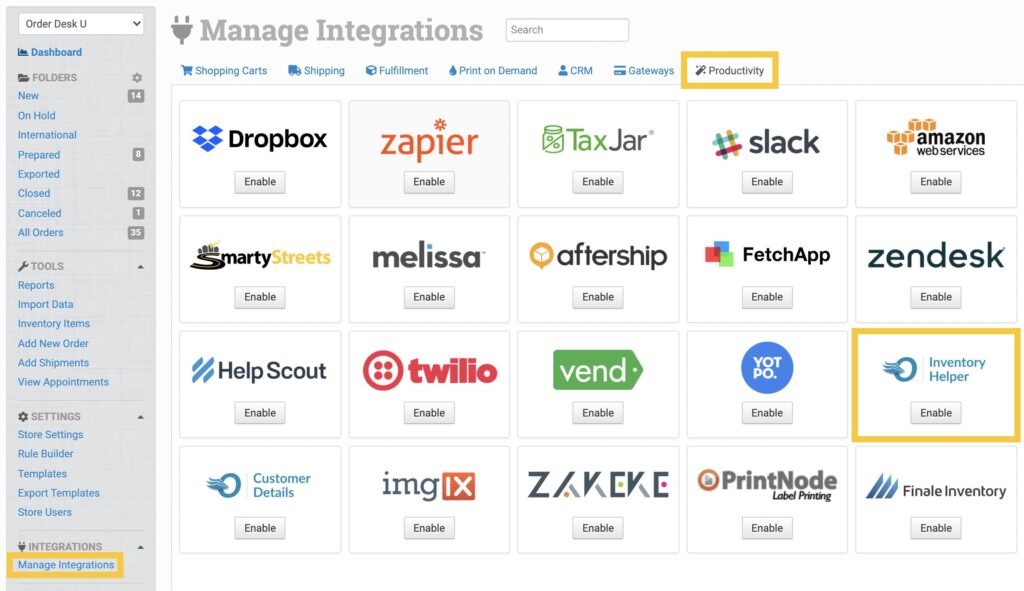
To enable Inventory Helper, click Manage Integrations from the Integrations menu in the left sidebar. You’ll find it under the Productivity tab.
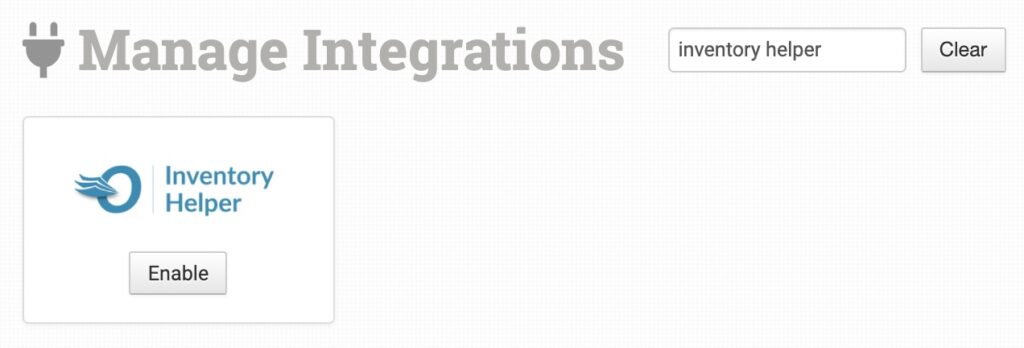
Alternatively, search for Inventory Helper from the available integration search.
Integration Settings
Notification Emails
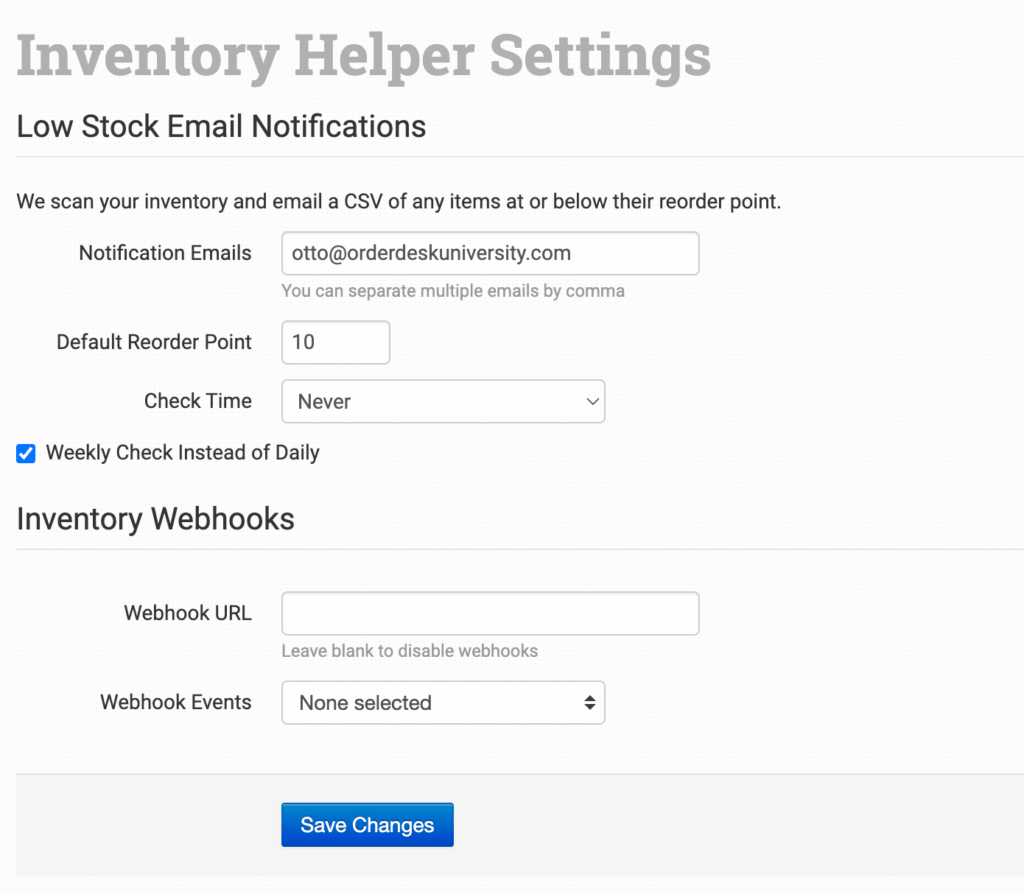
The admin email on your account will be used as the default email address when the integration is first enabled. You can change this to any email address. Multiple email addresses should be separated by commas.
Any email addresses listed here will receive a daily email about low inventory.
Default Reorder Point
If any stock counts fall below the default reorder point, an email notification will be sent.
Once an email is sent for a specific item, a metadata update will be made to the record, and another email won’t be sent until the stock is replenished and then falls below the reorder point again.
If you need to set individual reorder points on specific products, you can do so with item metadata called reorder_point. Set the value to the reorder point you want to use for that item.
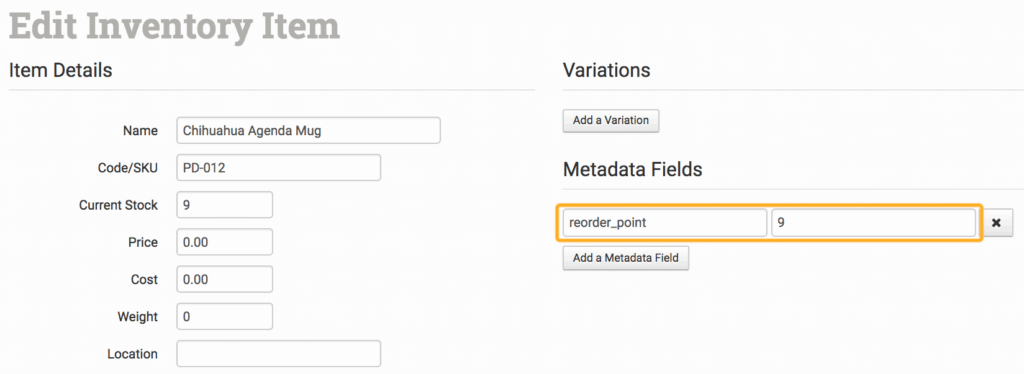
If the Default Reorder Point field is empty, alerts will only be sent for inventory items that have the reorder_point metadata.
Check Time
Select the time of day you want Order Desk to check your inventory for low stock.
Weekly Check Instead of Daily
Enable this to check for low inventory once a week instead of every day.
Inventory Webhooks
If you want Order Desk to send inventory change notifications to a custom webhook URL, you can set that up here:
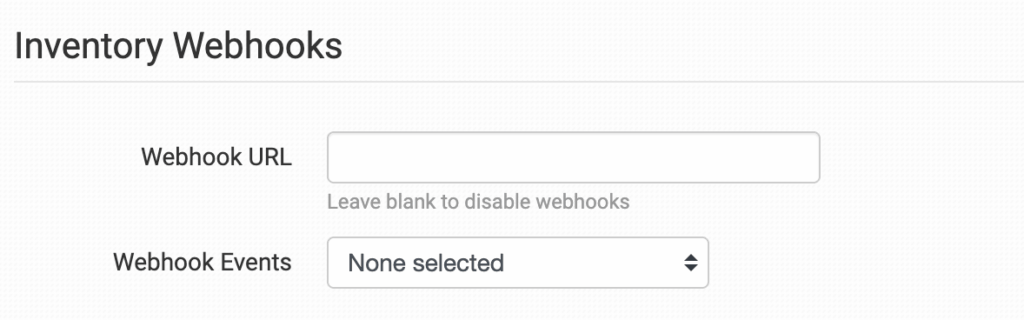
Webhook URL
Enter your preferred webhook endpoint URL here. This is where the inventory update data will be sent.
Webhook Events
Select the specific inventory events that should trigger the webhook update. You can choose whether webhooks should be sent when items are added, updated, or deleted from Order Desk.
Skipping Items From Inventory Helper
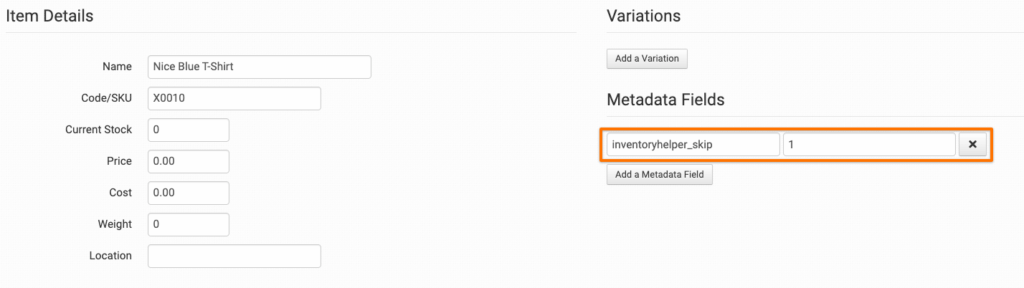
If you’d like to skip processing for an item in your inventory, use the inventoryhelper_skip field with a value of 1: