> For the complete documentation index, see [llms.txt](https://help.orderdesk.com/llms.txt). Markdown versions of documentation pages are available by appending `.md` to page URLs; this page is available as [Markdown](https://help.orderdesk.com/integration-setup-guides/print-on-demand/rupt-integration.md).
# Rupt Integration
Order Desk can import your orders from your shopping carts, add your print details and then submit your orders to [**Rupt**](http://www.rupt.com/). As orders are fulfilled, the shipment info will automatically be pulled back into Order Desk and sent back to the original shopping cart.
### Setup
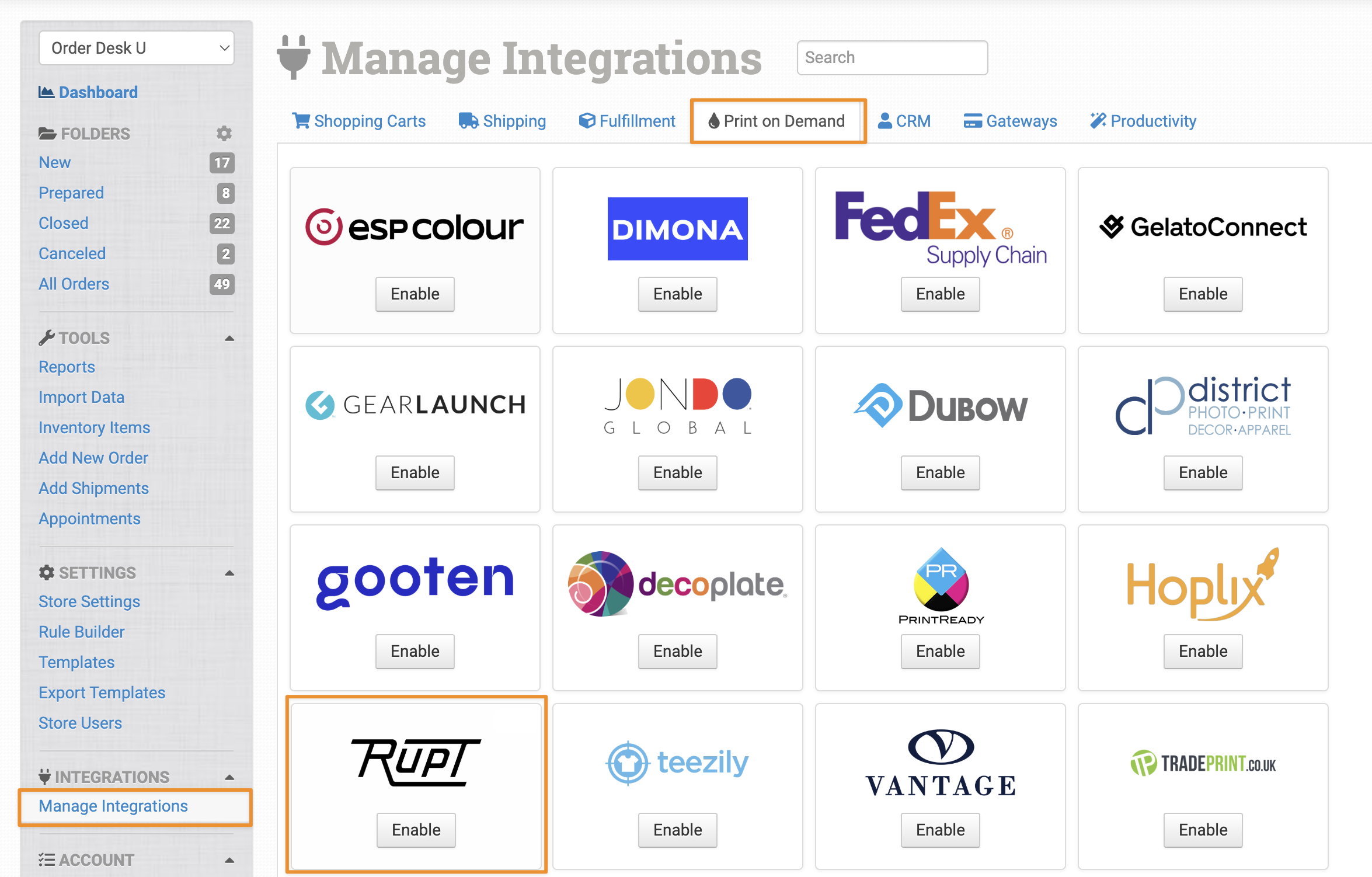
To connect to Rupt, click on **Manage Integrations** in the left sidebar. Under the **Print on Demand** tab, find and click to enable the Rupt integration.
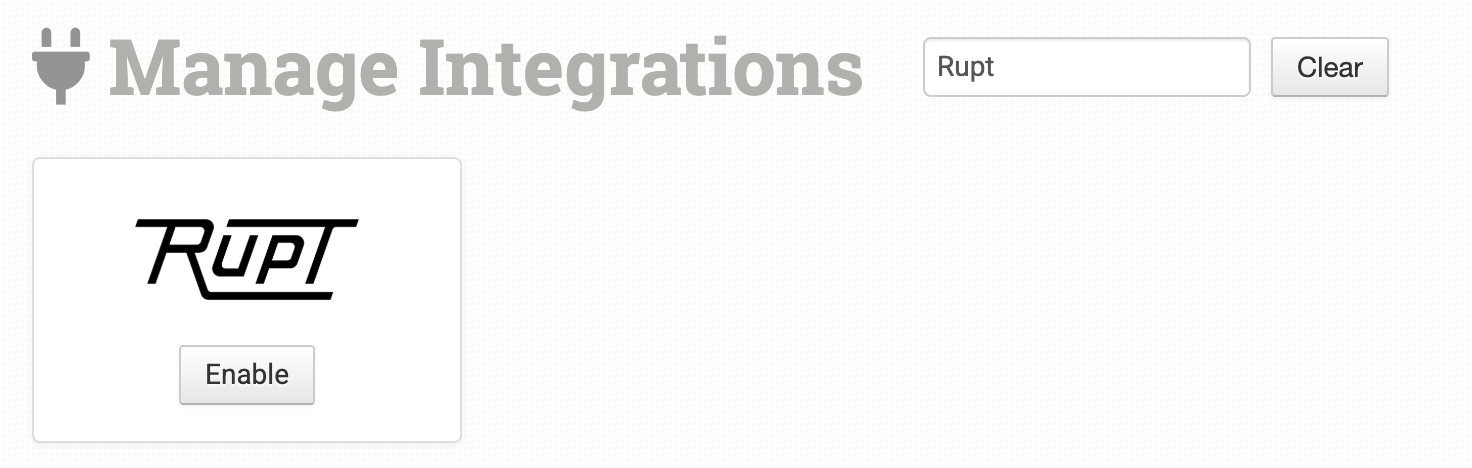
Alternatively, search for *Rupt* from the available integrations search.
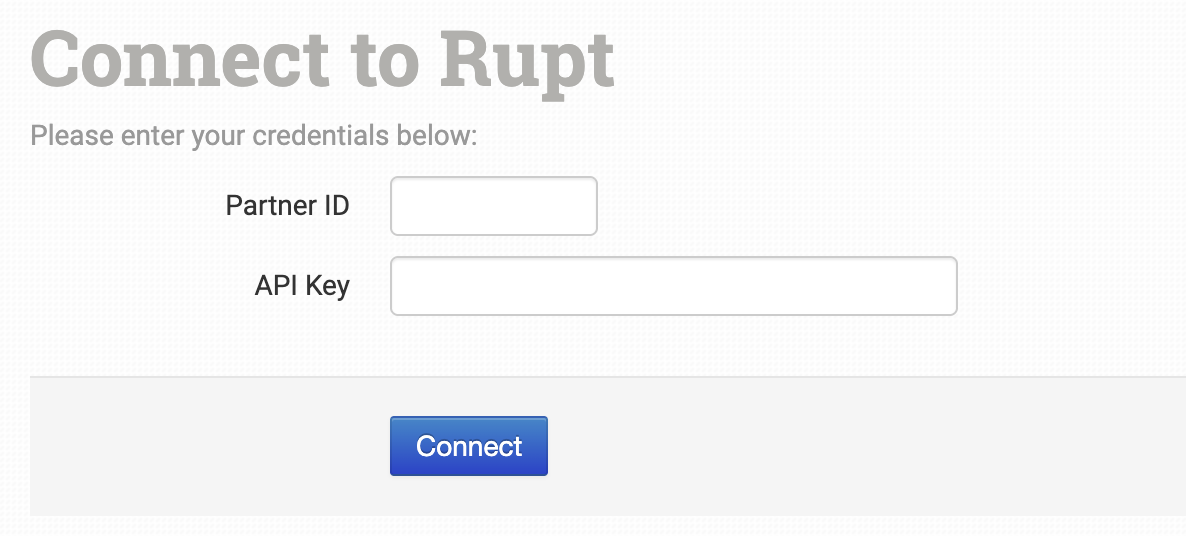
On the next page, enter your Rupt **Partner ID** and **API Key**, then click Connect.
{% hint style="info" %}
Order Desk isn’t able to help find or help reset your Rupt credentials, as they can only be managed and provided by Rupt.
{% endhint %}
### Integration Settings
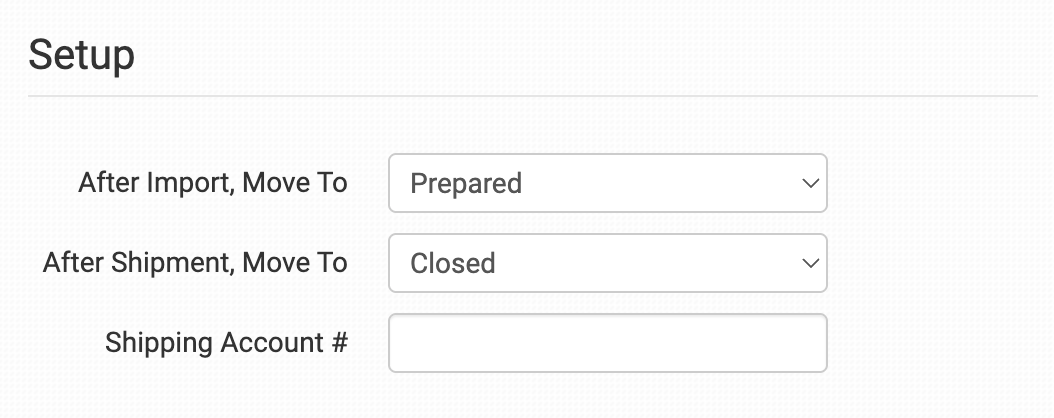
Once enabled, you can set your preferences in the Rupt integration settings.
#### After Import, Move To
Select the folder you want orders to be moved into after they are successfully sent to Rupt.
You can use one of the default folders already in your store or create your own. Read the [**Working with Folders**](/start-here/getting-started-series/quick-start-overview.md#working-with-folders) guide for more information.
#### After Shipment, Move To
Select the folder you want orders to be moved into as Rupt sends shipment details back.
#### Shipping Account
Enter the default shipping account number you want Rupt to use for your shipments. This can also be set on an order by order basis if you’d like to use a different shipping account number for specific orders.
#### Product Settings
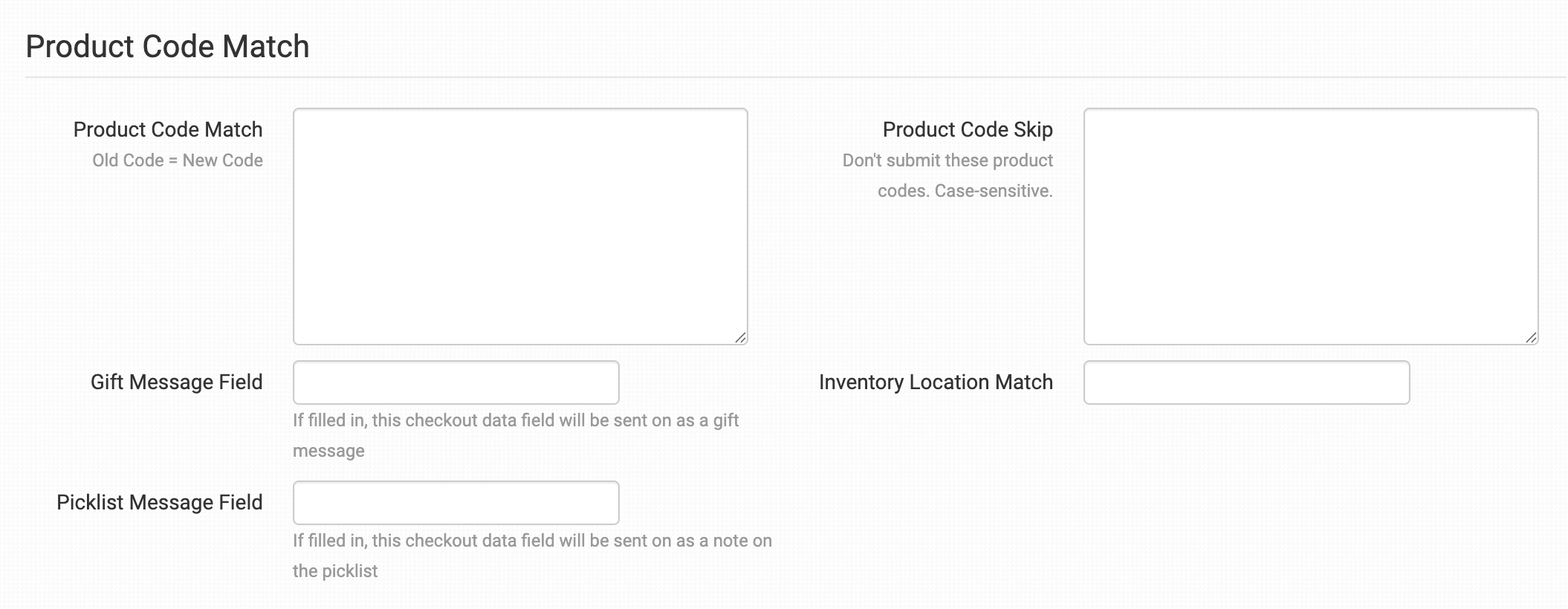
For more information on what each product setting within the Rupt integration does, please read the [**Print on Demand Product Settings**](/guided-walkthroughs/print-on-demand-walkthrough/print-on-demand-integration-product-settings.md) guide.
### Sending Orders to Rupt
Getting your orders ready to send to Rupt will take some set up time. For a detailed walkthrough of how to use Order Desk with your Print on Demand orders, please take a moment to read through our [**Print on Demand Fulfillment**](/guided-walkthroughs/print-on-demand-walkthrough/print-on-demand-fulfillment.md) guide.
#### Preparing Your Items
The following fields can be set as variations or item metadata for each order item.
| Field Name | Description | When to Use |
| -------------- | ----------------------------------------------------------------------------------------------------------- | ----------------------------------------------------------------------------------- |
| print\_sku | This is Rupt’s Product Code for your item. If not set here, we will use the product’s code/SKU as a backup. | Recommended if you aren’t using Rupt’s product codes as your cart SKUs. |
| print\_url\_1 | Link to the artwork file. Supports `print_url_1`, `print_url_2`, and `print_url_3` for multiple artworks. | Recommended but not strictly required. Orders without artwork will be held in Rupt. |
| print\_preview | Image preview of what the final product should look like. | Optional |
#### Preparing Your Orders
The following details can be submitted for an order as either checkout data or order metadata. If you are unfamiliar with checkout data, see the [**How to Work with Checkout Data**](/guided-walkthroughs/orders-and-folders/how-to-work-with-checkout-data.md) guide.
| **Field Name** | **Field Description** |
| ----------------- | ------------------------------------------------------------------------------------------------------------------------------------------------------------ |
| PackingSlip | Link to the packing slip that Rupt should use for the order. This must be a publicly accessible link. |
| ShippingAccount | The Shipping Account number that Rupt should use for shipping. This overrides the default one set on the [integration settings](#integration-settings) page. |
| RequestedShipDate | Use this field to pass the Requested Ship Date to Rupt. You can pass a time-based value like +1day or +2weeks, for example. |
| InHandsDate | Use this field to pass the In Hands Date to Rupt. You can pass a time-based value like +1day or +2weeks, for example. |
| rupt\_tag\_ids | Use this to pass the **numeric** IDs of your rupt tags along with the orders. Multiple tag IDs can be separated with commas. |
| ArtNotes | Use this to pass art notes along to Rupt. |
| MasterArtFolder | Use this to pass the master art folder info to Rupt. |
| TaxID | Use this to pass your tax ID to Rupt. |
---
# Agent Instructions
This documentation is published with GitBook. GitBook is the documentation platform designed so that both humans and AI agents can read, navigate, and reason over technical content effectively. Learn more at gitbook.com.
## Querying This Documentation
If you need additional information that is not directly available in this page, you can query the documentation by asking a question.
Perform an HTTP GET request on the following URL with the `ask` and `goal` query parameters:
```
GET https://help.orderdesk.com/integration-setup-guides/print-on-demand/rupt-integration.md?ask=&goal=
```
`ask` is the immediate question: it should be specific, self-contained, and written in natural language.
`goal` is what the user is ultimately trying to achieve, the reason they need the answer. Sharing it helps GitBook give you a better, more relevant answer. A goal is most helpful when it describes the outcome the user wants rather than restating the question. For example, with `ask=how do I create an API token`, a goal like `automate deployments from our CI pipeline` lets GitBook tailor the answer to that use case.
The response will contain a direct answer to the question and relevant excerpts and sources from the documentation.
Use this mechanism when the answer is not explicitly present in the current page, you need clarification or additional context, or you want to retrieve related documentation sections.