> For the complete documentation index, see [llms.txt](https://help.orderdesk.com/llms.txt). Markdown versions of documentation pages are available by appending `.md` to page URLs; this page is available as [Markdown](https://help.orderdesk.com/integration-setup-guides/print-on-demand/pic-the-gift-integration.md).
# Pic the Gift Integration
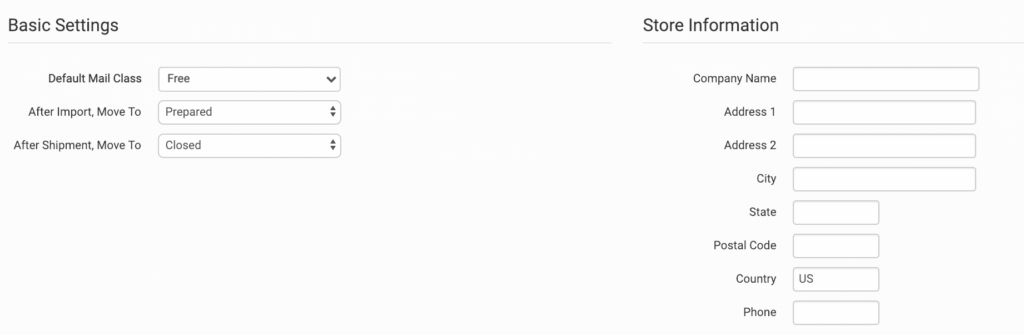
Order Desk can submit your print on demand orders to [Pic the Gift](http://www.picthegift.com/). When Pic the Gift fulfills your orders, the shipment info will be pulled back into Order Desk automatically and sent back to the original shopping cart, if your store is set up for this.
### Setup
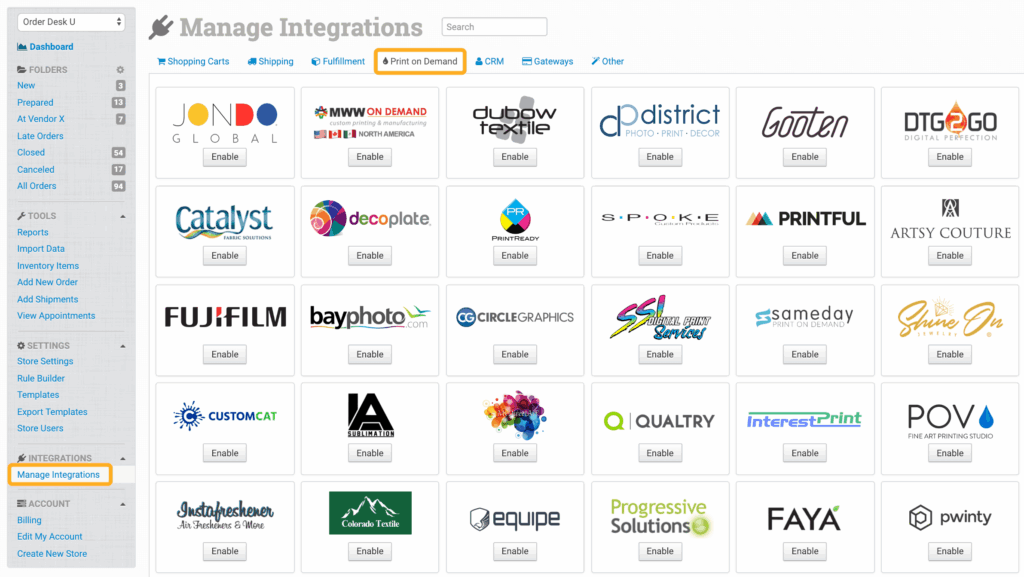
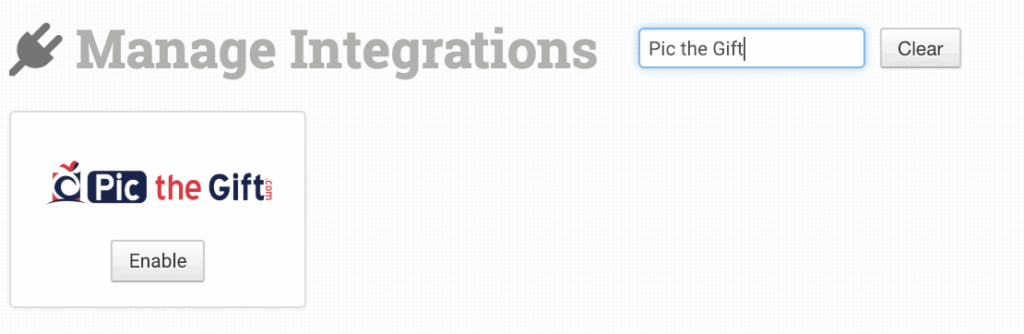
To connect to your Pic the Gift account, click on **Manage Integrations** in the left sidebar. Under the **Print on Demand** tab, look for and enable the Pic the Gift integration.



Sending Tax Identifiers to Pic The Gift
You can send tax identifiers to Pic the Gift by adding the following fields to your order as checkout data or order metadata:
| Field Name | Field Description |
| ---------- | --------------------------------------------------------------------------------------------------------------------------------------------------------------------------------------------------------------- |
| ioss | Use to send an IOSS number. If this isn’t set on the order, Order Desk will use the IOSS number from your [Store Settings](/guided-walkthroughs/using-order-desk/manage-store-settings.md#ioss-number) instead. |
| eori | Use to send an EORI number. |
| voec | Use to send a VOEC number. |
Order Desk will automatically work out the issuing country for IOSS and EORI numbers. For IOSS, this is based on the `IM` country code in the number. For EORI, it uses the two letter country prefix.
If you need to use a different country, you can set it with:
| Field Name | Field Description |
| ------------- | ---------------------------------------------- |
| ioss\_country | Override the country used for the IOSS number. |
| eori\_country | Override the country used for the EORI number. |
VOEC numbers **always use** Norway as the country.
If Order Desk can’t determine the country from the tax ID, the country from your [Store Settings](/guided-walkthroughs/using-order-desk/manage-store-settings.md#country) will be used instead.
#### Preparing Your Items
The following fields can be set as variations or item metadata for each order item. Replace “x” with a value specified in the table.
| Field Name | Field Description |
| ------------------------ | ----------------------------------------------------------------------------------------------------------------------------------------------- |
| print\_sku | **Required.** The Pic the Gift Part Number. |
| print\_url | **Required.** Link to your artwork file. print\_url\_1 through 6 are also accepted for additional artwork files to be printed on the same item. |
| personalization\_text\_x | Personalization text for the print. Available in values 1 through 15. |
| DesignColor | Set a specific design color. |
---
# Agent Instructions
This documentation is published with GitBook. GitBook is the documentation platform designed so that both humans and AI agents can read, navigate, and reason over technical content effectively. Learn more at gitbook.com.
## Querying This Documentation
If you need additional information that is not directly available in this page, you can query the documentation by asking a question.
Perform an HTTP GET request on the following URL with the `ask` and `goal` query parameters:
```
GET https://help.orderdesk.com/integration-setup-guides/print-on-demand/pic-the-gift-integration.md?ask=&goal=
```
`ask` is the immediate question: it should be specific, self-contained, and written in natural language.
`goal` is what the user is ultimately trying to achieve, the reason they need the answer. Sharing it helps GitBook give you a better, more relevant answer. A goal is most helpful when it describes the outcome the user wants rather than restating the question. For example, with `ask=how do I create an API token`, a goal like `automate deployments from our CI pipeline` lets GitBook tailor the answer to that use case.
The response will contain a direct answer to the question and relevant excerpts and sources from the documentation.
Use this mechanism when the answer is not explicitly present in the current page, you need clarification or additional context, or you want to retrieve related documentation sections.