
Order Desk can submit your print on demand orders to Lulu Direct, formerly known as Lulu Xpress. As orders are fulfilled, shipment details will automatically be pulled back into Order Desk and sent back to the original shopping cart, if applicable.
Setup
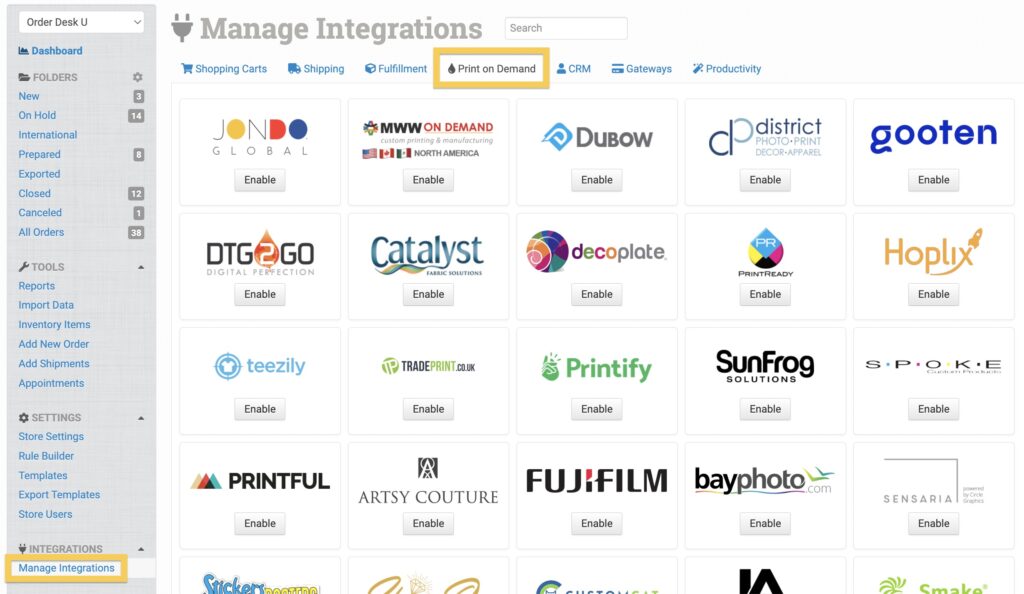
To connect to Lulu Direct, click Manage Integrations in the left sidebar. Under the Print on Demand tab, find and enable the Lulu Direct integration.
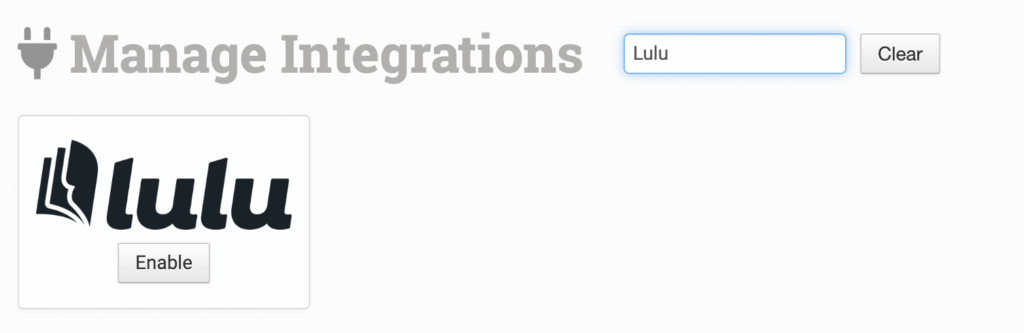
Alternatively, search for Lulu Direct from the available integrations search.
Enter your Lulu Direct credentials, then click Connect:
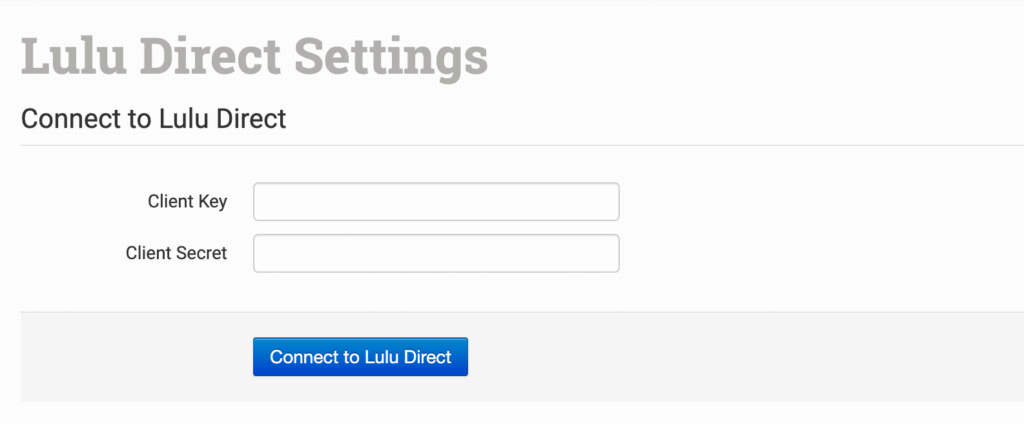
Order Desk isn’t able to help find or reset your Lulu Direct credentials, as they can only be provided by the Lulu Direct team.
Integration Settings
Once connected, you’ll have a few settings where you can set your preferences for this integration.
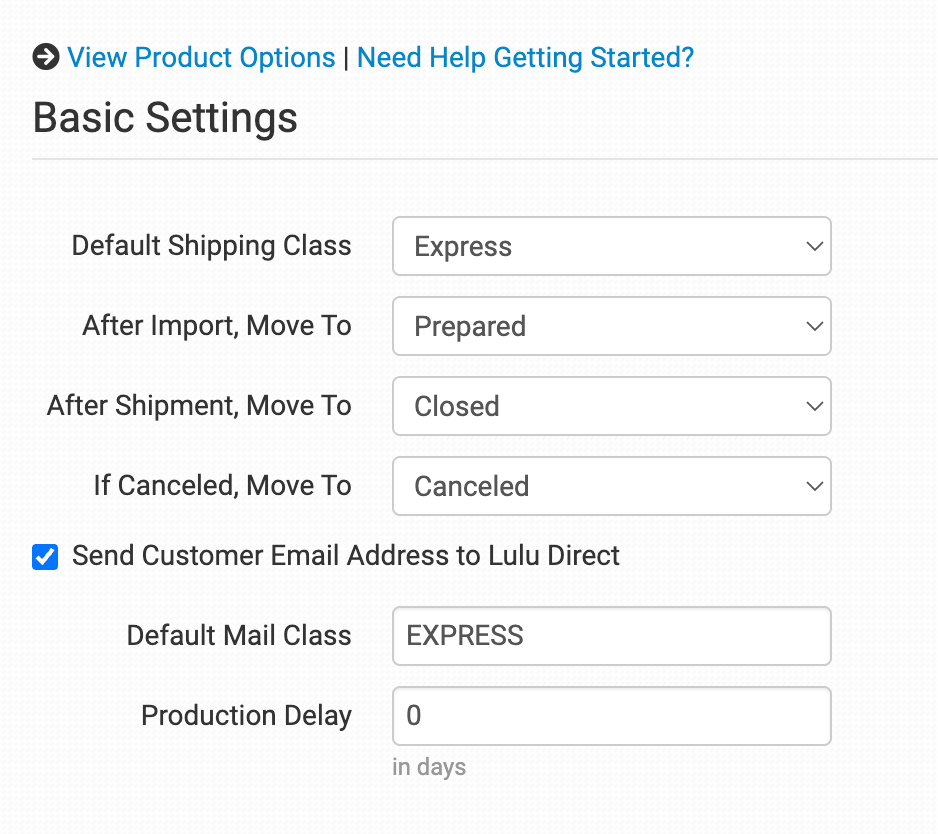
View Product Options
Click this link to view the products you have already set up in your Lulu Direct account.
Lulu Direct Help
Click Need Help Getting Started? for access to helpful resources for using Lulu Direct.
Default Shipping Class
Choose the shipping class you want Lulu Direct to use for orders.
If you need to apply specific methods for certain orders, match your method names to their names in the Shipping Class Match section below.
After Import, Move To
Select the folder you want orders to be moved into after they are sent to Lulu Direct.
If you want to use a custom folder, create your own from Store Settings. See the Working with Folders guide for more information.
After Shipment, Move To
Select the folder you want orders to be moved into when Lulu Direct sends shipment details back into Order Desk.
If Canceled, Move To
Select the folder you want orders to be moved into if they are canceled at Lulu Direct.
Send Customer Email Address to Lulu Direct
Select this if you want the customer email address sent to Lulu Direct with each order.
Default Mail Class
Set a default mail class for your orders.
Production Delay
Set the number of days, if any, before orders are submitted for production.
Product Settings

For detailed information about what the product settings within the Lulu Direct integration do, read the Print on Demand Product Settings guide.
Shipping Class Match

The shipping methods you have set up in your shopping carts may not match the methods Lulu Direct uses. To make sure your shipping preferences are sent to Lulu Direct with each order, match your methods to theirs in the Shipping Class Match feature. If your shipping method name doesn’t match their shipping method name exactly, your default mail class will be used instead.
For information about how to set up your shipping preferences, read the Shipping Class Match guide.
Sending Orders to Lulu Direct
Getting your orders ready to send to Lulu Direct will take some setup time. For a detailed walkthrough of how to use Order Desk with your print on demand orders, read the Print on Demand Fulfillment guide.
Orders sent to Lulu Direct won’t be displayed as print jobs and will be located in your developer portal instead.
Preparing Your Orders
The following details can be submitted for an order as either checkout data or order metadata.
| Field Name | Field Description |
|---|---|
| recipient_tax_id | For orders headed to Brazil, Chile, or Mexico, use this field to pass the recipient tax ID to Lulu Direct. |
Preparing Your Items
The following fields can be set as variations or item metadata for each order item.
| Field Name | Field Description |
|---|---|
| print_sku | Required. Lulu Direct’s product code or SKU for the item. |
| print_url_x | Required. Link to your artwork file so Lulu Direct can print it. Use print_url_1 through print_url_5 for up to five artwork files. |
| print_location_x | Required. Set the location of the print on the item. The default is cover. Use print_location_1 through print_location_5 for up to five print locations. |
| printable_id | Lulu Direct’s Printable ID for the item. If present, print_url and print_sku aren’t necessary for fulfillment. |