> For the complete documentation index, see [llms.txt](https://help.orderdesk.com/llms.txt). Markdown versions of documentation pages are available by appending `.md` to page URLs; this page is available as [Markdown](https://help.orderdesk.com/integration-setup-guides/fulfillment-services/sanmar-integration.md).
# SanMar Integration
If you prefer to purchase blank apparel items and send them to your print on demand providers, you can use [SanMar](https://www.sanmar.com/) to order the apparel and have it shipped to your printer.
### Integration Setup
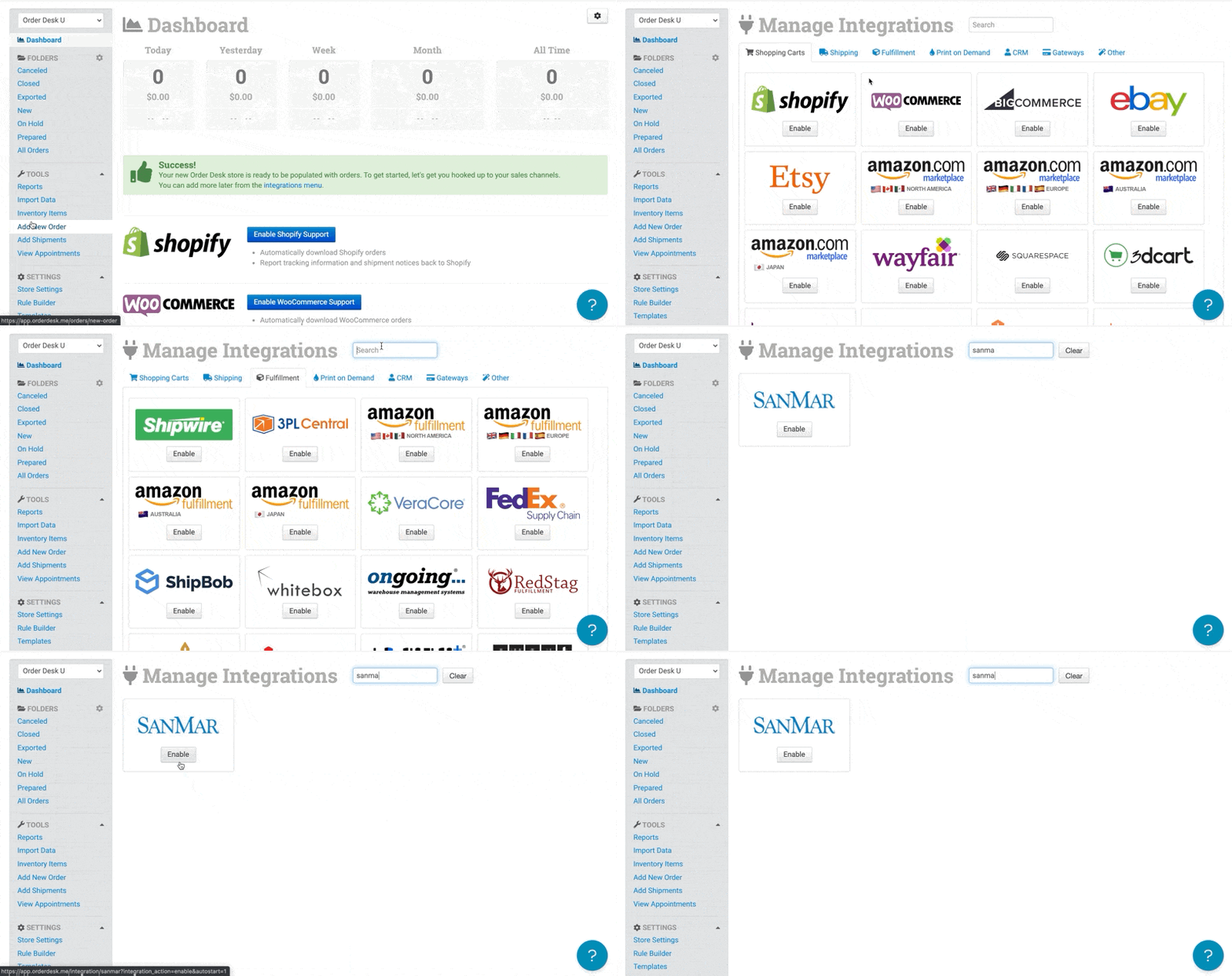
To enable the integration, click **Manage Integrations** in the Integrations menu in the left sidebar.
Under the **Fulfillment** tab, find and enable SanMar. Alternatively, search for *SanMar* from the available integrations.
#### Connect to SanMar
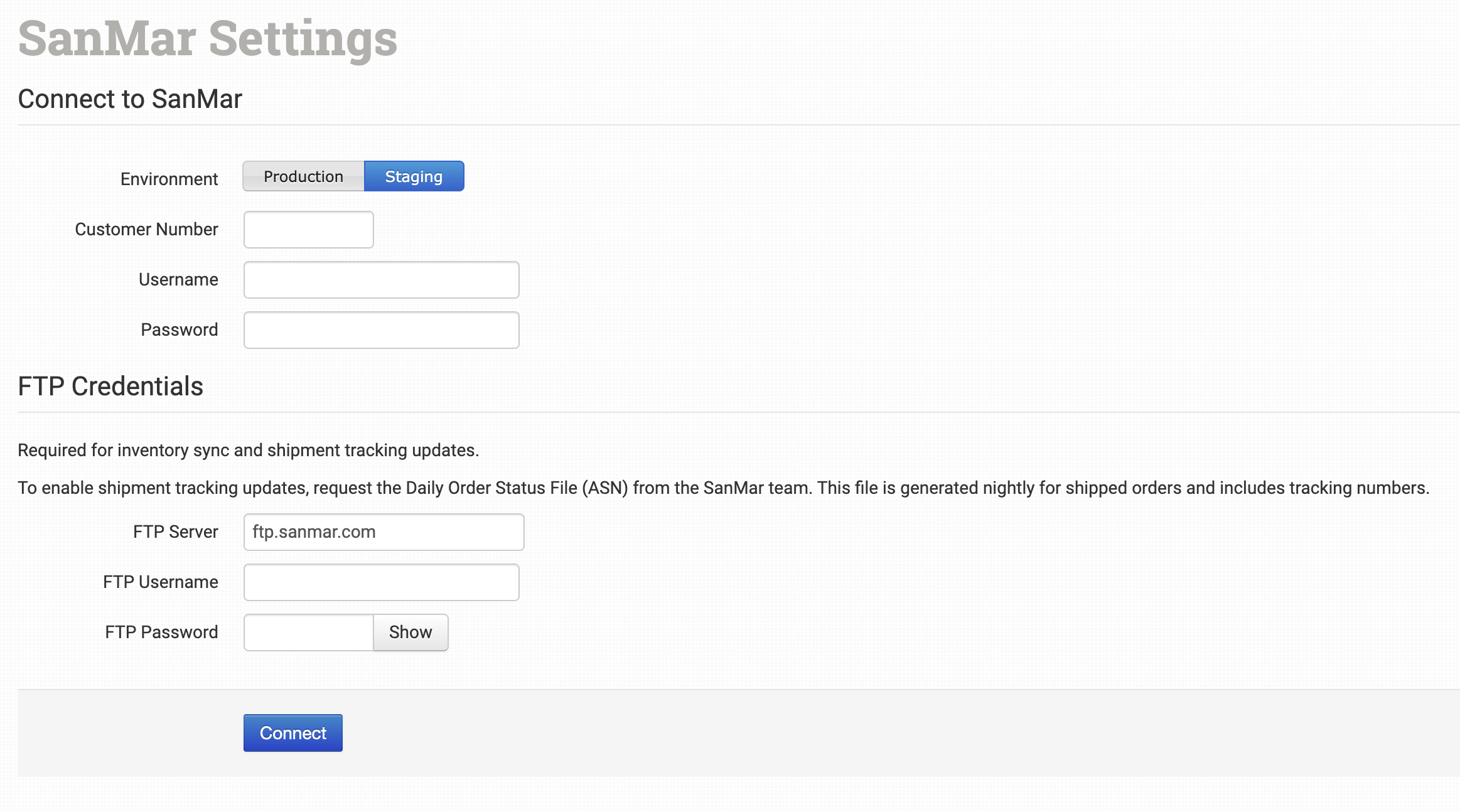
On the integration page, choose your **Environment**, then enter your **Customer Number**, SanMar **Username**, and **Password** to connect the integration.
#### FTP Credentials
If you want Order Desk to pull stock counts and shipment updates from SanMar, reach out to SanMar to enable FTP inventory and shipment access. Once enabled, enter the credentials in the FTP section of the integration settings.
{% hint style="info" icon="hand-back-point-right" %}
For shipment updates, you’ll also need to request the **Daily Order Status File (ASN)** from SanMar. This file is generated on their side each night for shipped orders and includes the tracking updates Order Desk will pull from their FTP.
{% endhint %}
### Integration Settings
#### Environment
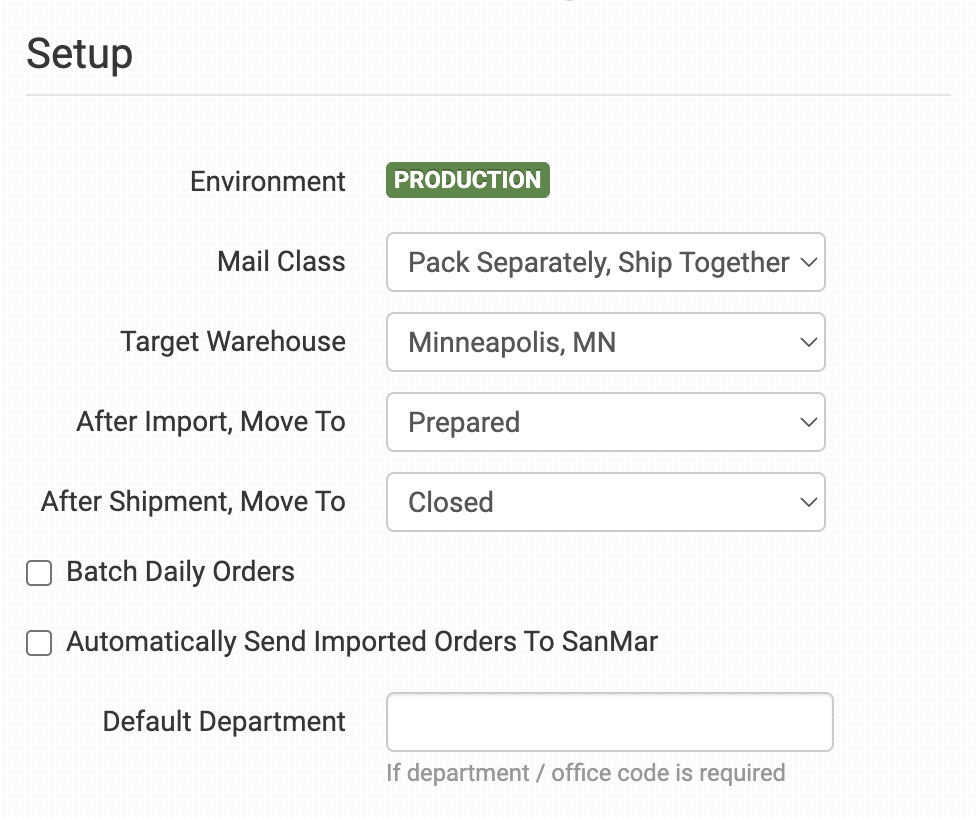
This shows which environment your connection is using.
If your Production and Sandbox credentials are different from each other, you will have to disconnect the integration when finished with the testing phase. You can do this by clicking the Disconnect button at the bottom of the SanMar integration page. Re-enable the integration with the new production credentials.
#### Mail Class
Choose the default mail class for orders. This shipping class will be used for any orders sent to SanMar that aren’t mapped to one of the mail classes they use.
SanMar allows for a unique default Mail Class called **Pack Separately, Ship Together**. This allows for customers to make multiple orders throughout the day in separate orders that will still get shipped together.
To set up more than one shipping method, scroll down to the [Shipping Class Match](#shipping-class-match) section for instructions.
{% hint style="info" icon="hand-back-point-right" %}
If you’re using the [Batch Daily Orders](#batch-daily-orders) setting, the default mail class will always be used regardless of any shipping class rules you set up later on.
{% endhint %}
#### Target Warehouse
Choose the warehouse you’ll be fulfilling your orders from.
#### After Import, Move To
Select the folder orders should be moved to after they are sent to SanMar from Order Desk. Typically this is set to Prepared, but any [custom folder](/start-here/getting-started-series/quick-start-overview.md#working-with-folders) can be used.
#### After Shipment, Move To
Select the folder orders should be moved to after Order Desk receives shipment updates from SanMar.
#### Batch Daily Orders
Order Desk’s integration with SanMar allows for a group order batching feature. By setting up this feature, you can choose one folder of orders to be sent in full to SanMar once a day.
To set up Group Batching, use the following steps:
1. Create a [new folder](/start-here/getting-started-series/quick-start-overview.md#working-with-folders) specifically for the orders you want to be sent daily to SanMar.
2. Enable the **Batch Daily Orders** in your Integration Settings and choose the folder you just made as the **Target Batch Folder**.
3. [Set up a rule](/guided-walkthroughs/rules-and-automations/how-to-work-with-rules.md) to move orders to the Prepared folder after they have been processed to avoid duplicate submissions.
4. By default orders will be sent at approximately 3pm CT daily. Once the feature is enabled, you can go to your [View Appointments](https://app.orderdesk.me/tools/appointments) page and change the run time if you want to.
5. Make sure your **Mail Class** is NOT set to **Pack Separately, Ship Together**. This will interfere with the batch grouping.
{% hint style="info" icon="lightbulb" %}
Line items where the colors / styles / sizes are the same will be combined to one line.
{% endhint %}
#### Automatically Send Imported Orders to SanMar
If you plan to automatically submit *every* order to SanMar for fulfillment, you can enable this setting. All orders will be sent as they come in to Order Desk.
If you have other fulfillment services or any orders you *don’t* want to send to SanMar, keep this disabled. Use [rules](/guided-walkthroughs/rules-and-automations/how-to-work-with-rules.md) to submit orders to the appropriate vendor or fulfillment service instead.
#### Default Department
If a department or office code is required for your orders, you can set the default department here.
#### Shipping Address
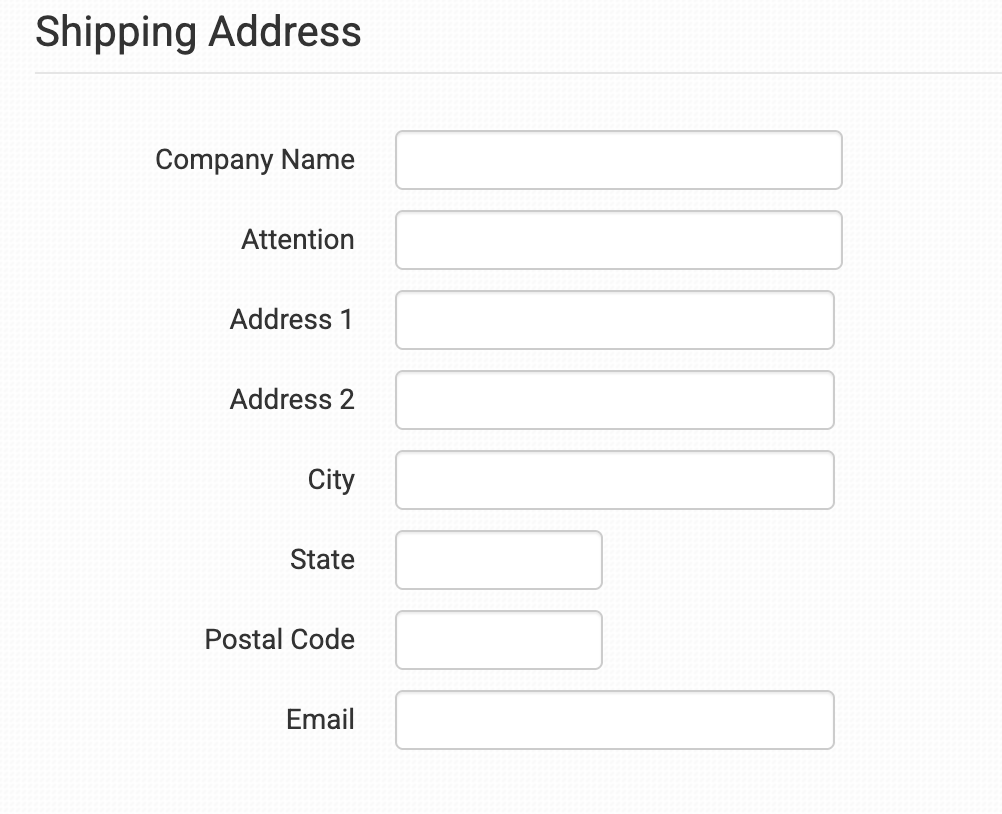
Set the default address that your orders will be shipped to.
{% hint style="info" icon="lightbulb" %}
You can overwrite the default shipping address on an order by order basis by setting an order level field called **DirectOrder**. [Learn more here](#preparing-your-orders).
{% endhint %}
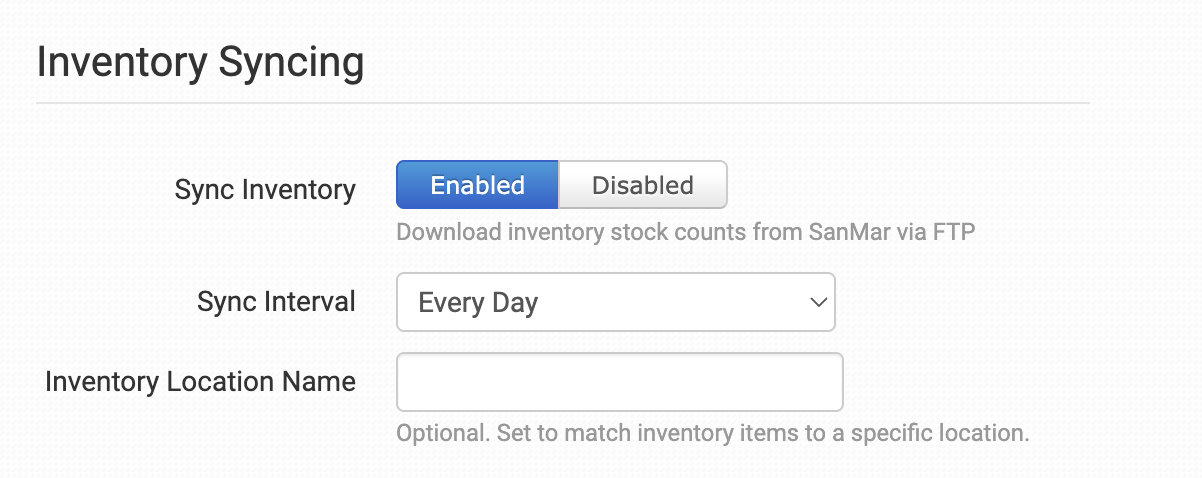
#### Inventory Syncing
This section only appears if your SanMar integration is set up to sync inventory. To enable it, make sure FTP inventory access is enabled with SanMar and that you’ve [added your FTP credentials when connecting the integration](#ftp-credentials).
{% hint style="info" icon="hand-back-point-right" %}
#### **SanMar Unique Key**
For Order Desk to match a SanMar product with the correct inventory item, each inventory item must have an item metadata field named `sanmar_unique_key`.
Set the value of this field to the product’s `UNIQUE_KEY` provided to you by SanMar. During each inventory sync, Order Desk uses this value to find the matching product in SanMar’s inventory file and update its stock quantity.
Inventory items without a `sanmar_unique_key` value will not receive inventory updates.
{% endhint %}
#### Sync Inventory
Enable this setting to have Order Desk download inventory counts from SanMar on a set schedule.
#### Sync Interval
If **Sync Inventory** is enabled, choose how often Order Desk should check SanMar for inventory updates.
#### Inventory Location Name
If you want to set a specific inventory location name for your SanMar products, enter it here. As SanMar sends inventory reports, this name will be applied as the inventory location in Order Desk.
#### Product Settings
For more information on what these product settings in the SanMar integration are for and how to use them, read the [Fulfillment Integration Product Settings](/integration-setup-guides/fulfillment-services/fulfillment-integration-product-settings.md) guide.
#### Shipping Class Match
Use the shipping class match feature to match as many different shipping methods as you offer to the specific shipping classes that SanMar uses to ensure your customers are getting the closest shipping option to what they selected at checkout.
For information on how to set up your shipping preferences, please see the [shipping class match](/guided-walkthroughs/shipping-fulfillment-and-returns/how-to-set-up-shipping-class-matches.md) guide.
{% hint style="info" icon="hand-back-point-right" %}
If you’re using the [Batch Daily Orders](#batch-daily-orders) setting, the default mail class will always be used regardless of any shipping class match rules you have available.
{% endhint %}
### Sending Orders to SanMar
Getting your orders ready to send to SanMar will take some setup time. For a detailed walkthrough of how to use Order Desk with your Print on Demand orders, please read through our [Print on Demand Fulfillment](/guided-walkthroughs/print-on-demand-walkthrough/print-on-demand-fulfillment.md) guide.
#### Preparing Your Orders
The following fields can be set as checkout data or order metadata to specify what gets sent to SanMar:
| Field Name | Field Description |
| ----------- | -------------------------------------------------------------------------------------------------------------------------------------------------- |
| ShipMethod | Use this to override the method set in your integration settings. |
| PONumber | If you want to override the order id in SanMar, you can set your preferred order id here, if needed. |
| DirectOrder | Set to `1` to override [the default shipping address](#shipping-address) in the integration settings and use the order’s shipping address instead. |
| WarehouseId | Override the [Target Warehouse](#target-warehouse) from the integration settings page. |
If you are unfamiliar with checkout data, please read the [How to Work with Checkout Data](/guided-walkthroughs/orders-and-folders/how-to-work-with-checkout-data.md) guide.
#### Custom Item Details
The following fields should be set as variations or item metadata for each item in an order.
| Field Name | Field Description |
| ---------- | ---------------------------------------------------------------------------------------- |
| print\_sku | **Required**. The print\_sku for your printer. This will be sent to SanMar as the style. |
| color | **Required.** Color variant of the item being ordered. |
| size | **Required**. Size variant of the item being ordered. |
---
# Agent Instructions
This documentation is published with GitBook. GitBook is the documentation platform designed so that both humans and AI agents can read, navigate, and reason over technical content effectively. Learn more at gitbook.com.
## Querying This Documentation
If you need additional information that is not directly available in this page, you can query the documentation by asking a question.
Perform an HTTP GET request on the following URL with the `ask` and `goal` query parameters:
```
GET https://help.orderdesk.com/integration-setup-guides/fulfillment-services/sanmar-integration.md?ask=&goal=
```
`ask` is the immediate question: it should be specific, self-contained, and written in natural language.
`goal` is what the user is ultimately trying to achieve, the reason they need the answer. Sharing it helps GitBook give you a better, more relevant answer. A goal is most helpful when it describes the outcome the user wants rather than restating the question. For example, with `ask=how do I create an API token`, a goal like `automate deployments from our CI pipeline` lets GitBook tailor the answer to that use case.
The response will contain a direct answer to the question and relevant excerpts and sources from the documentation.
Use this mechanism when the answer is not explicitly present in the current page, you need clarification or additional context, or you want to retrieve related documentation sections.