> For the complete documentation index, see [llms.txt](https://help.orderdesk.com/llms.txt). Markdown versions of documentation pages are available by appending `.md` to page URLs; this page is available as [Markdown](https://help.orderdesk.com/integration-setup-guides/fulfillment-services/logiwa-io-integration.md).
# Logiwa IO Integration
Order Desk can send orders directly to [Logiwa IO](https://www.logiwa.com/why-logiwa) then pull shipment details back into your orders here and send them to your shopping carts, if applicable.
### Setup
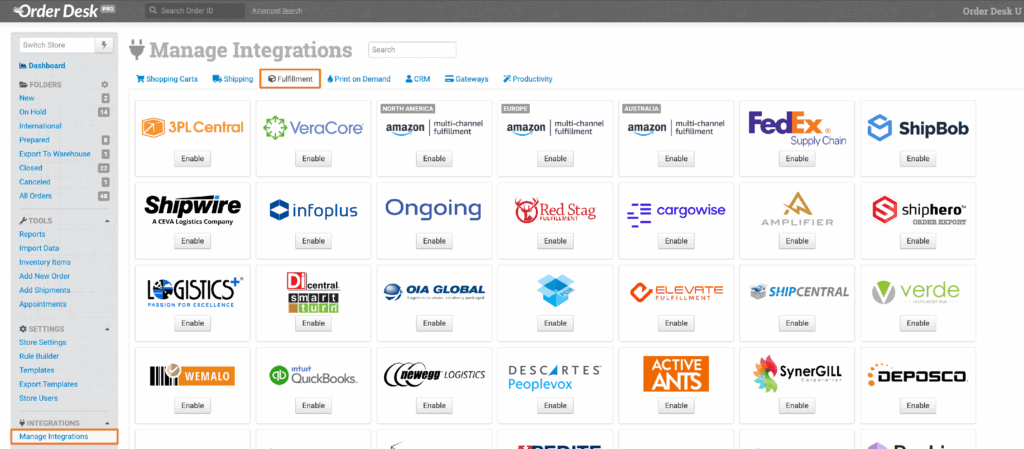
To connect to Logiwa IO, click on the **Manage Integrations** link in the left sidebar and under the **Fulfillment** tab find and enable the Logiwa IO integration.
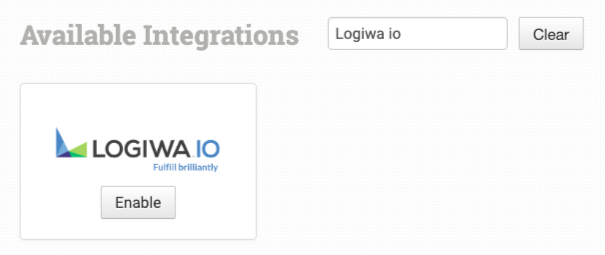
Alternatively, search for Logiwa IO from the available integration search.
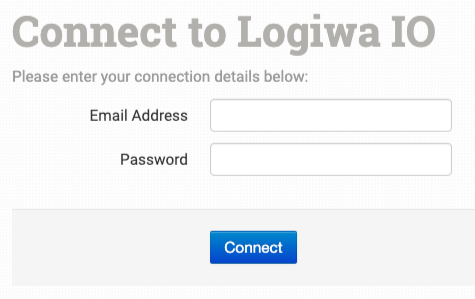
Once enabled, enter your the email associated with your Logiwa IO account and password and click to connect.
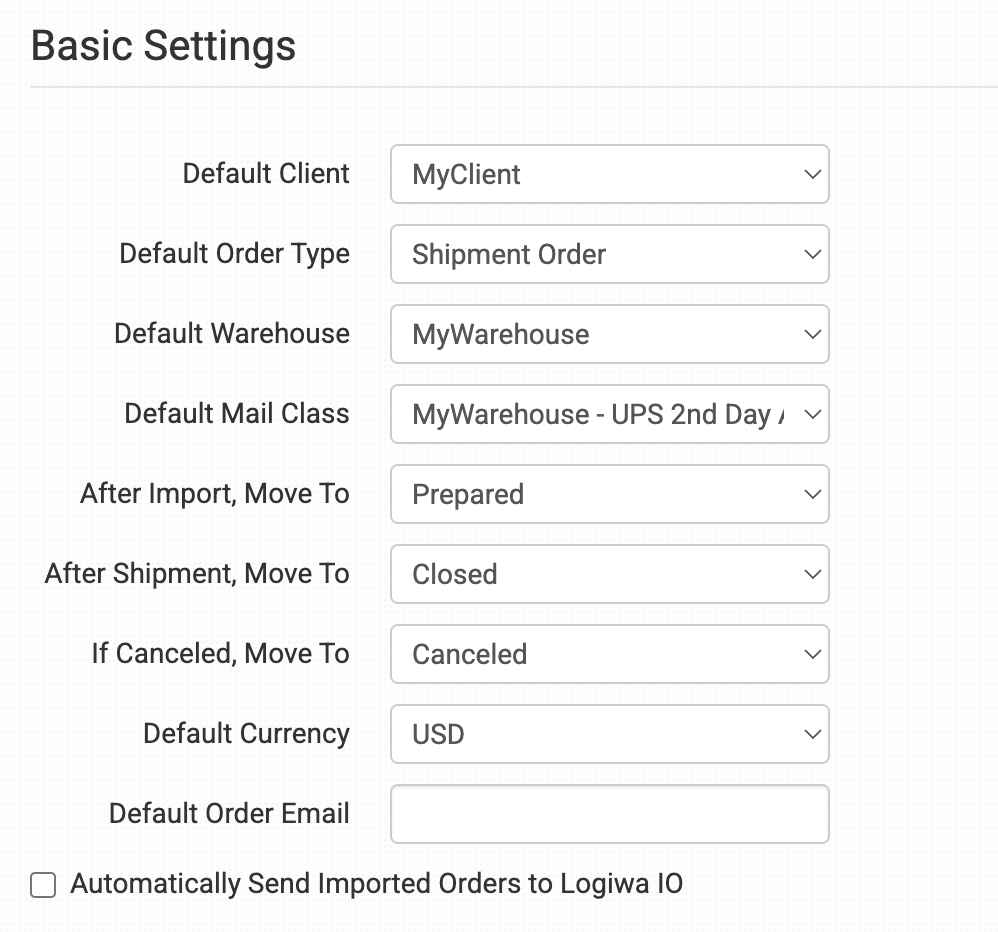
After you have connected the integration, you can select preferences in the settings.
### Integration Settings
#### Default Client
Select the default client you want Logiwa IO to use for your orders.
#### Default Order Type
Select the default order type you want Logiwa IO to use for your orders.
#### Default Warehouse
Select the default warehouse you want Logiwa IO to use for your orders.
#### Default Mail Class
Select the default mail class and shipment method you want Logiwa IO to use for your orders.
If you need to apply specific methods for certain orders, match your method names to the names Logiwa IO uses in the [Shipping Class Match section](#shipping-class-match) below.
#### After Import, Move To
Select the folder you want orders to be moved into after they are successfully sent to Logiwa IO.
You can use one of the default folders already in your store or create your own. Read the [Working with Folders](/start-here/getting-started-series/quick-start-overview.md#working-with-folders) guide for more information.
#### After Shipment, Move To
Select the folder you want orders to be moved into as Logiwa IO sends shipment details back to Order Desk.
#### If Canceled, Move To
Select the folder you want orders to be moved into if they are canceled at Logiwa IO.
#### Default Currency
Set your store’s currency here.
#### Default Order Email
Set the default email for your orders in this field.
#### Automatically Send Imported Orders to Logiwa IO
If selected, every order that is added to Order Desk will automatically be sent to Logiwa IO.
Select this setting only if all orders will be sent to your fulfillment provider. If any orders will not be sent, or if you need a delay between when an order is imported into Order Desk and when it is sent do *not* select this.
#### Inventory Management Settings
#### Sync Inventory
Enable if you want your inventory stock counts to be pulled in from Logiwa IO.
For more information, see the [How to Work with Inventory Counts](/guided-walkthroughs/products-and-inventory/how-to-work-with-inventory-quantities.md#send-counts-tofrom-order-desk) guide.
#### Sync Update Interval
Choose how often you want Order Desk to check Logiwa IO for inventory updates.
#### Stock Quantity Source
Choose the Logiwa field Order Desk should use for your inventory quantities. This setting only applies to standard items and does not affect kit items.
#### Inventory Location Name
Set if using multiple fulfillment methods.
#### Reset Kit Inventory Counts to Zero Before Importing Inventory Levels
Select to override the current kit inventory count before importing updated inventory levels.
#### Fetch UPC
If you want Order Desk to download product UPCs from Logiwa IO during inventory sync, enable this setting. The UPCs will be saved as item metadata.
#### Product Code Match
For more information on what these product settings in the Logiwa IO integration are for and how to use them, read the [Fulfillment Integration Product Settings](/integration-setup-guides/fulfillment-services/fulfillment-integration-product-settings.md) guide.
#### Shipping Class Match
If the shipping methods you set up in your shopping cart(s) don’t match the shipping method names Logiwa IO uses, they won’t know what methods you intend for them to use. When this happens, the [default mail class applied above](#integration-settings) will be used instead for all of your orders.
To tell Logiwa IO what methods you want them to use, you will need to match your method names to theirs. This can be done in the shipping class match section. For detailed instructions on setting this up, please read through the [shipping class match](/guided-walkthroughs/shipping-fulfillment-and-returns/how-to-set-up-shipping-class-matches.md) guide.
#### Custom Details
Logiwa IO can accept certain custom details about your orders and your items, listed here.
#### Order Details
The following details can be submitted for an order as either checkout data or order metadata.
| Field Name | Field Description |
| -------------------------------------- | --------------------------------------------------------------------------------------------------------------------------------- |
| OrderCode | Use to pass a custom order code. If none is set, the order number will be used instead. |
| ChannelOrderNumber | Use to set the channel order number. |
| ChargedAccountNumber | Set this to the billing account number you want to charge for the shipment. |
| ChargedAccountCountryCode | Set the country code that corresponds to the billing account being charged. |
| ChargedAccountPostalCode | Set the postal code associated with the billing account. |
| PurchaseOrderTypeName | Use to pass the purchase order type name. |
| OrderType | Use to set the order type. If not set, the default is Shipment Order. |
| Priority | Use to set order priority. |
| ClientReferenceCode | Use to pass a client reference code. |
| RetailerCustomerAccountNumber | Use this field to pass your retailer customer account ID to Logiwa. |
| RetailerPO | Use this field to pass your retailer PO number to Logiwa. |
| Tags | Use to set order tags. Separate multiple values with commas. |
| WarehouseID | Use to set the warehouse for your order. If not set, the default will be the warehouse selected in your integration settings. |
| CarrierID | Use to pass the mail class for your order. If not set, the default will be the mail class selected in your integration settings. |
| ShippingOptionID | Use to pass the shipping method for your order. If not set, the default will be the method selected in your integration settings. |
| ExpectedShipmentDate | Use to pass the expected ship date for the order. |
| ExpectedDeliveryDate | Use to pass the expected delivery date for the order. |
| CurrencyID | Use to set the order currency. If not set, the default will be the currency selected in your integration settings. |
| carrierBillingTypeId | Pass the ID of your preferred carrier billing type. |
| carrierBillingTypeName | Pass the name of your preferred carrier billing type. |
| ExtraNoteX | Use to pass additional order data. `X` can be any number from 1 to 5 (e.g., ExtraNote1, ExtraNote2). |
| customFieldTextBox1 | Pass additional information about your order to Logiwa. |
| customFieldTextBox2 | Pass additional information about your order to Logiwa. |
| customFieldTextBox3 | Pass additional information about your order to Logiwa. |
| CarrierIntBillingTypeId | Pass the ID of your preferred international carrier billing type. |
| InternationalChargedAccountNumber | Set this to the billing account number you want to charge for the shipment if it’s international. |
| InternationalChargedAccountCountryCode | Set the international country code that corresponds to the billing account being charged. |
| InternationalChargedAccountPostalCode | Set the international postal code associated with the billing account. |
| CustomFieldDropDown1 | Matches the order with the first set of predetermined dropdown values set in Logiwa. |
| CustomFieldDropDown2 | Matches the order with the second set of predetermined dropdown values set in Logiwa. |
If you are unfamiliar with checkout data, see the [How to Work with Checkout Data](/guided-walkthroughs/orders-and-folders/how-to-work-with-checkout-data.md) guide.
#### Item Details
The following fields can be set as variations or item metadata for each order item.
| Field Name | Field Description |
| ---------- | ------------------------------------------------------------------------------------------------------------- |
| PackType | Use to pass the pack type for your items. Default is UNIT. |
| Warehouse | Use to set the warehouse for your items. Default will be the warehouse selected in your integration settings. |
---
# Agent Instructions
This documentation is published with GitBook. GitBook is the documentation platform designed so that both humans and AI agents can read, navigate, and reason over technical content effectively. Learn more at gitbook.com.
## Querying This Documentation
If you need additional information that is not directly available in this page, you can query the documentation by asking a question.
Perform an HTTP GET request on the following URL with the `ask` and `goal` query parameters:
```
GET https://help.orderdesk.com/integration-setup-guides/fulfillment-services/logiwa-io-integration.md?ask=&goal=
```
`ask` is the immediate question: it should be specific, self-contained, and written in natural language.
`goal` is what the user is ultimately trying to achieve, the reason they need the answer. Sharing it helps GitBook give you a better, more relevant answer. A goal is most helpful when it describes the outcome the user wants rather than restating the question. For example, with `ask=how do I create an API token`, a goal like `automate deployments from our CI pipeline` lets GitBook tailor the answer to that use case.
The response will contain a direct answer to the question and relevant excerpts and sources from the documentation.
Use this mechanism when the answer is not explicitly present in the current page, you need clarification or additional context, or you want to retrieve related documentation sections.